News (blog) Management
Check out News Page Demo and News Item Demo
Create an Article
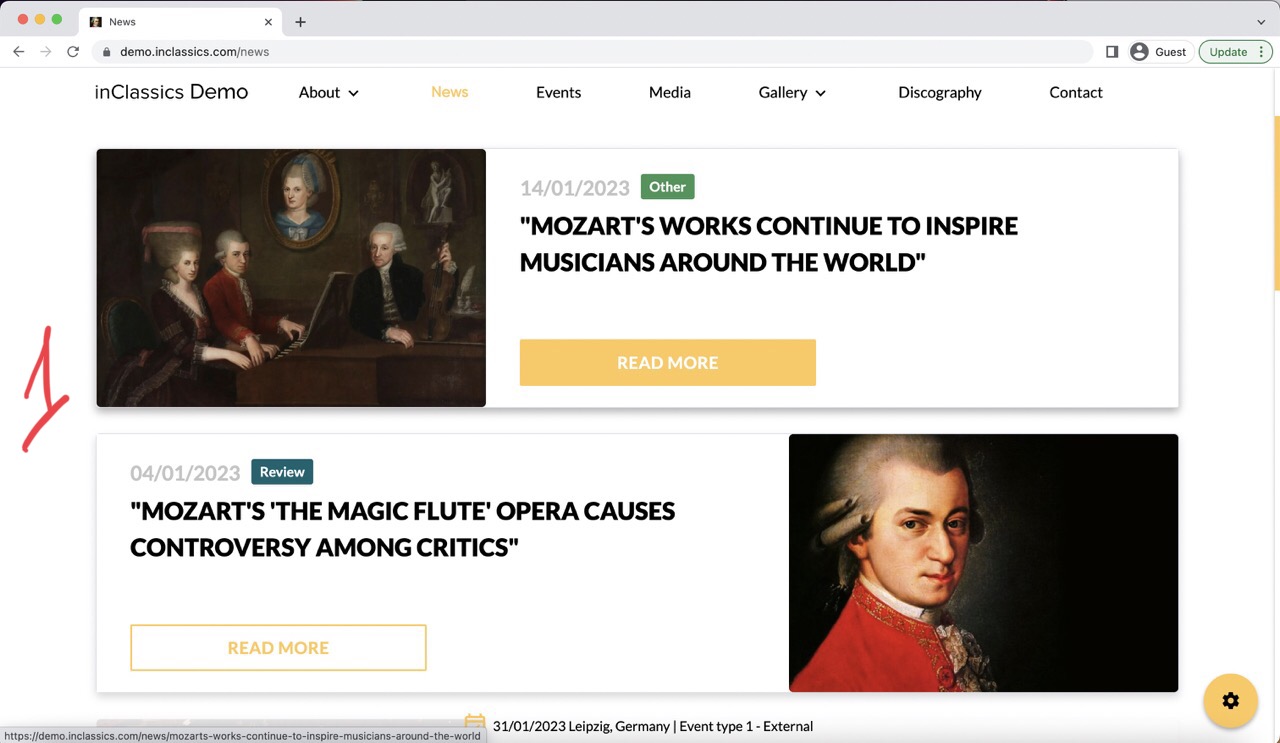
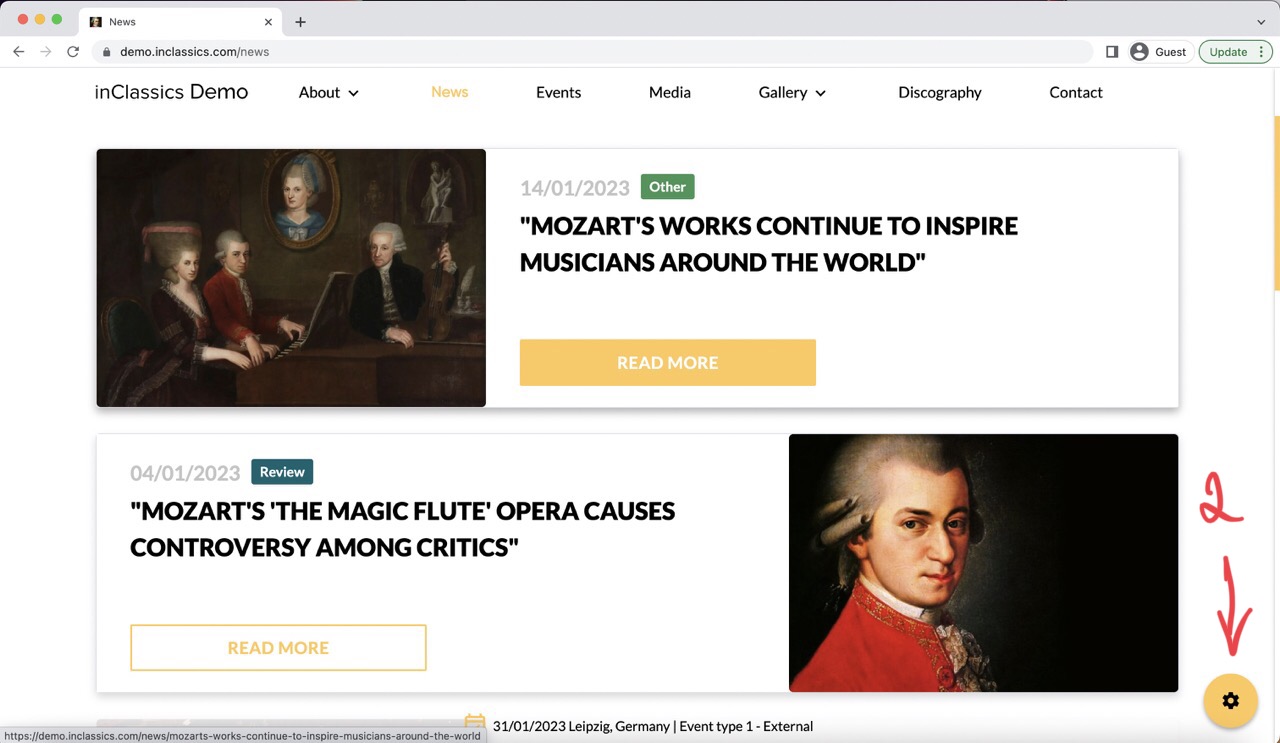
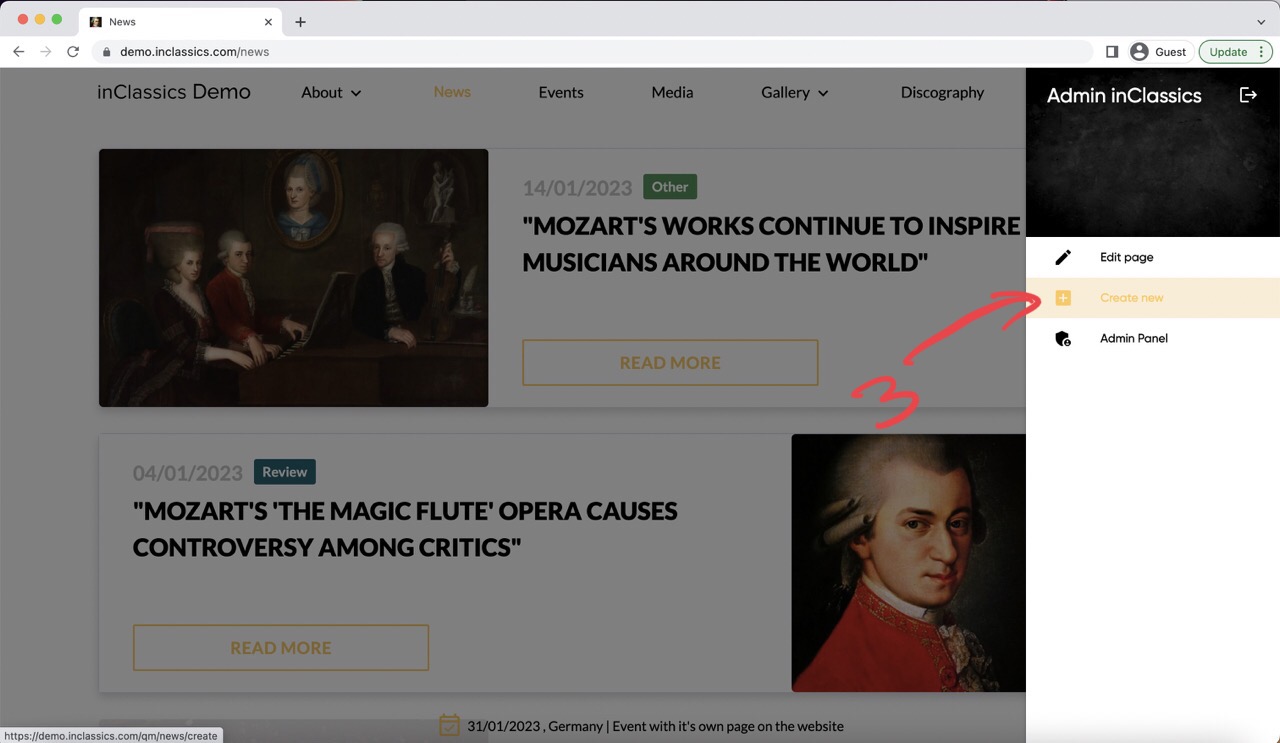
The news (blog) page displays the list of articles (1) you published.
To create an article:
- go to your news (blog) page
- click on the settings button (2)
- click create new (3)
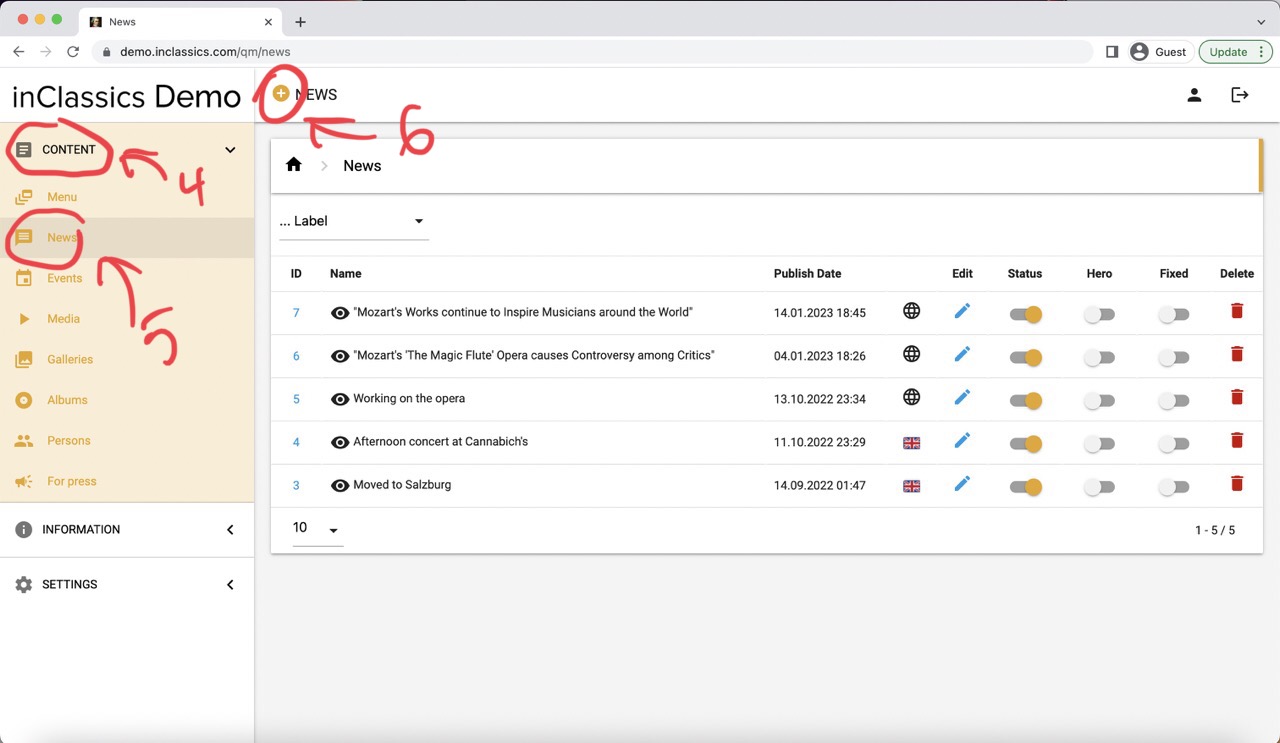
You can also do it from within your admin panel:
- go to the admin panel
- content tab (4)
- news (5)
- click on the plus icon (6)
Two Types of Articles
You can create two types of news on your website:
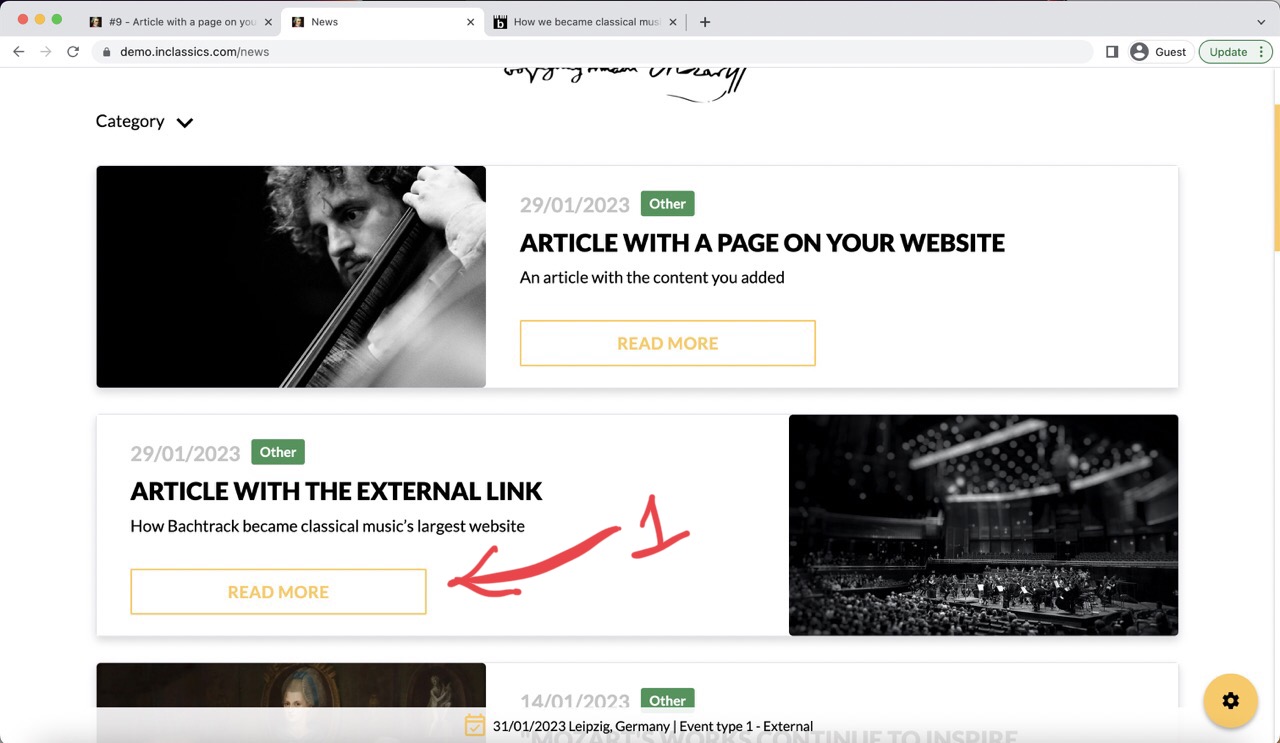
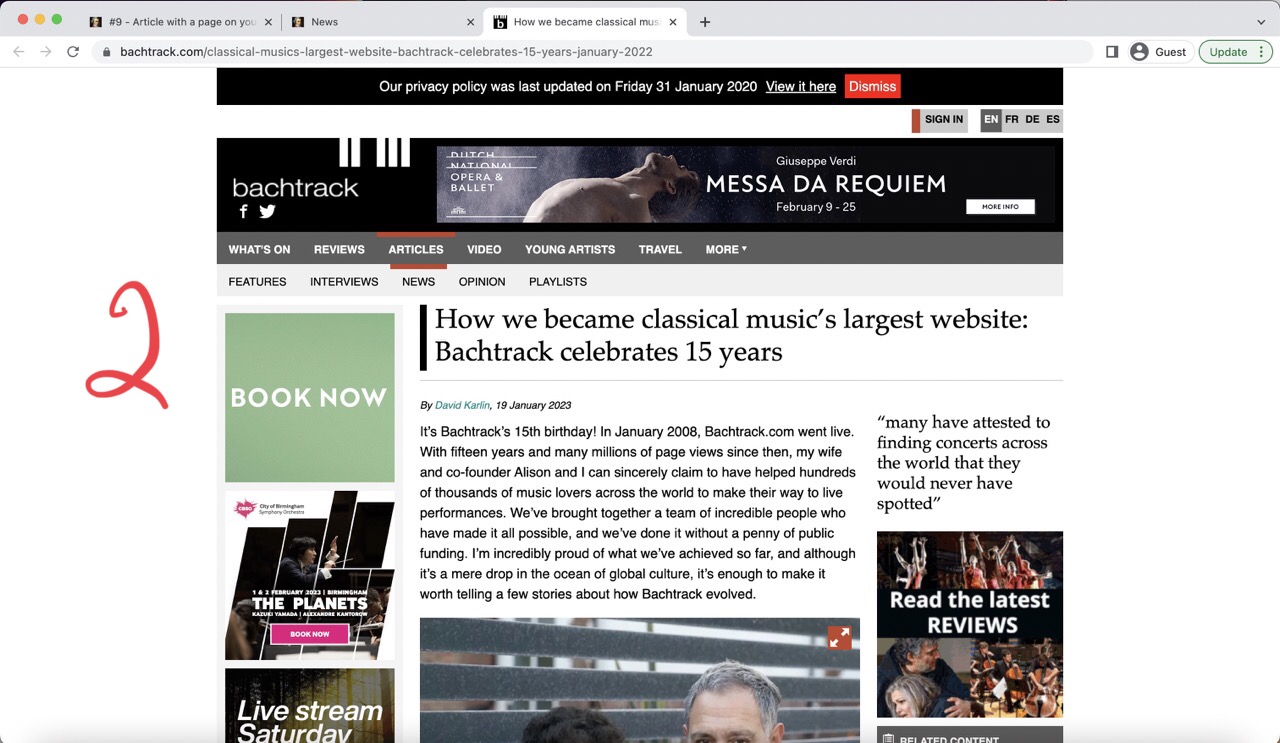
- A news article that has a link to external website. Clicking on the news card (1) will open a link you provided (2)
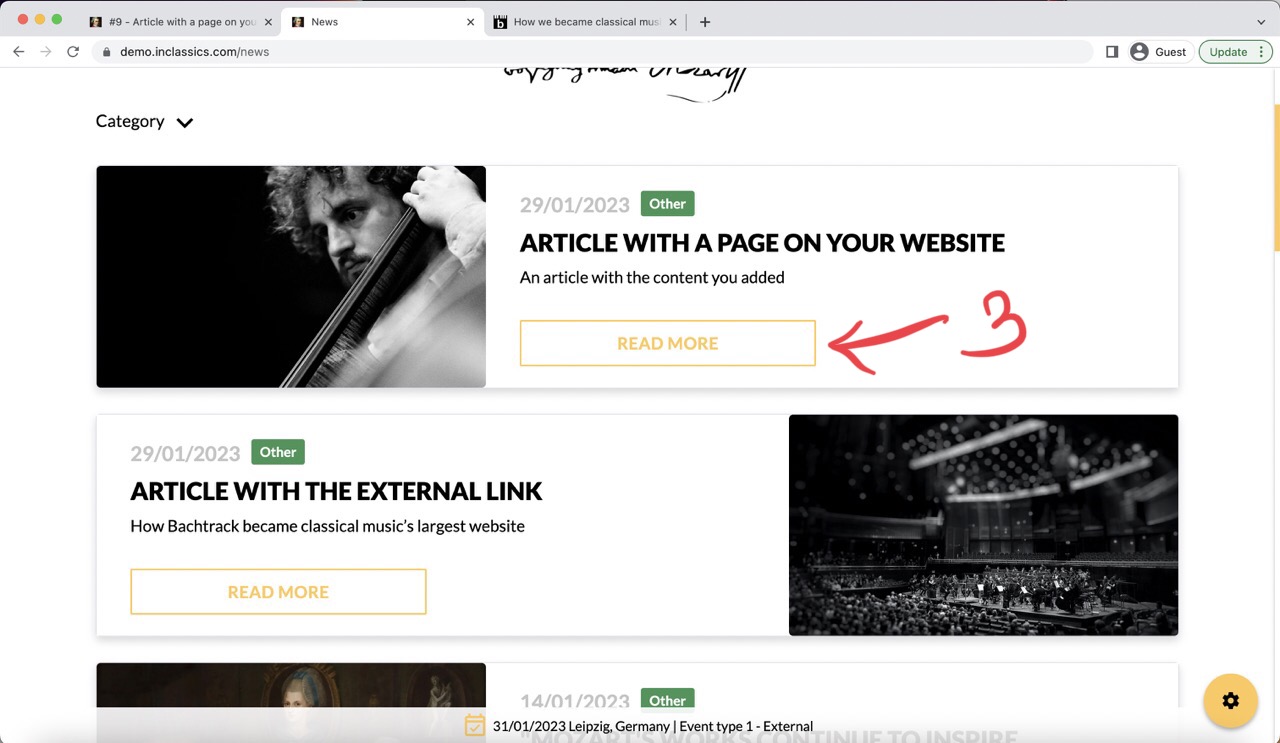
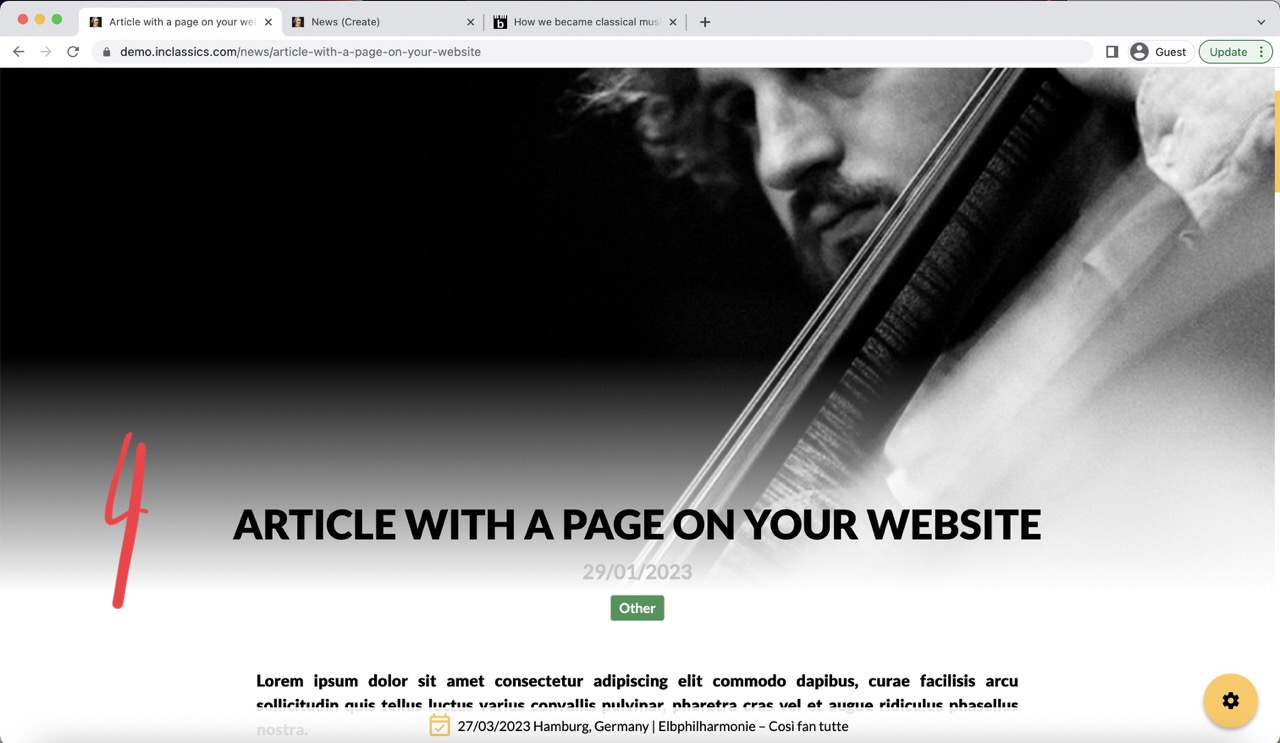
- A news article that has a page on your website. Clicking on the news card (3) will open a page with content you added (4)
Create a News Article with a Link to an External Page
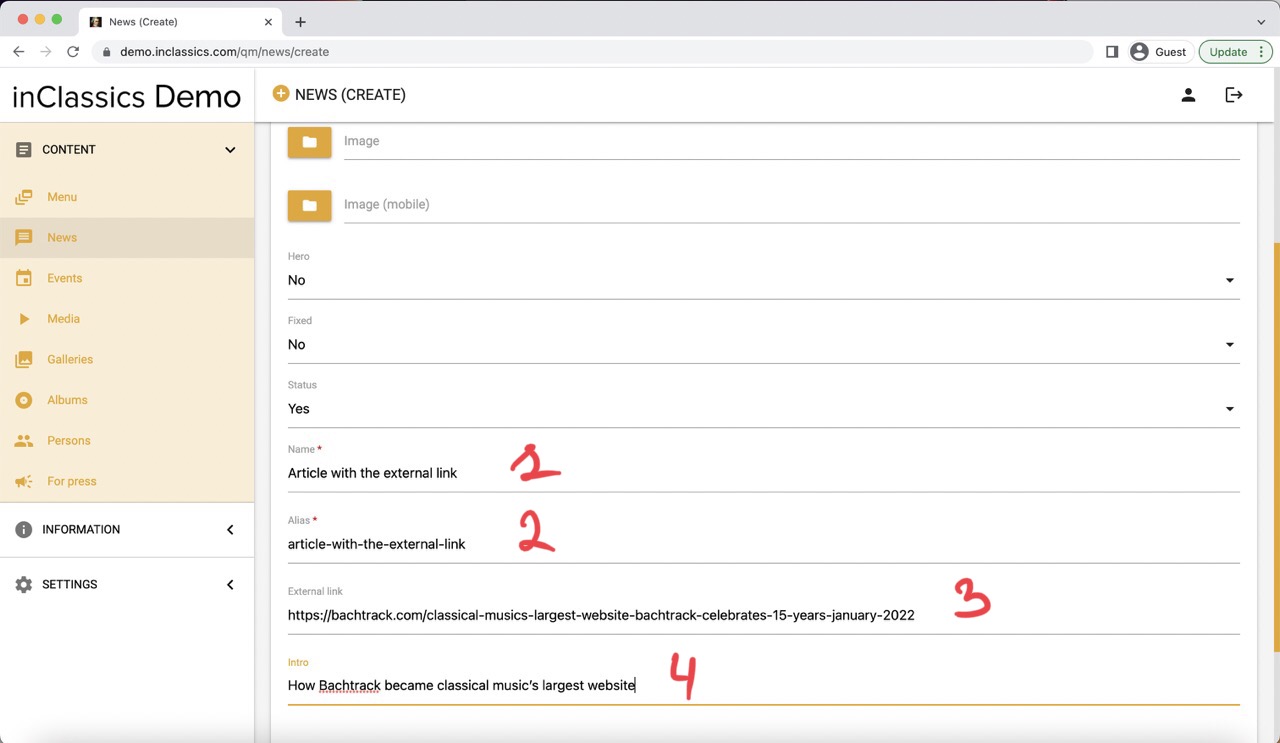
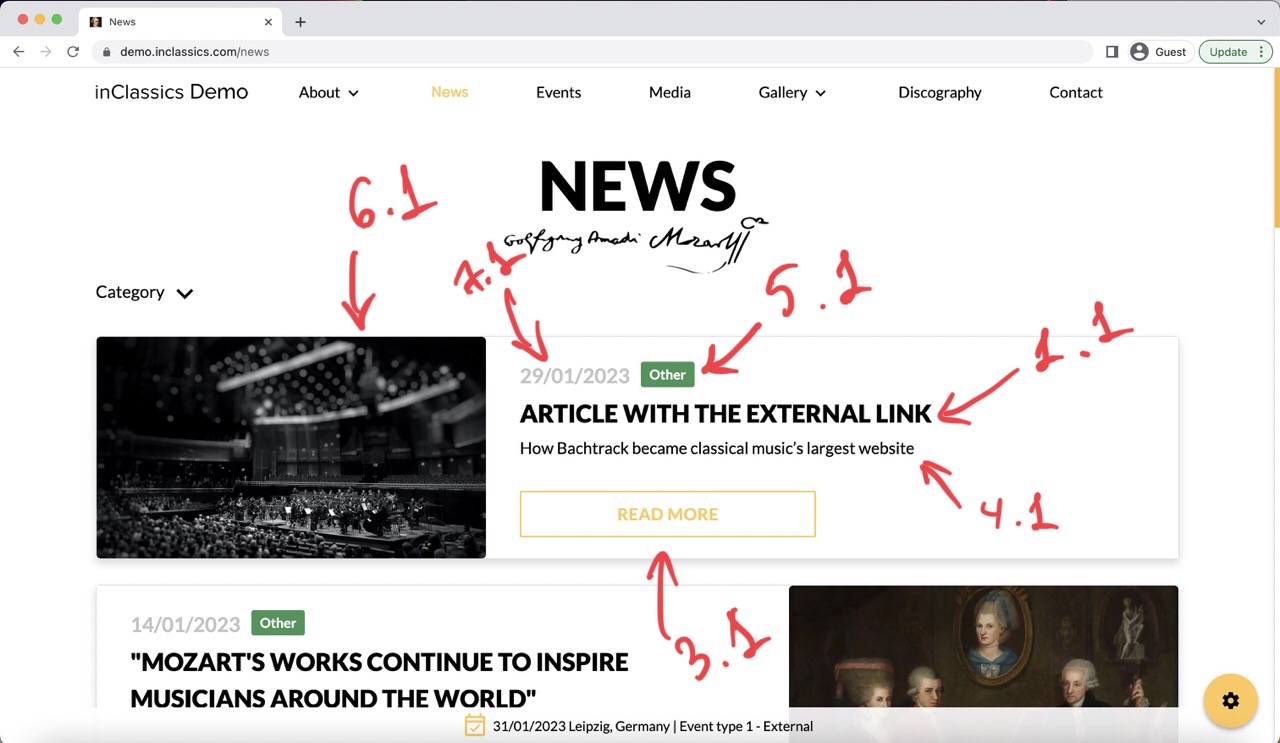
- add a name of the article (1, 1.1)
- leave automatically generated alias (2)
- add an external link (3, 3.1)
- add short intro text (4, 4.1)
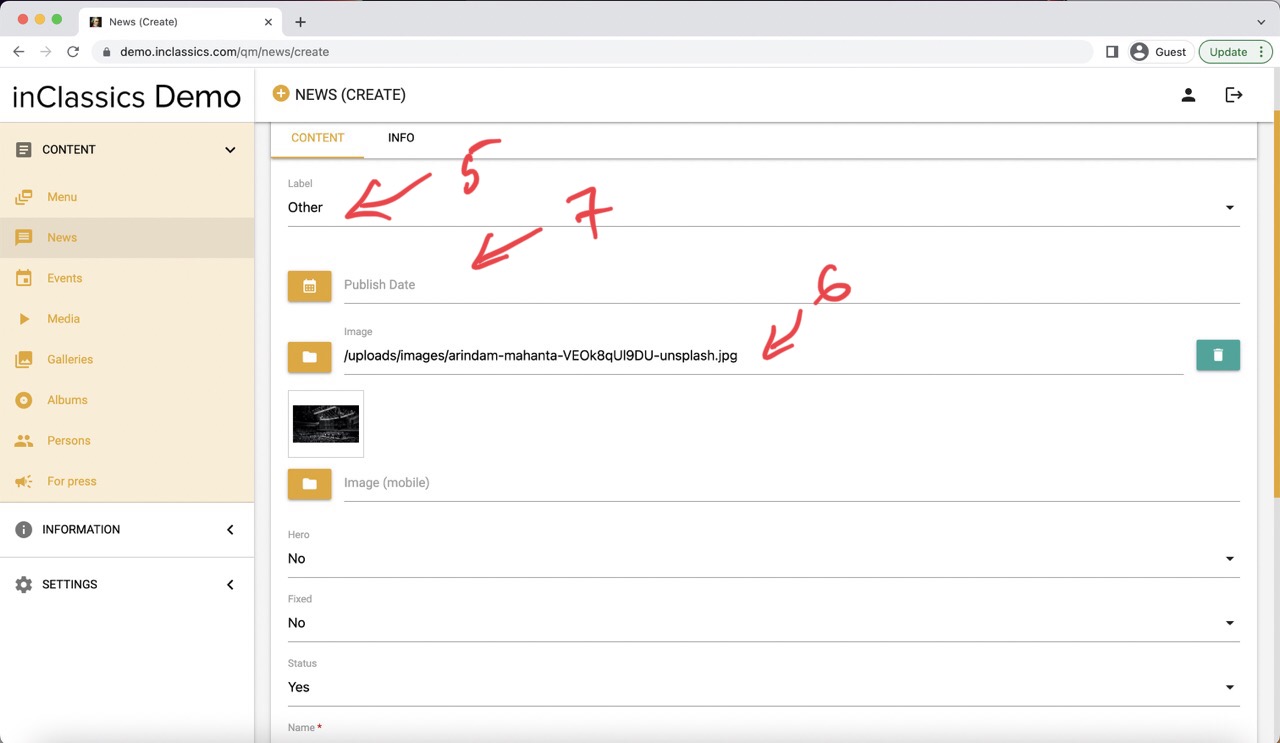
- choose a label (5, 5.1) learn more about labels
- if you news cards have an image, add an image (6, 6.1)
- if the publish date field is left empty (7), the date will be set to the date of creation automatically (7.1)
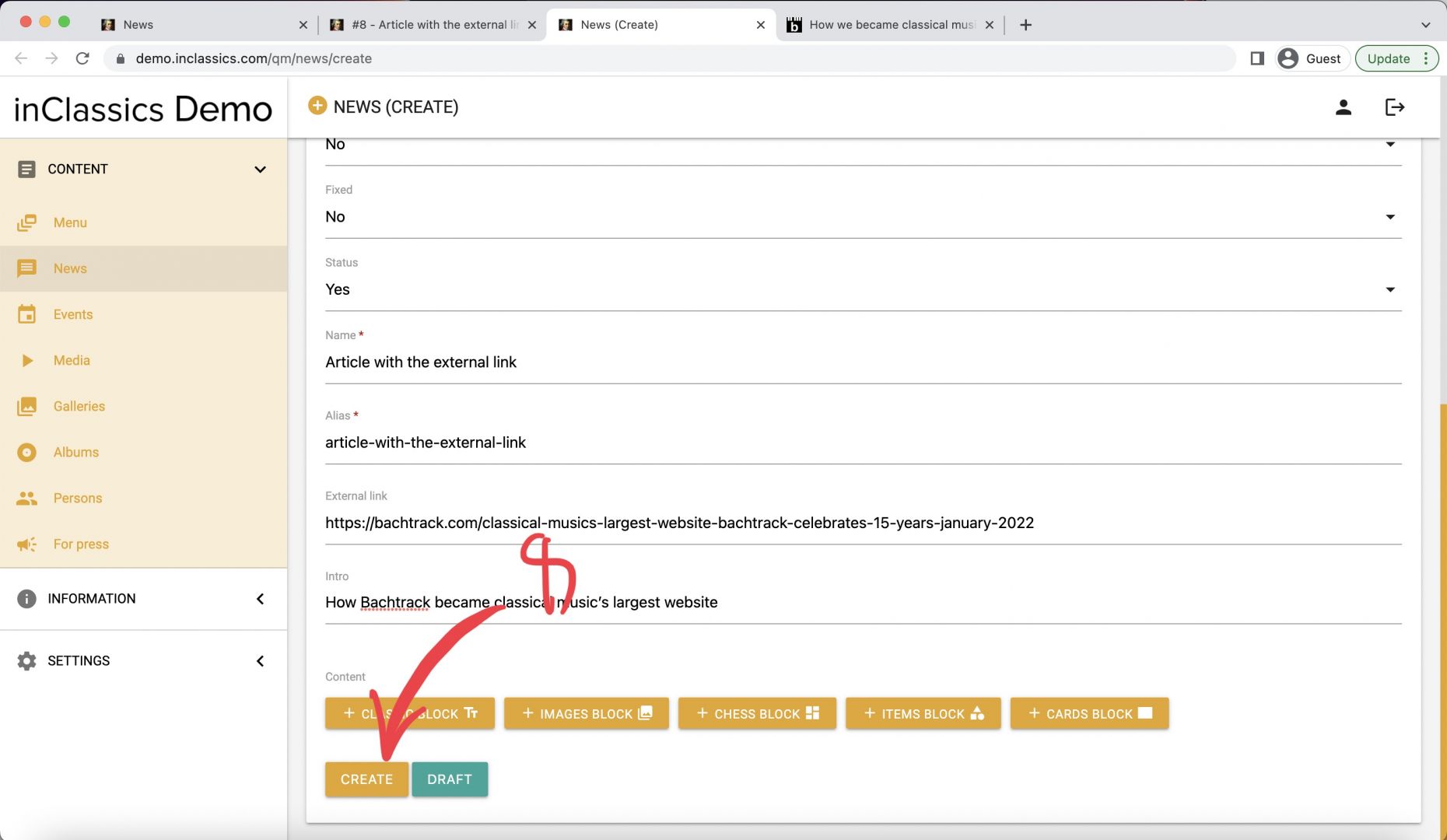
- click create (7) and your article is published
Please note, if you added the external link, when visitors are clicking on the "read more" button they will be redirected to the link you provided. If you added some content to your article and want people to see that content, you should remove the external link.
Create an Article that has its Own Page on your Website
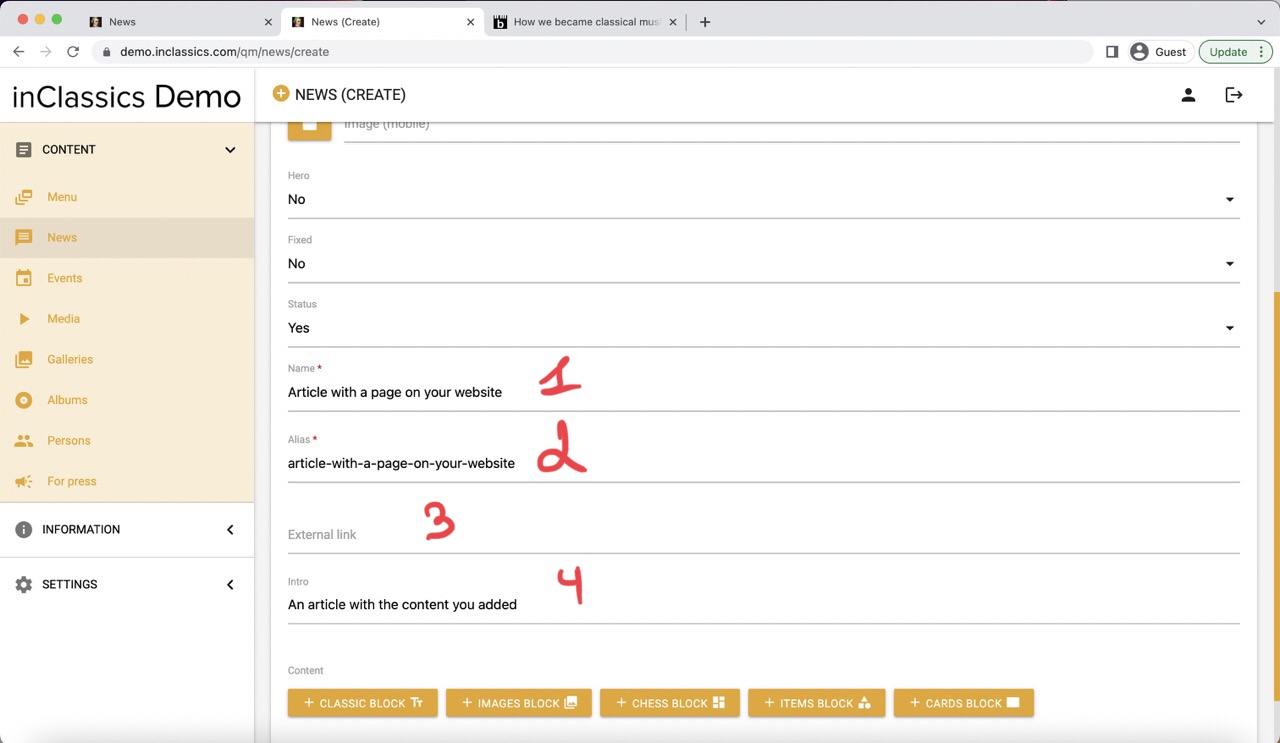
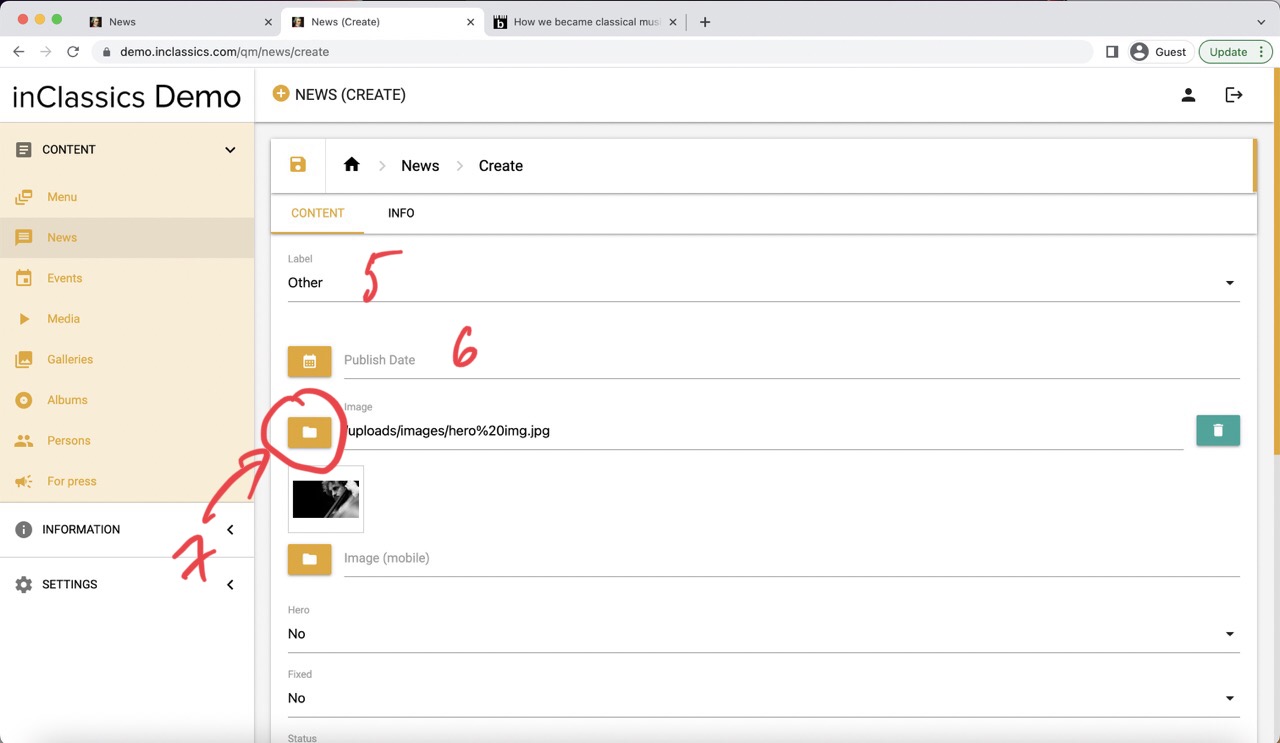
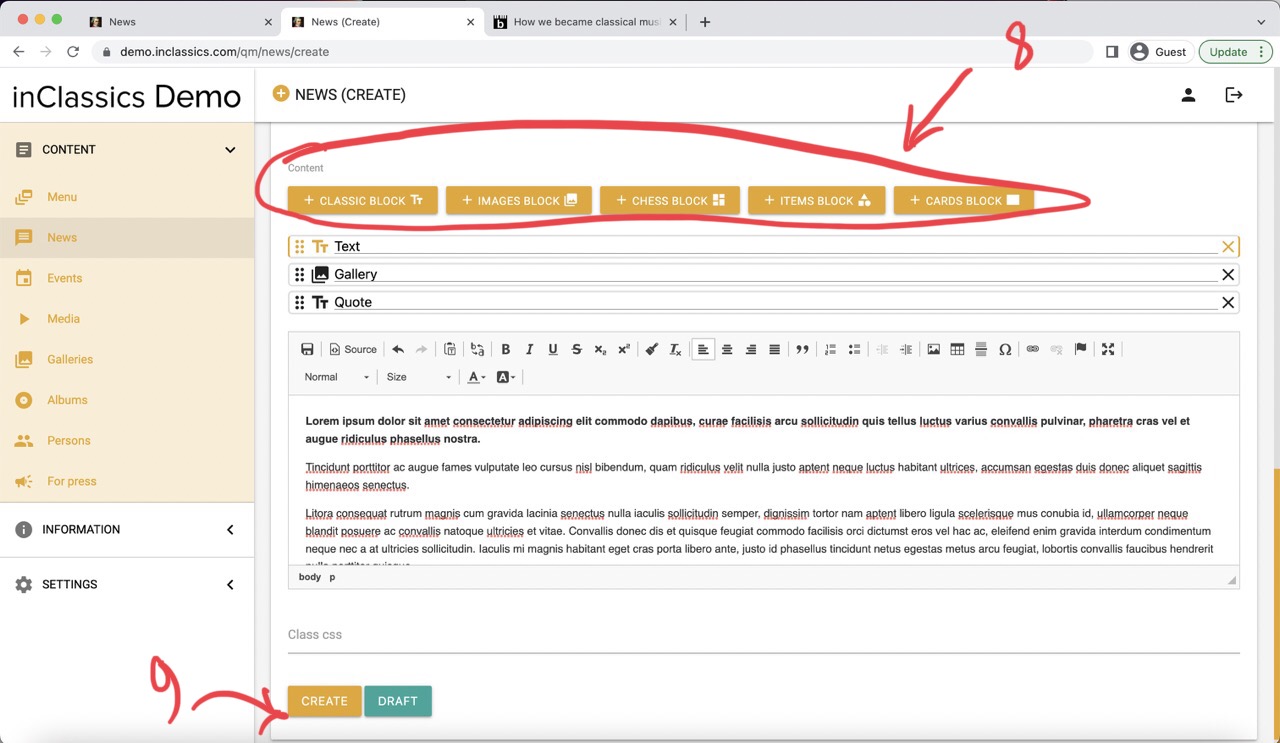
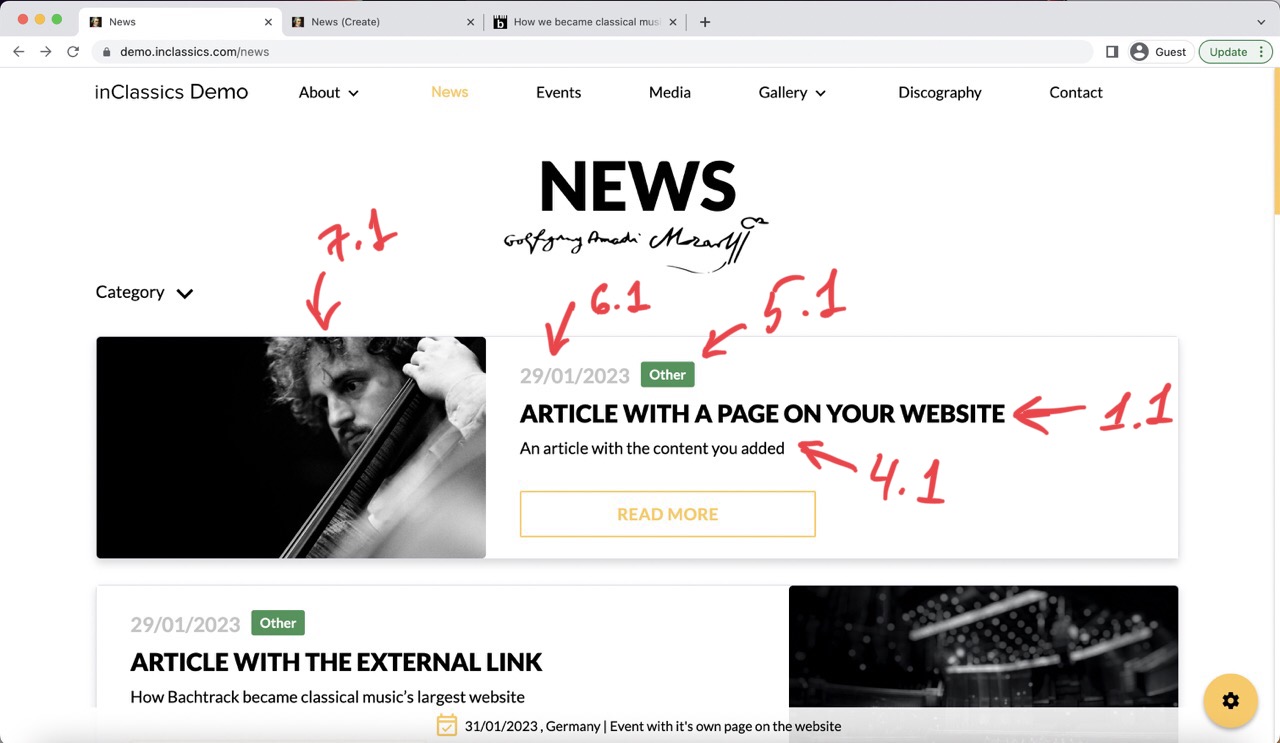
You can create an article that has its own page on your website and displays the content you added (1)
- add a name of the article (1, 1.1)
- automatically generated alias (2) is the link that will be displayed in the address bar of the browser
- leave the external link field empty! (3)
- add short intro text (4, 4.1)
- choose a label (5, 5.1) learn more about labels
- if the publish date field is left empty (6, 6.1), the date will automatically be set at the time of publishing
- add an image (7, 7.1) (for best results, add an image with landscape orientation)
- add content (8) (learn more about each type of content block below)
- click create (9) and your article is published
What is Displayed on the Article's Page
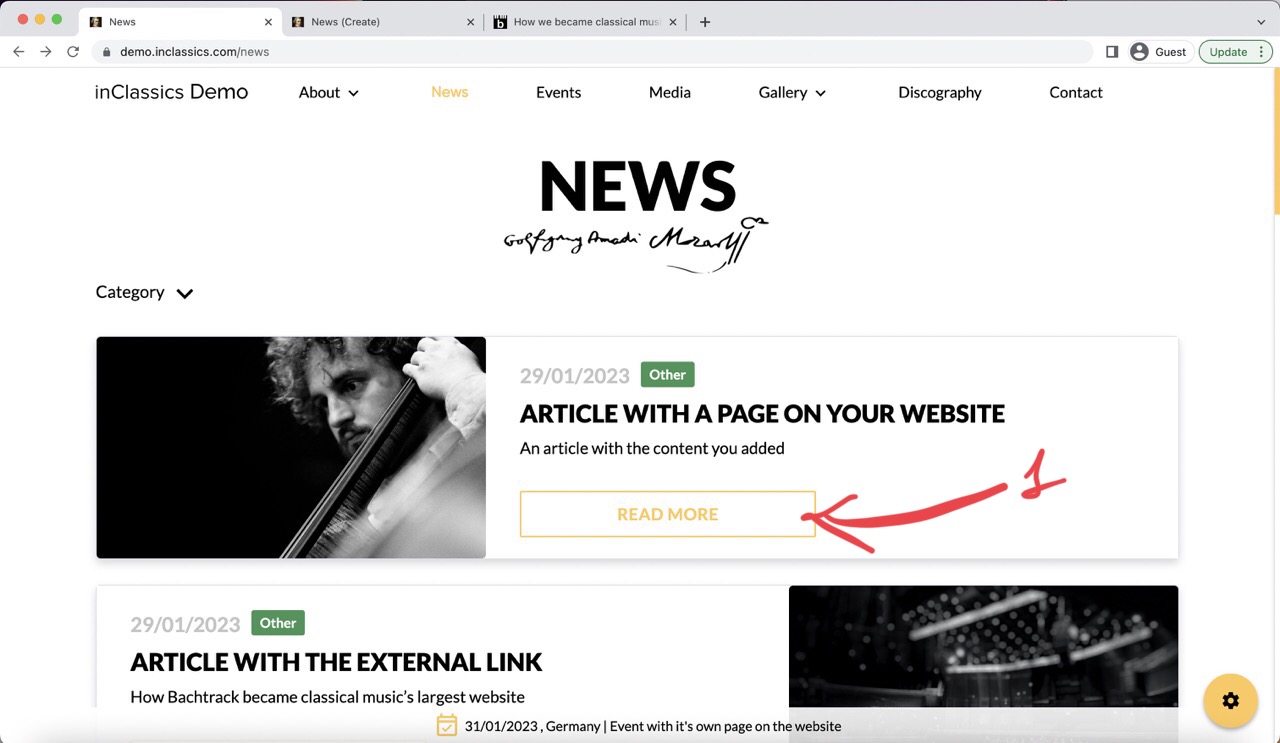
Visitors can read the full article by clicking on the "read more" button (1)
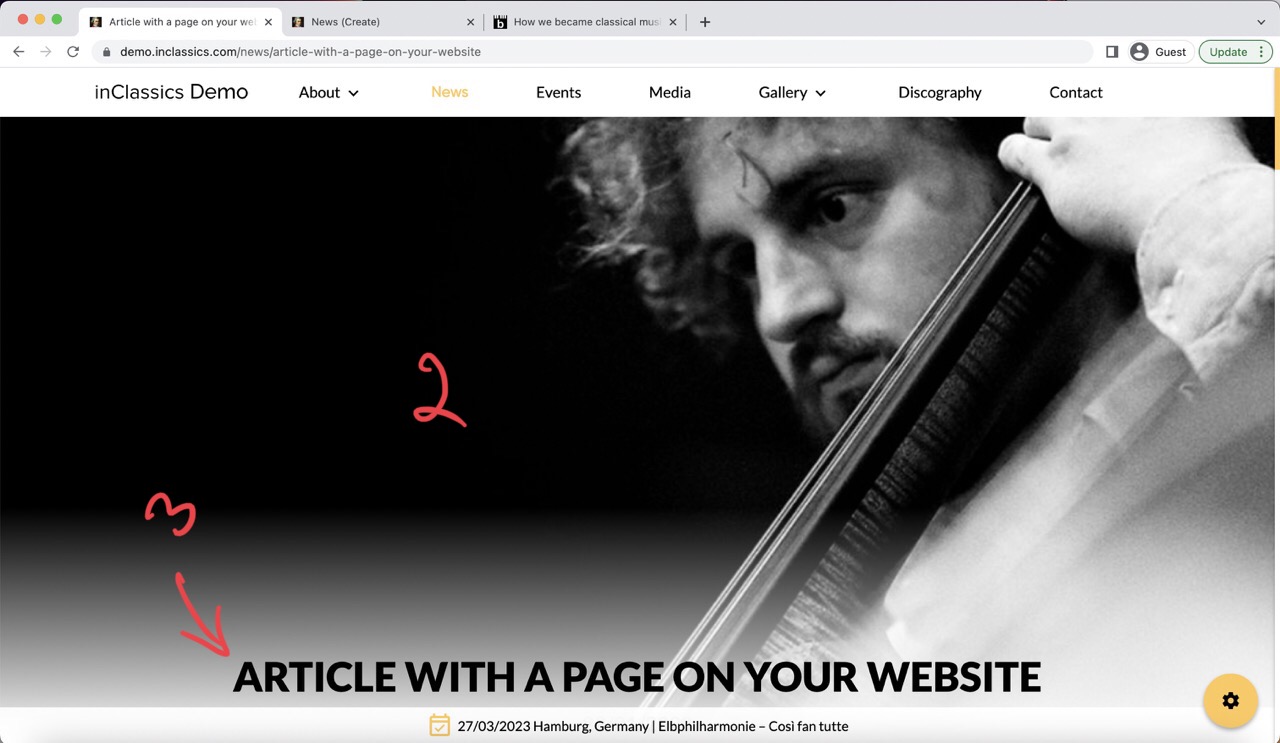
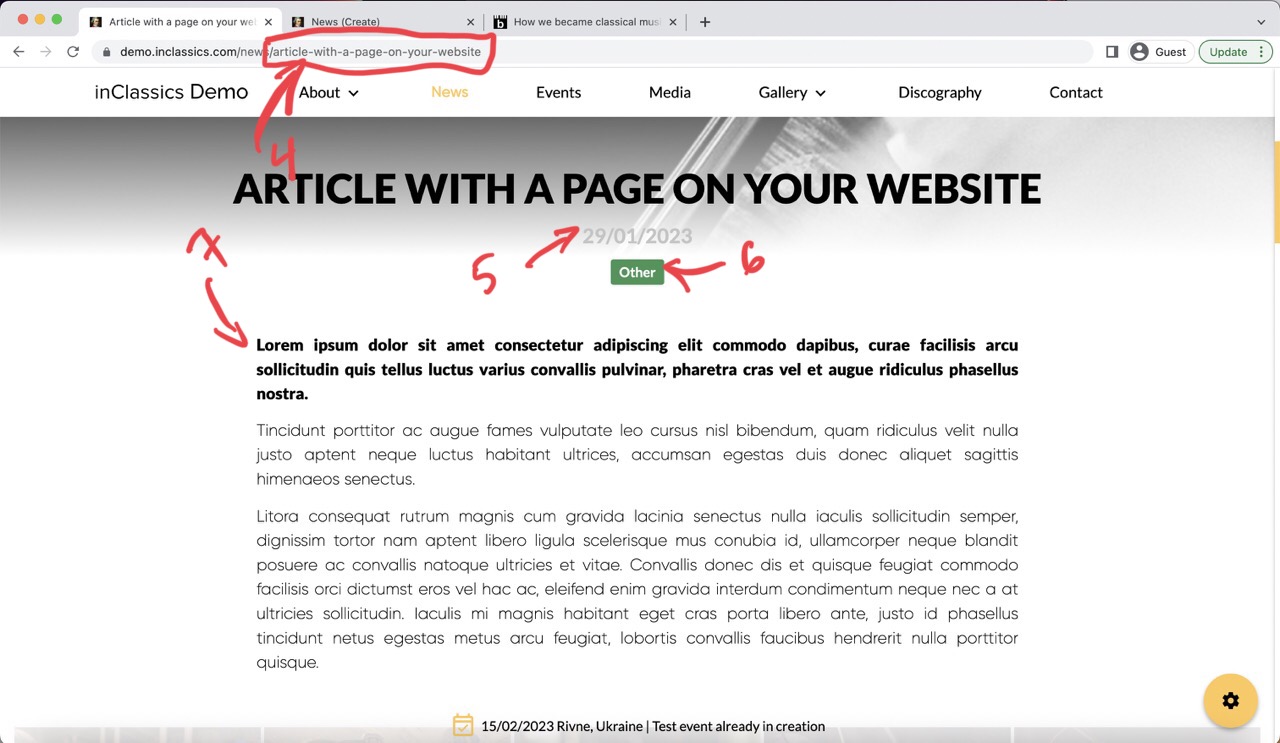
On your article's page you can see:
- image (2) that you added
- title (3)
- alias (4) that is the link of your article
- date (5)
- label (6)
- content (7)
Mobile View Image
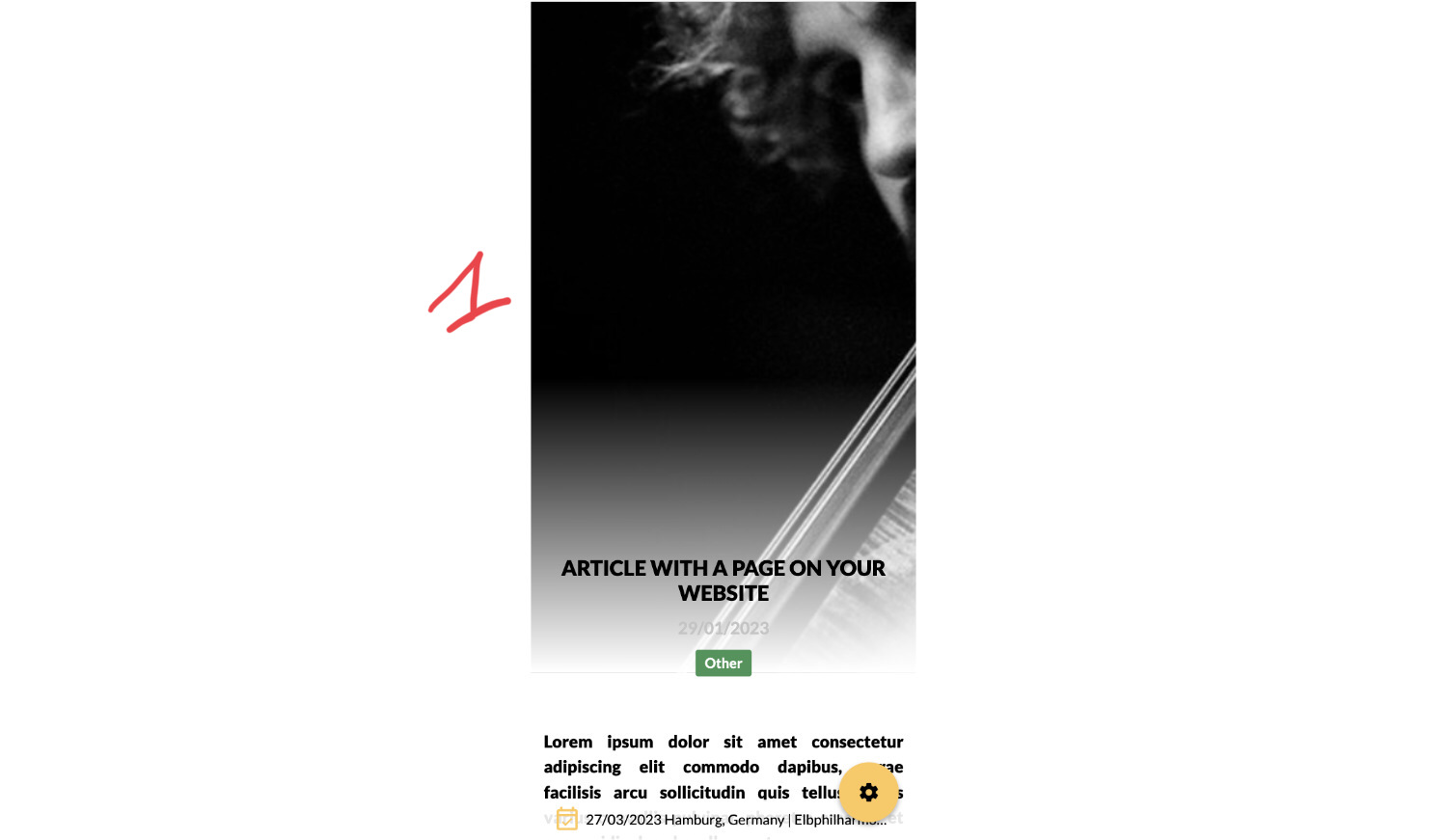
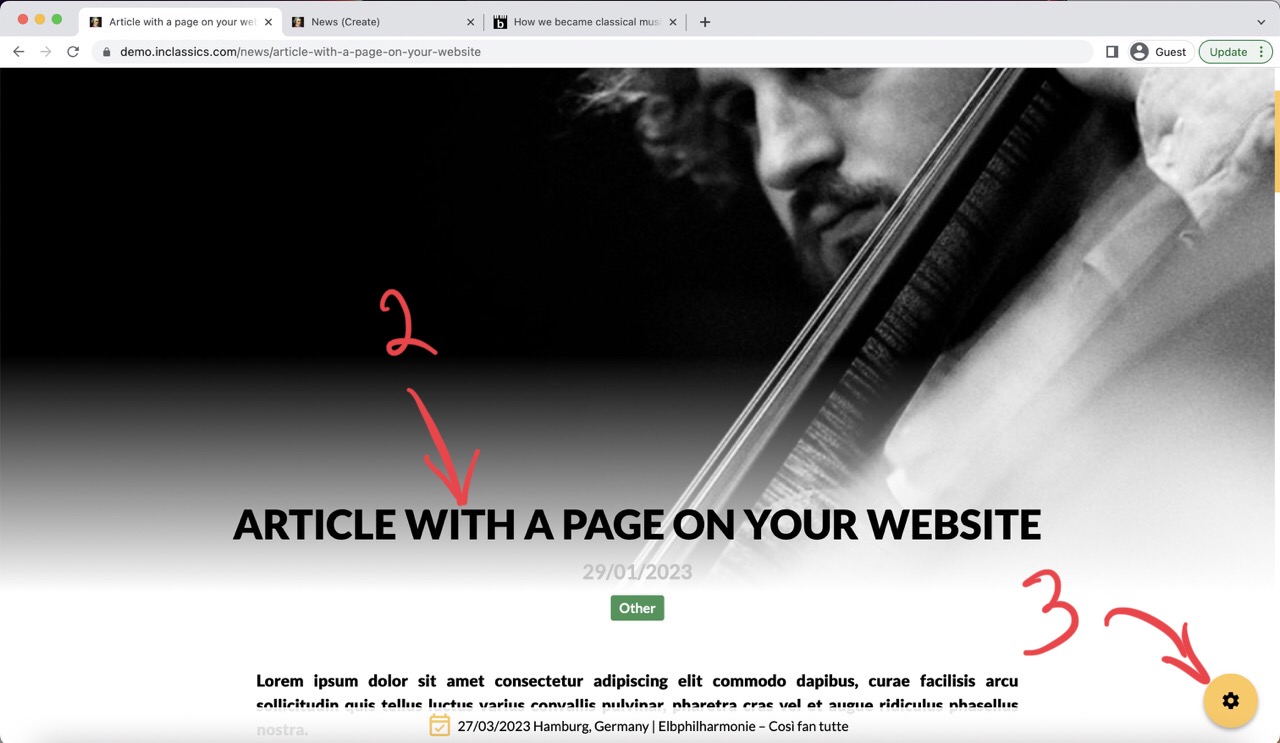
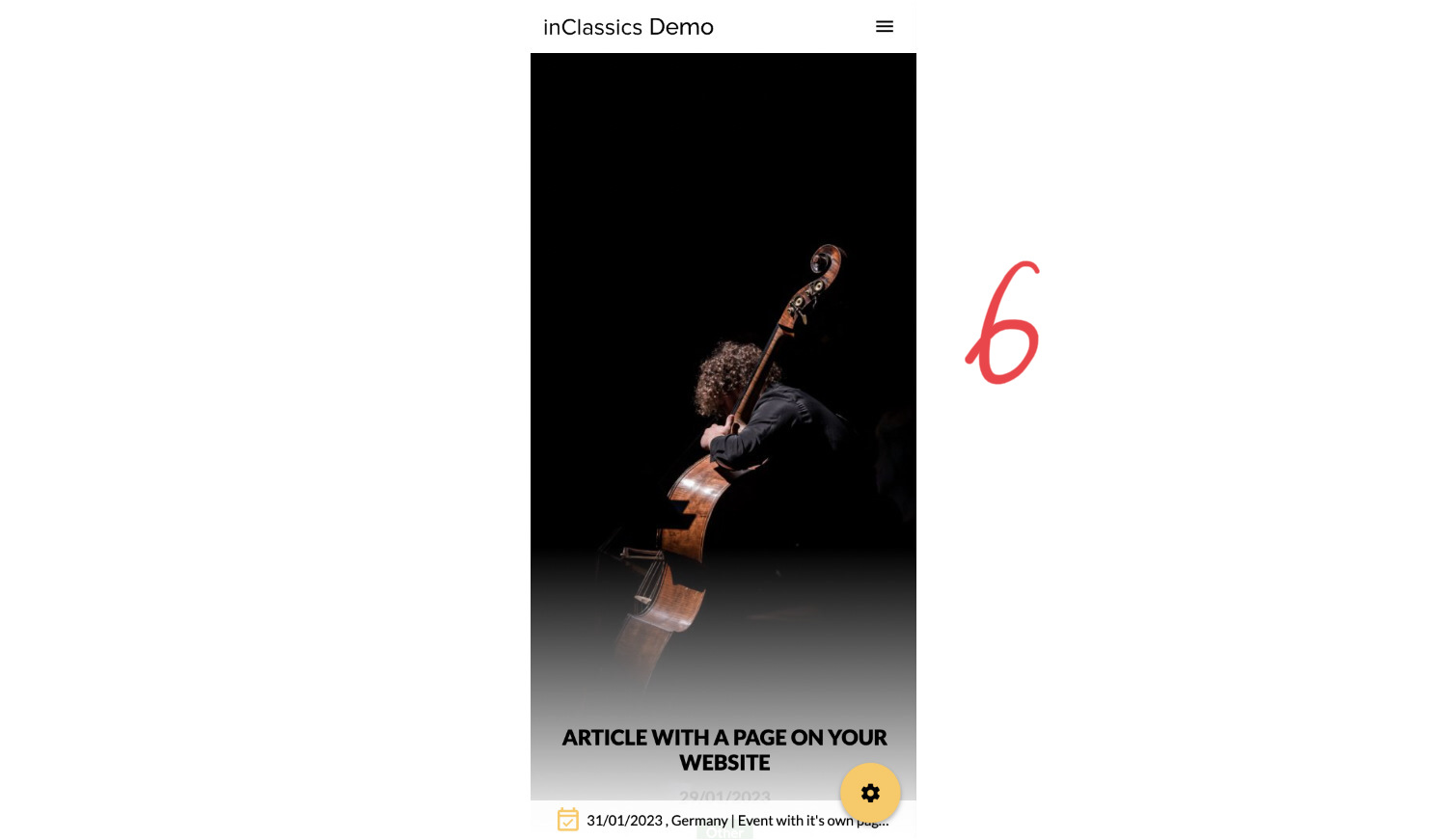
If the image that you added looks good on the laptop, but is cut too much in the mobile view (1):
- go to your the article where you want to change the image (2)
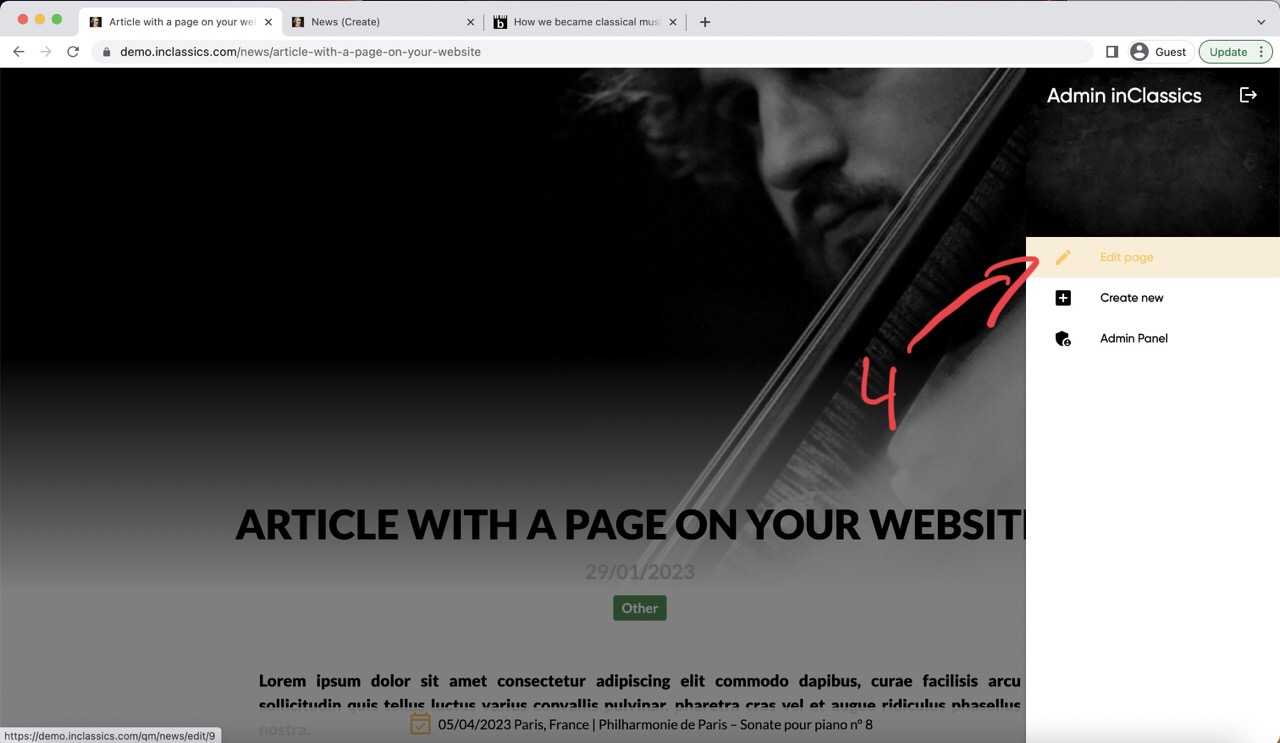
- click on the settings button (3)
- click edit page (4)
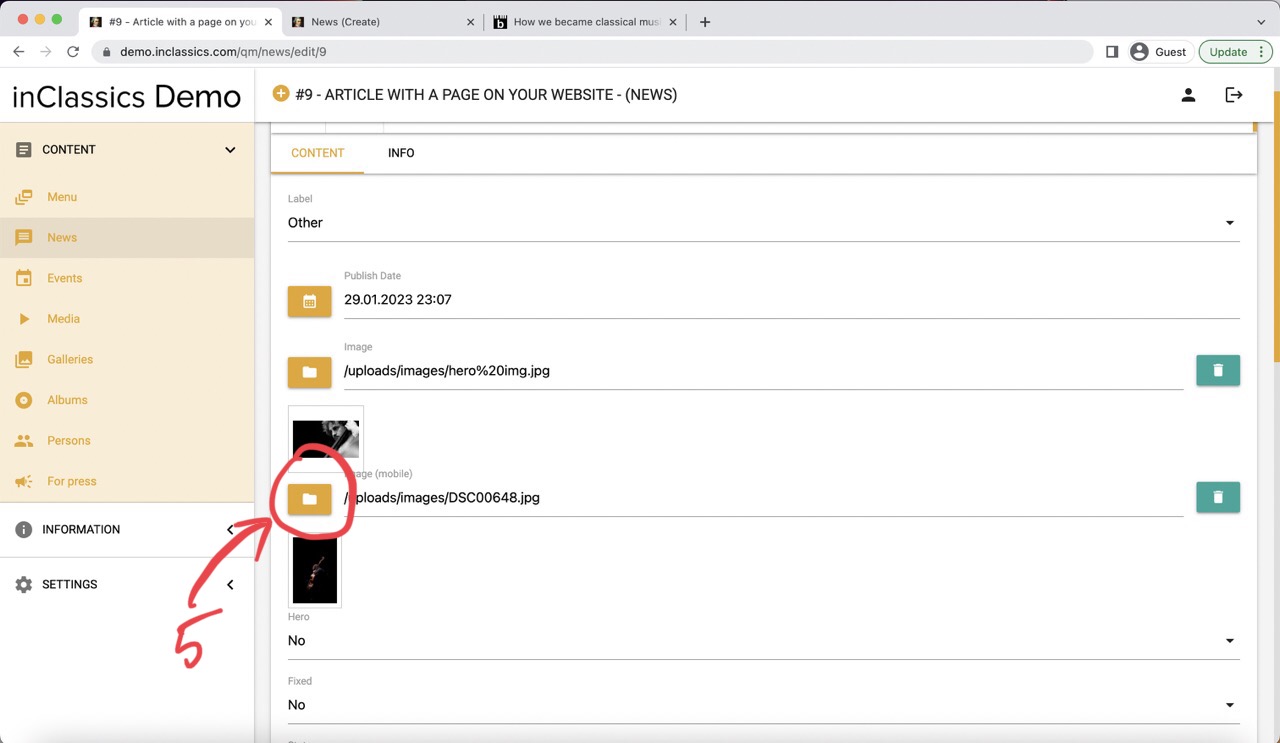
- you can add an additional image with the portrait orientation (5) that will be displayed only on mobile devices (6)
Additional Features
Fixed to Top
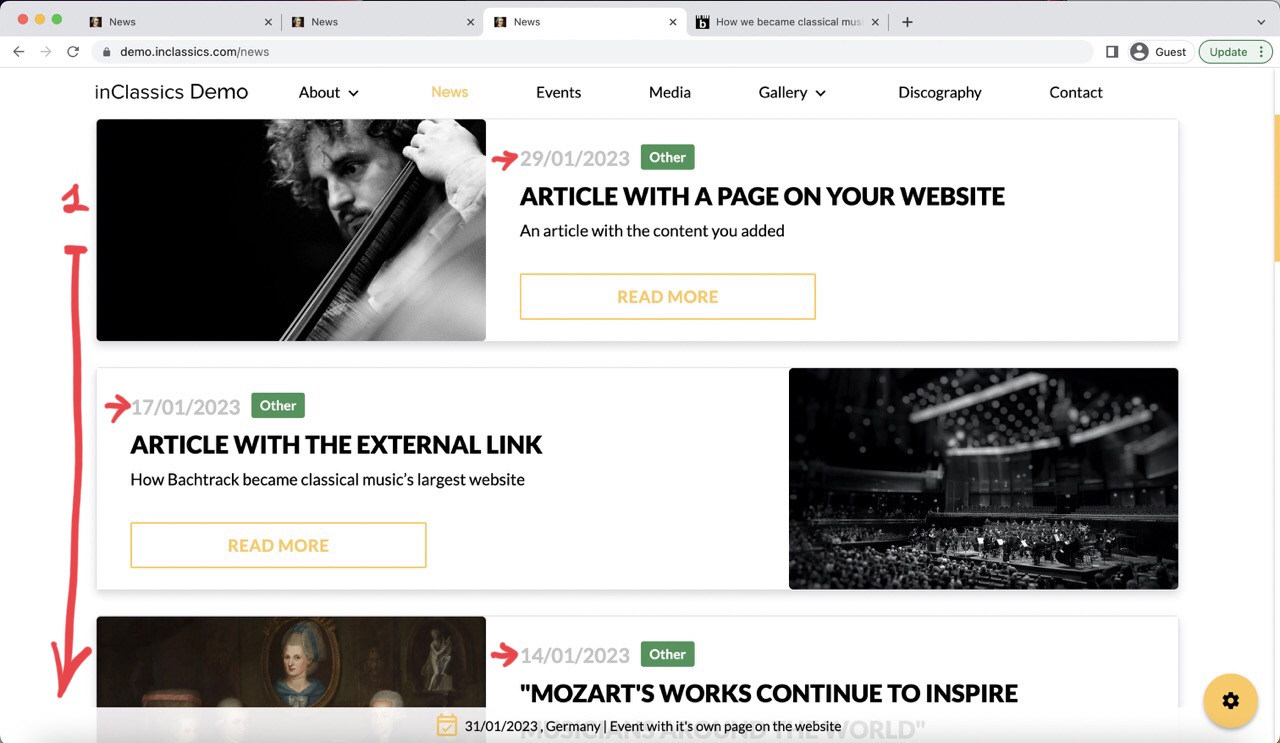
The news are displayed in the chronological order (1)
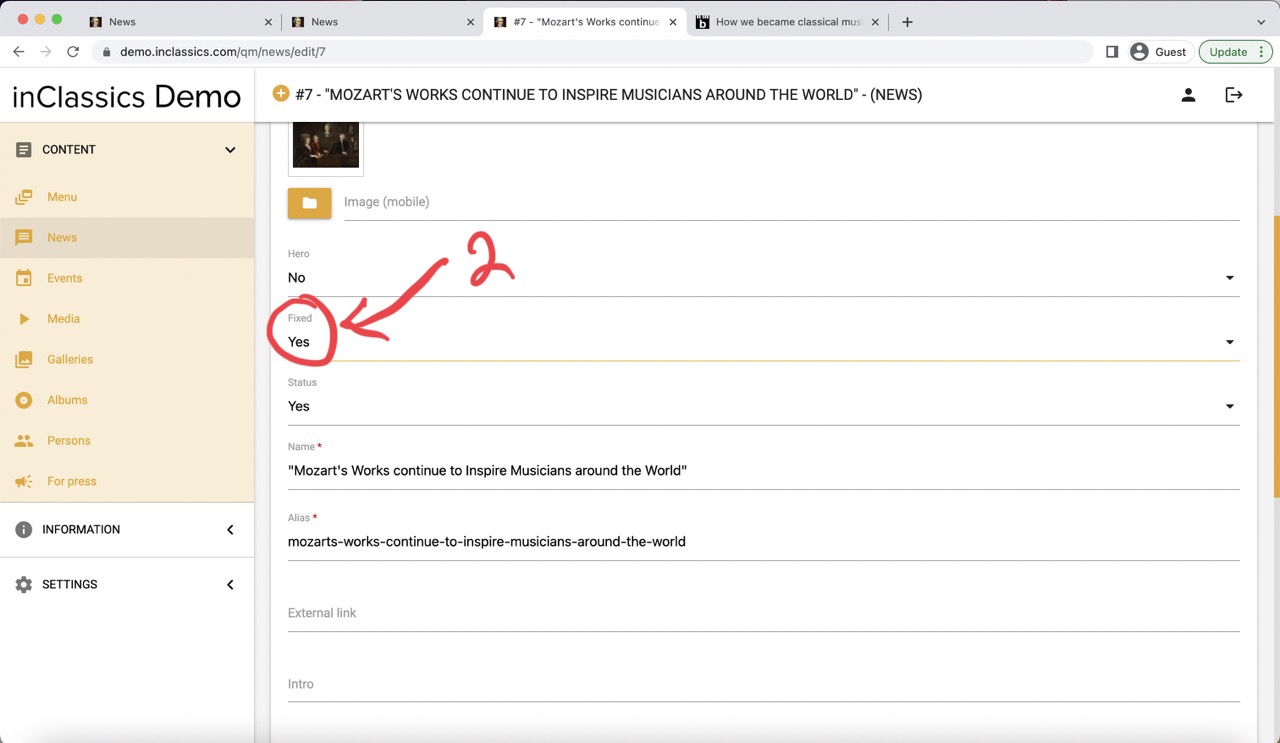
If you want an article to be always show on top, you can choose "yes" option in the fixed field (2)
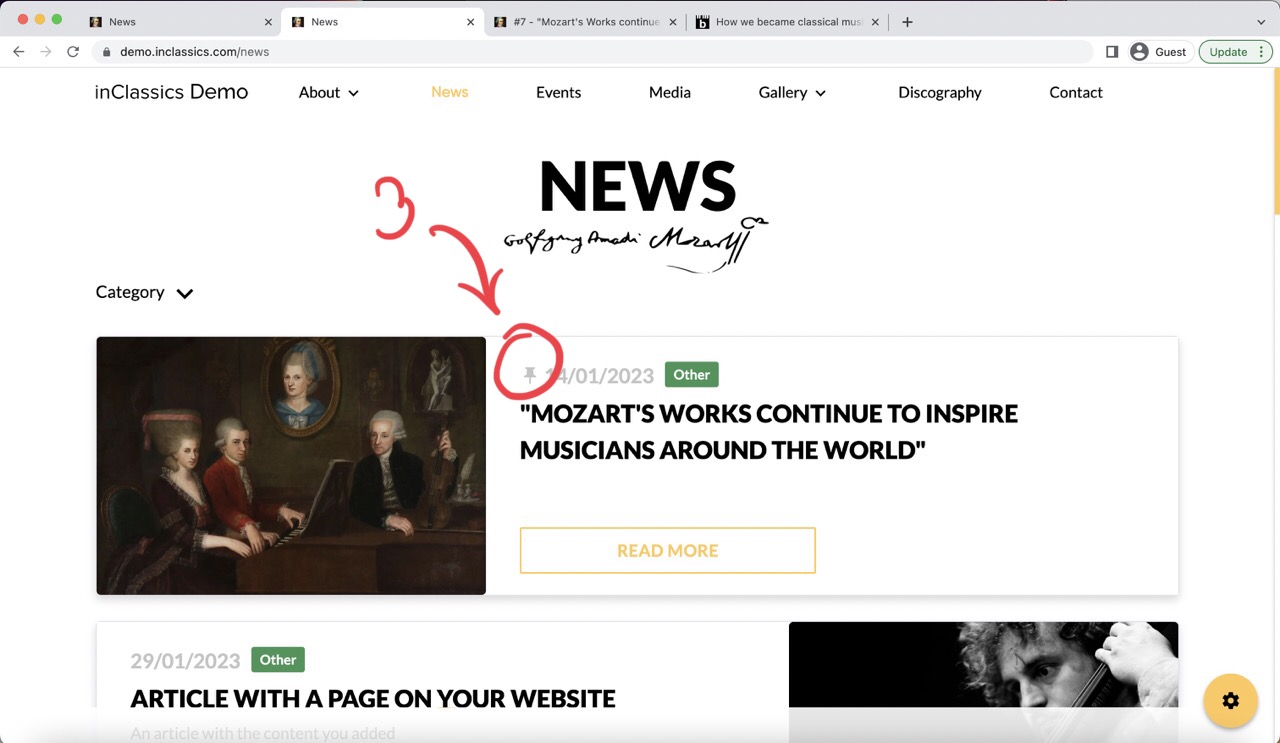
This will fix the news article to the top of the page (3) and avoid the chronological order.
It is great to use this feature when you article is evergreen (stays relevant for a long time).
Article Link in Header Image of the Homepage
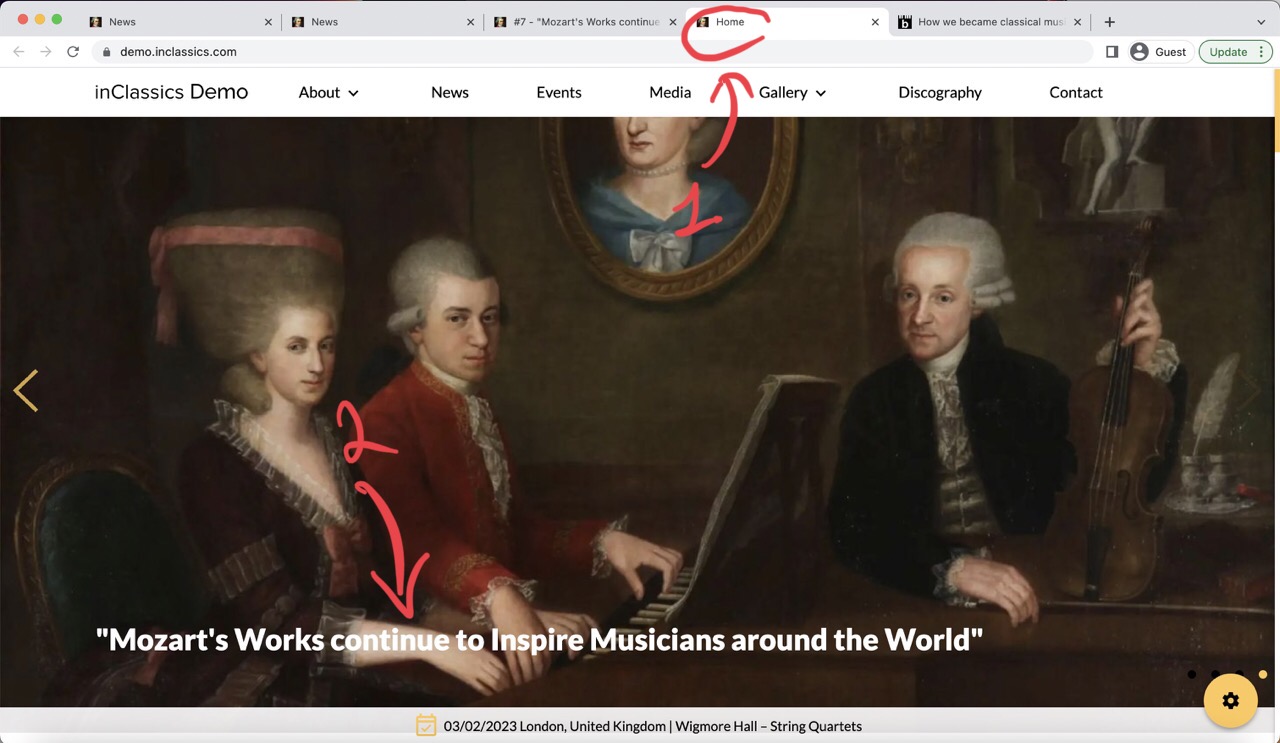
You can automatically display your news article (2) in the header section of your homepage (1)
The image and title will be displayed and pressing on the image will open the full article.
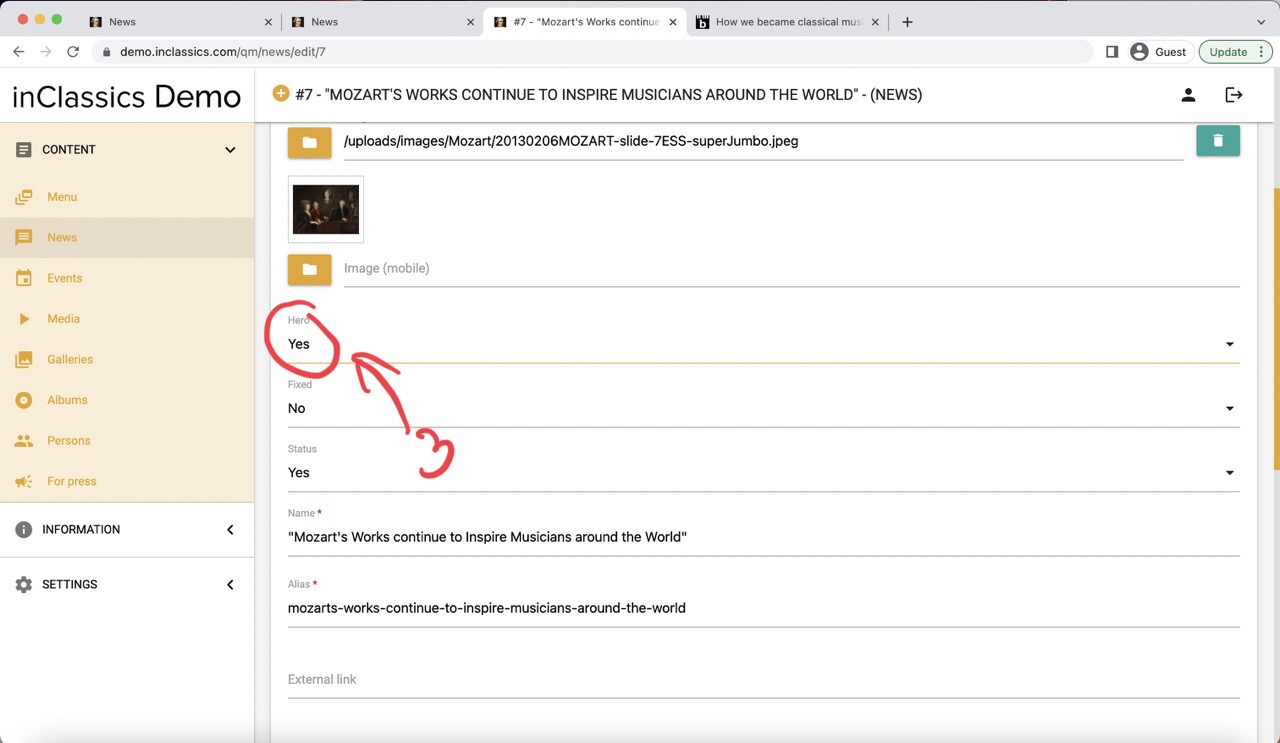
Choose "yes" option in the "hero" field (3) and your news article will be automatically displayed on the homepage.
Do it when you want to make sure that people see the article when they visit your website, as the header section of your homepage is the first thing that people see when they land on your website.
Manage Articles
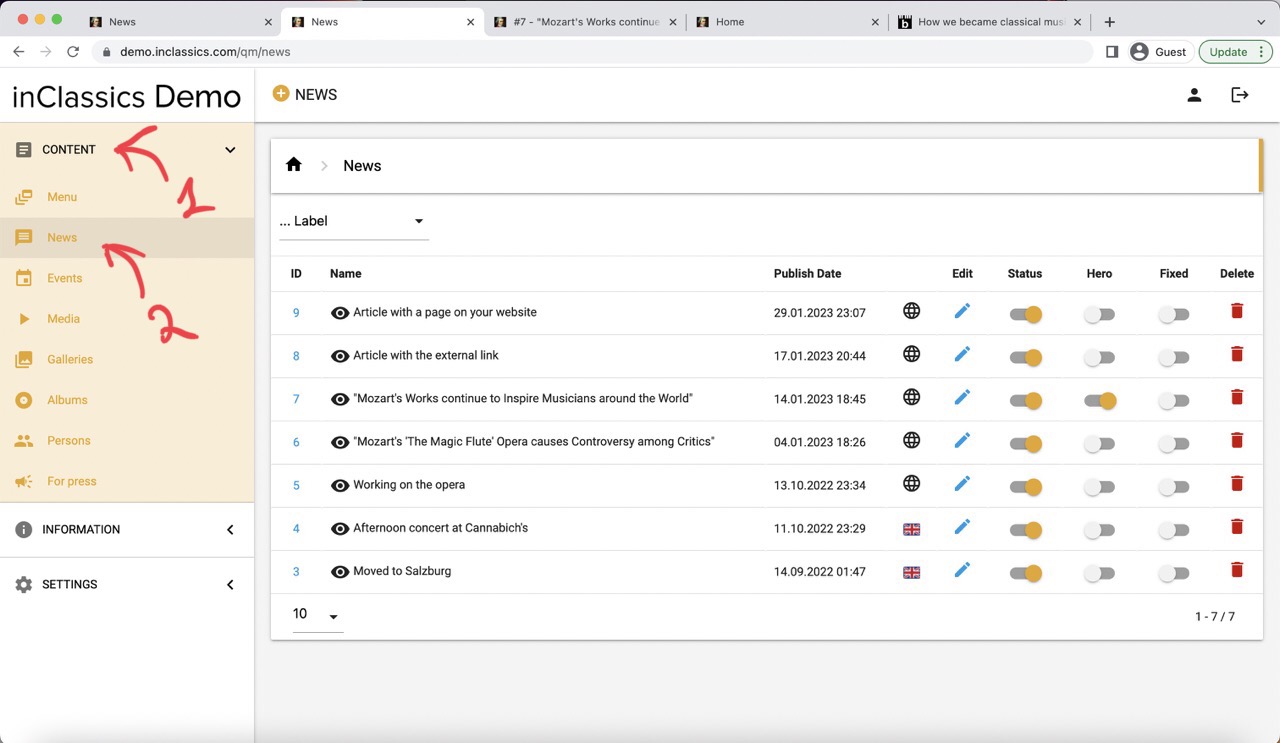
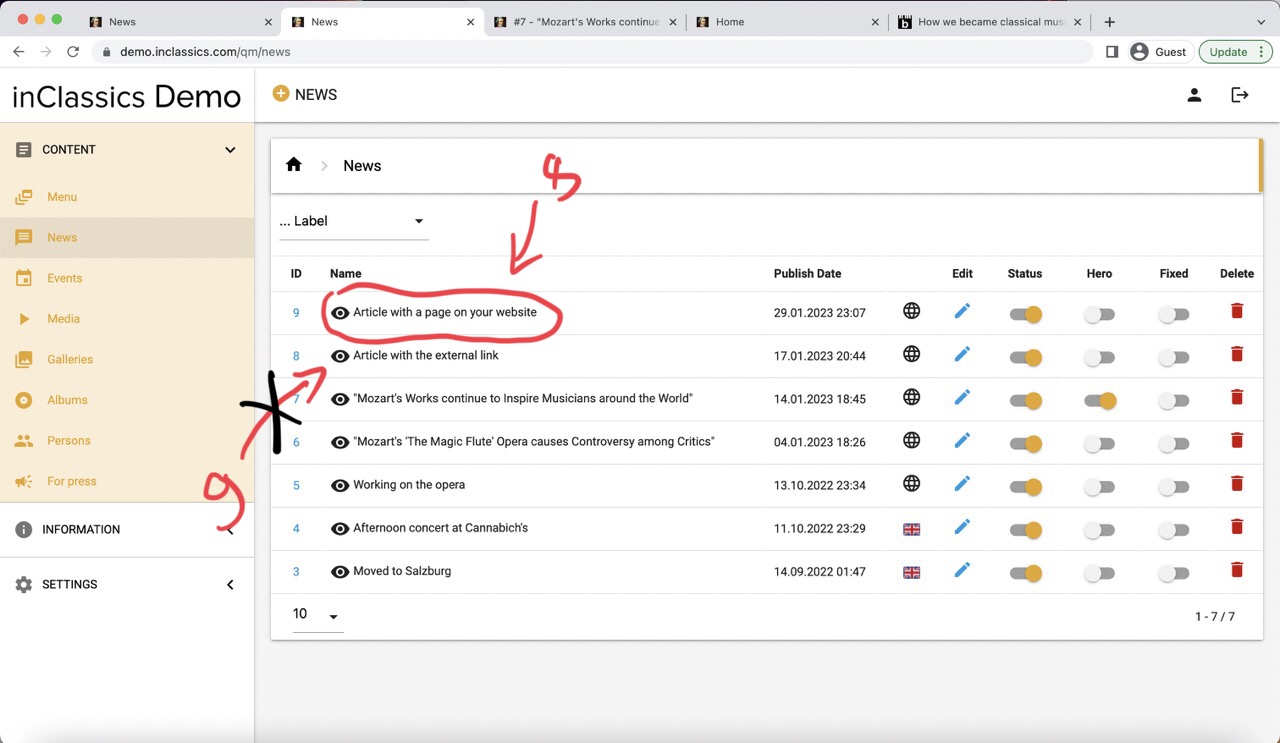
To manage your articles:
- go to admin panel
- content tab (1)
- news (2)
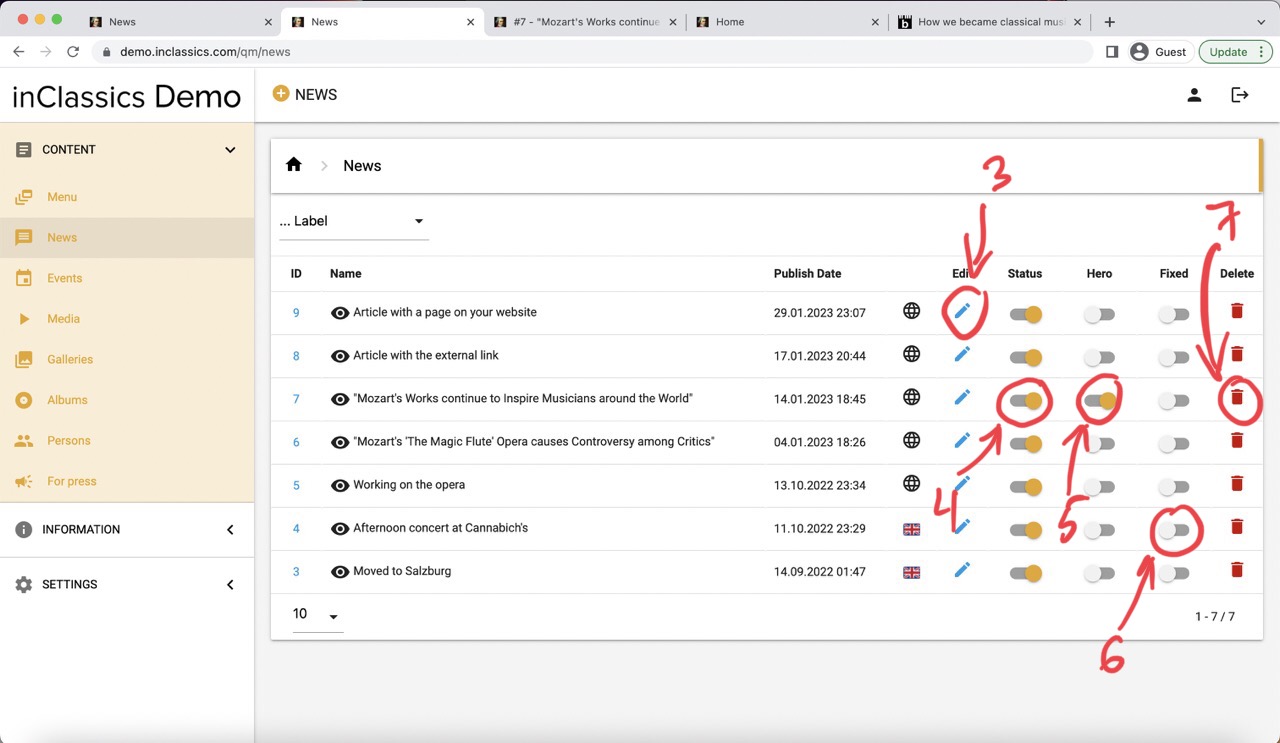
Here you can:
- edit the article (3)
- publish or unpublish (4)
- display it in your homepage's header section (5)
- fix it to the top of the news page (6)
- delete article (can not be undone) (7)
- see the article's page on your website (8), (if the article has an external page link, you will be redirected to that page) (9)
Article Labels
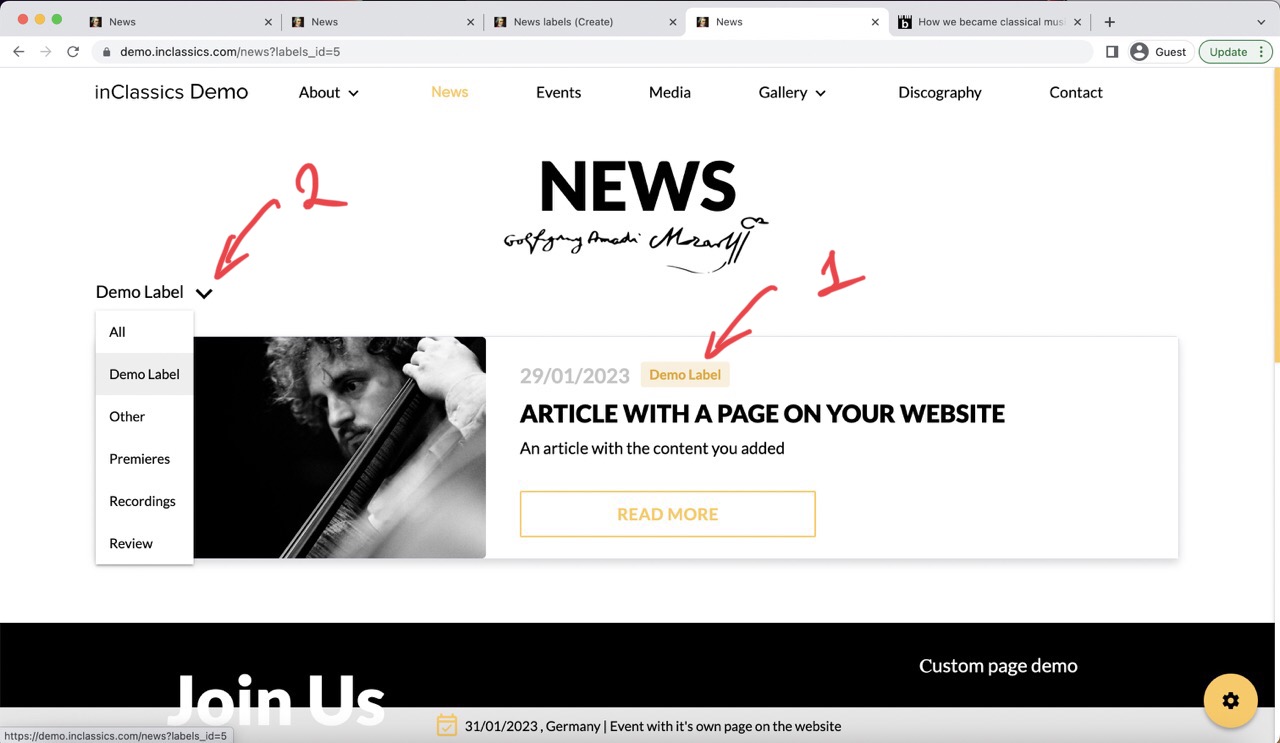
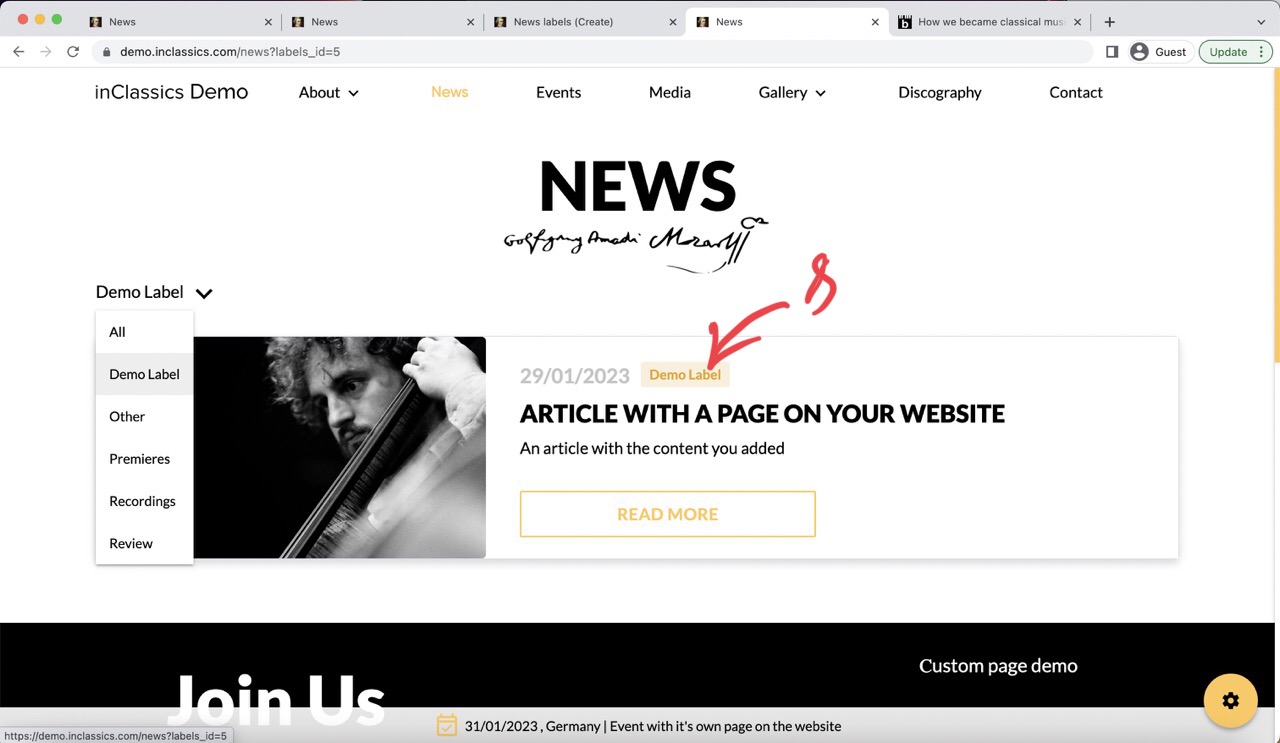
You can create your own labels (1) for articles.
When you add a label, it creates a sorting menu (2) with categories and your website visitors can see the articles with selected categories.
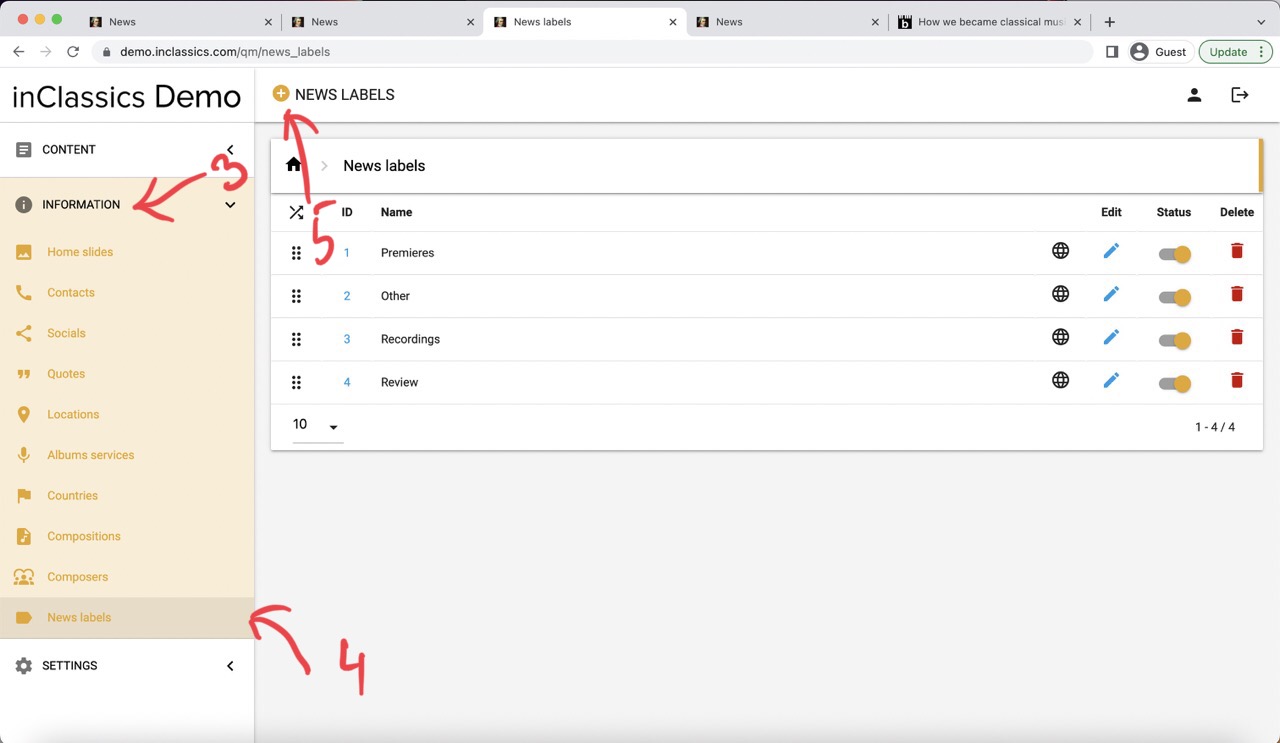
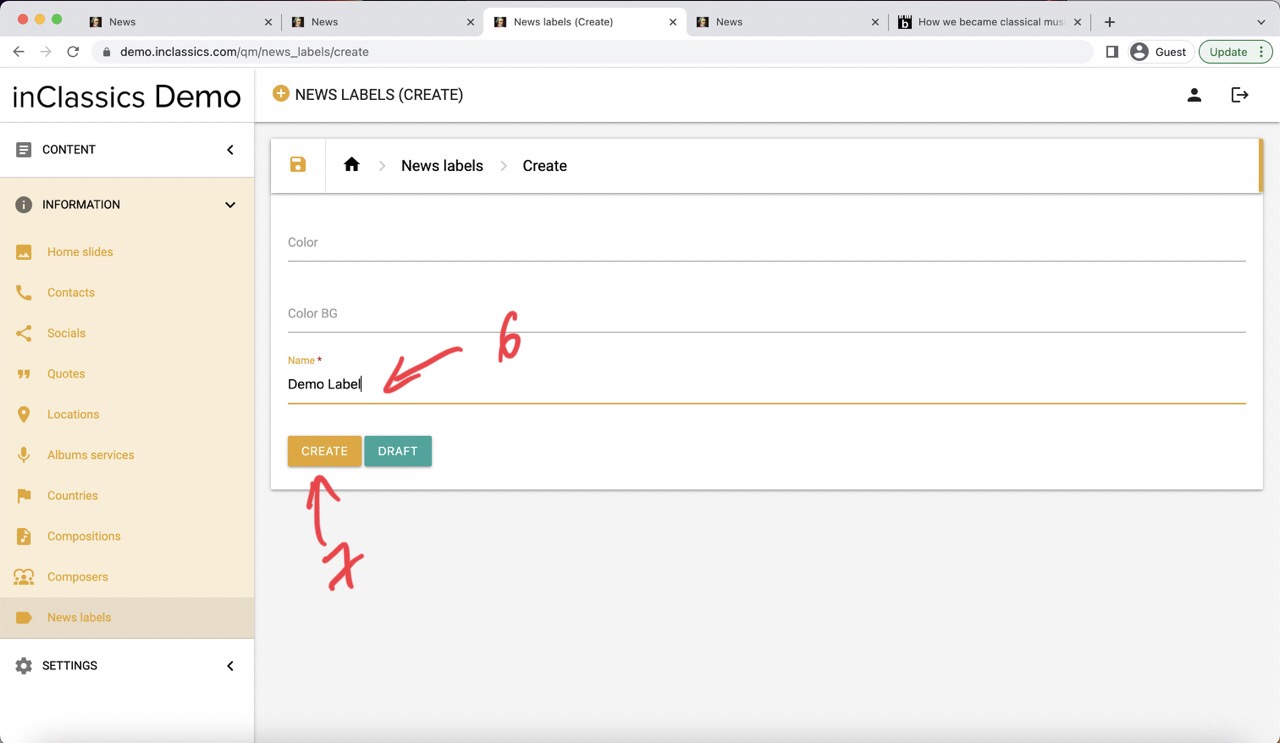
To create your a label:
- go to the admin panel
- information tab (3)
- news labels (4)
- click on the plus icon (5)
- add label name (6)
- click create (7)
This will create a label with default text color and background (8).
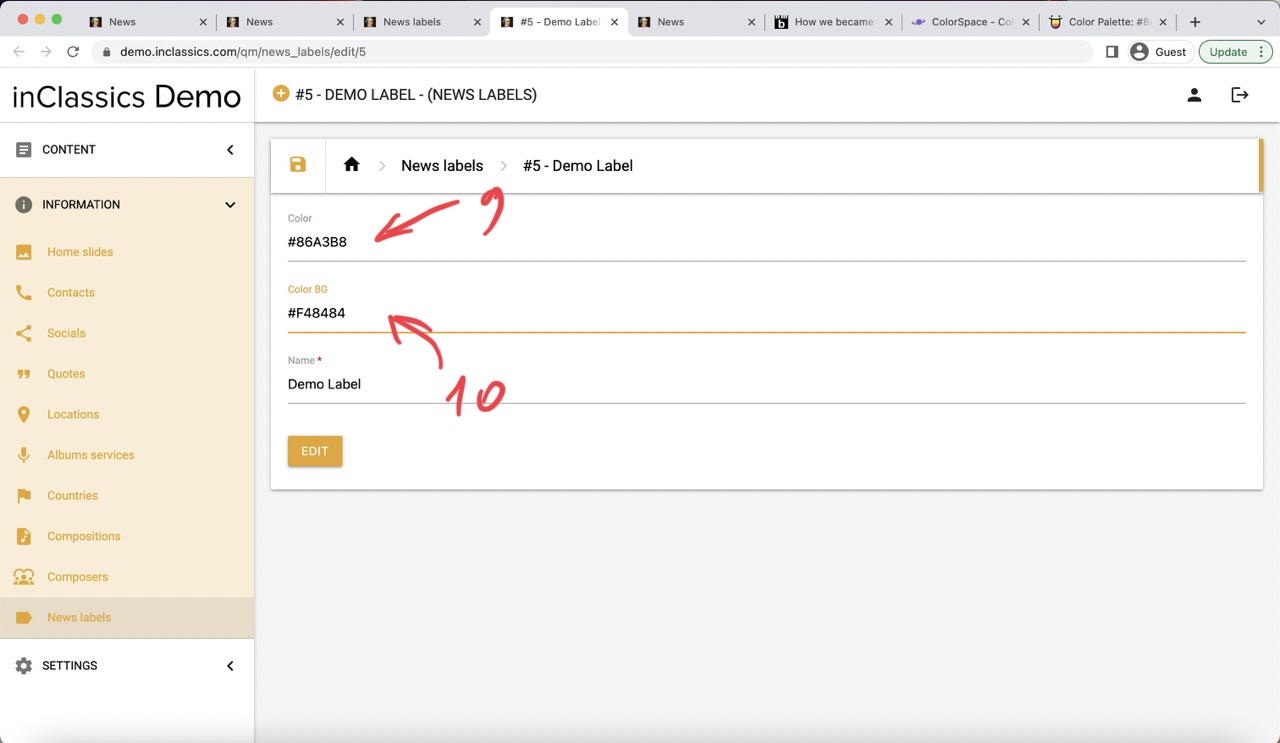
You can choose your own colours by providing a HEX color code – a 6-symbol code starting with hashtag (#ffffff). You can find colors and HEX codes on websites like https://colorhunt.co/ and https://mycolor.space/
- add text color into the color field (9)
- add background color into the color BG field (10)
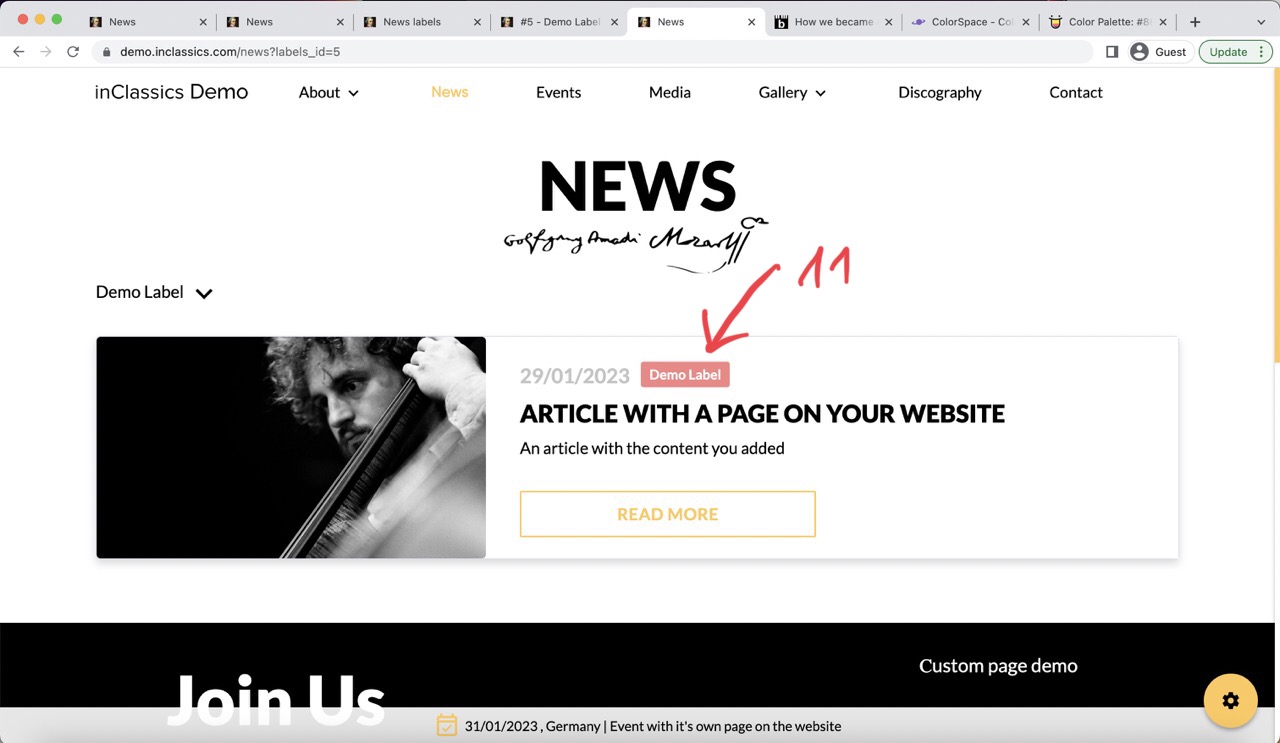
This will change your labels look (11)