Custom Page: Images Block
Video Tutorial
(1 min 46 sec)
What the Images Block Does
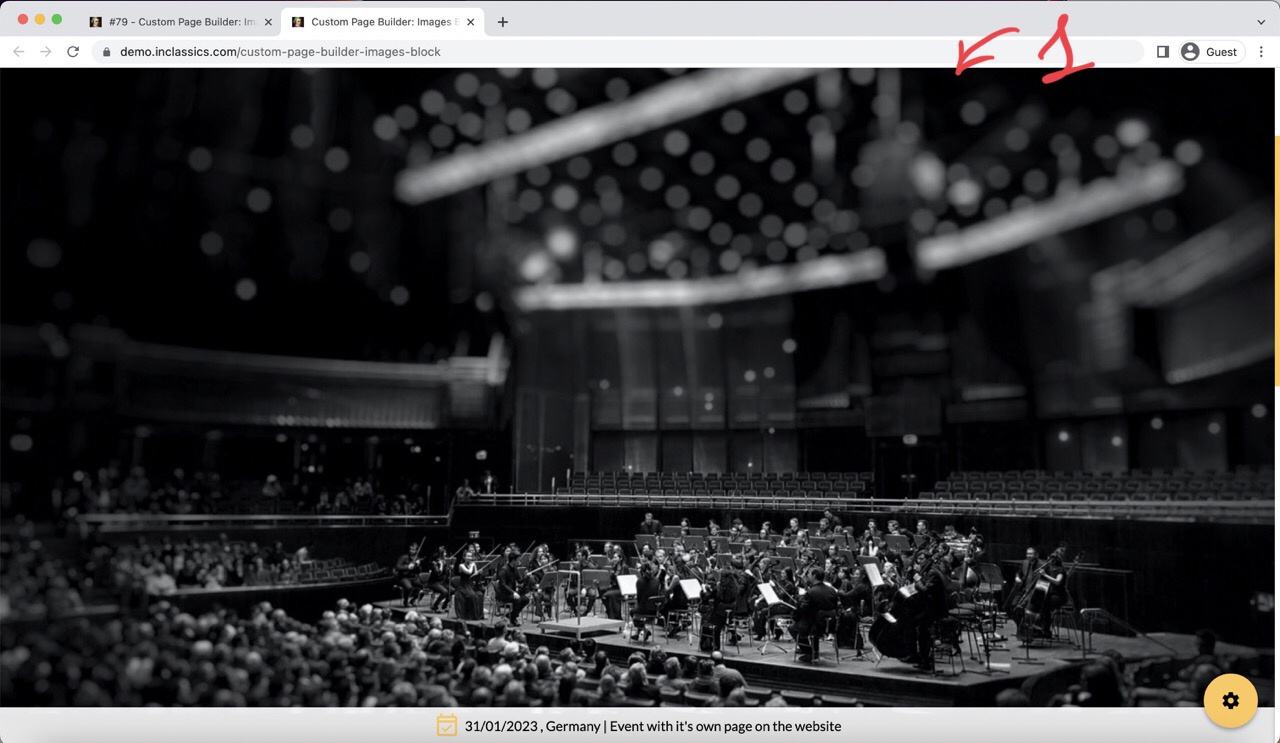
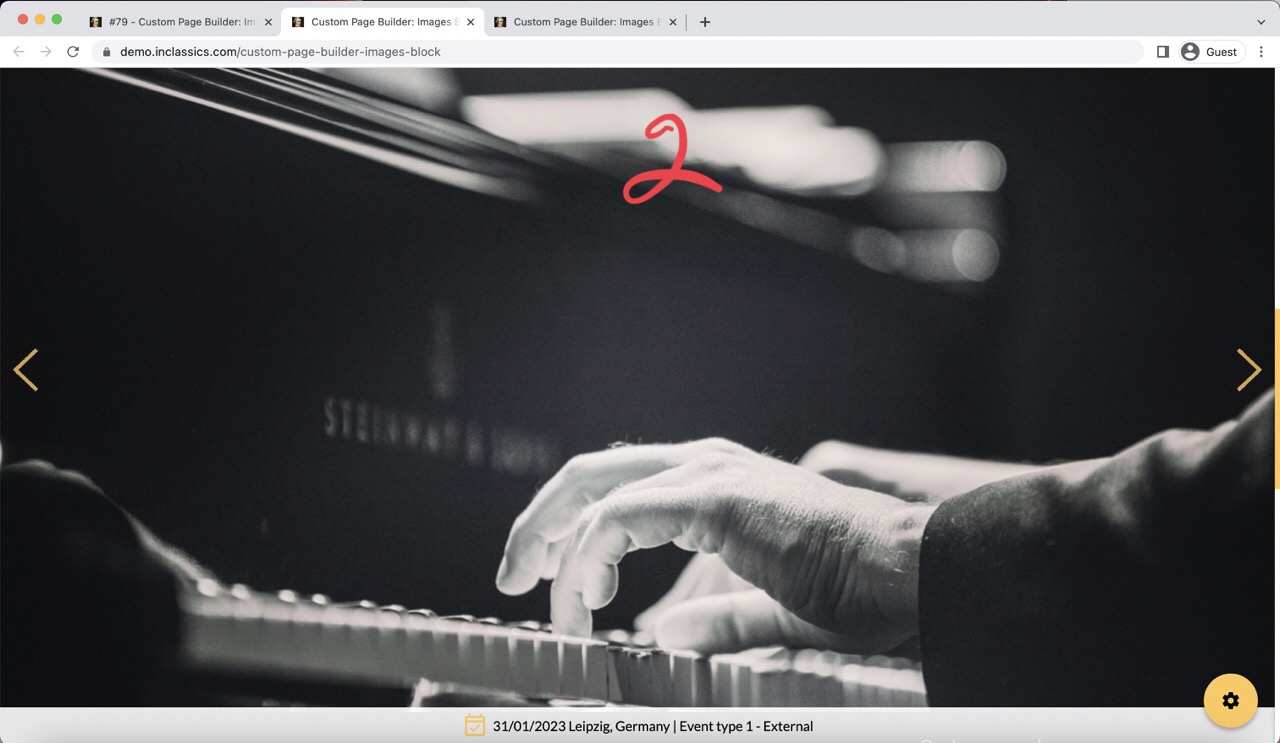
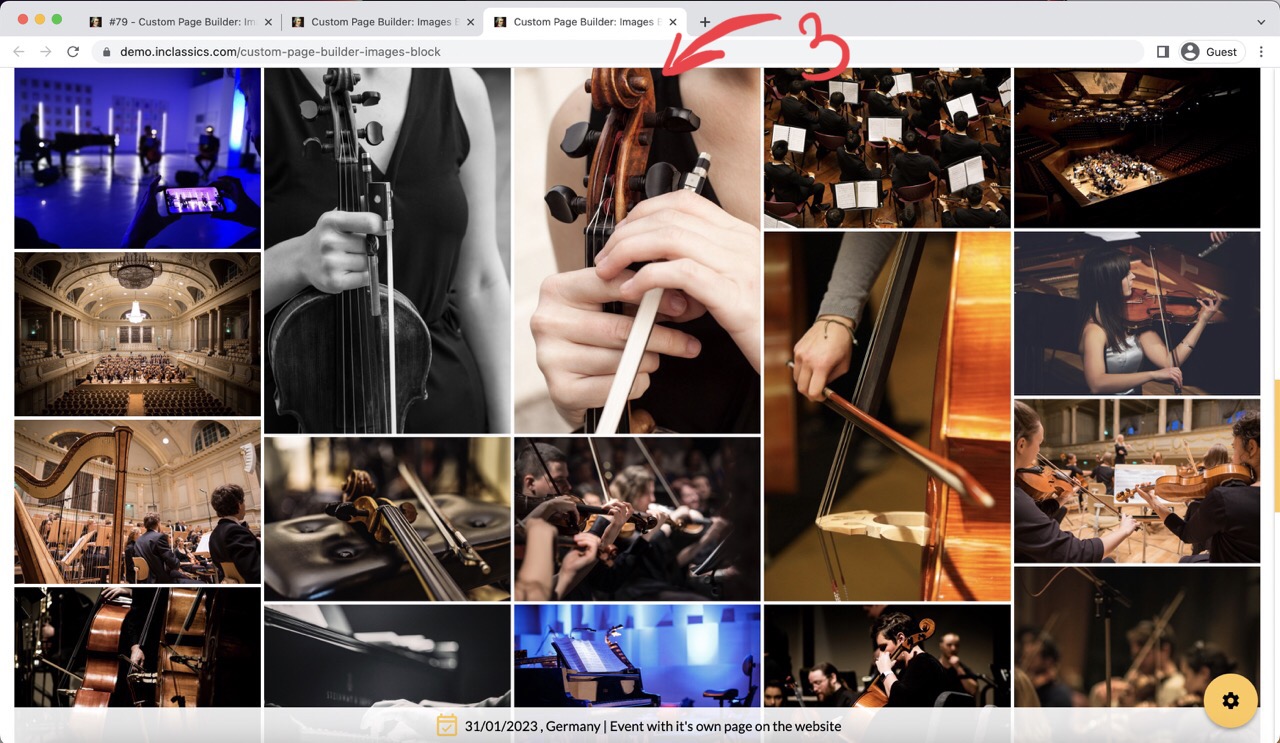
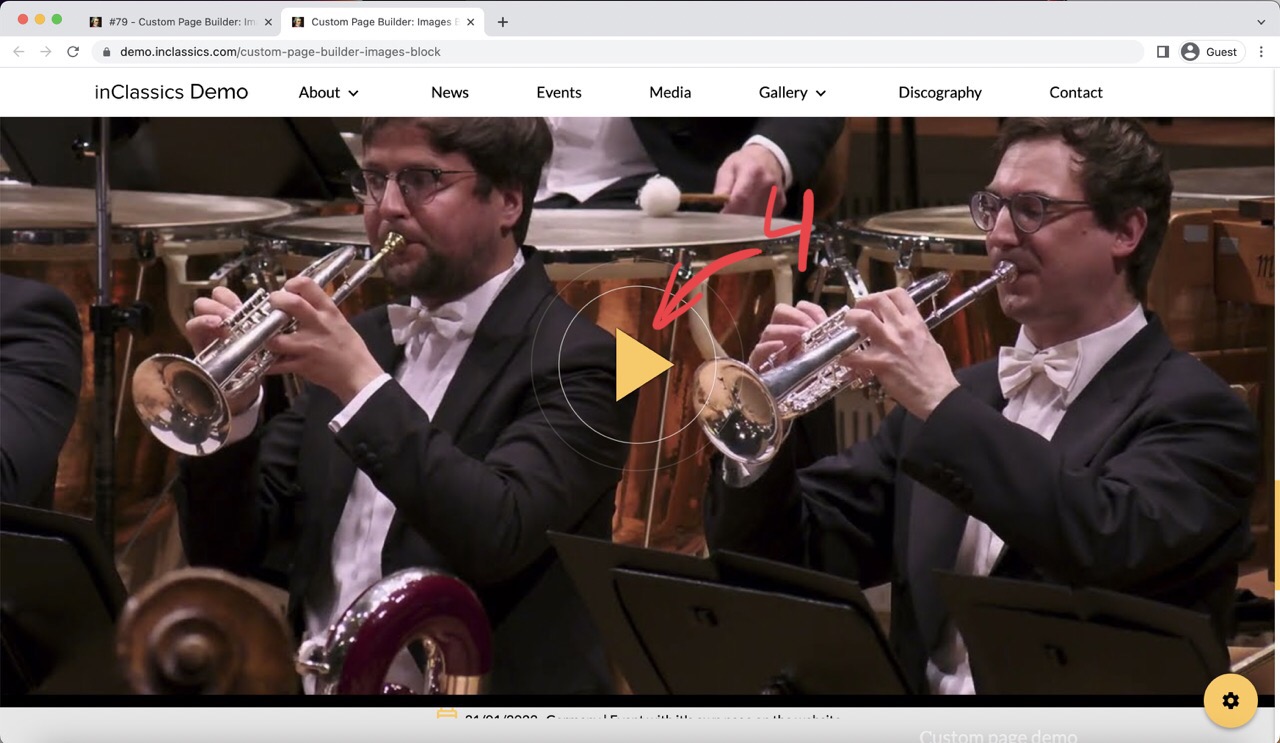
With the image block you can add:
- a single image (1)
- slider gallery (2)
- masonry gallery (3)
- video (4)
Add a Single Image
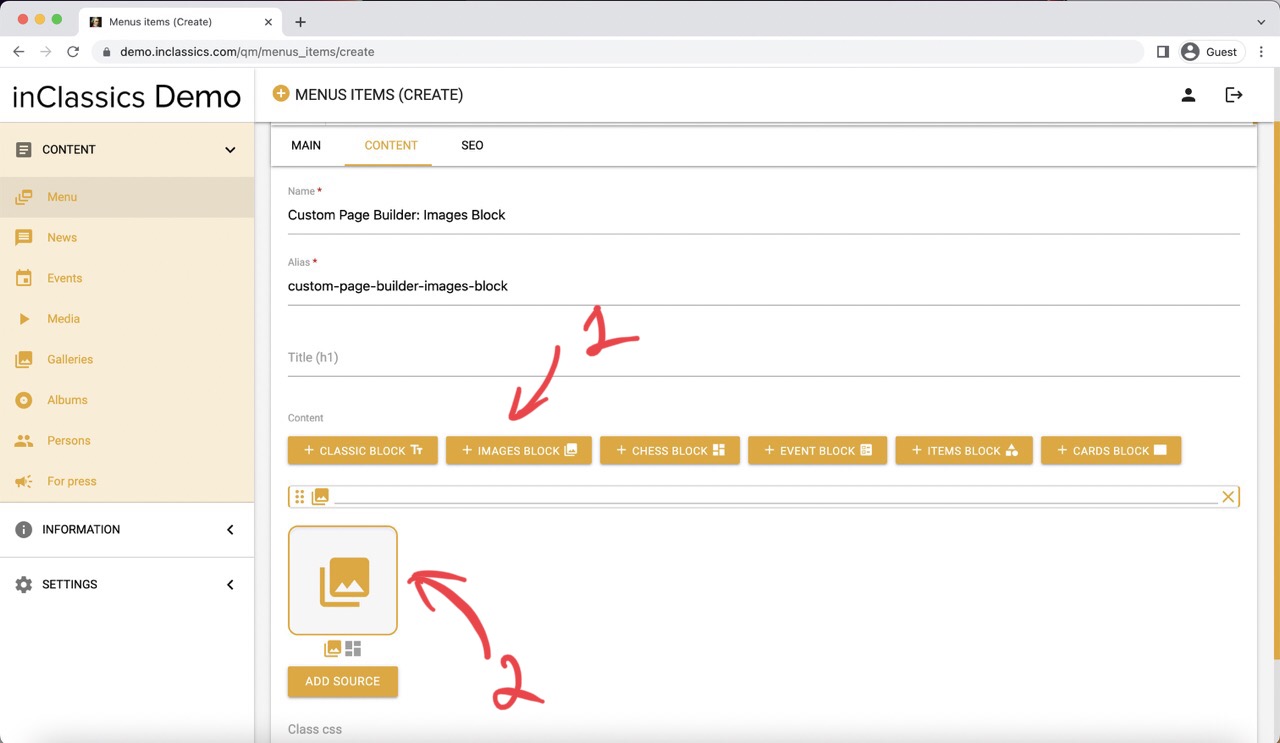
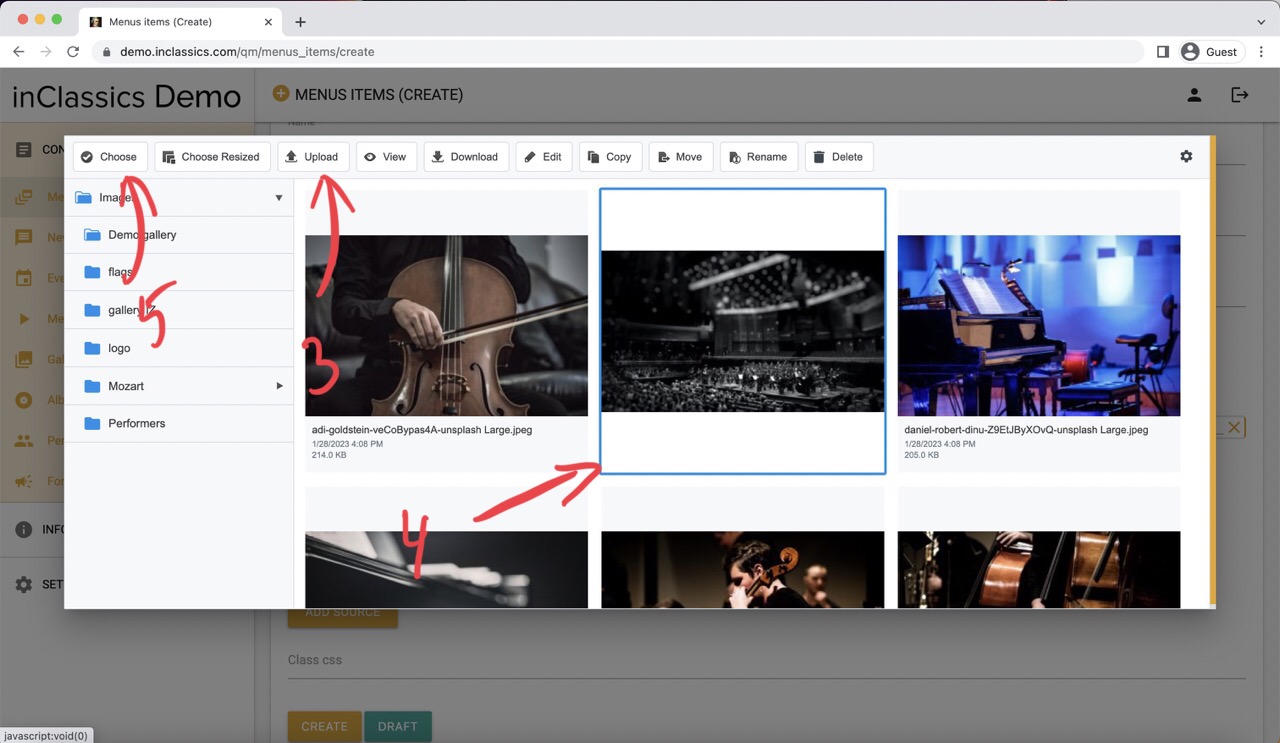
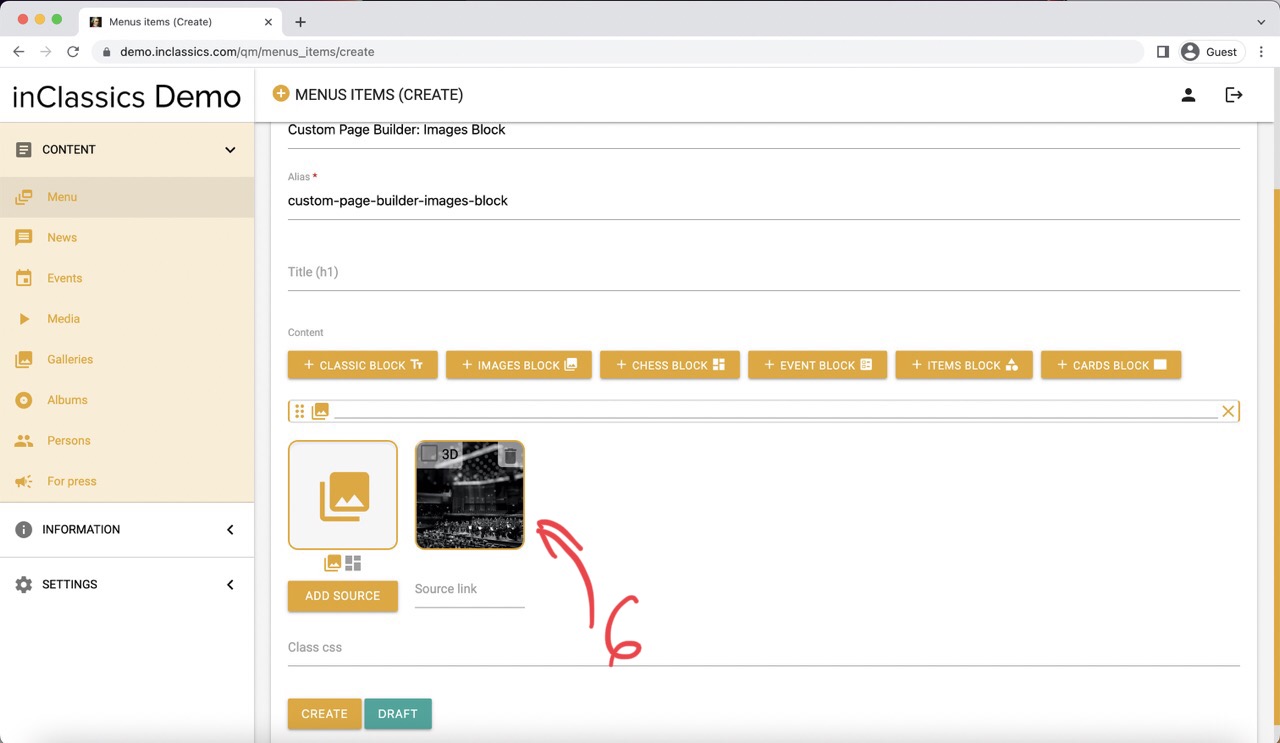
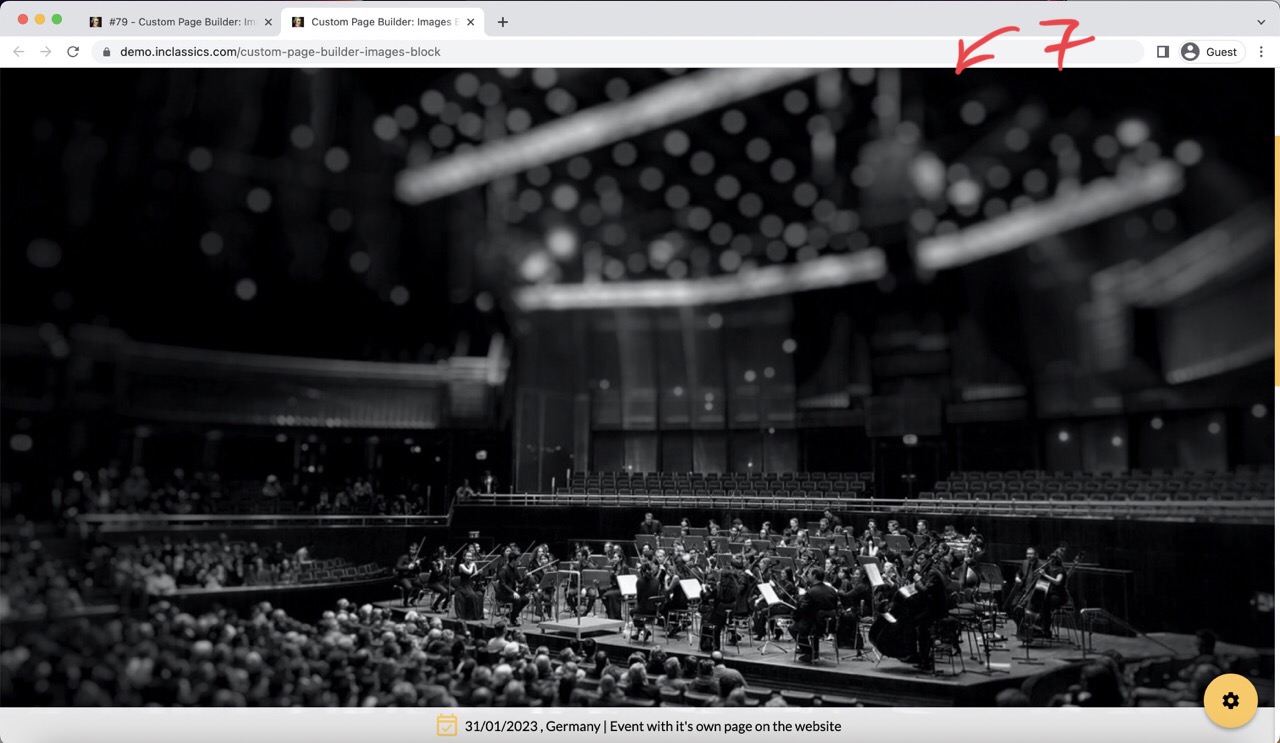
To add a single image:
- click on the images block (1)
- click on the image icon (2)
- upload (3) and select (4) your image from the media library and click choose (5)
- your image is added (6)
This will create a full page image (7)
Add a Slider Gallery
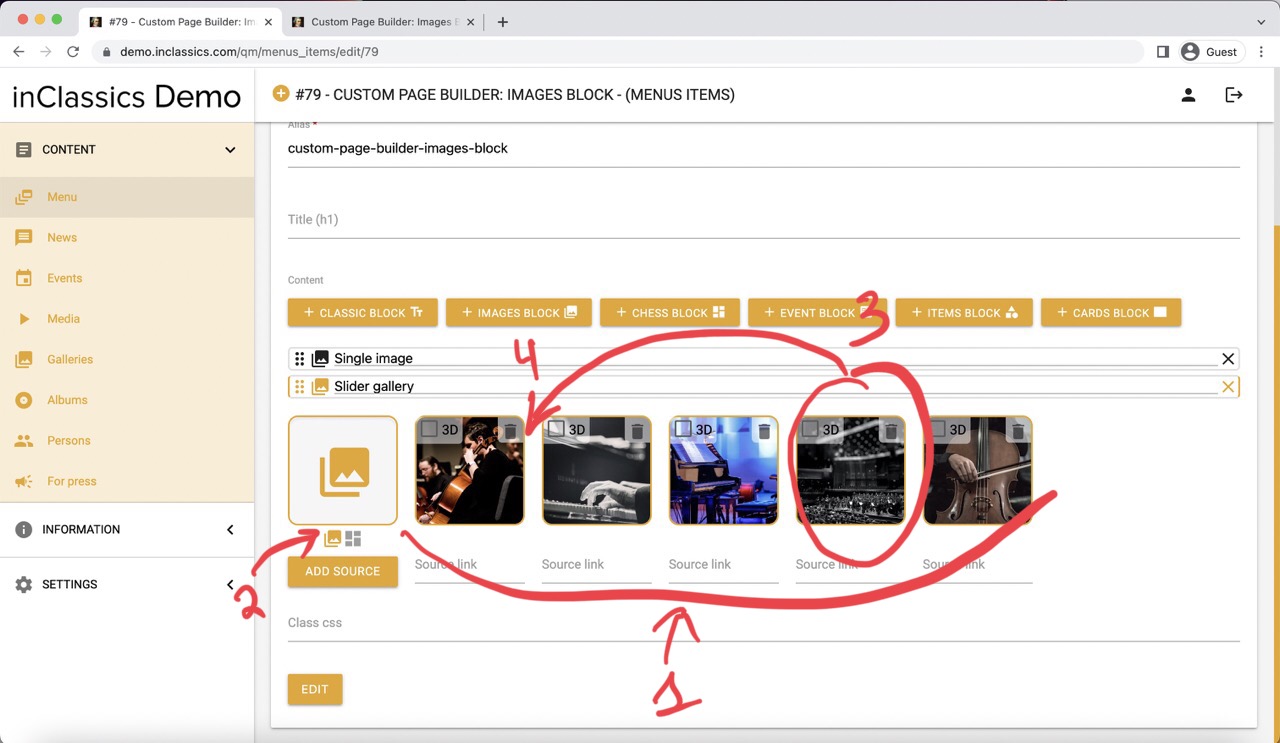
To create a slider gallery:
- click on the images block
- add more images (1)
- make sure that slider image gallery icon is selected (2)
- change the order of the images by clicking and holding (3) on the image and dragging it to the desired place (4)
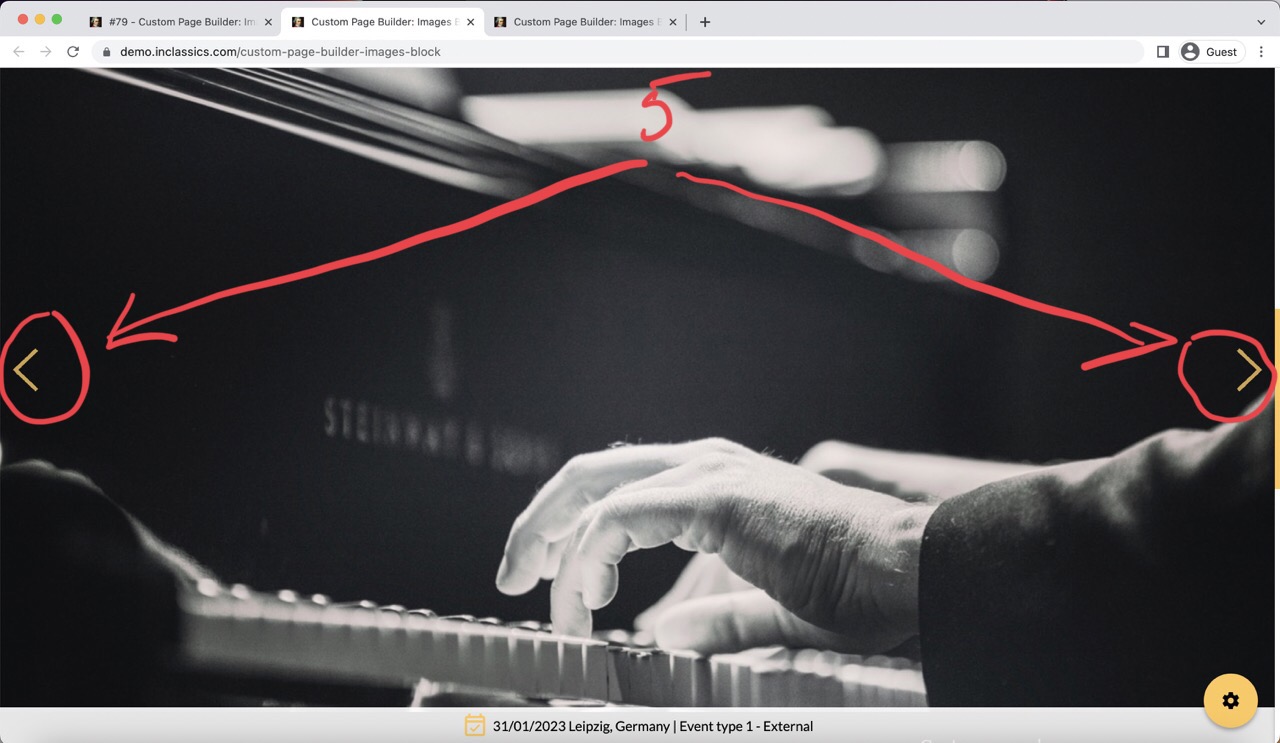
This will create a full screen slider gallery (5)
Add Masonry Gallery
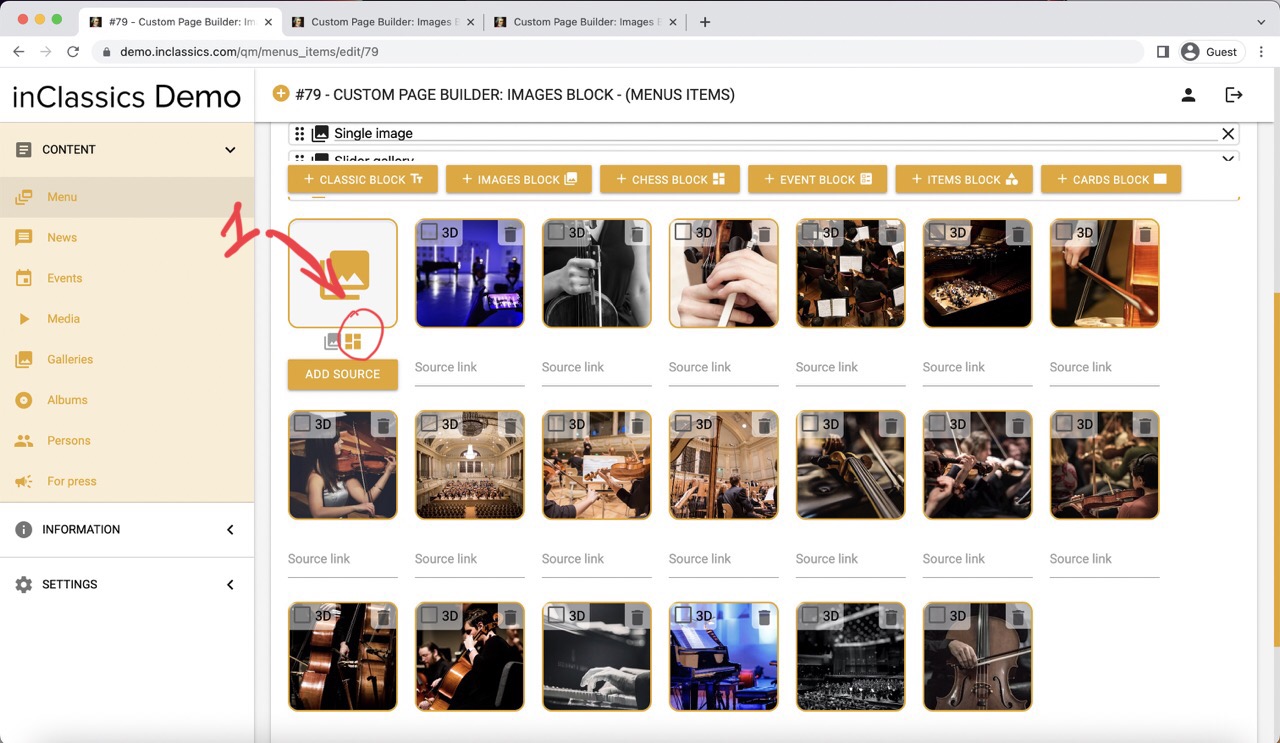
To create masonry gallery:
- click on the images block
- add images
- click on the masonry gallery icon (1)
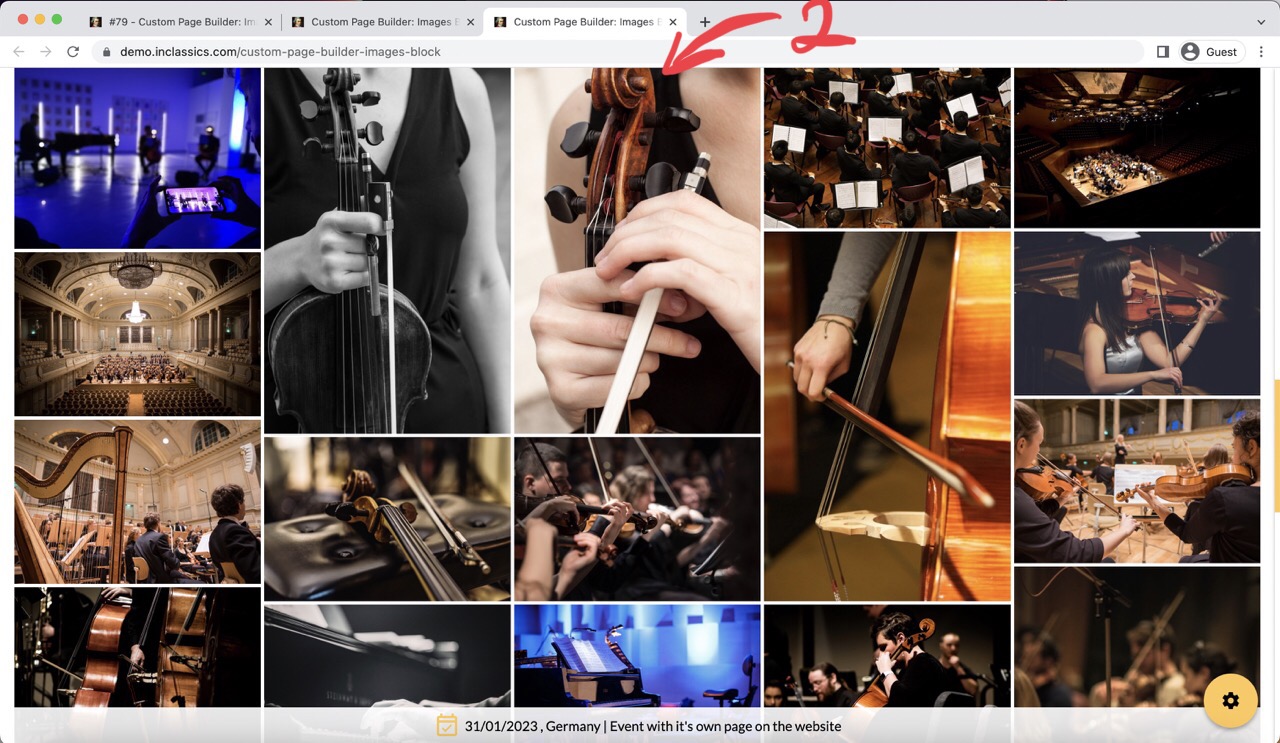
This will create masonry gallery (2). The images will be adjusted automatically.
Add a Video
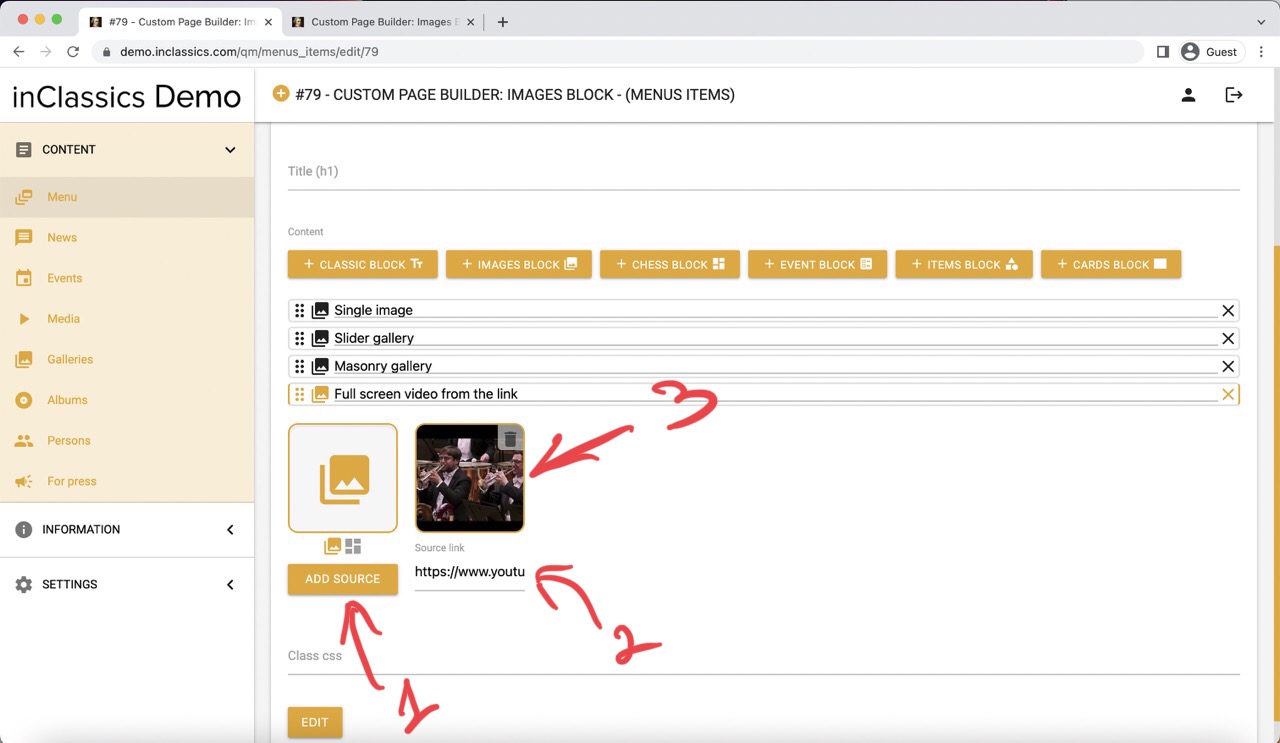
To add a video:
- click on the image block
- click add source (1)
- paste the YouTube link (2)
- the thumbnail (image) from the video will be generated automatically (3)
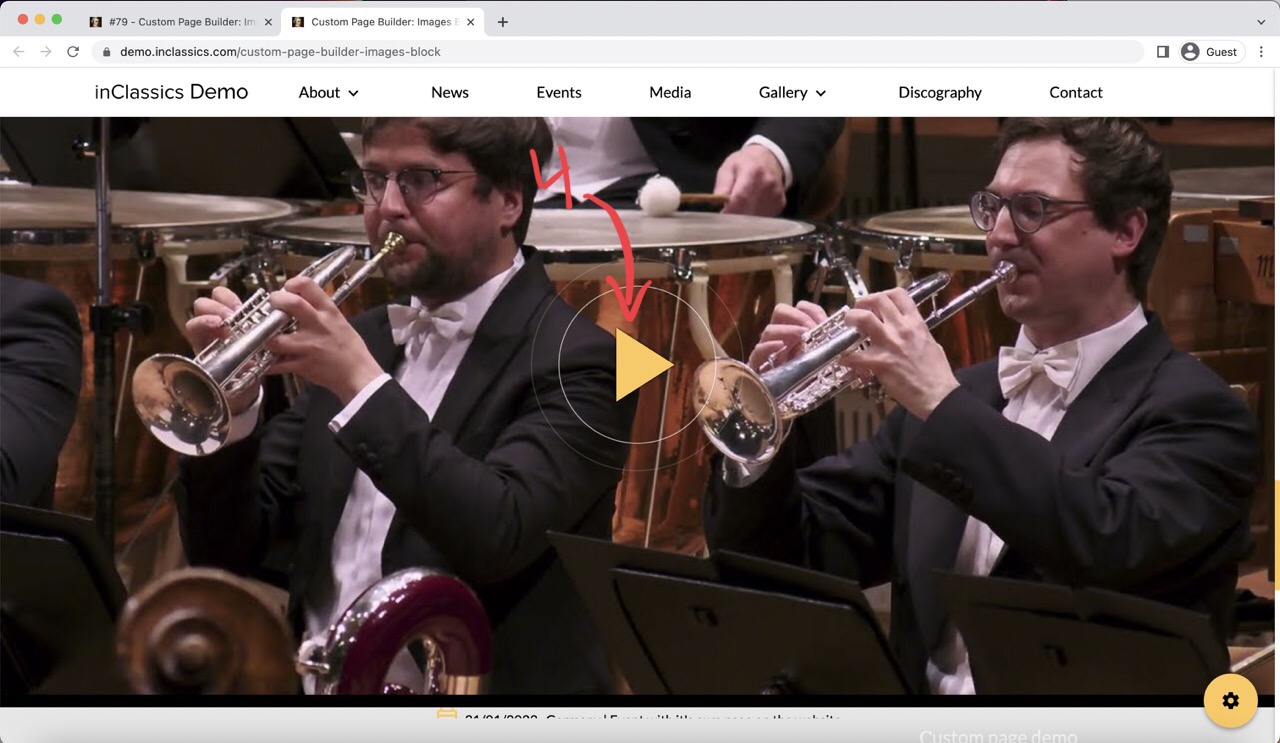
This will create a full screen video (4) on your page.
Just like with images, you can create a video slider gallery by adding more videos by clicking on the add source button and pasting links.
Troubleshooting videos
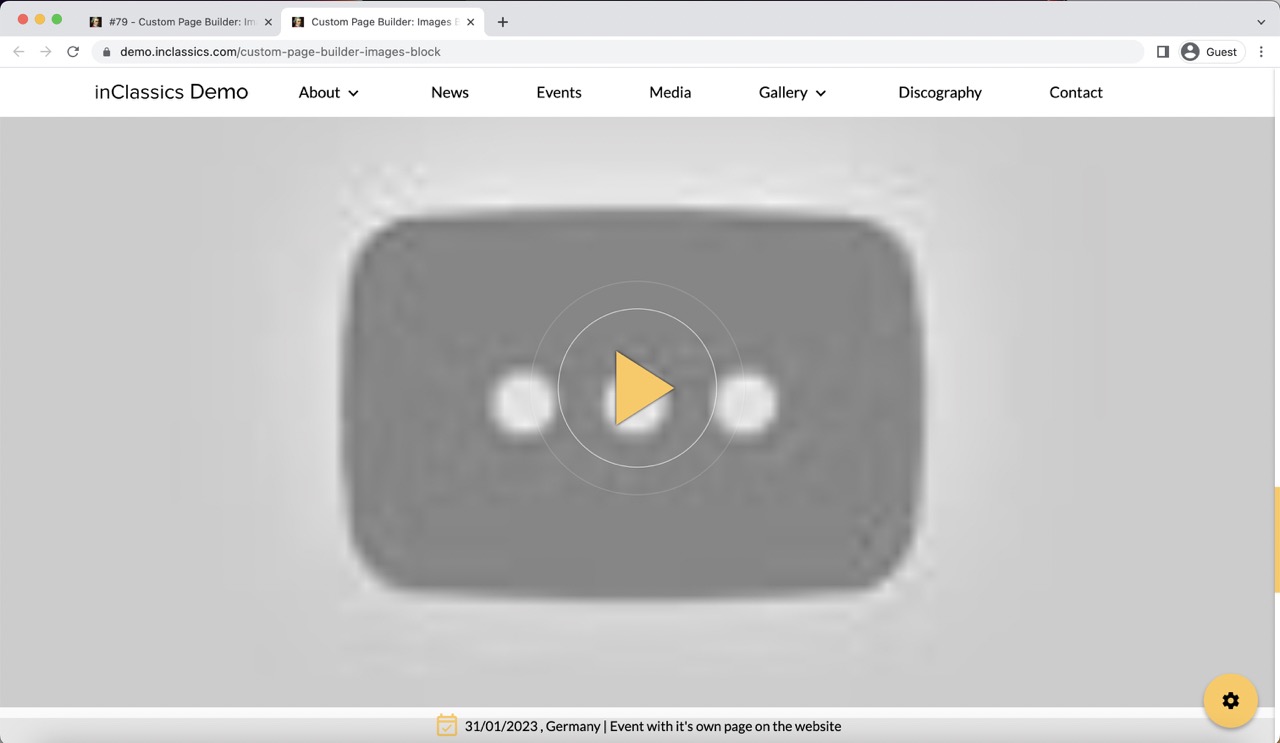
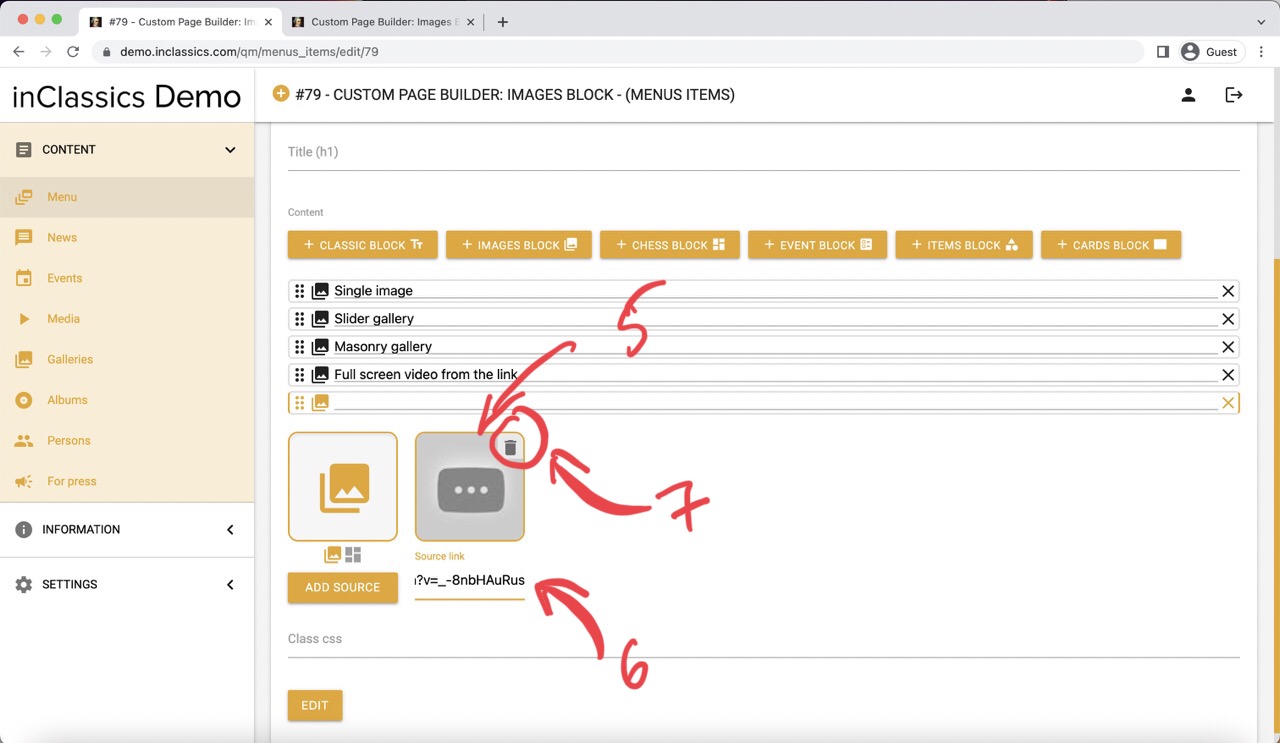
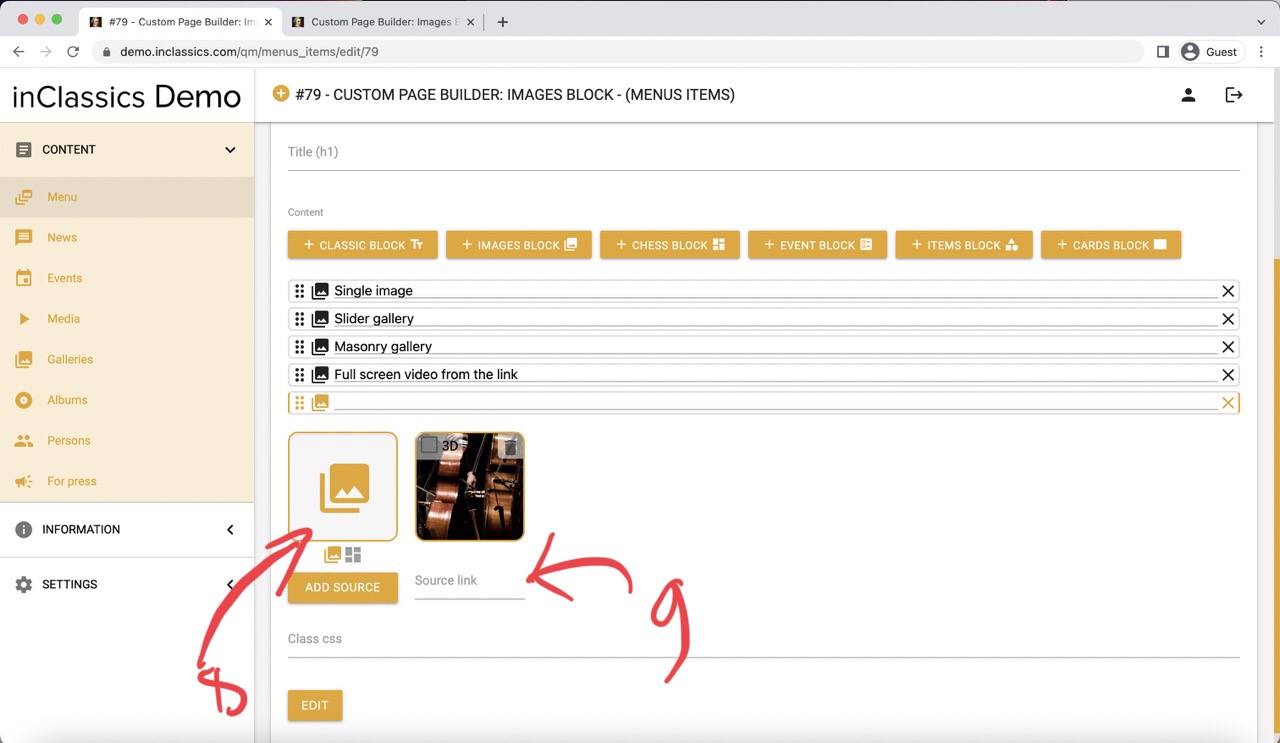
If the video doesn't have an image that our program can get automatically (5) (some older YouTube videos don't):
- copy your link (6)
- remove the source (7)
- add an image from your media library (8)
- add a YouTube link in the source field (9)
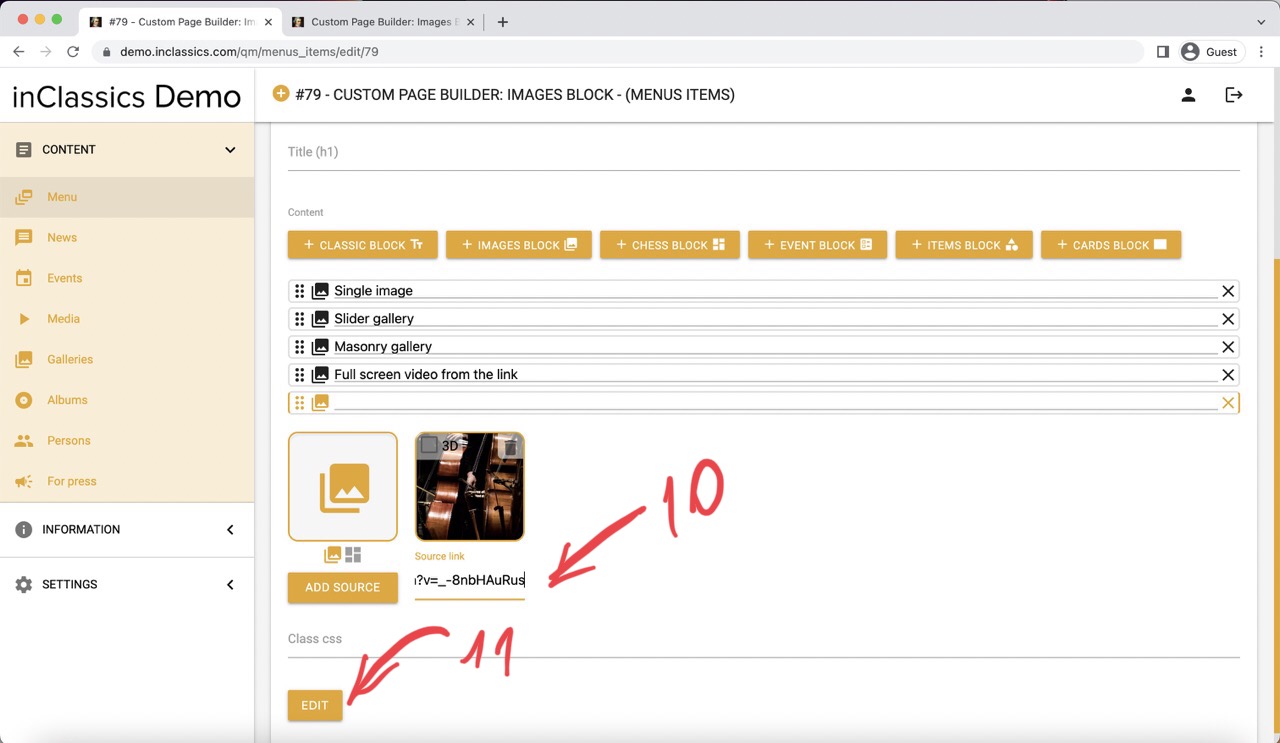
- with the link to YouTube added under the image (10) click edit (11)
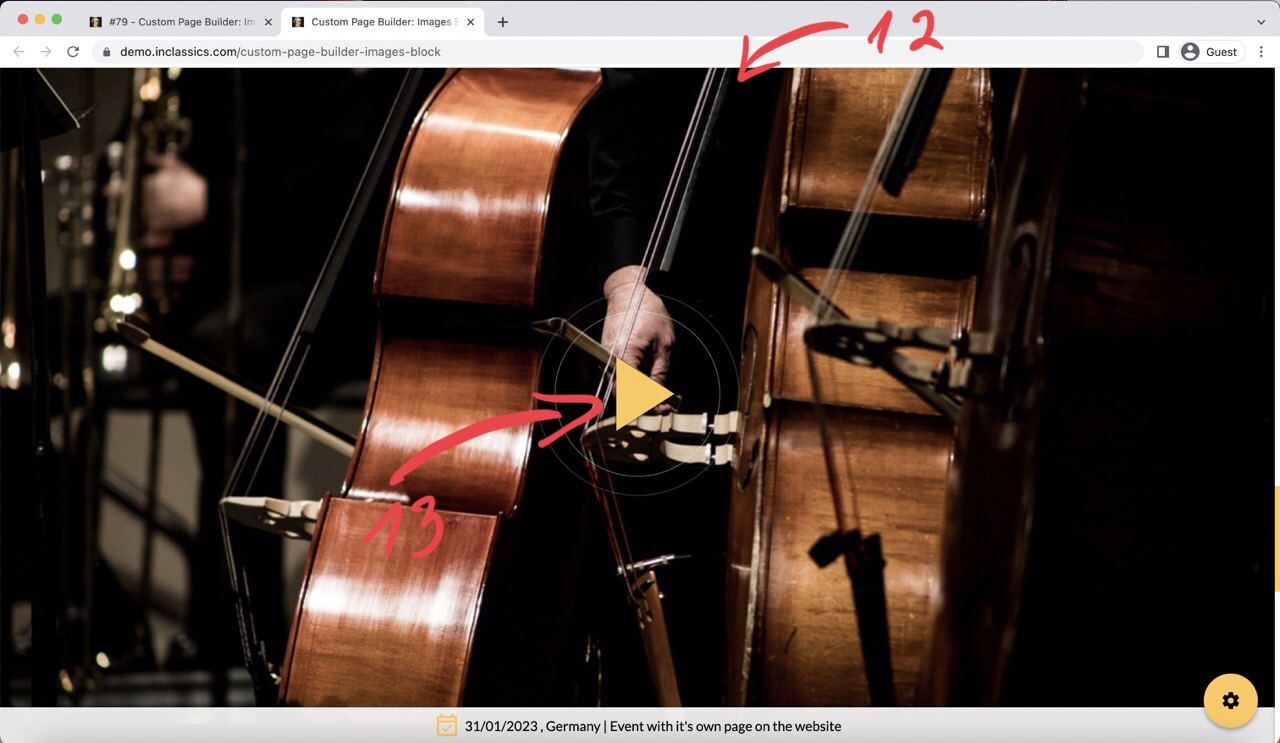
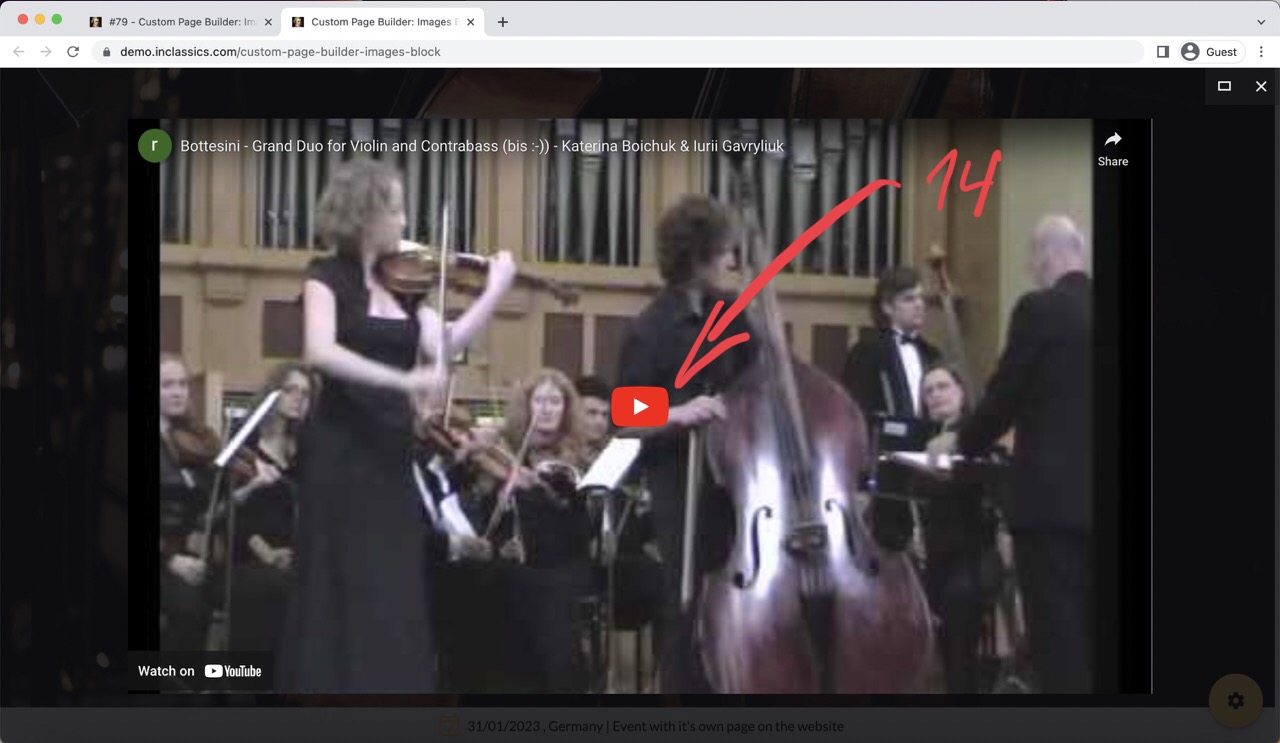
This will display an image you choose (12) on your page and a play button (13), clicking on which will open the YouTube video (14), link to which you added
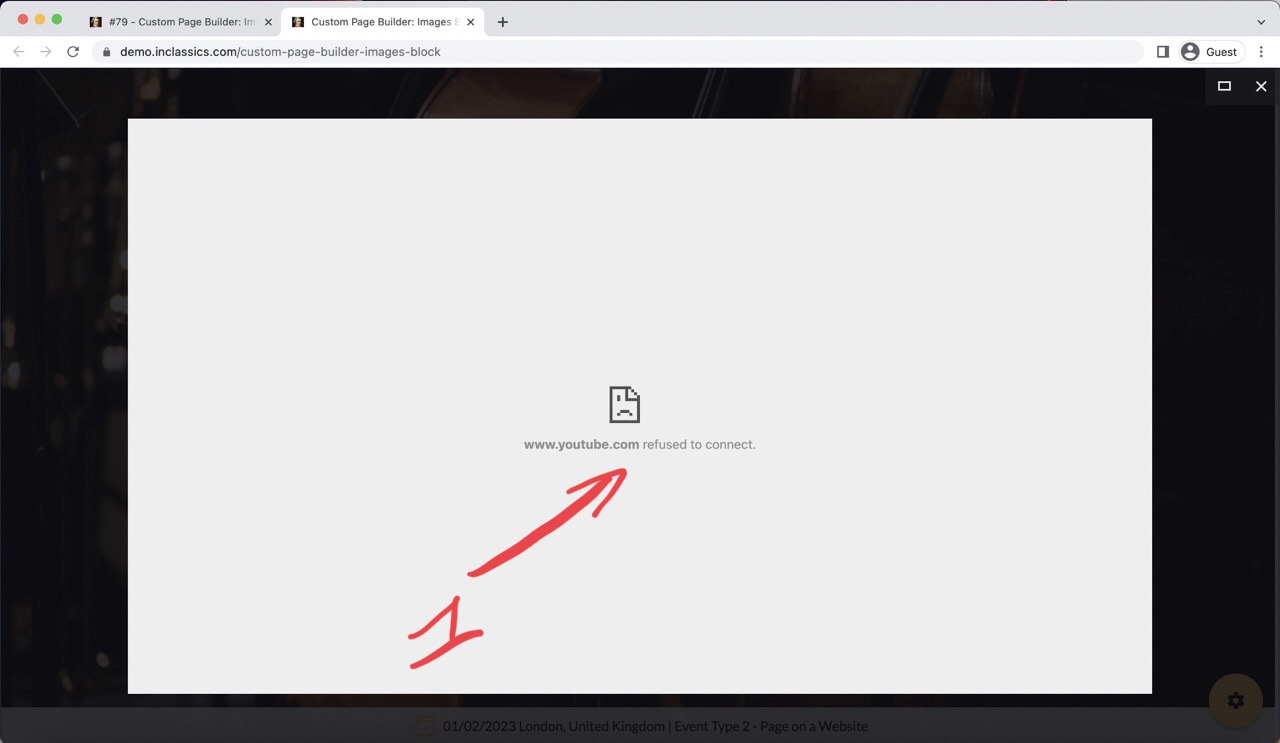
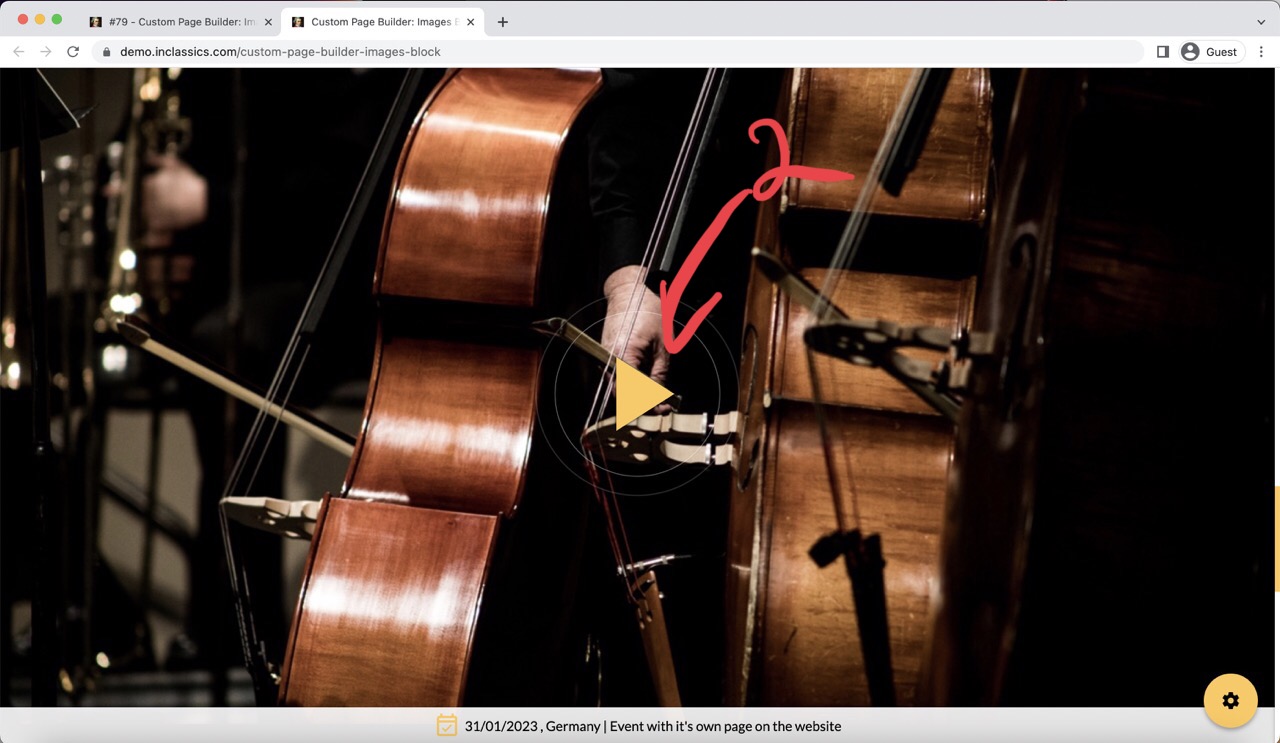
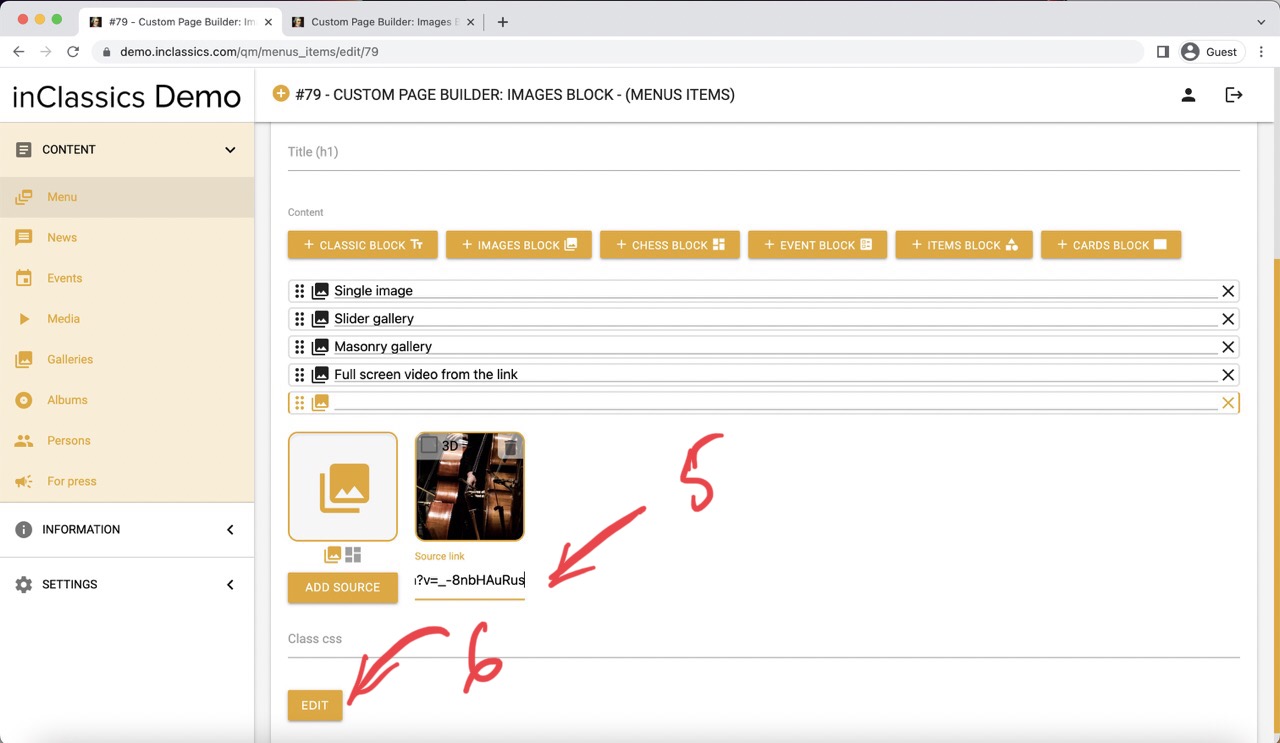
If you added an image and pasted a link to the source and you get this error "youtube refused to connect" (1) when clicking on the play button (2):
- go to the YouTube video you want to add
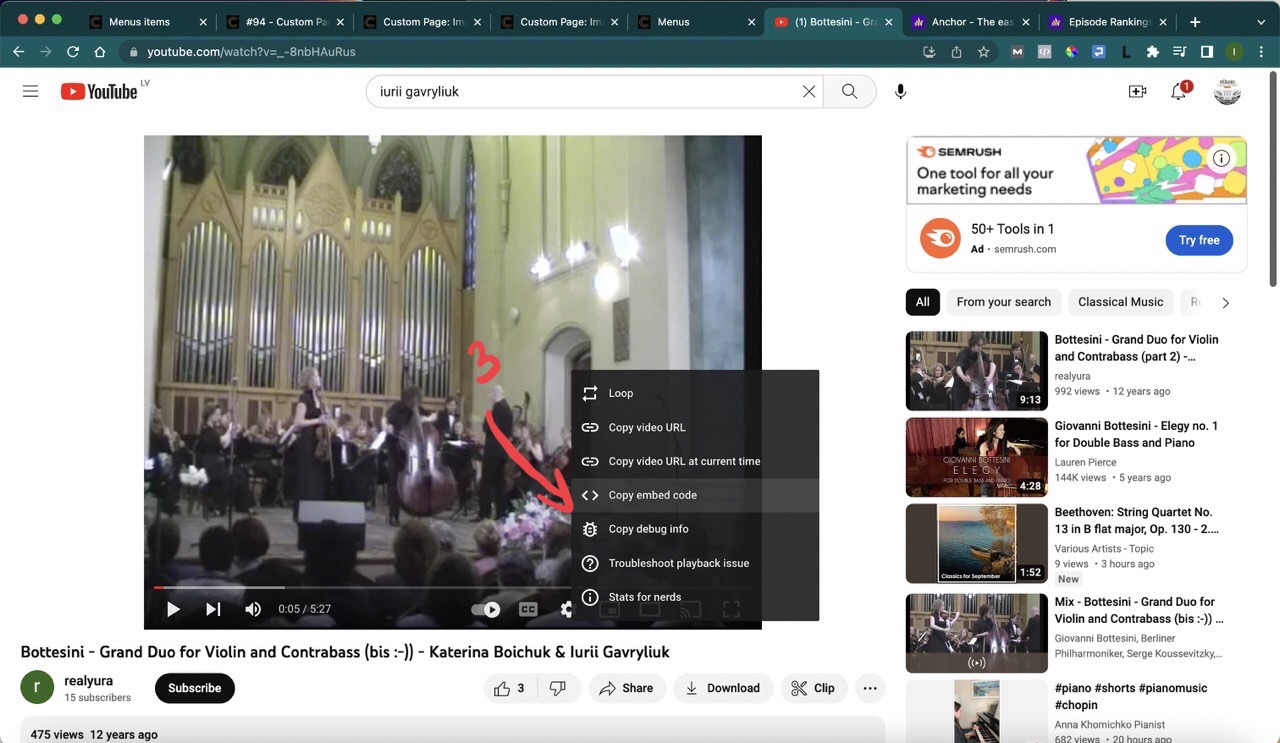
- click the right button on the video (or share button)
- click copy embed code (3)
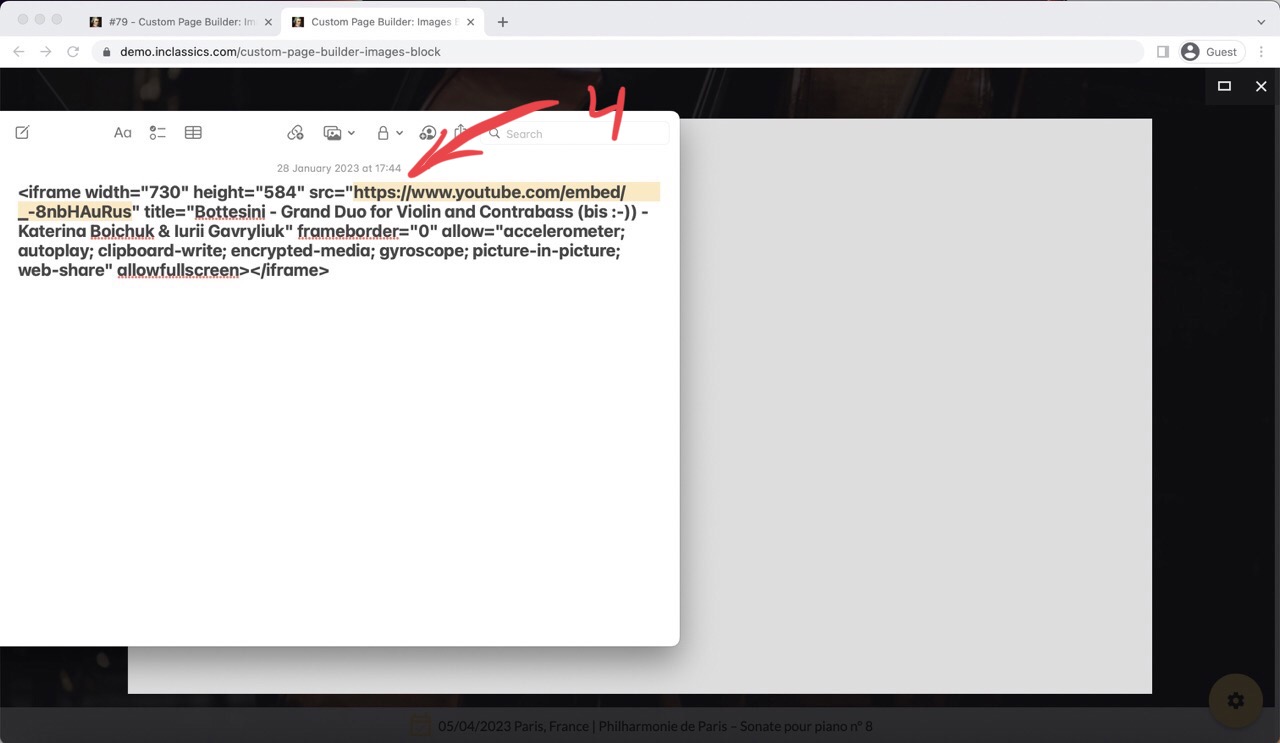
- paste the code into any text editor
- copy the link that is in between the quotes in the src="...." (4)
- paste this link into the source field under your image (5)
- click edit (6)
Your video will work now.