Custom Page: Classic Block (text block)
Video Tutorial
(1 min 10 sec)
Add Classic (Text) Block
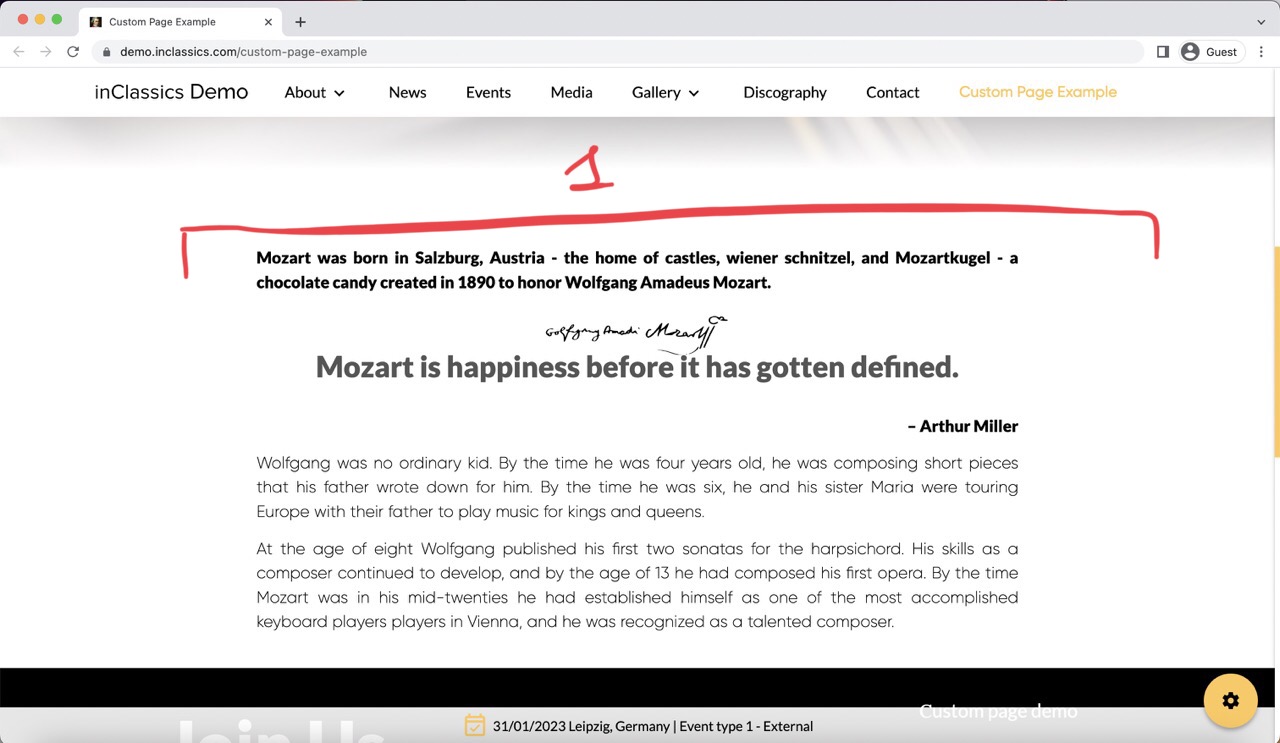
Most of the content on any website is text.
The text block is taking the full width of your page (1)
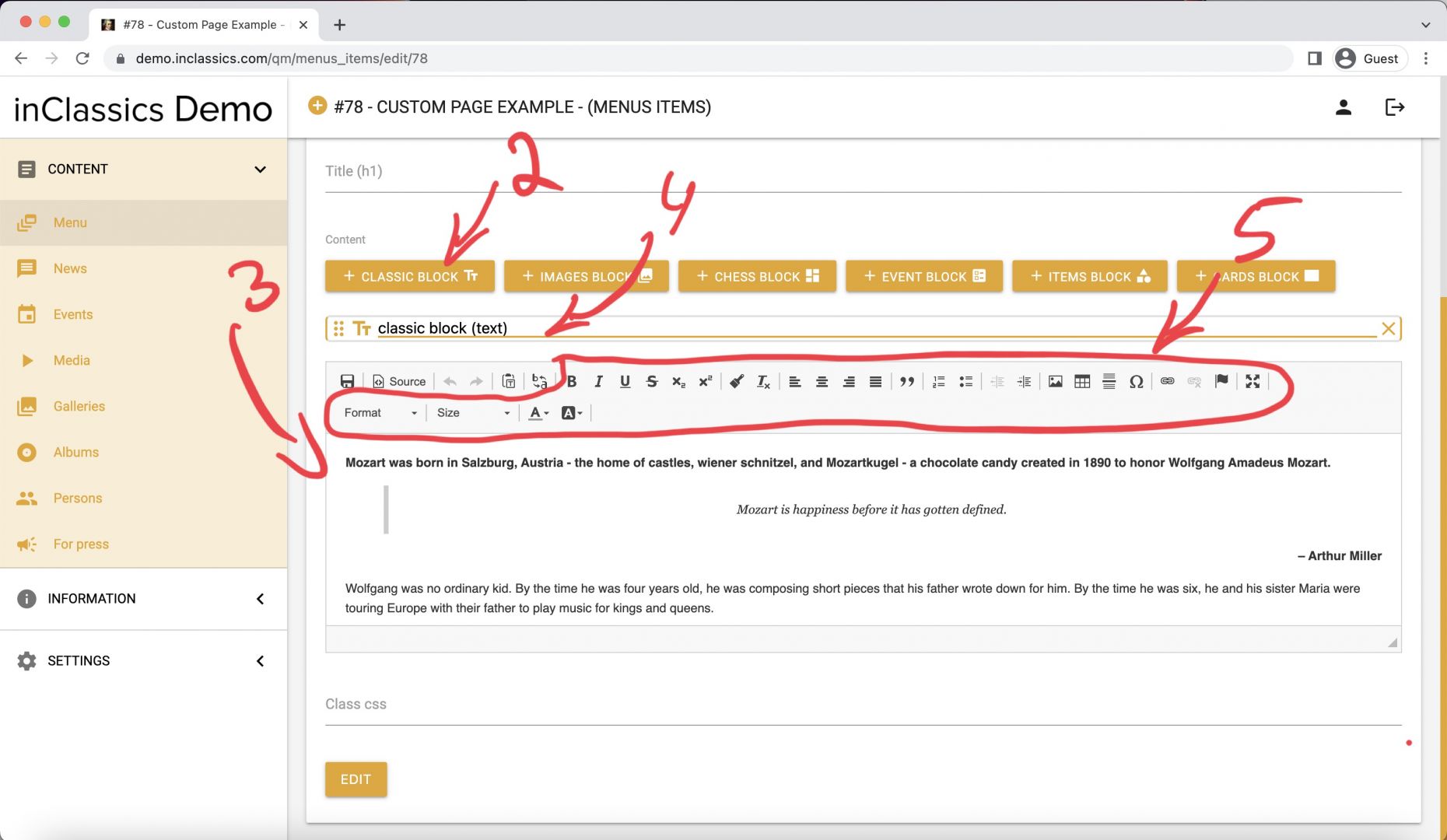
To add a text block to your page:
- click on the classic block (2)
- add your text (3)
- optionally name your block (4) (this name is only visible for you and won’t be displayed on you page. We recommend adding name to your block when you have many blocks on your website for easier navigation when editing your page)
- format your text using the text editor (5)
Manage Classic (Text) Blocks
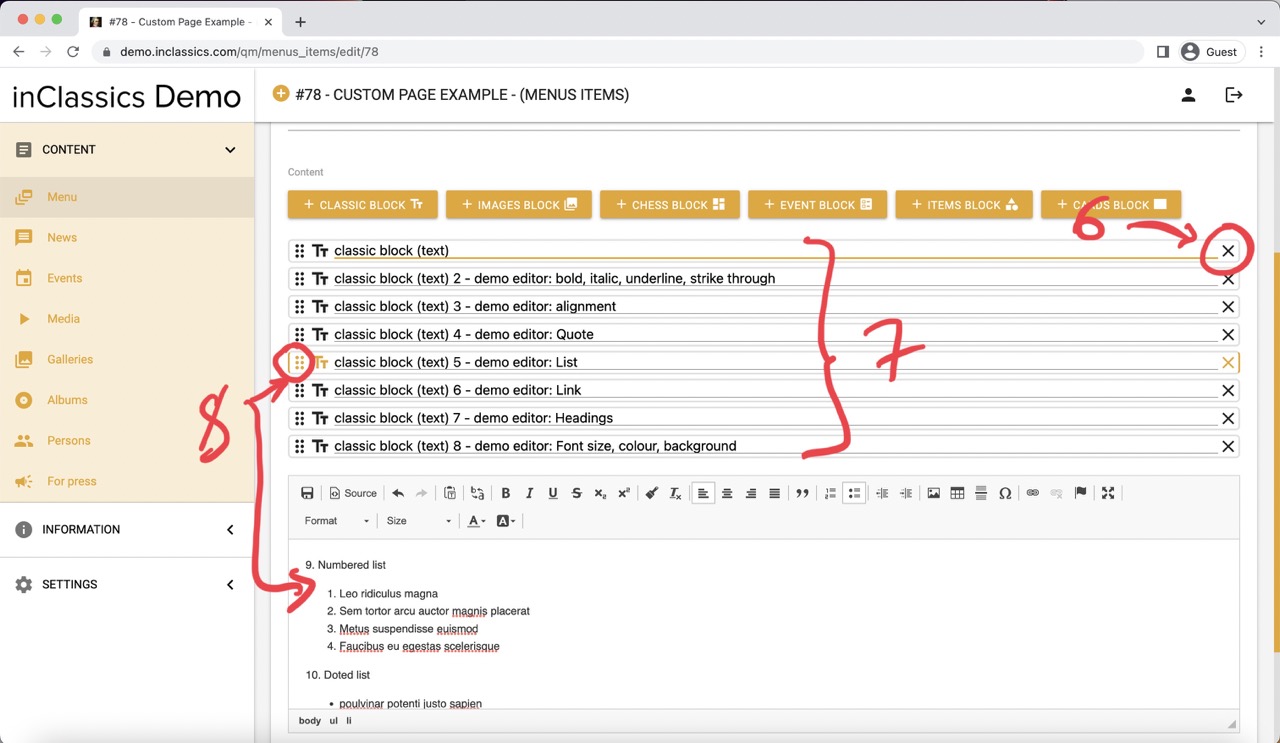
- to delete block click on X icon (6). ❗️This action can not be undone!
- create as many classic blocks as you need (7).
- Click on the dotted icon (8) to reveal the content of the block
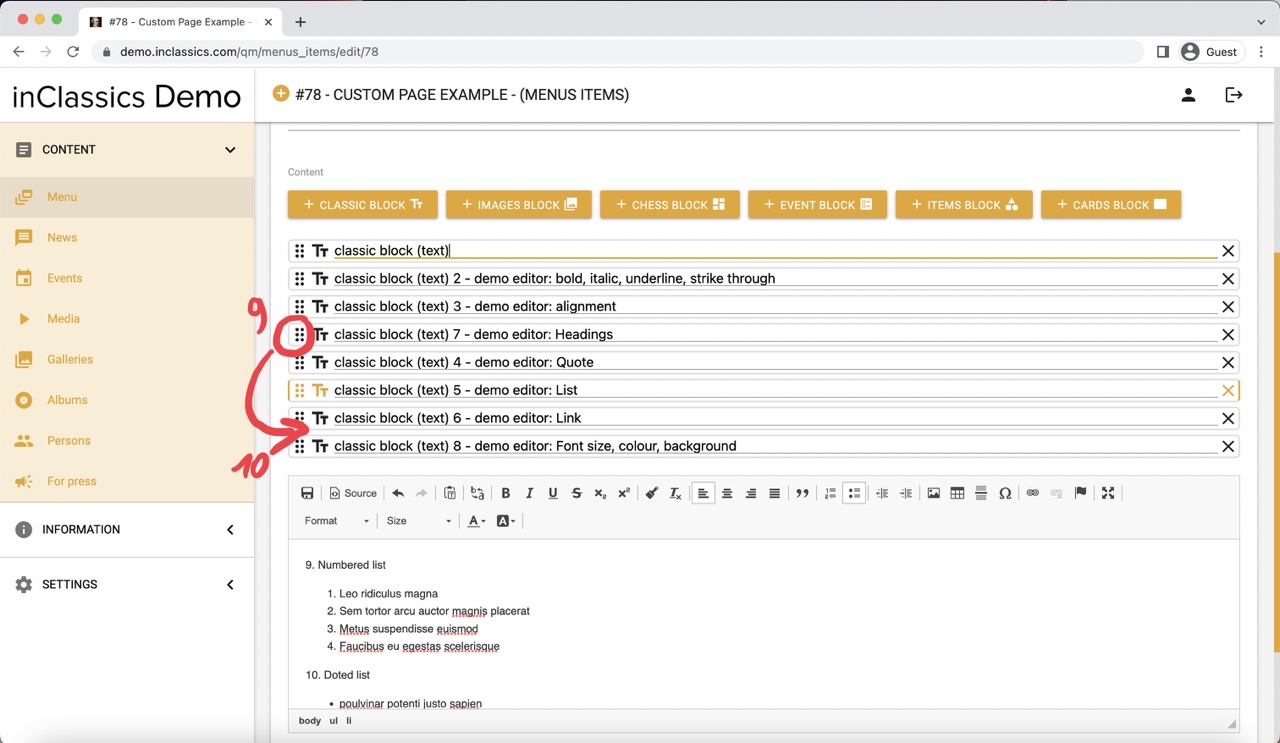
- to change the order of your blocks, click and hold the dotted icon (9) and drag the block to the desired place (10)
Using the Text Editor
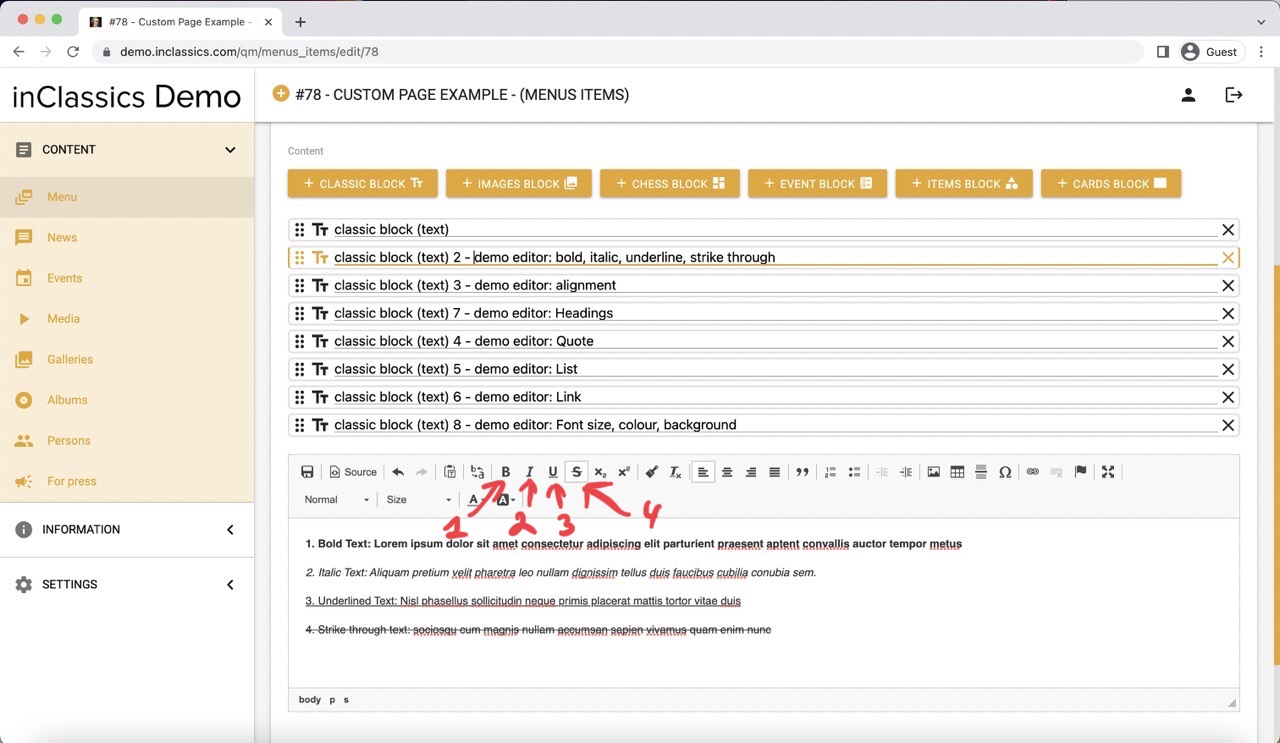
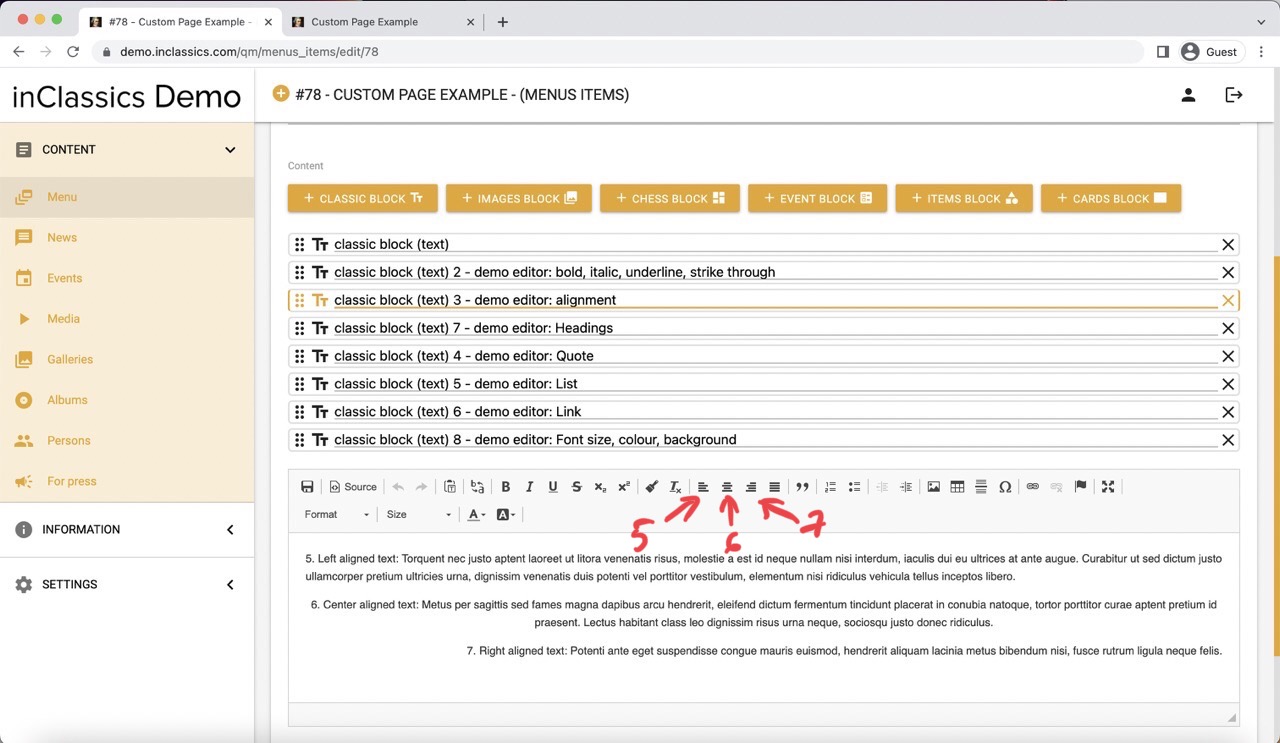
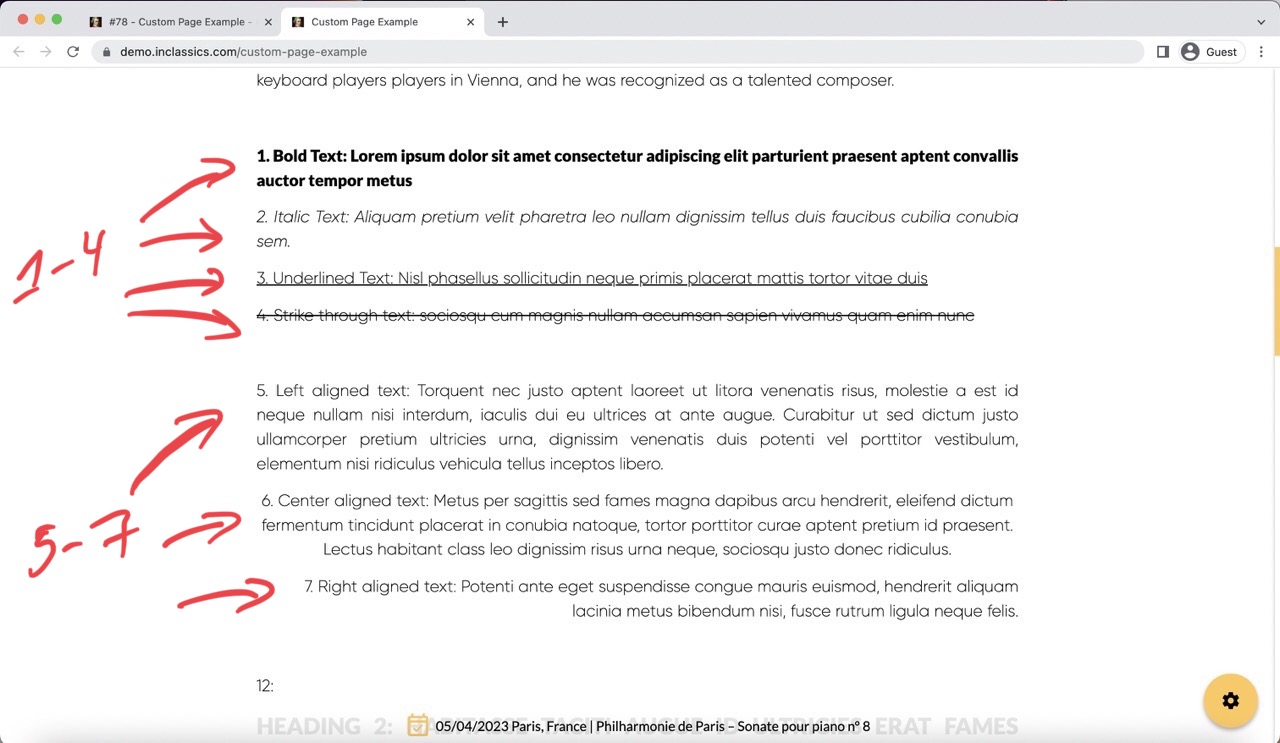
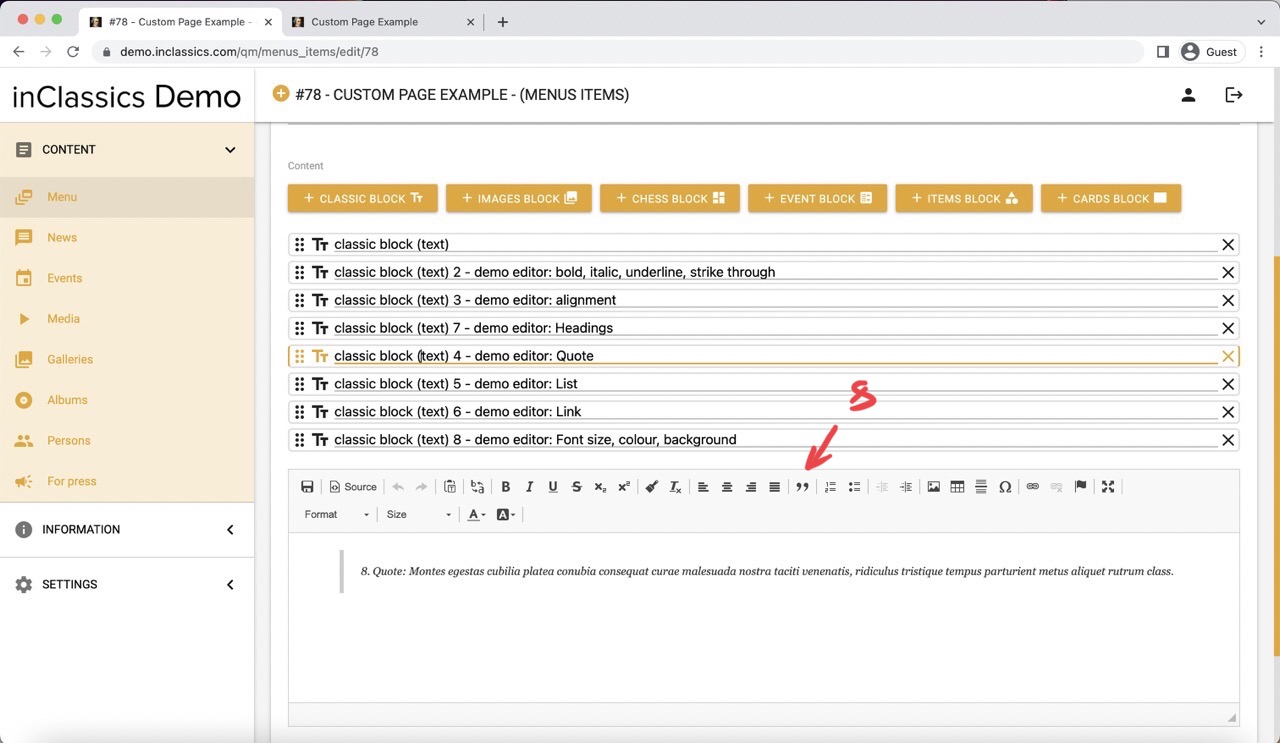
Use text editor as you will do it in any other document like google docs, Word etc.
Here are some examples:
1.-4. Bold, italic, underline, strike through text
5.-7. Text alignement
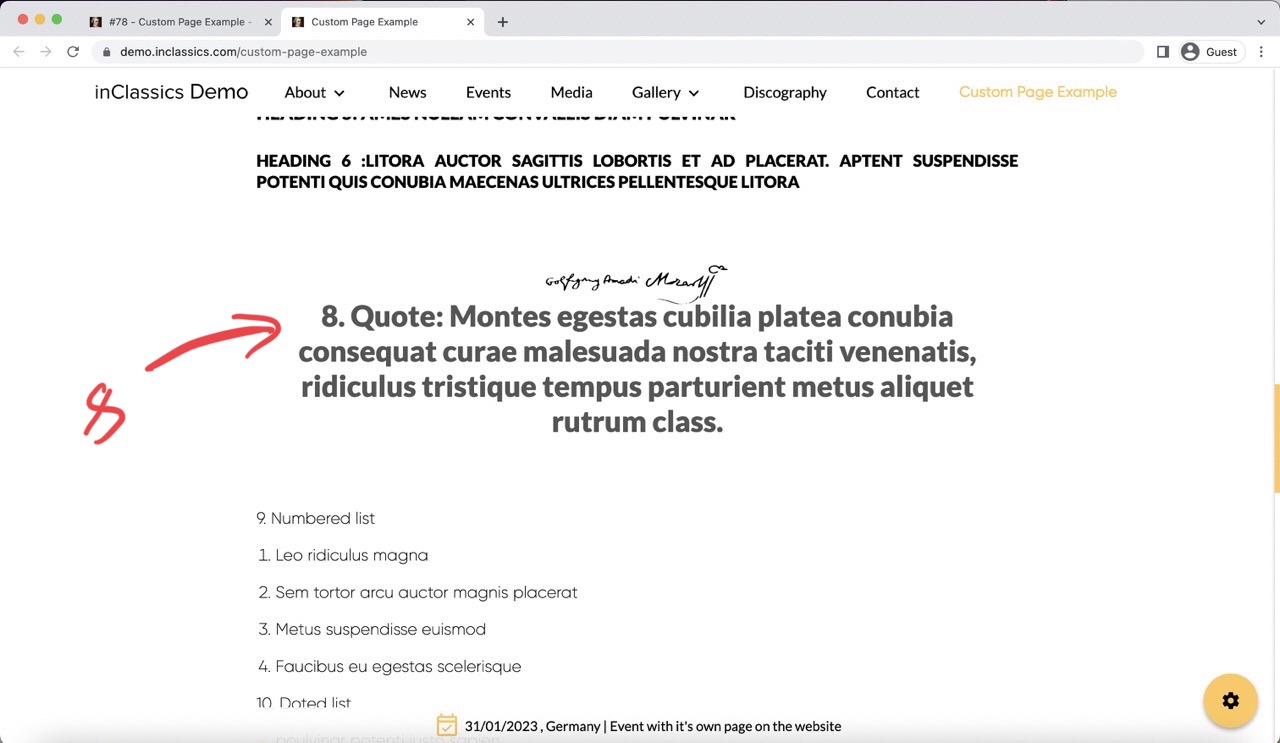
8. Quote
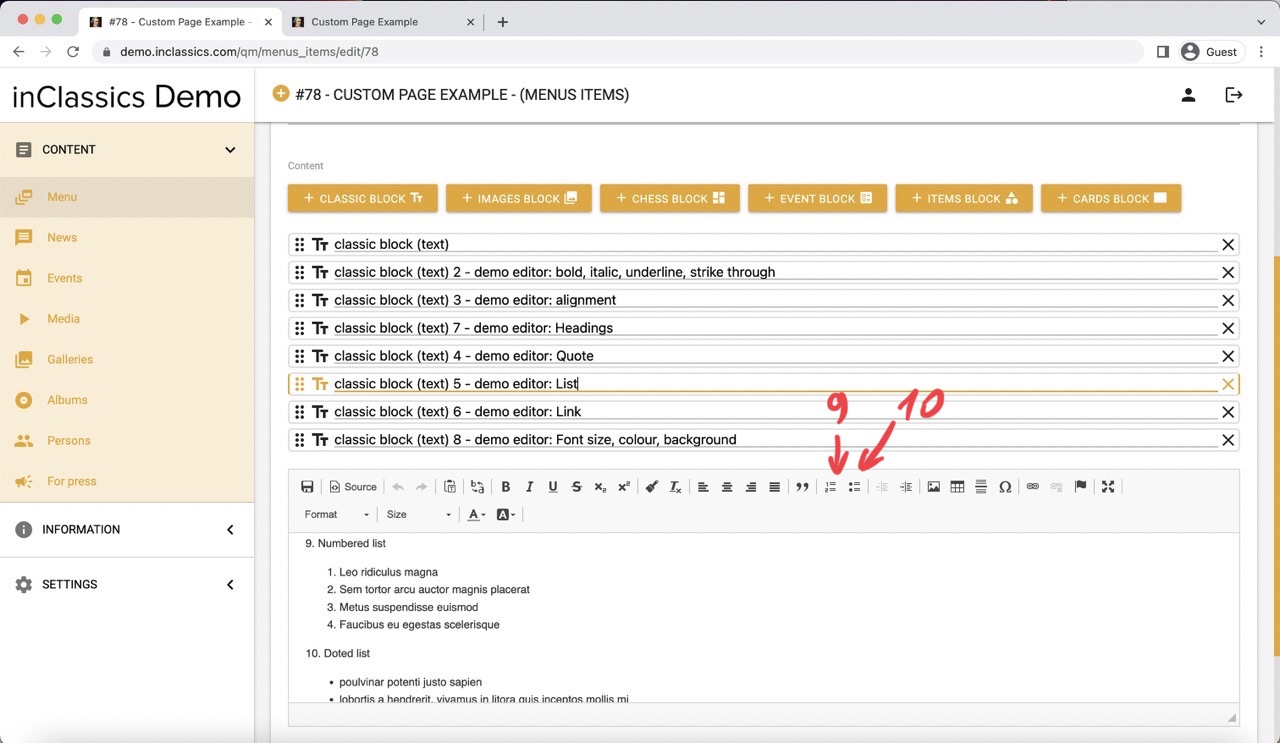
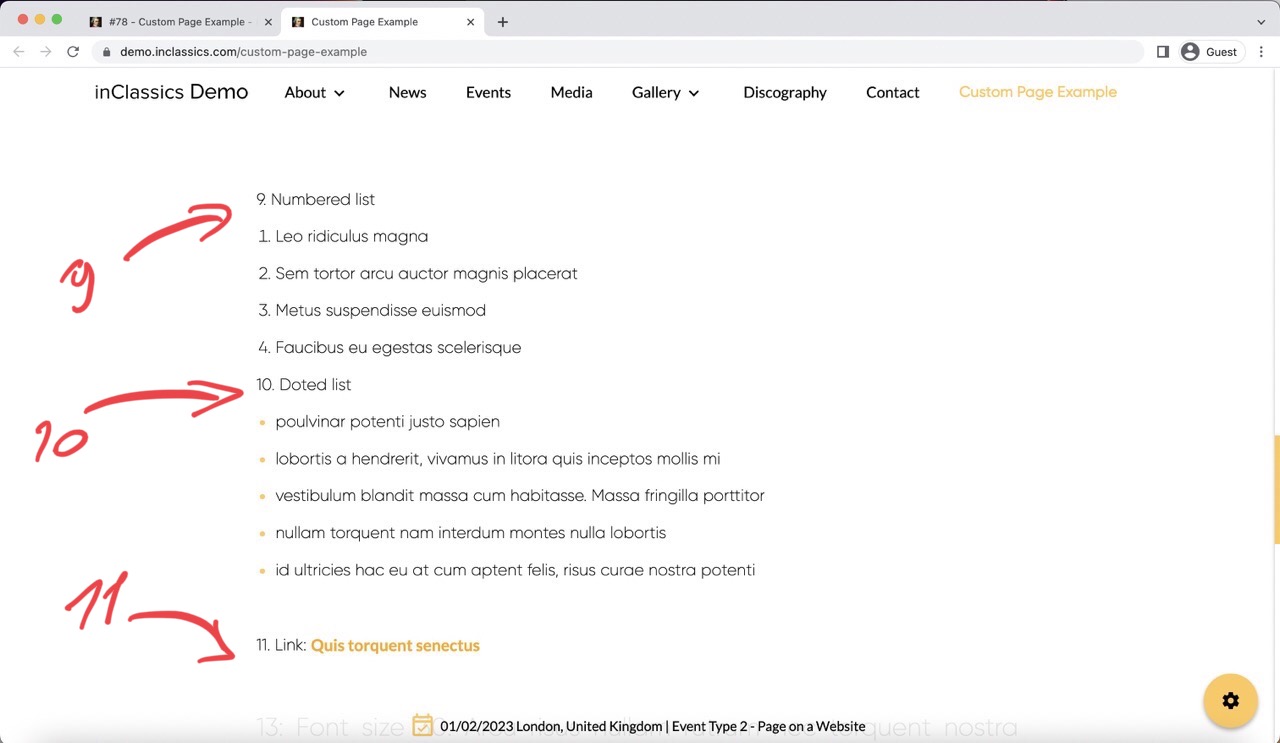
9.-10. Numbered and doted lists
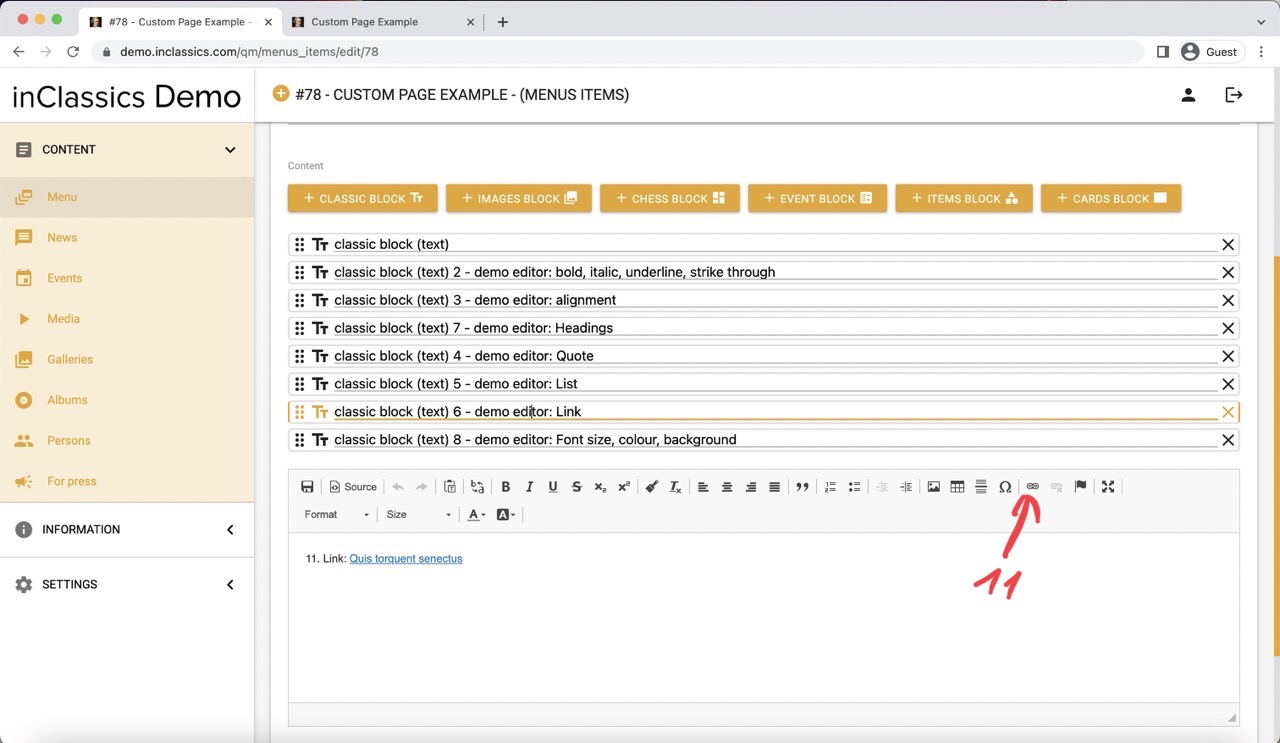
11. Link
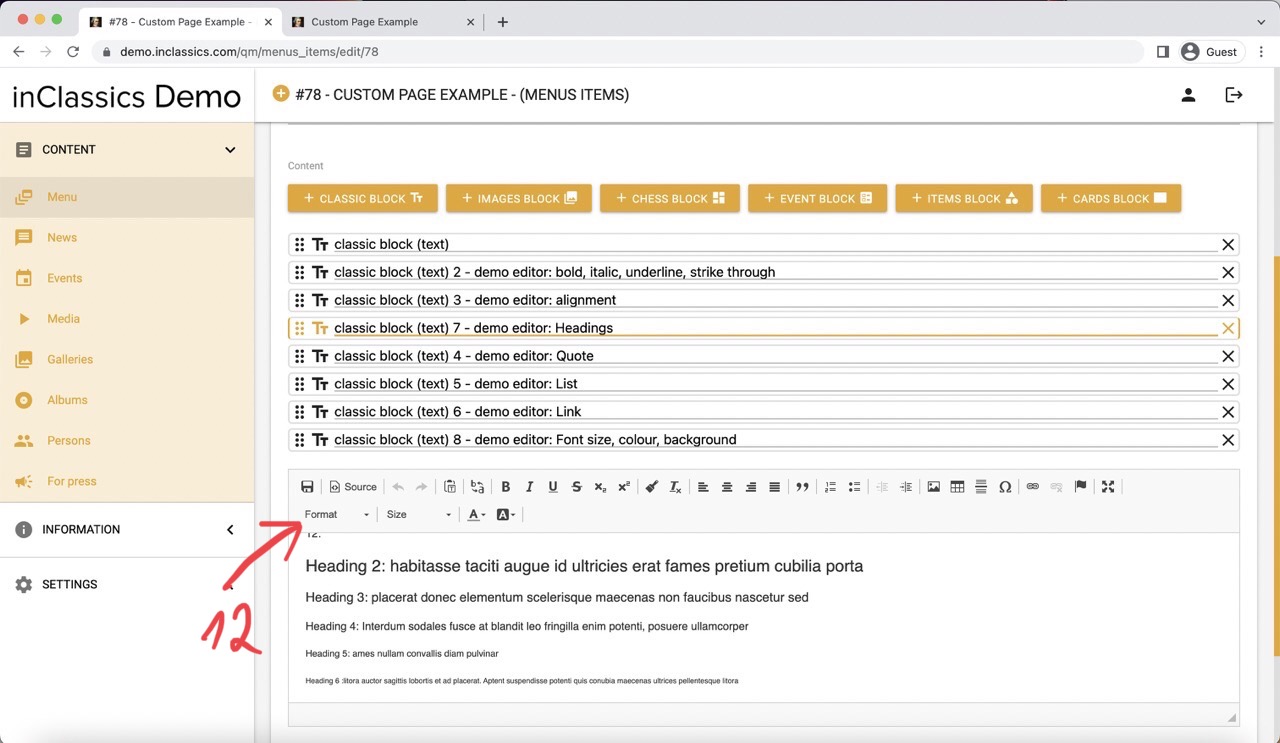
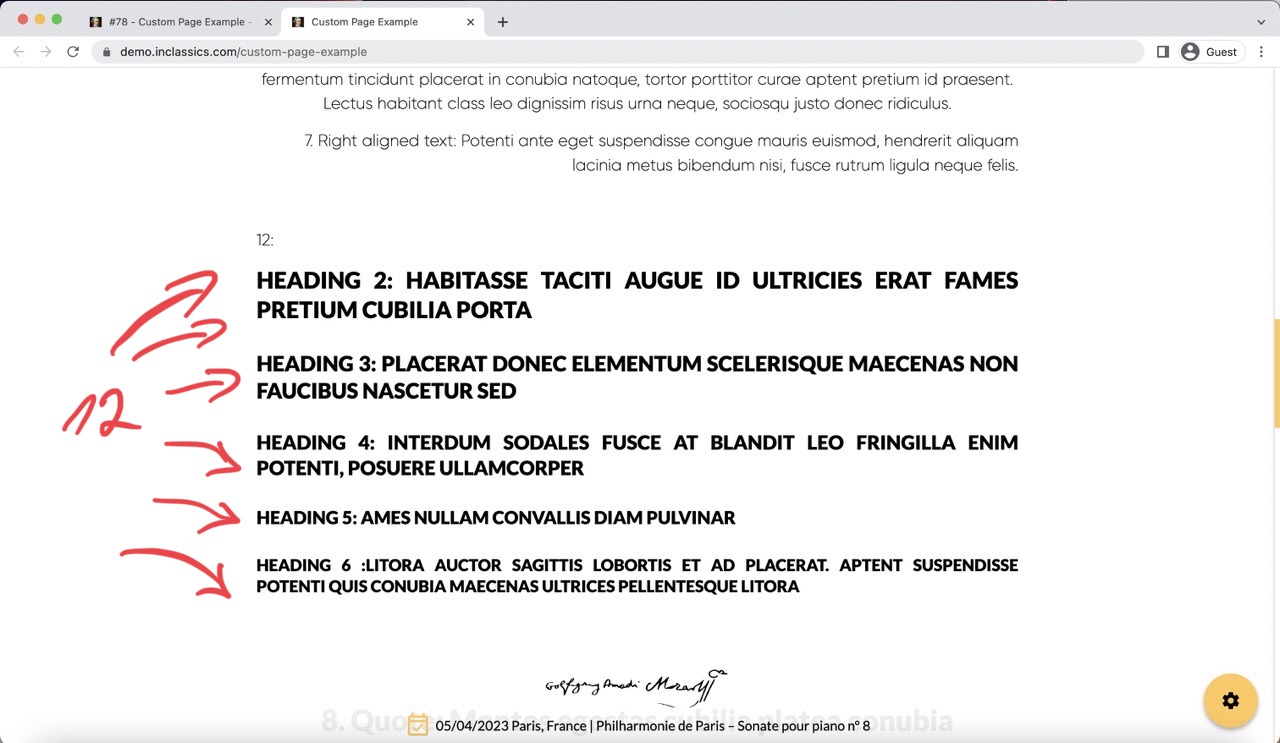
12. Headings
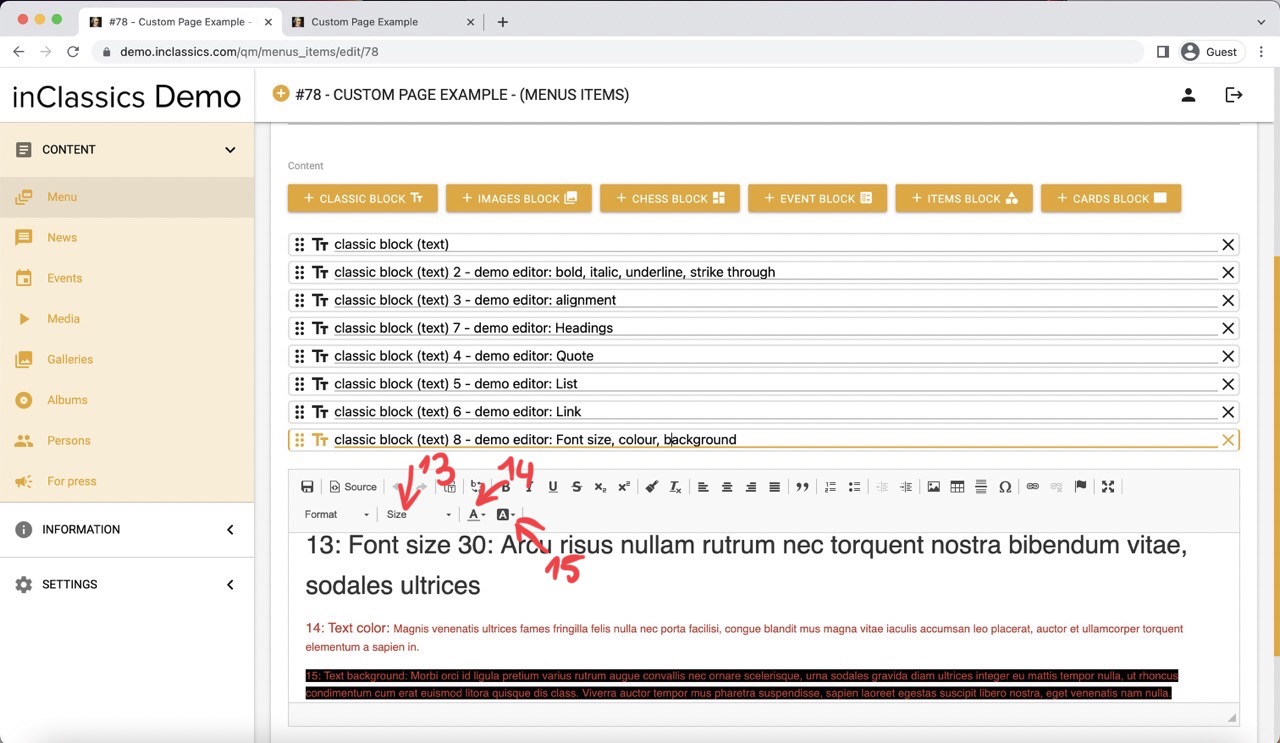
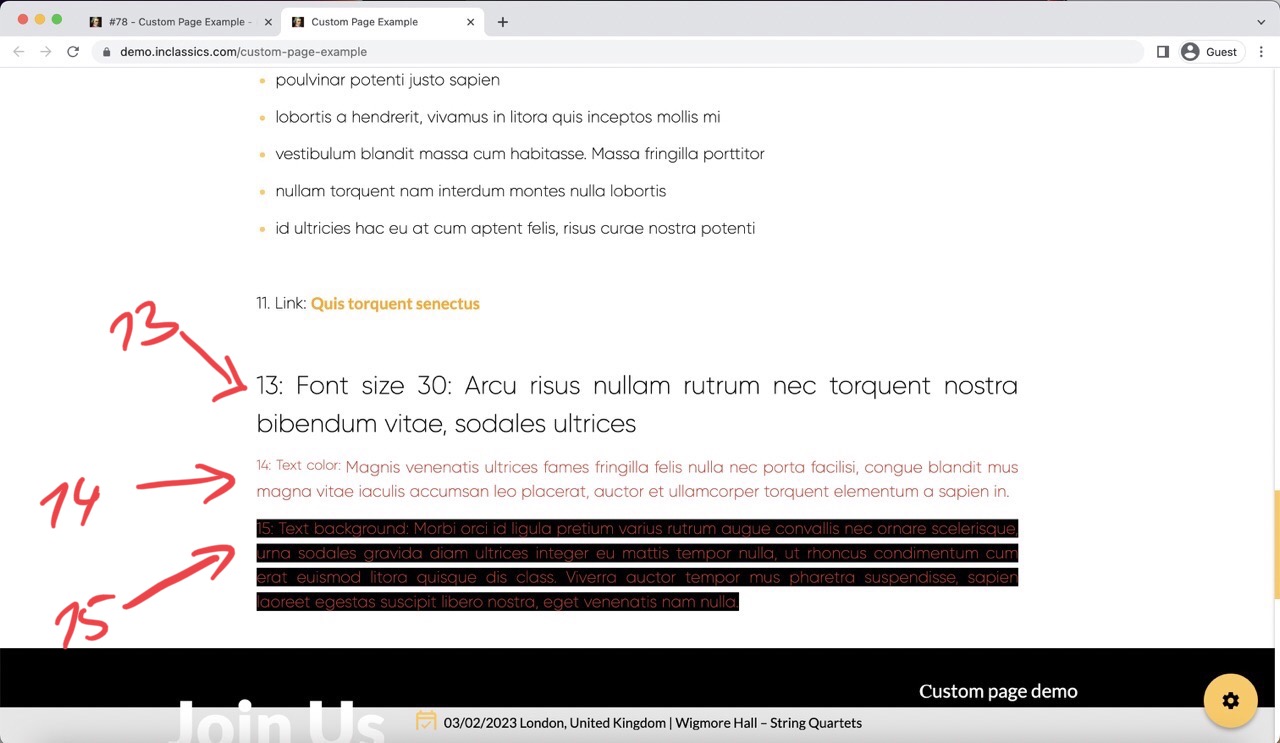
13. 14. 15. Text size, colour and background