Custom Page: Chess Block
Video Tutorial
(1 min)
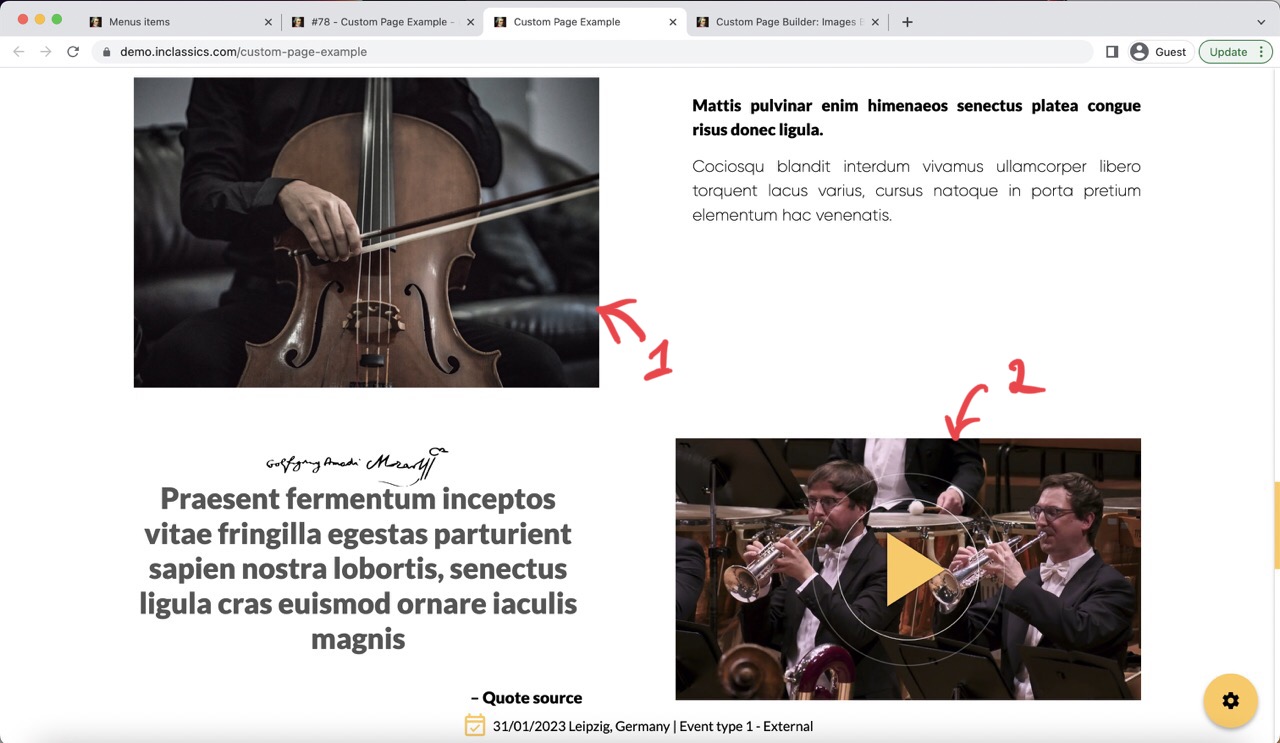
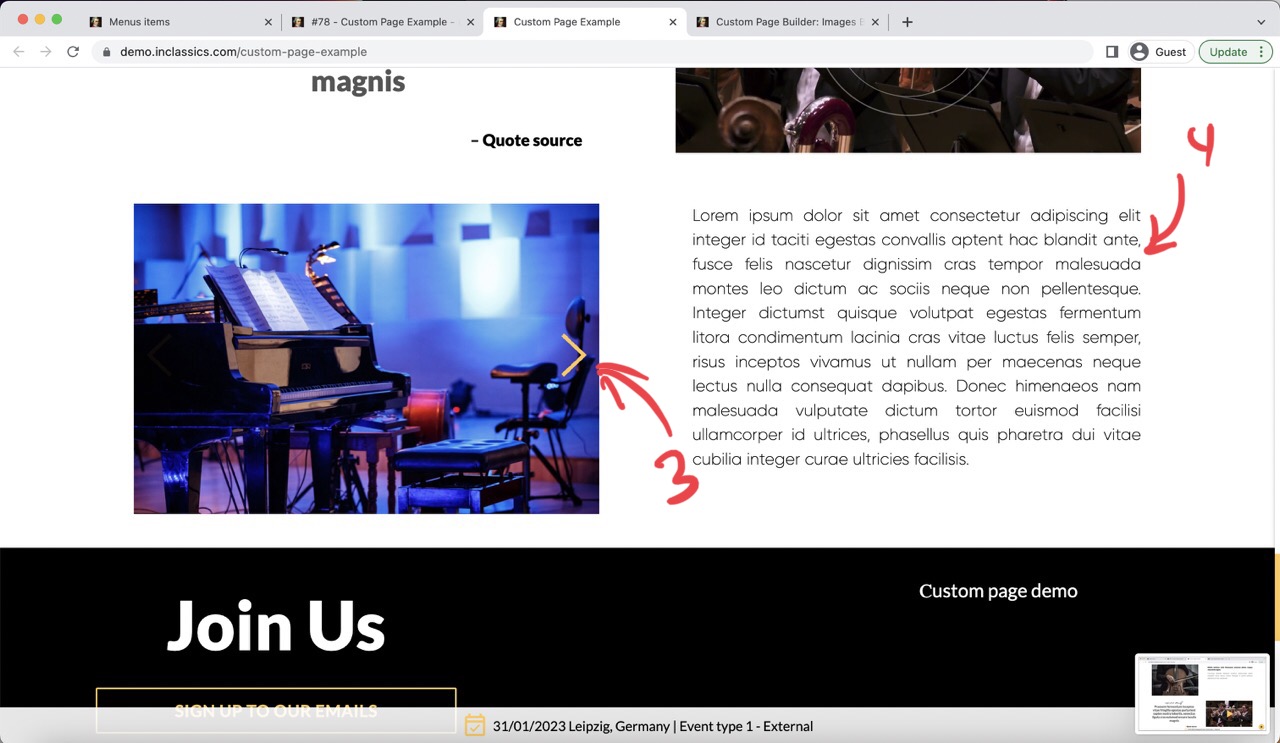
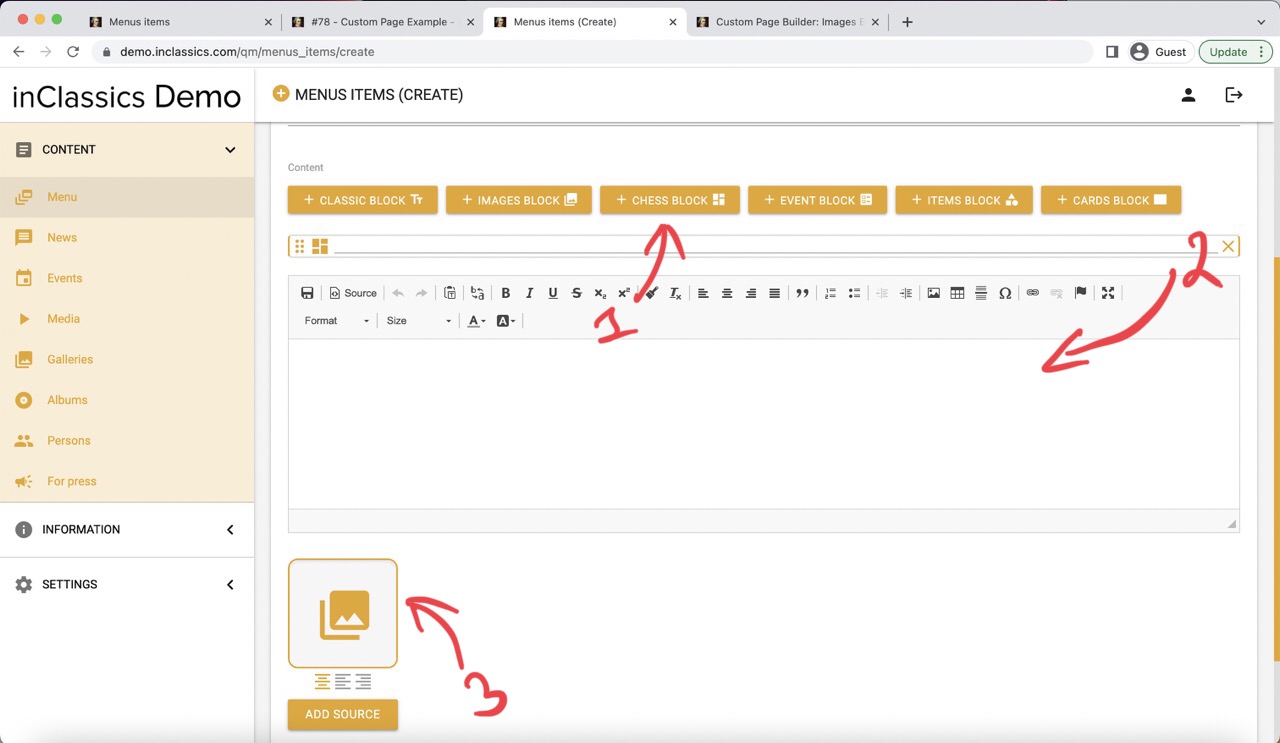
A chess block is a row of content with two columns. To one column you can add a single image (1), video (2) or add a few images and videos for slider gallery (3), to the second column you can add a text (4).

In mobile view the image and text take their own row (5)
To add a chess block:
- click on the chess block button (1)
- type your text (2)
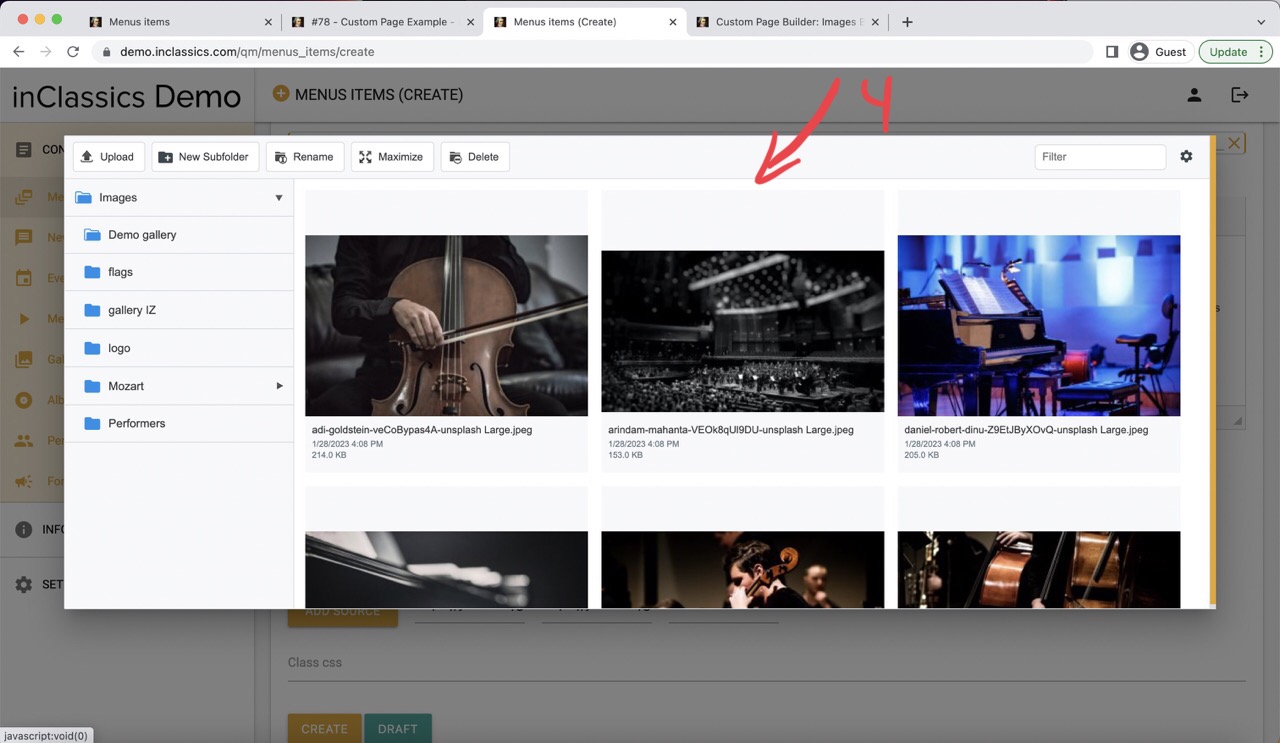
- click on image icon to open your media library (3)
- upload and choose an image (4)
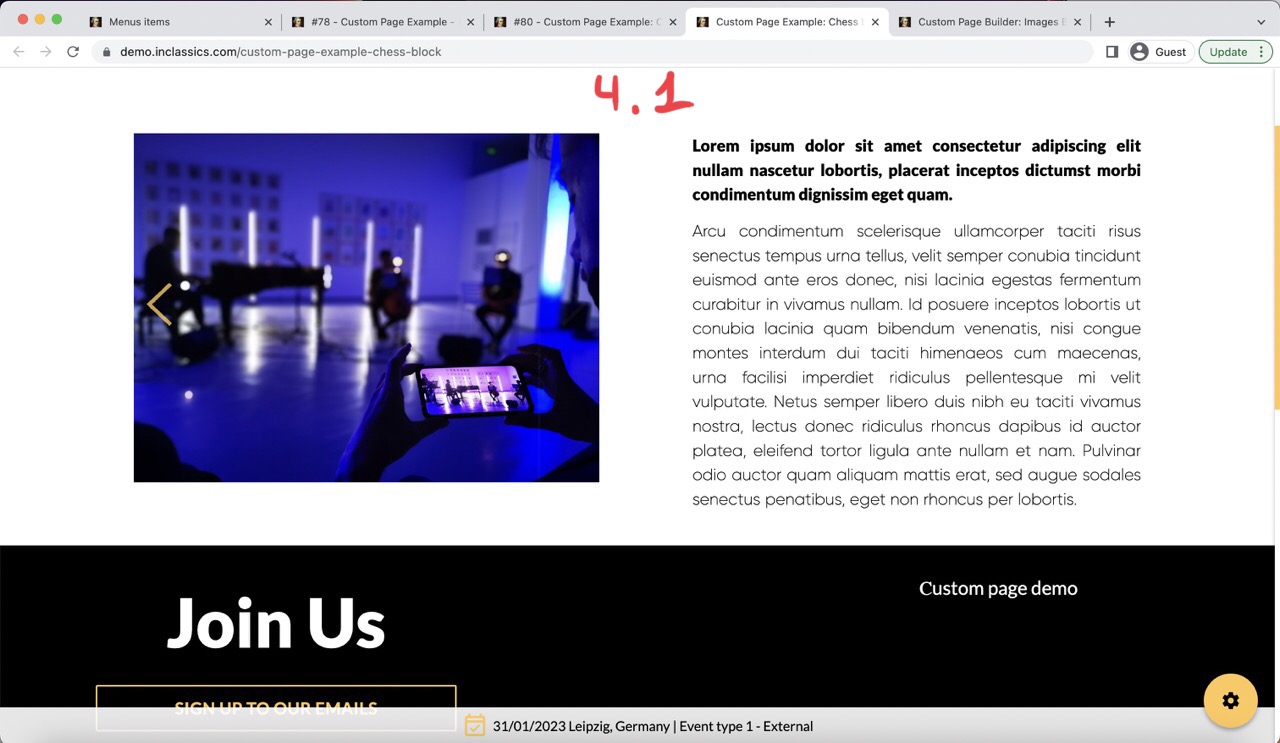
This will create a two column block with image and text (4.1)
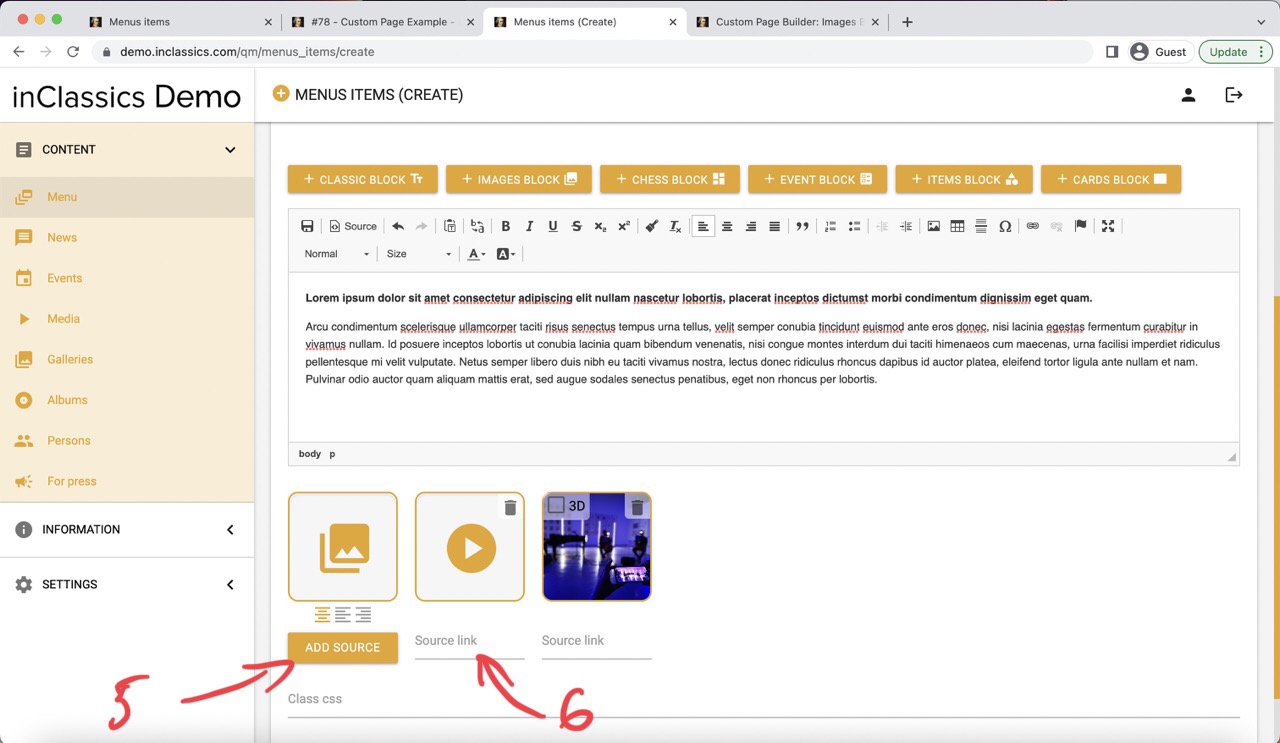
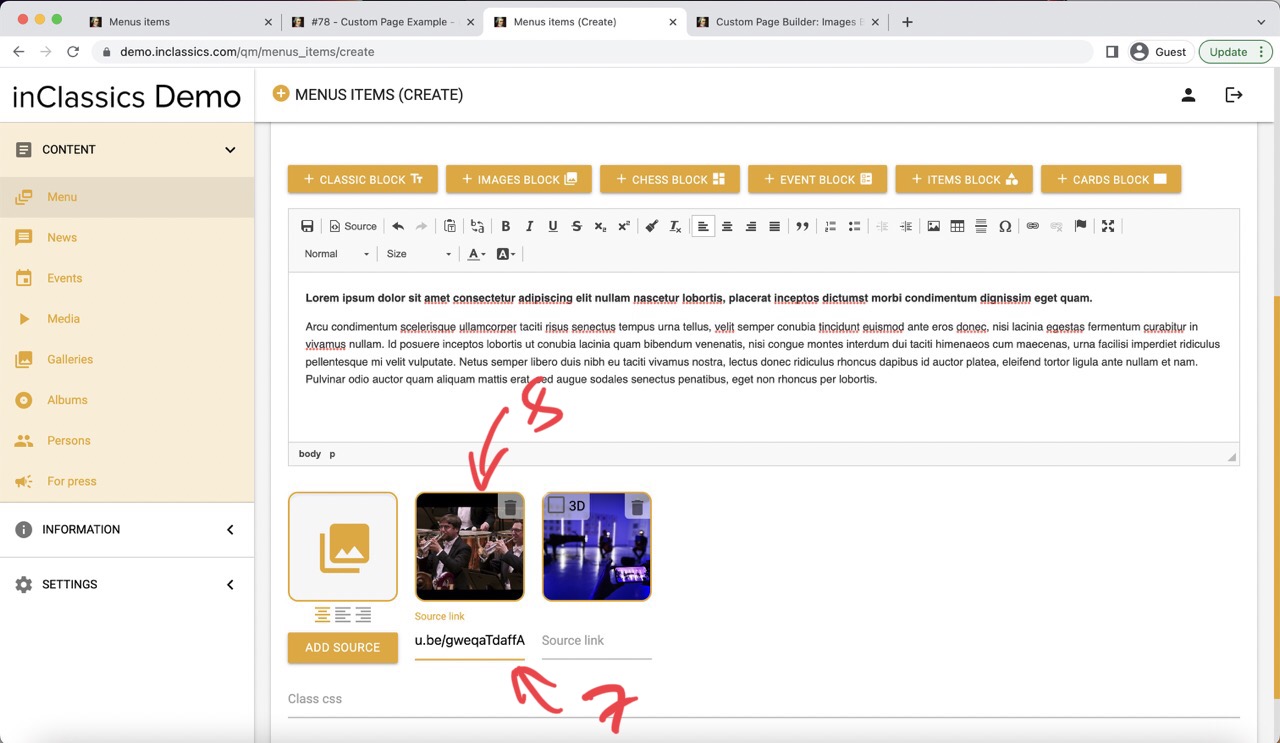
- to add a video, click on add source button (5) and in the source link field (6) add a link to YouTube (7)
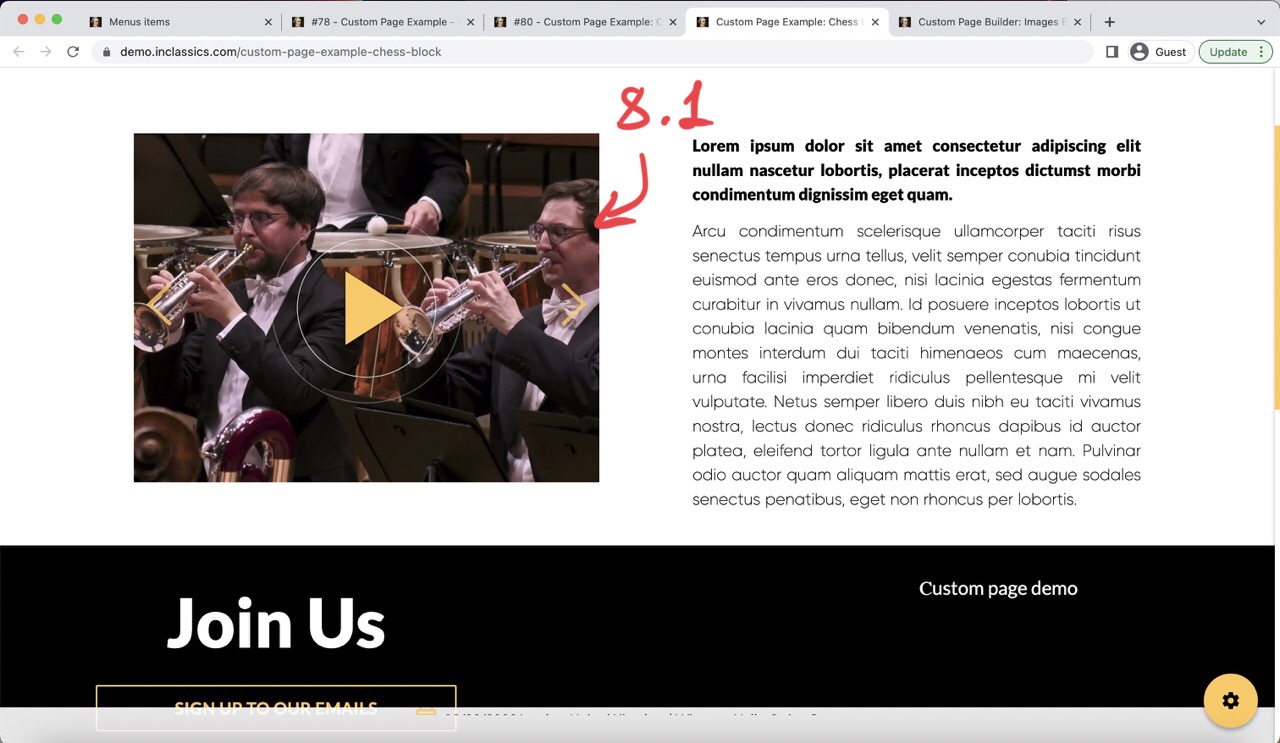
- the thumbnail (image) from the video will be generated automatically (8, 8.1) (if the image is not generated automatically, check out the troubleshooting section of the images block)
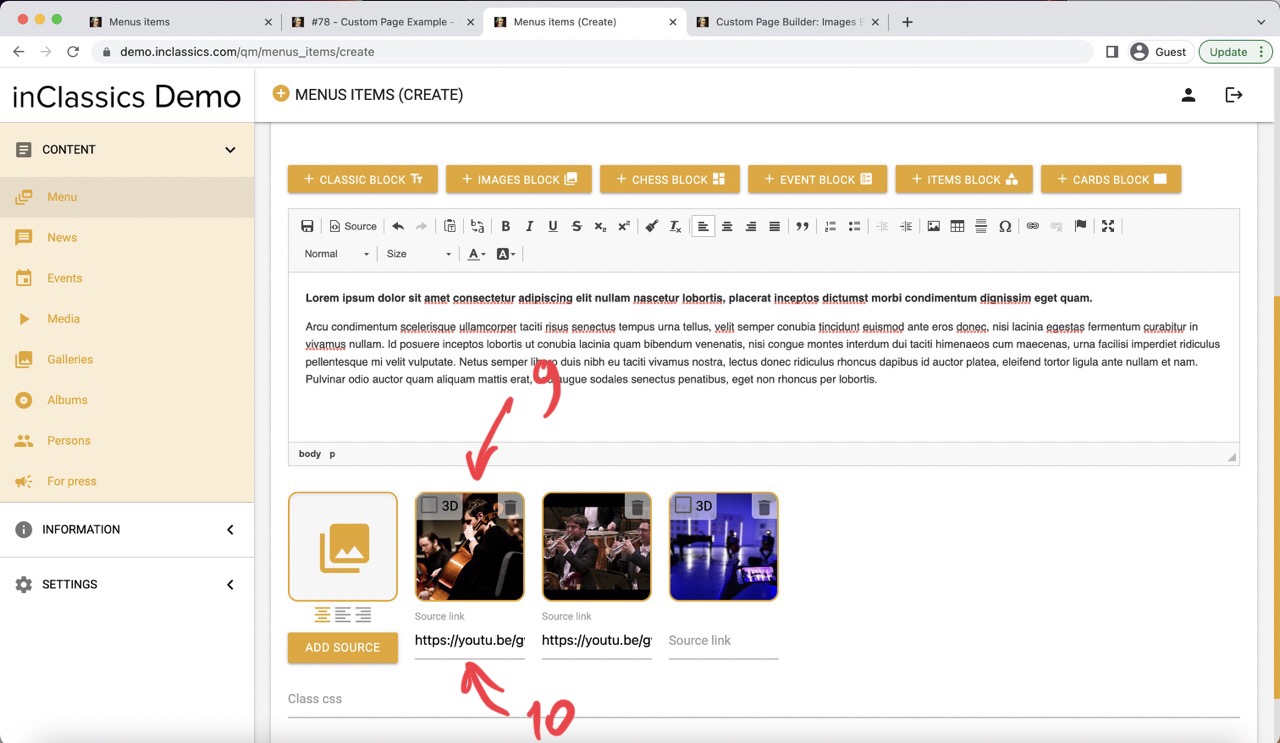
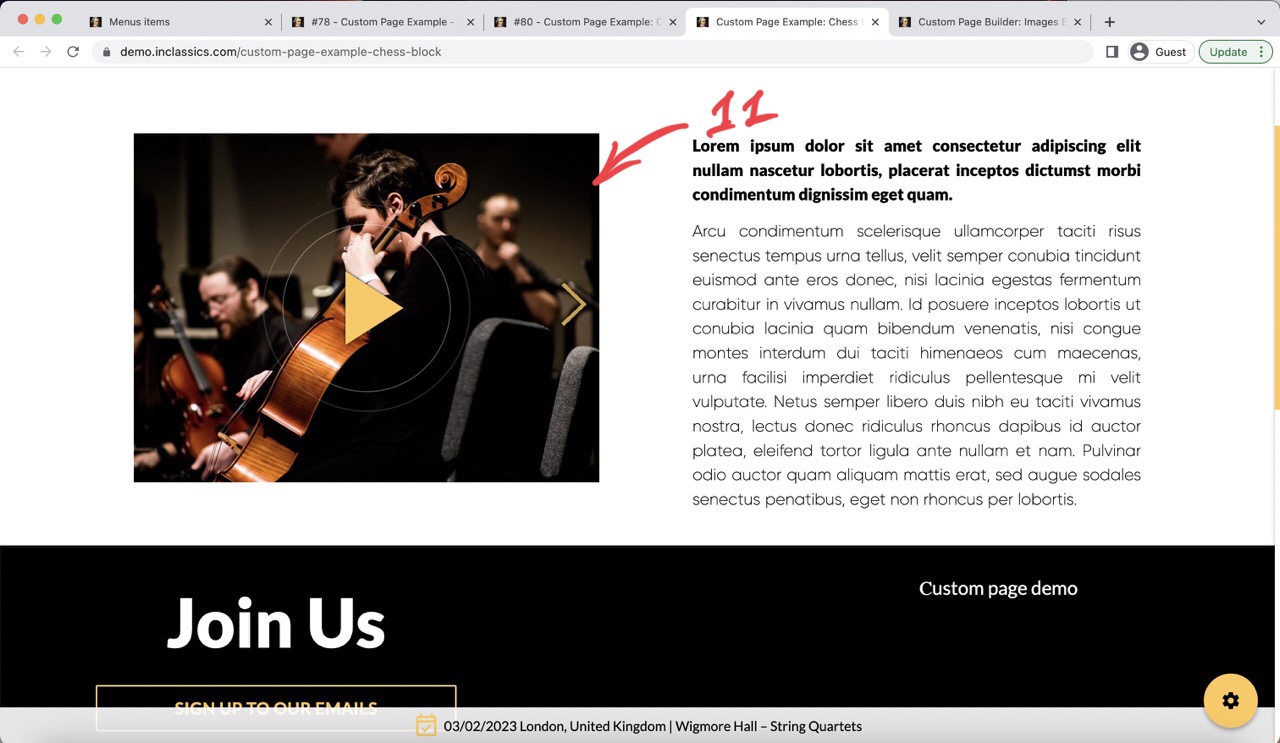
- you can also add an image from your media library (9) and add a link to YouTube video into the source link field under the image (10). This will create a play button on your image that will play the YouTube video (11) check out the troubleshooting section of the image bock if your video doesn't want to play.
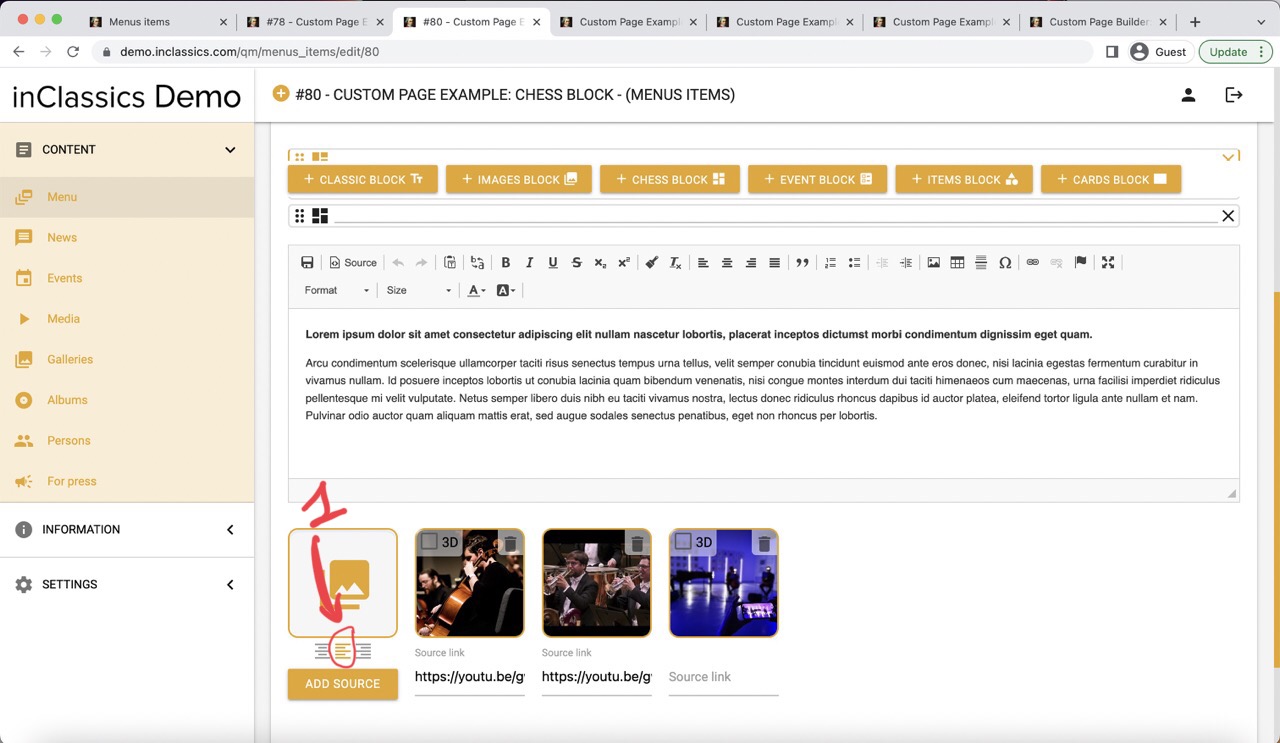
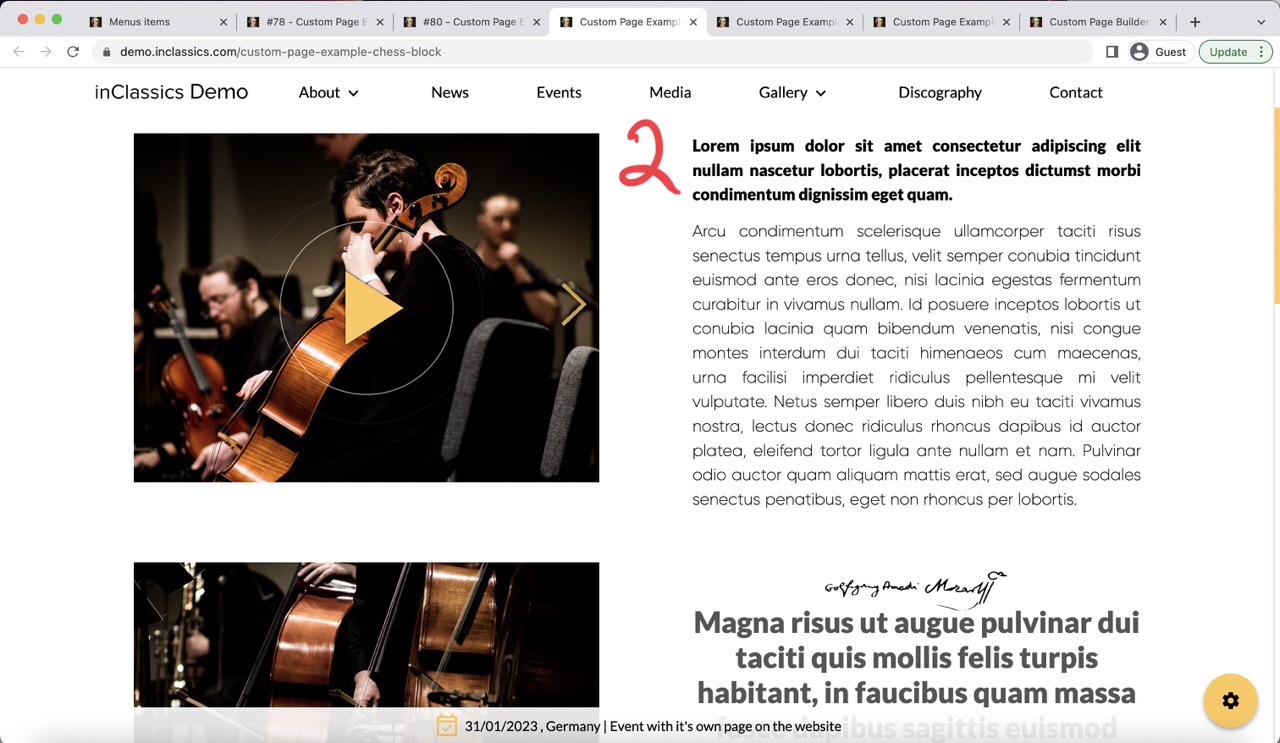
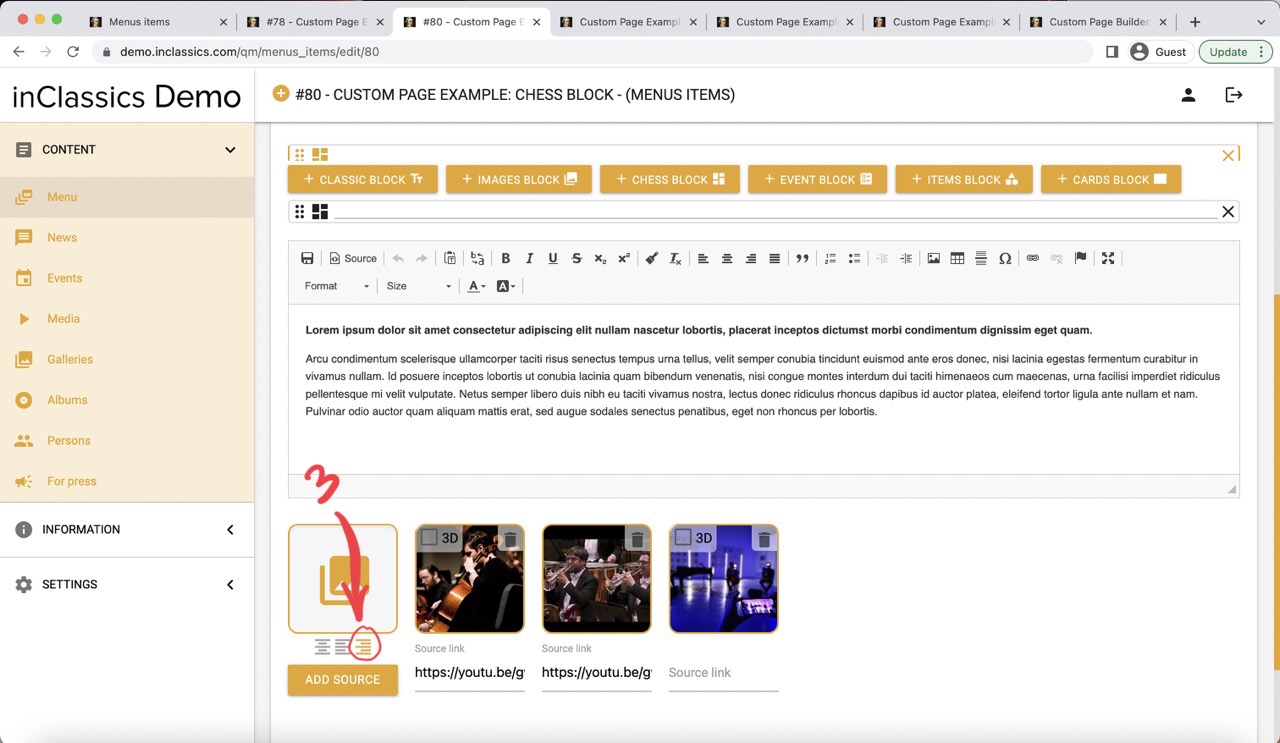
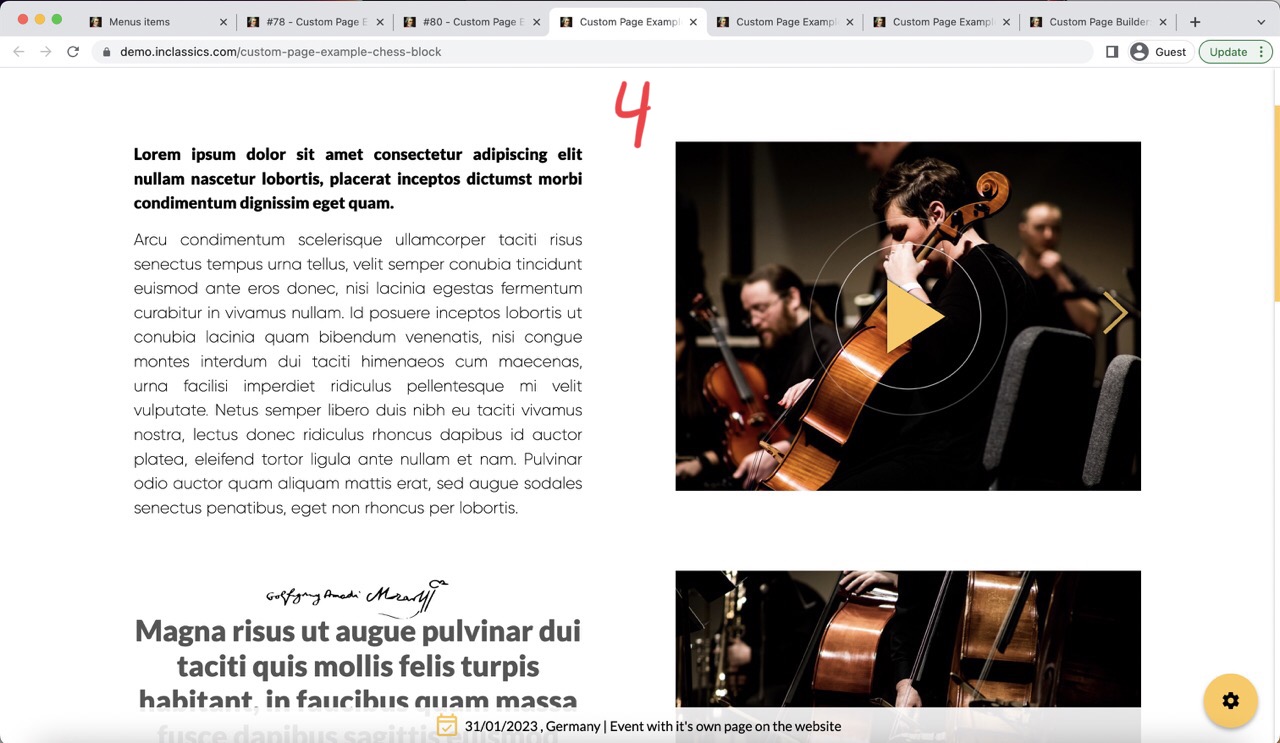
You can choose which column the image will take.
click on the left align icon (1) to display image on the left (2)
click on the right align icon (3) to display image on the right (4)
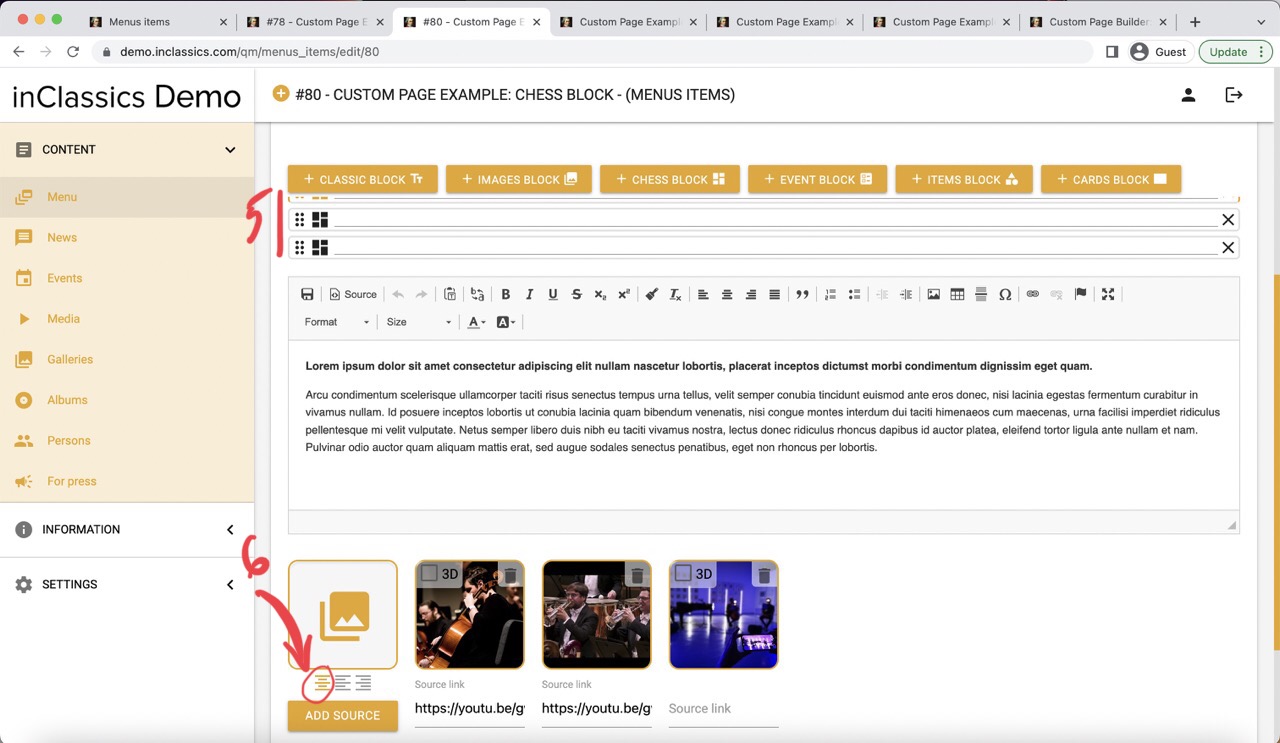
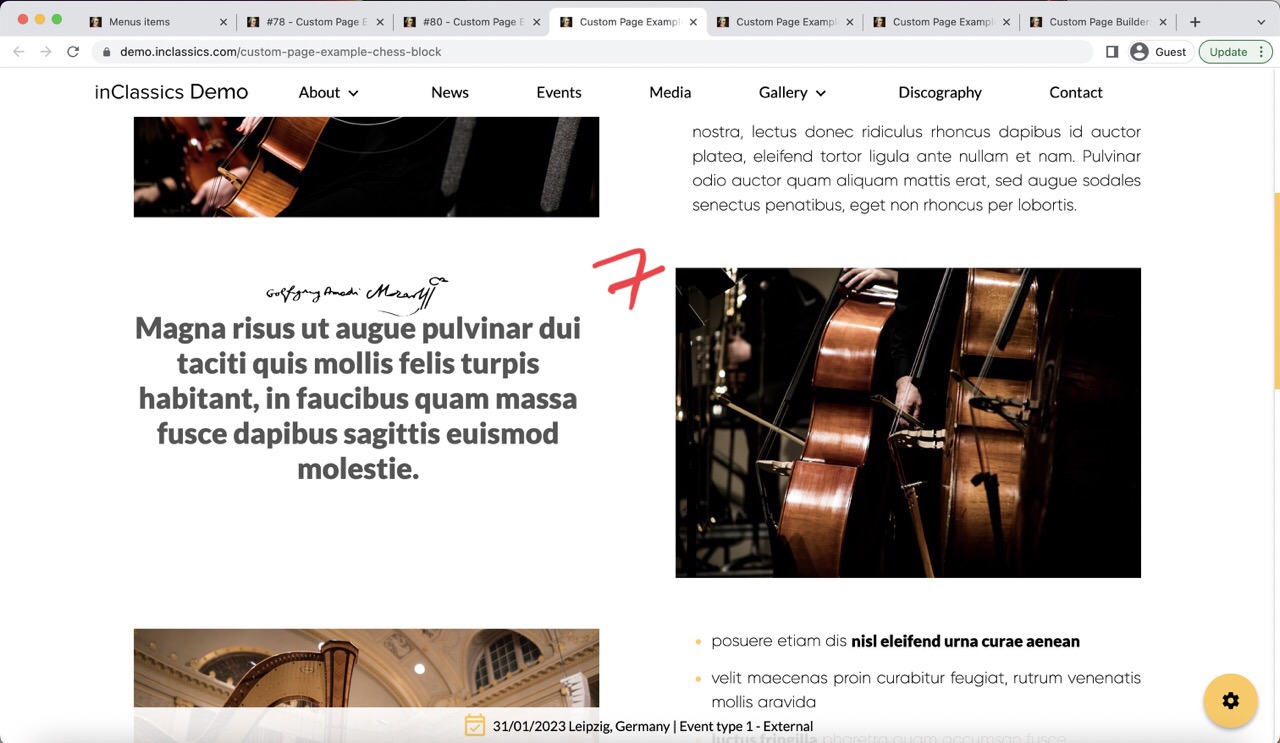
If you add a few chess blocks in a row (5) (one after another, without mixing in other blocks in between) and leave the default icon on (6), your images will alternate left and right position in each row automatically to create a chess layout (7)