Media Management
Video Tutorial
(1min 32 sec)
Media Page and Two Ways to Watch and Listen
Check out demo media page and demo media item
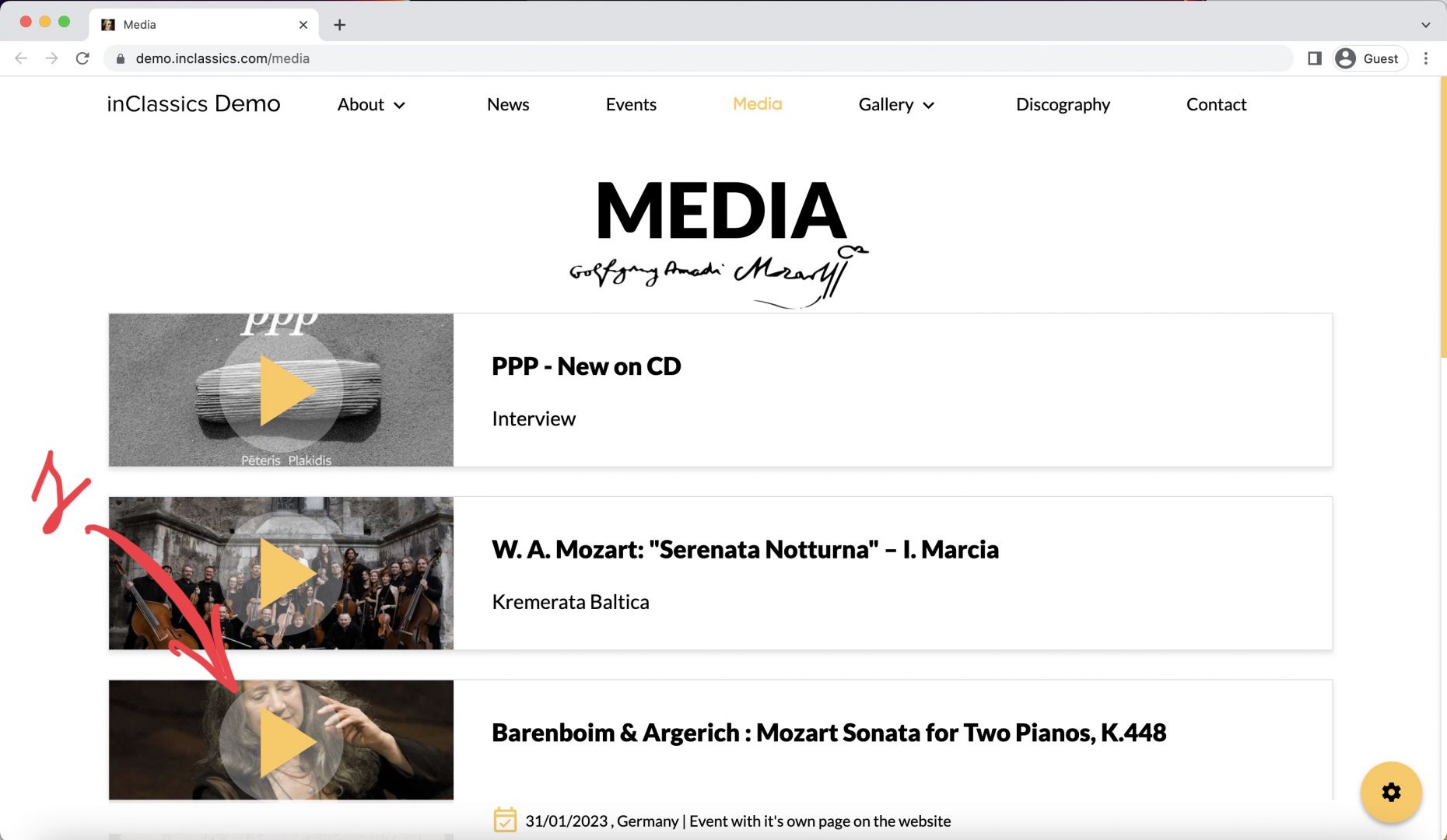
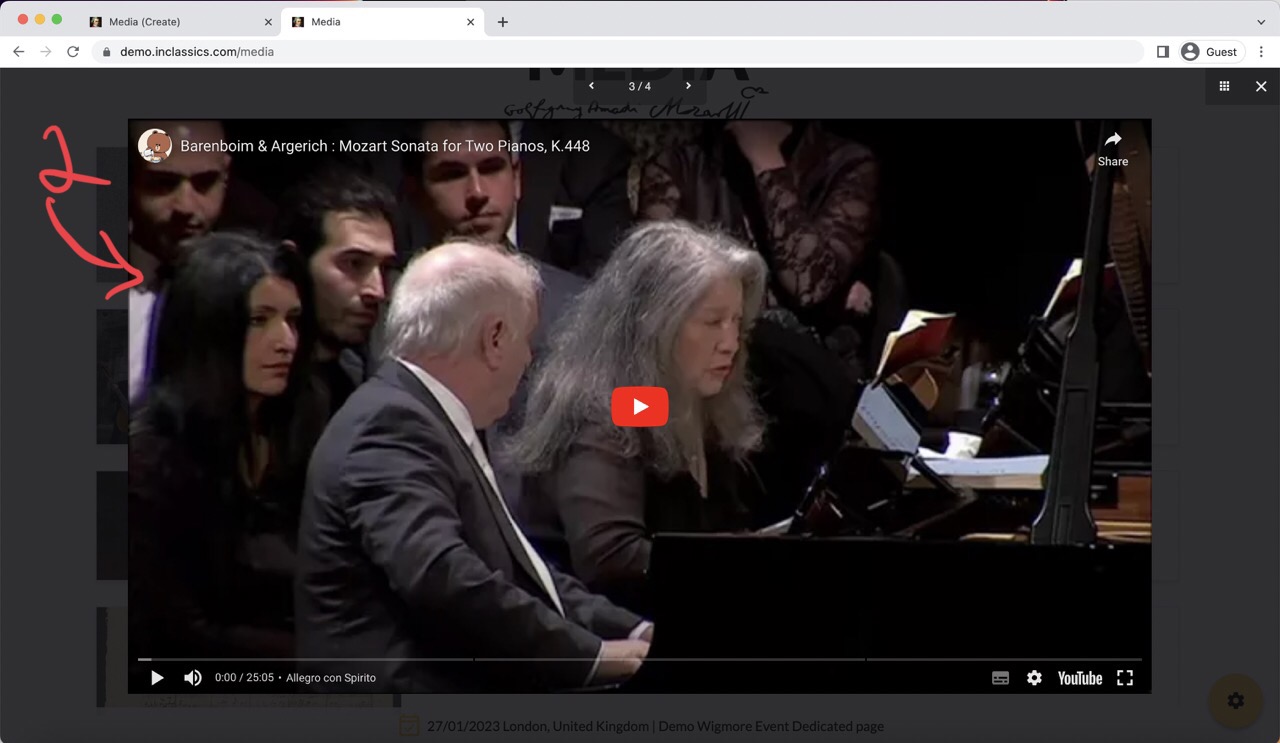
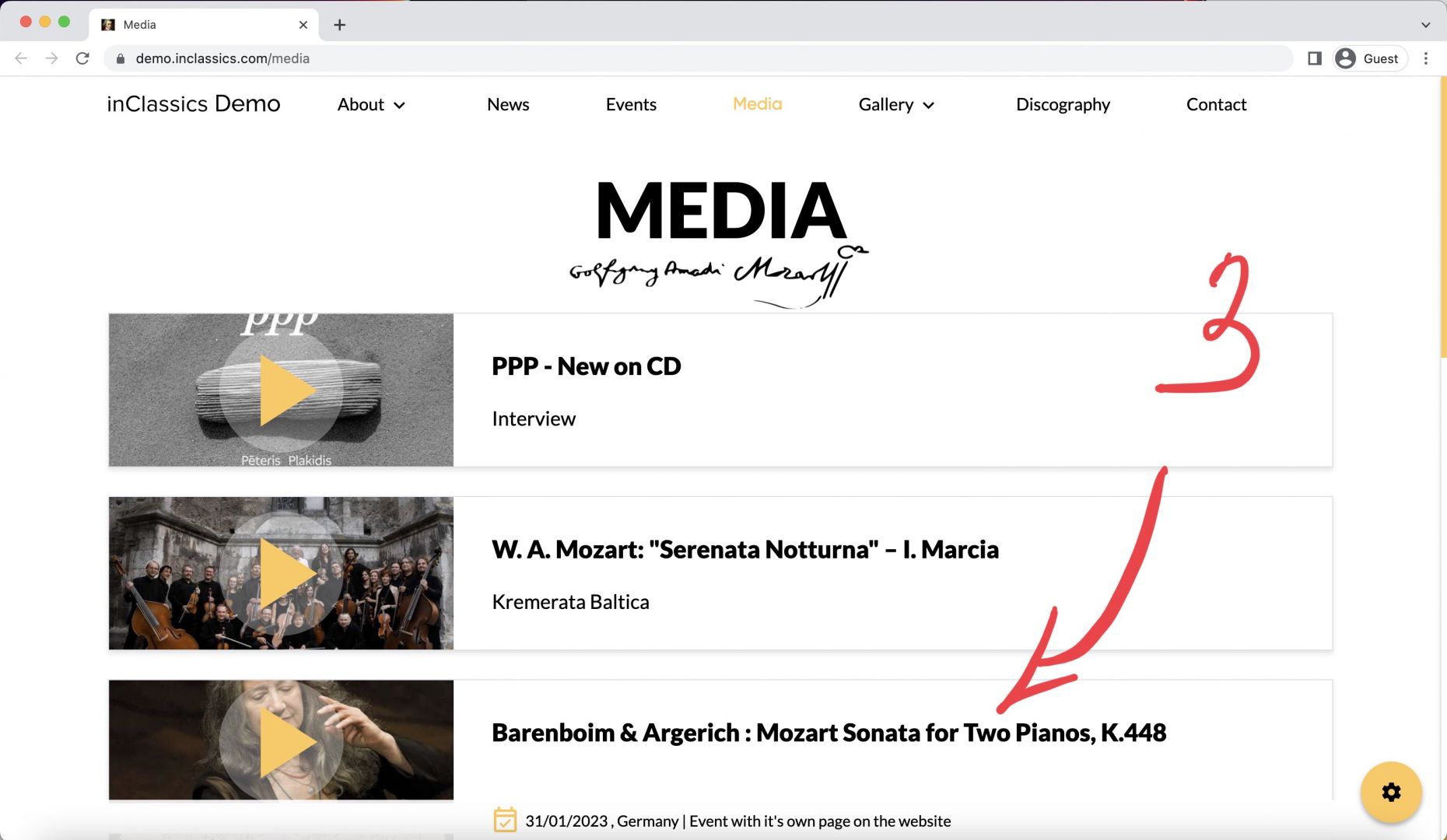
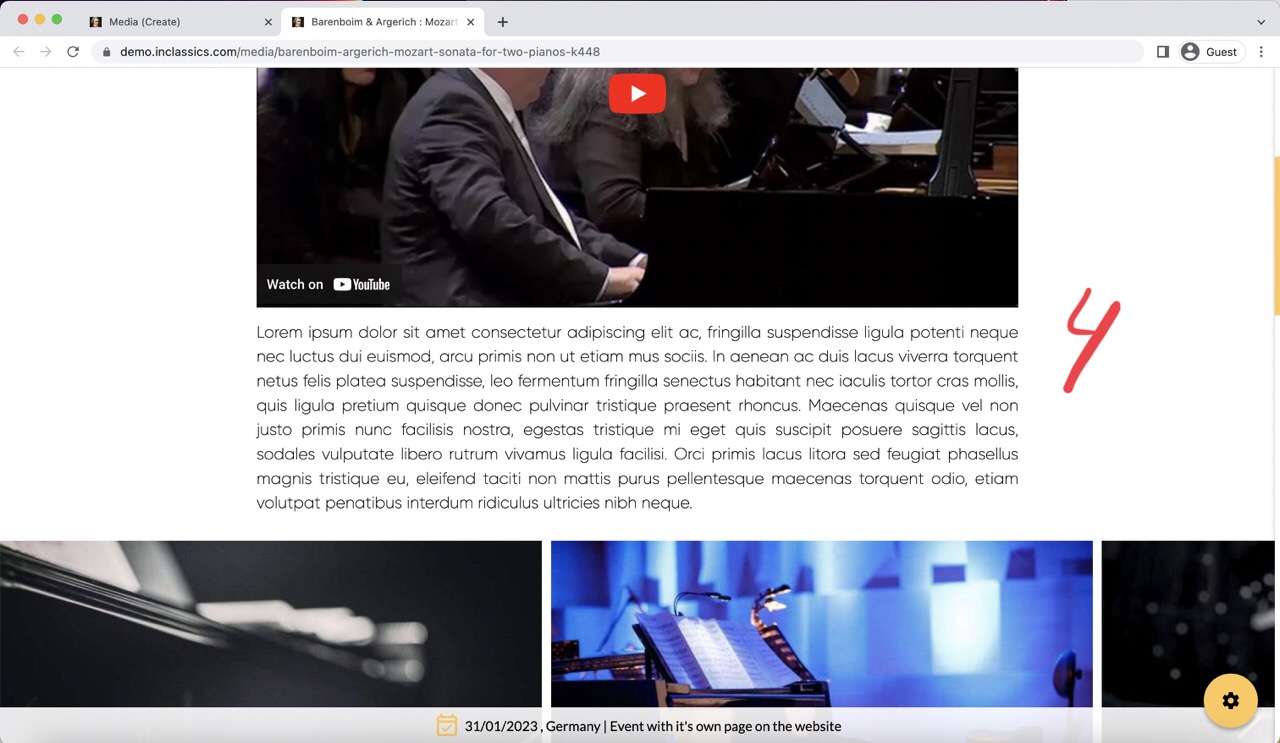
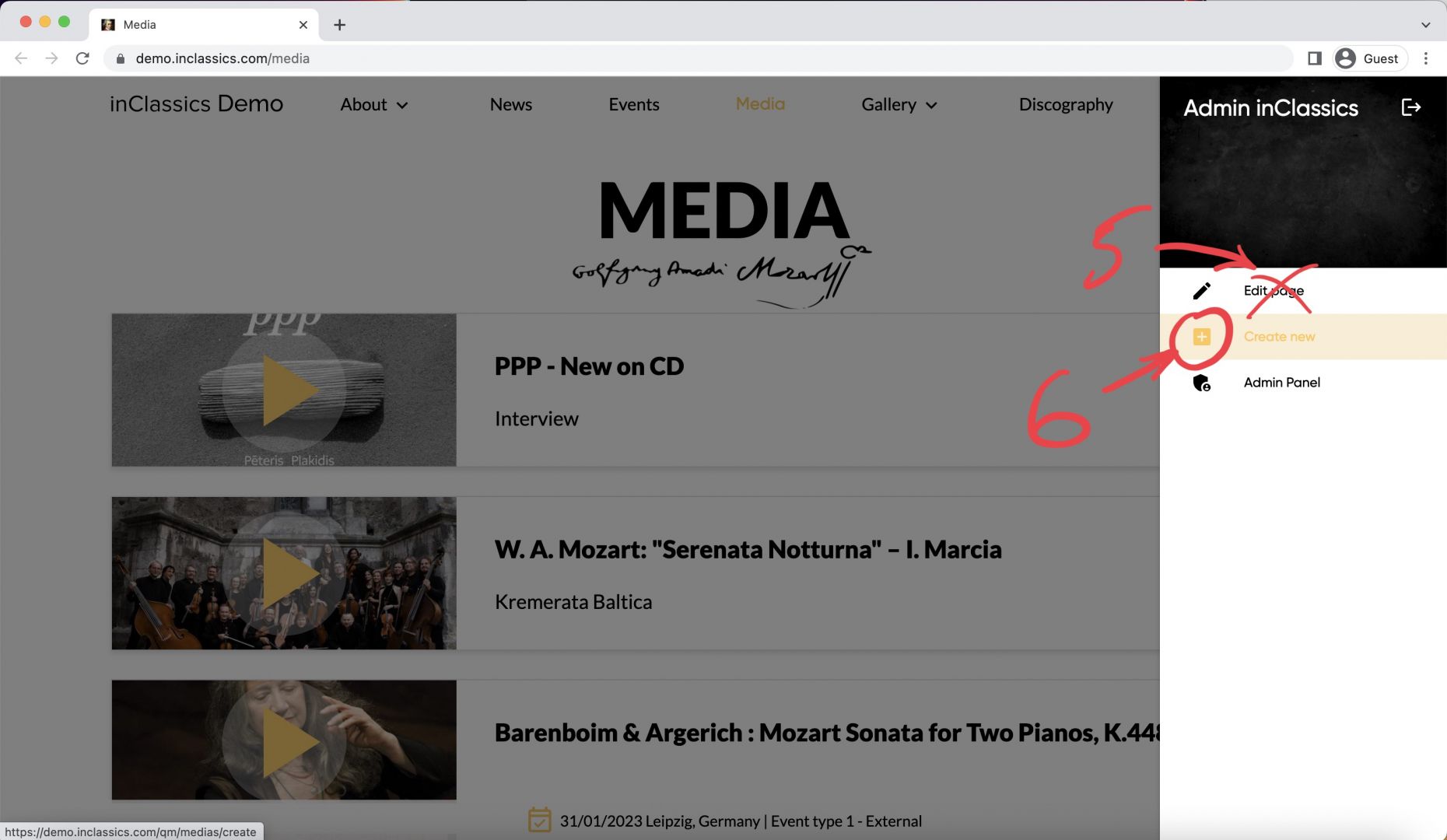
On your media page you can gather and display your audio and video recordings.
Visitors can watch and listen to your media in two different ways:
- Click on the play button (1) to open a list of recordings directly (2)
- Click on the card (3) to go to the recording’s page, where they can learn more information (4) that you provided
We recommend adding extra information about your recordings as it helps with search engine rankings and provides valuable content for your visitors.
To add and manage your recordings, you don’t edit the Media page itself (5), you add all your media into a separate "folder" (6) and they will be automatically displayed on the Media page. This helps to keep everything structured and organized.
Create a New Media Item
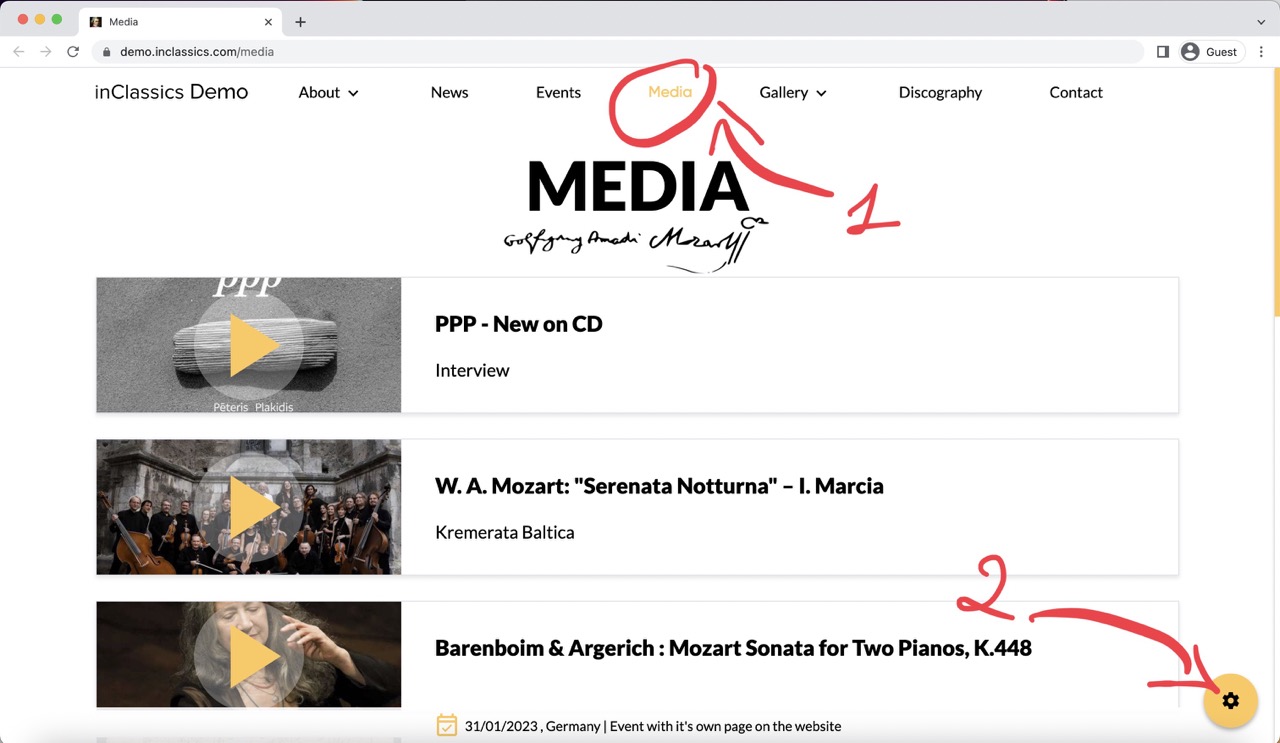
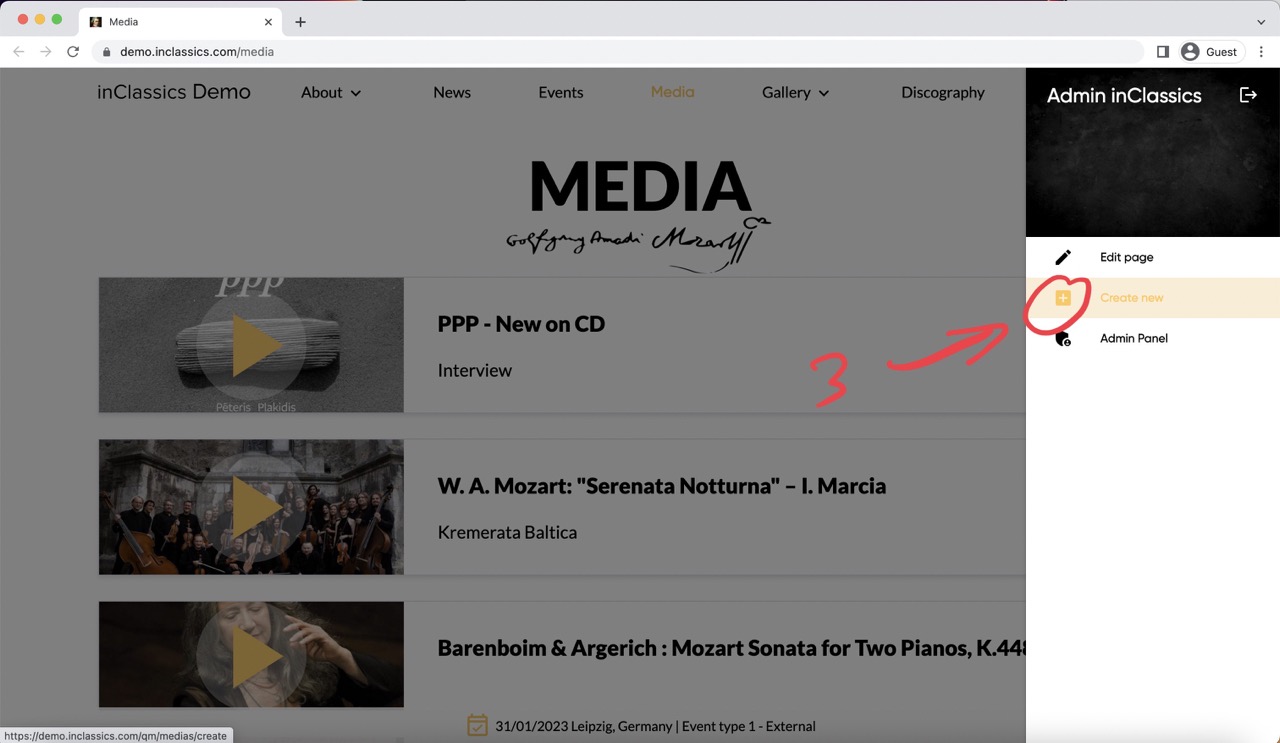
- go to your media page (1)
- click on settings button (2)
- click "create new" (3)
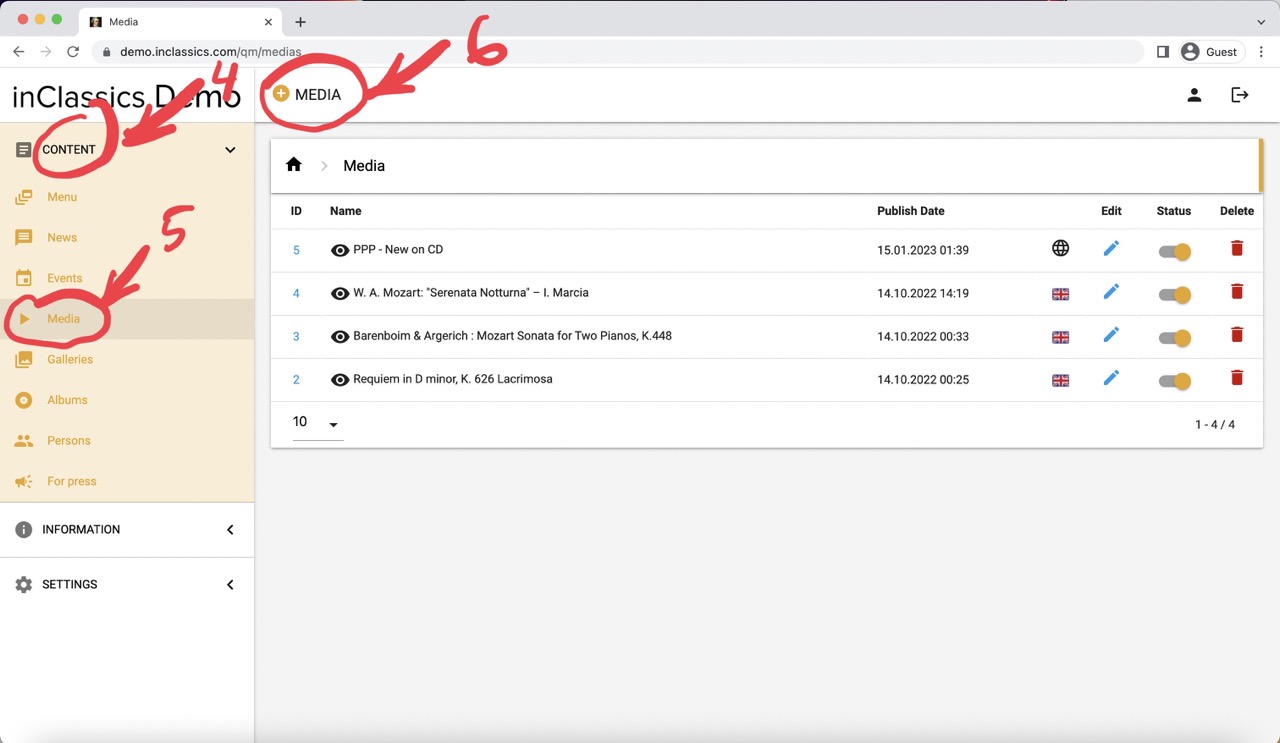
You can also do it from within your admin panel:
- go to your admin panel
- content tab (4)
- media (5)
- click on the plus icon next to "Media" title (6)
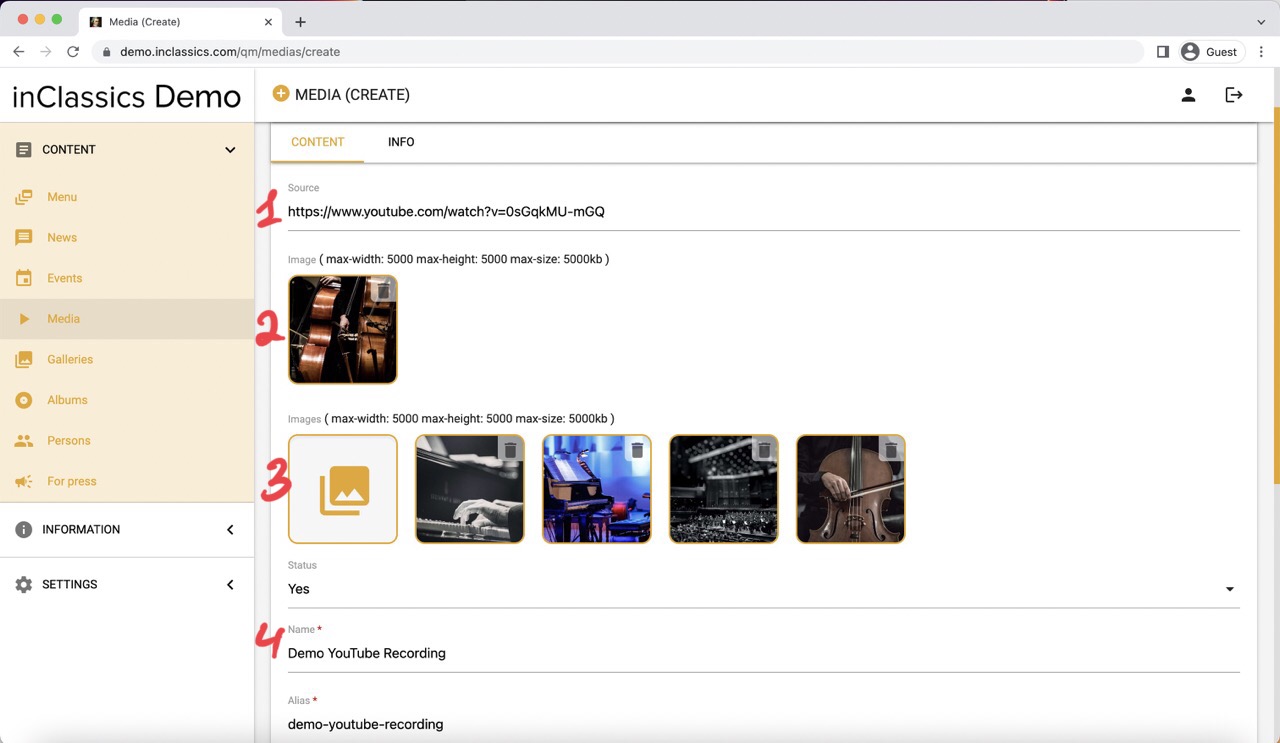
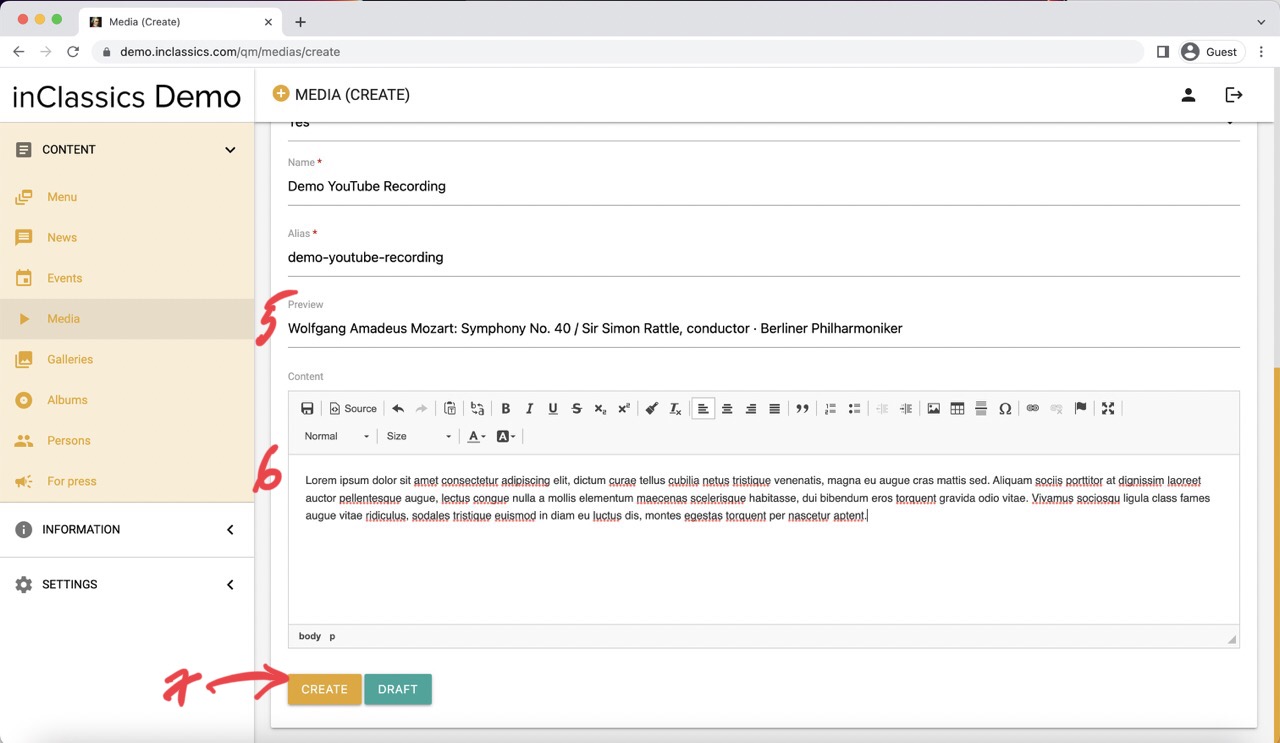
Here you can add:
- link to your recording (1)
- cover image (2)
- image gallery (3)
- name (4)
- preview (5)
- text content (6). Text can be formatted with a text editor.
- Click create (7) and your media file is ready.
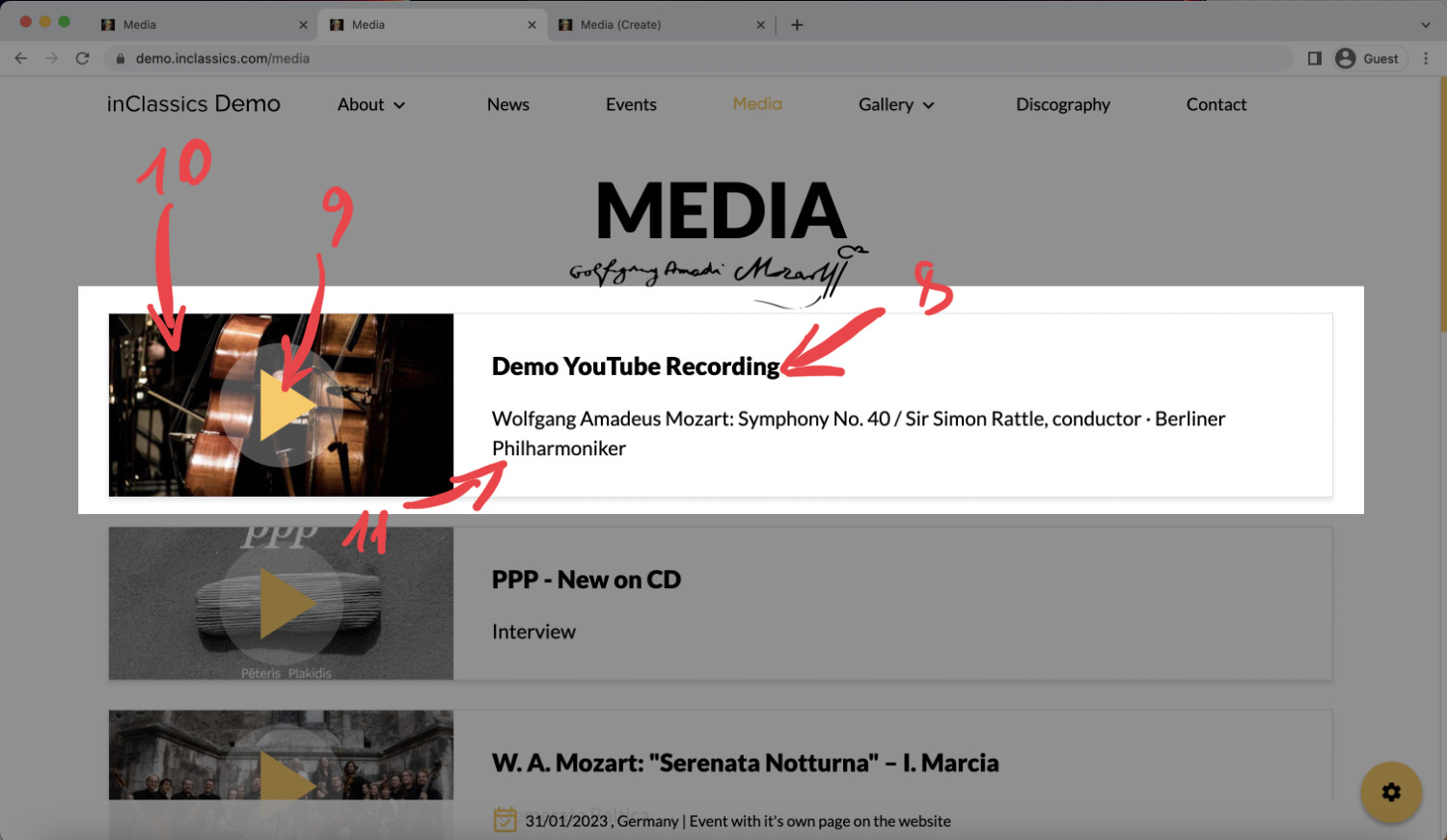
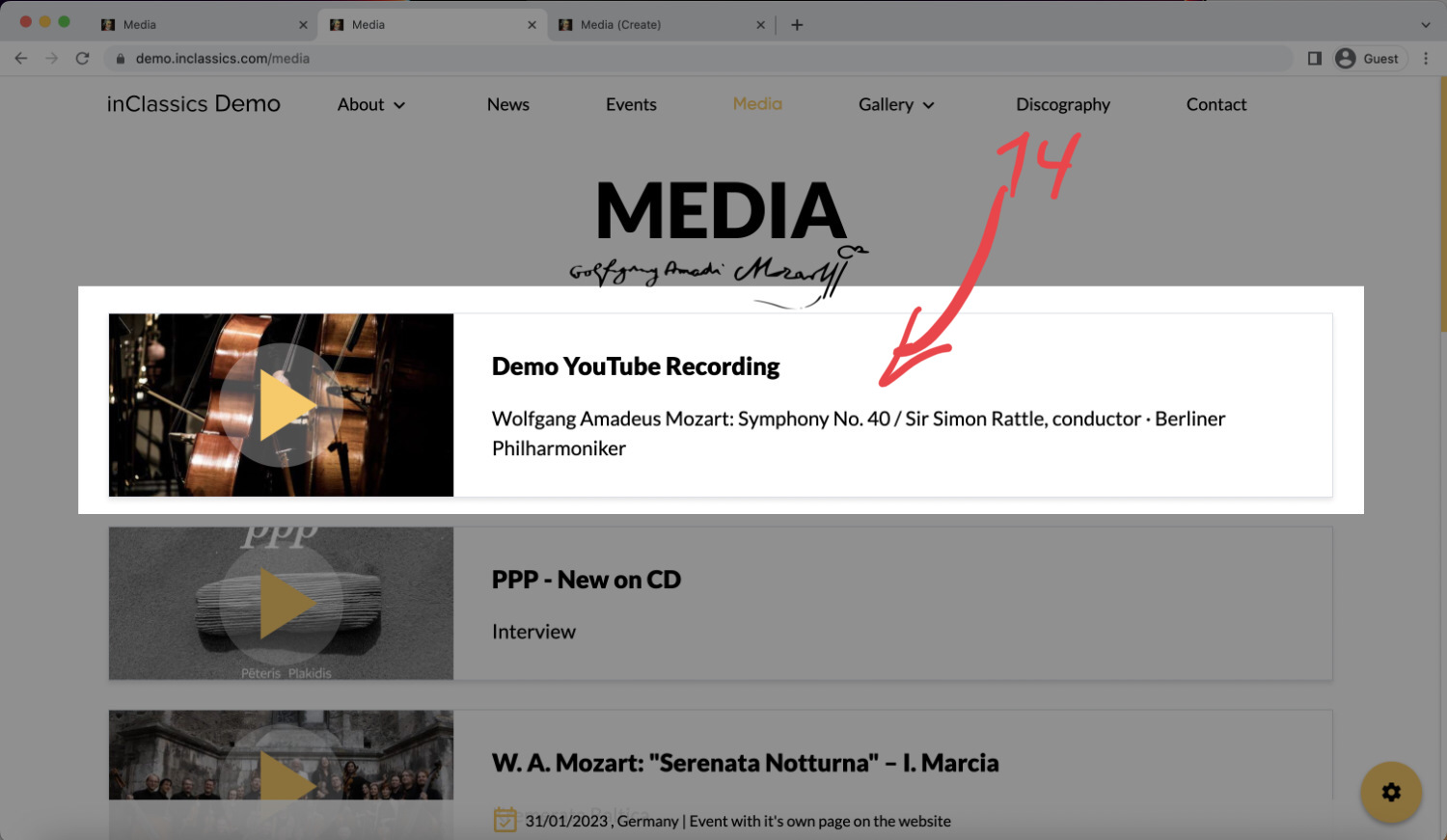
Your name (8), link (9), image (10) and preview (11) is displayed on the card itself.
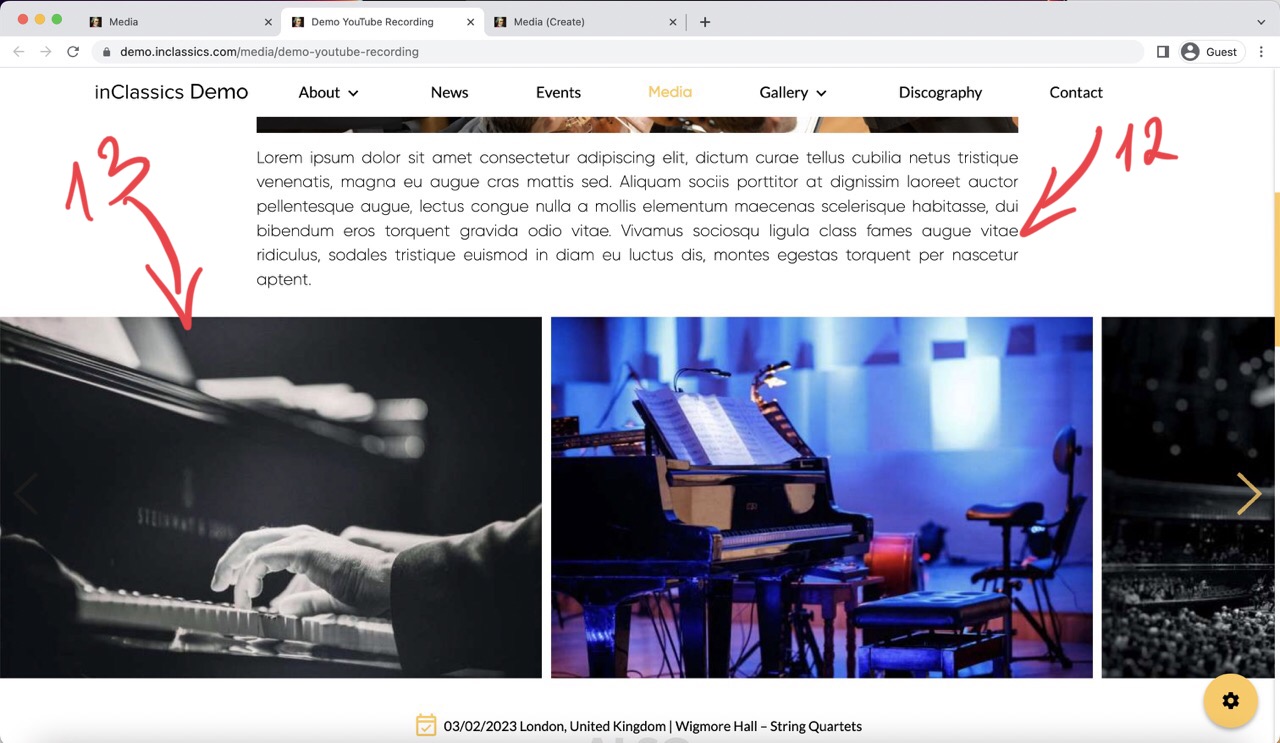
Additionally your text content (12) and image gallery (13) can be seen in the recording's page by clicking on the card (14)
Manage Media Items
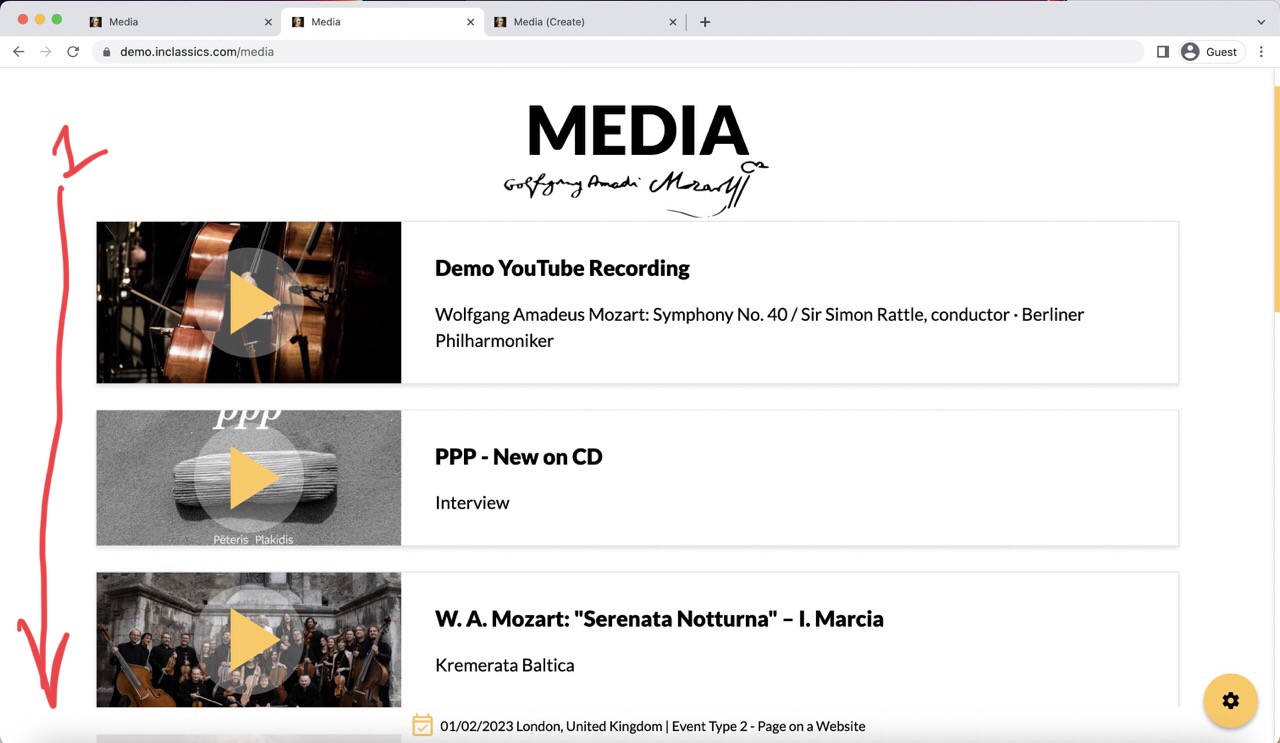
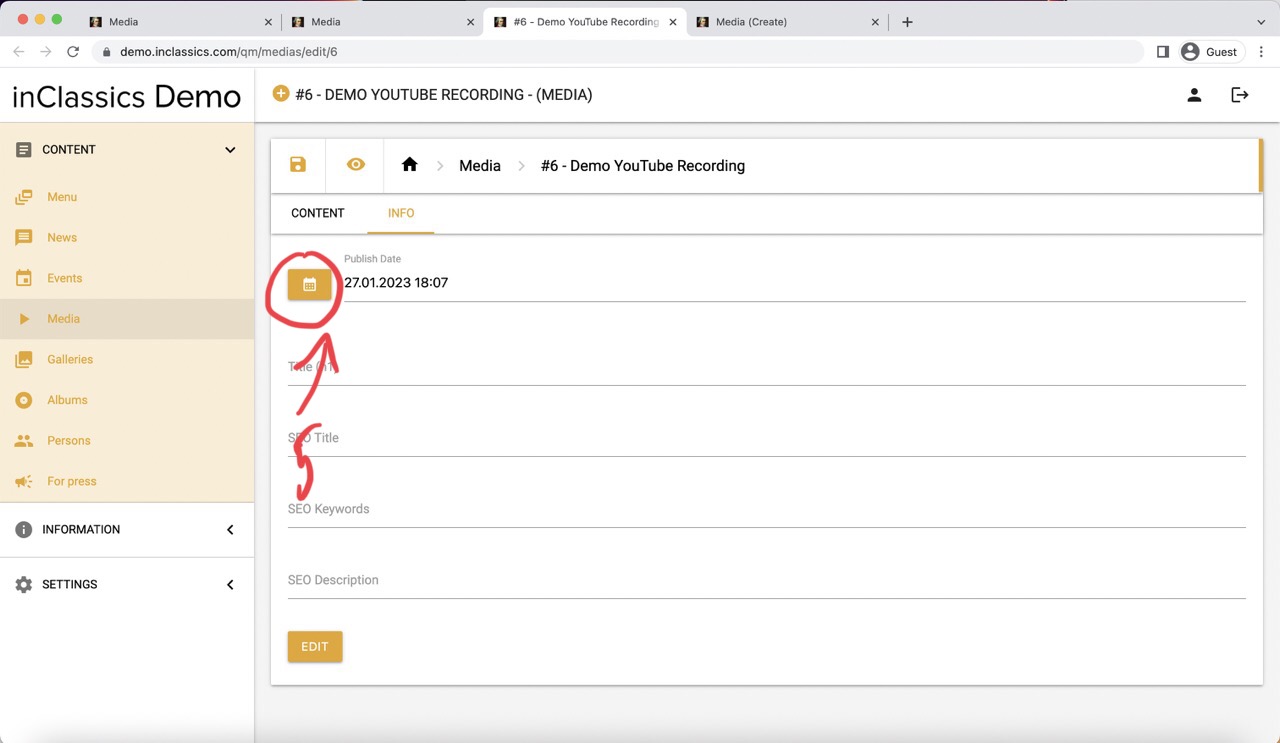
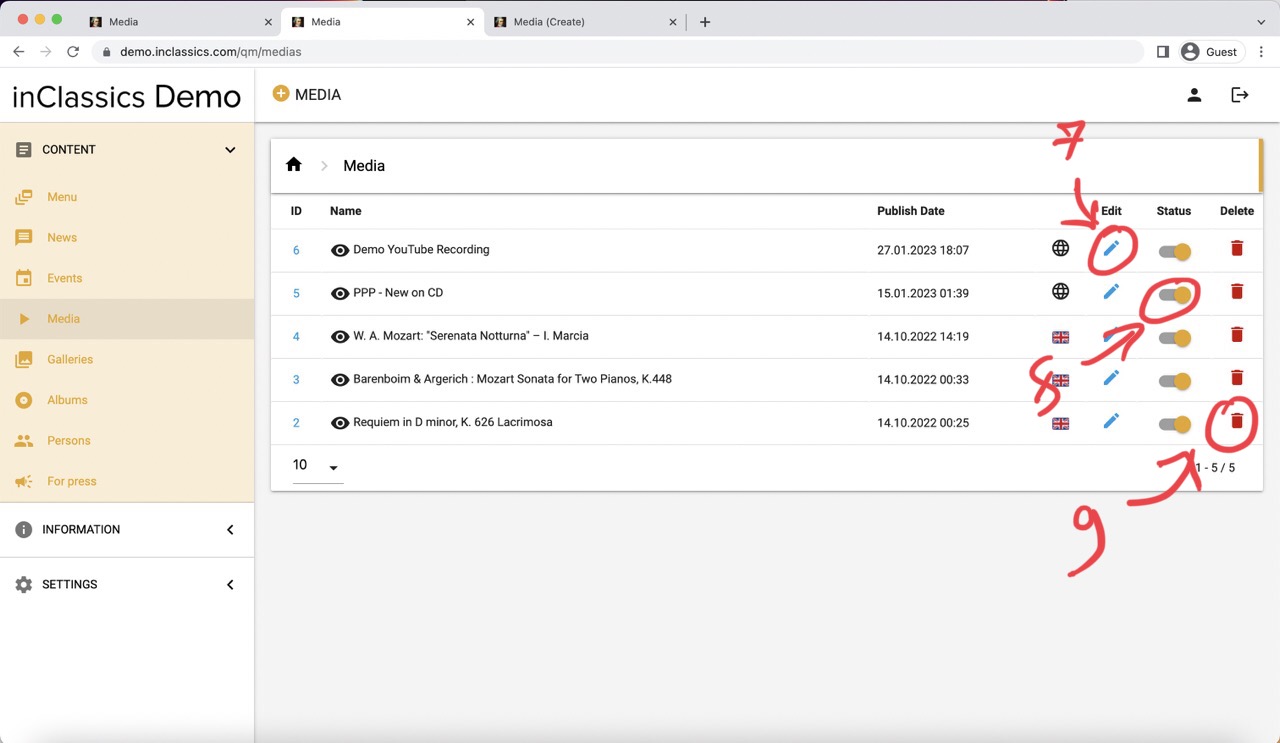
Your media items are sorted chronologically from the latest published to the oldest (1)
To change the order of your media items:
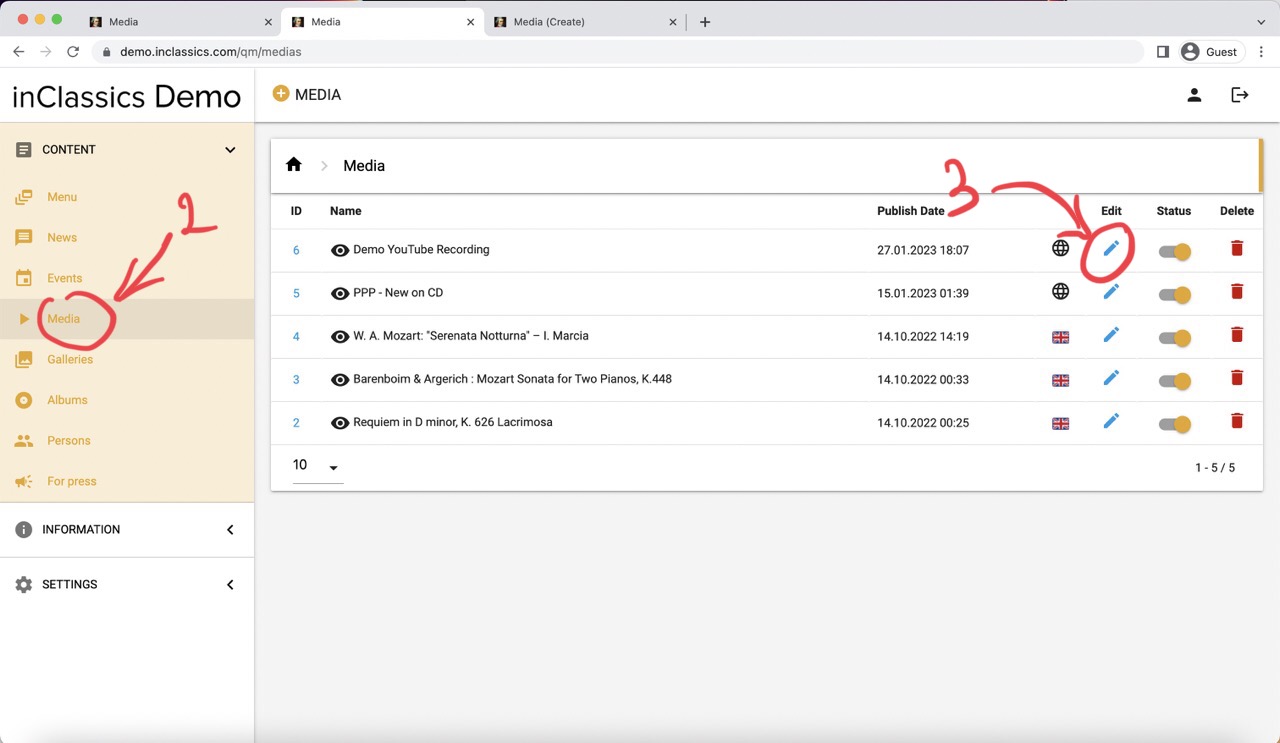
- go to your media in the admin panel (2)
- click edit (3)
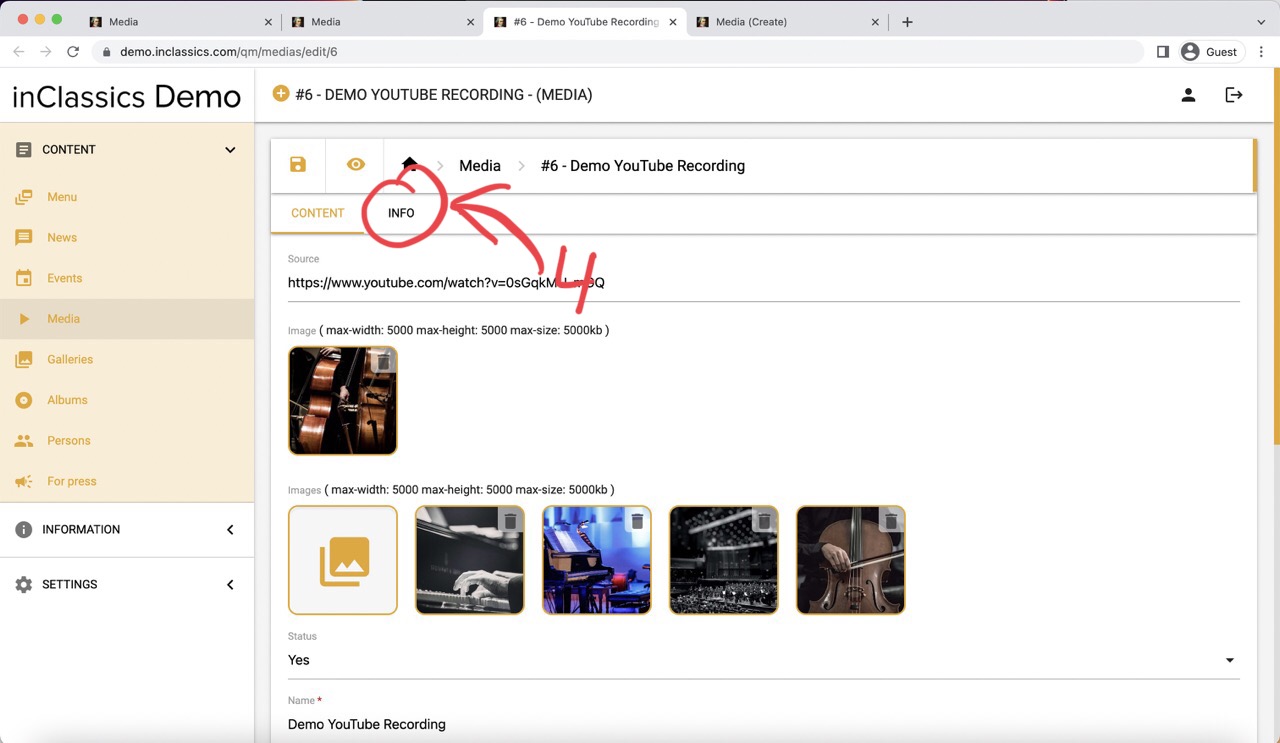
- go to the info tab (4)
- change the date (5)
- click edit (6)
To manage your recordings:
- press pencil icon to edit (7)
- press toggle icon to publish or unpublish (8)
- press bin to delete (9)
Supported Links and Platforms
YouTube
Currently the easiest way to share your recordings on our platform is via YouTube link.
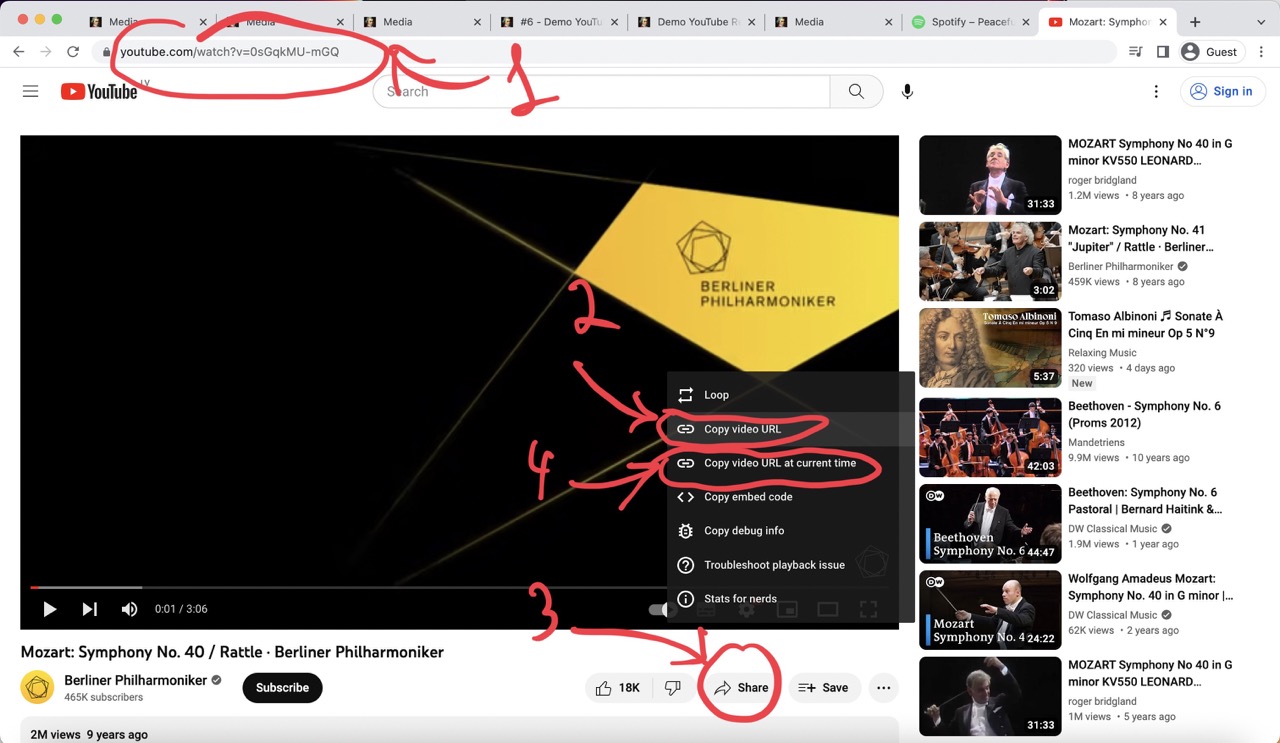
Links from YouTube can be copied:
- directly from your browser tab (1)
- by clicking on the video and copying a URL (2)
- by clicking on the share icon and getting your link there (3)
- We also support links with the start time of the video (4). This is especially useful, if there is a recording with you on YouTube but your playing doesn't start in the beginning of the video.
We also support all the platforms which provide the "embed" code.
Spotify
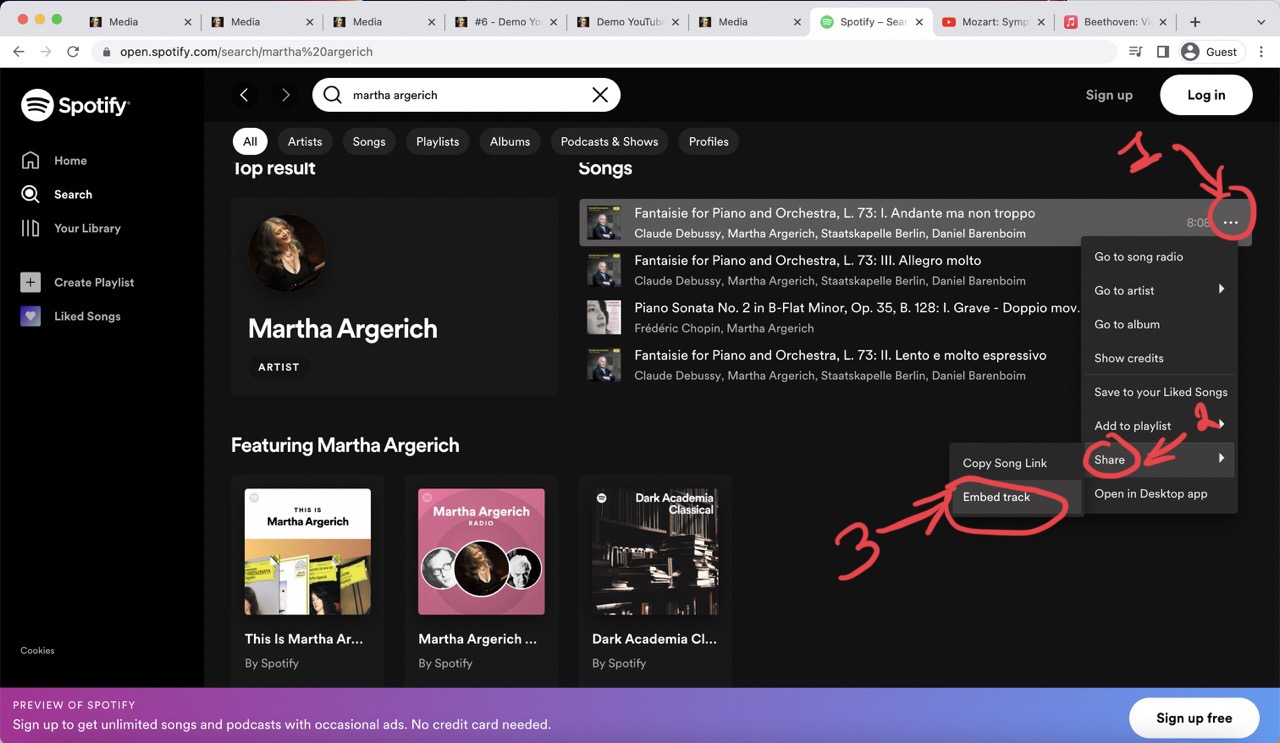
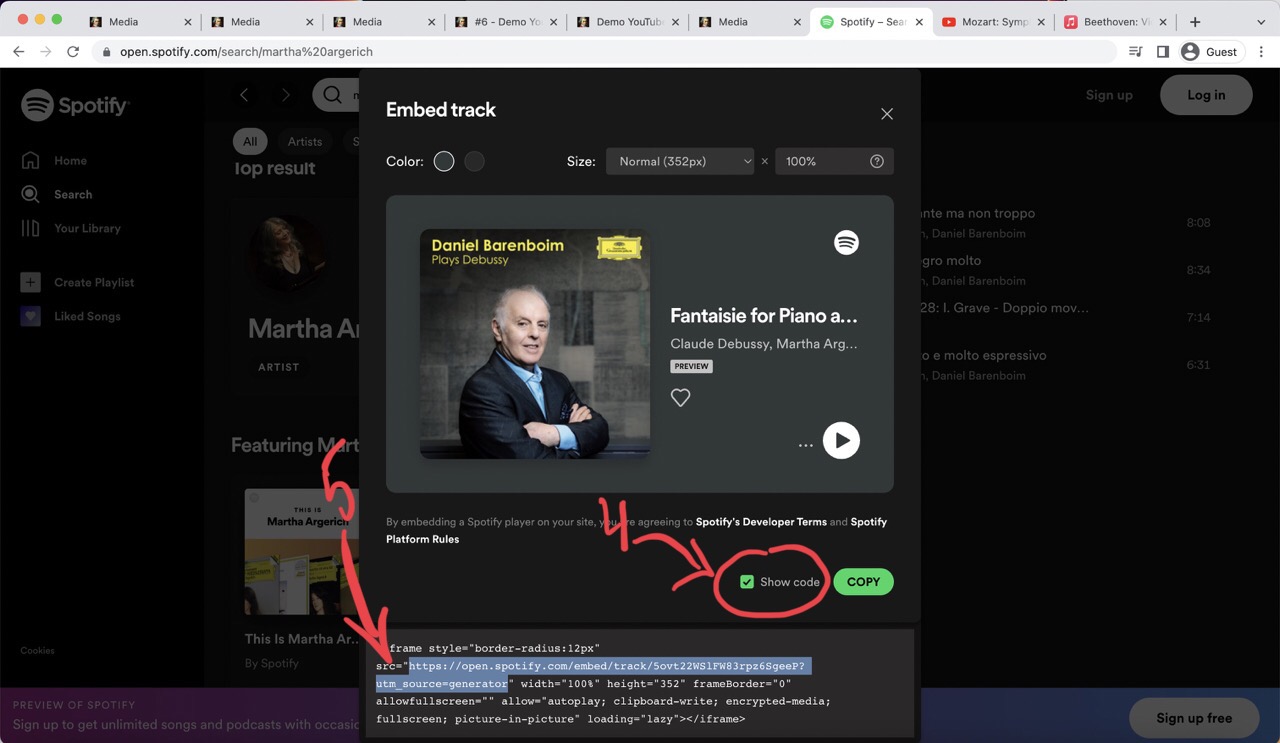
- Go to Spotify and find the track, album or playlist you want to share
- Click on three dots icon (1)
- Click share (2)
- Choose embed track option (3)
- In the next window click "show code" (4)
- Copy everything that is in between the quotes ("...") that come after the src= sign (5)
- Paste it as your media source link
Apple Music
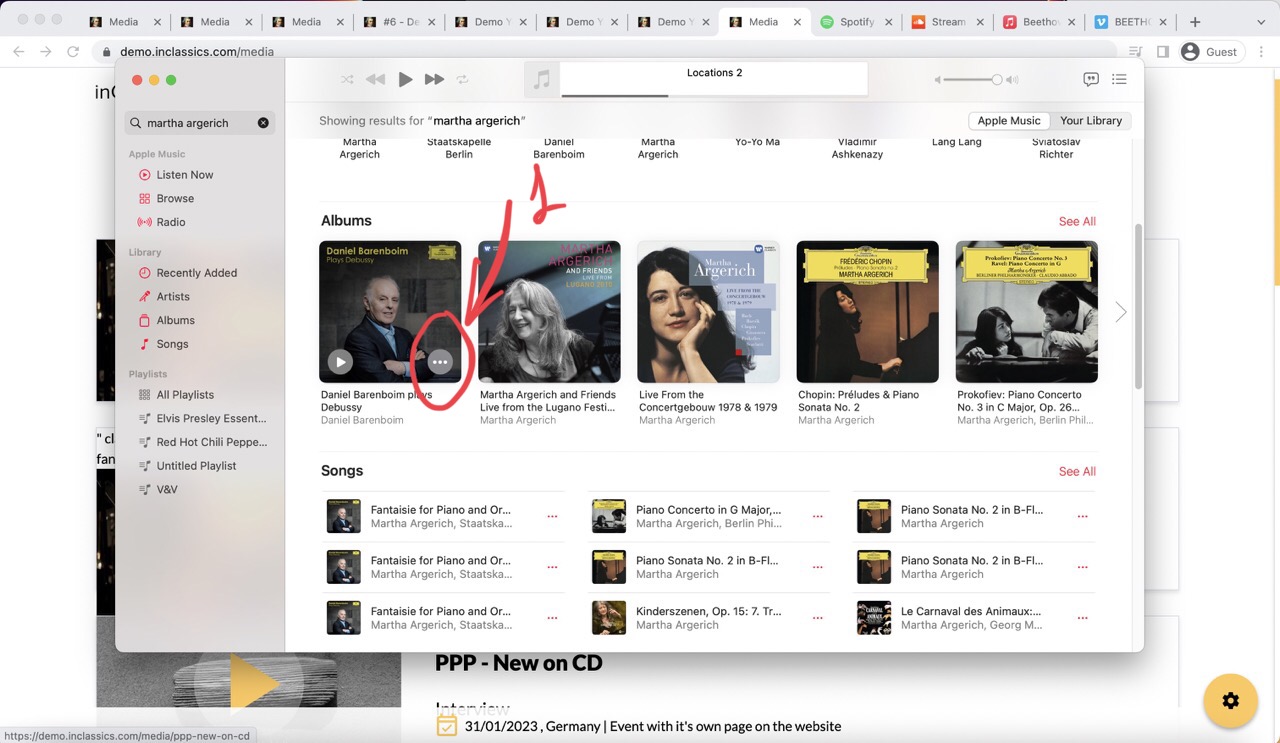
- Go to Apple Music and find the track, album or playlist you want to share
- Click on three dots icon (1)
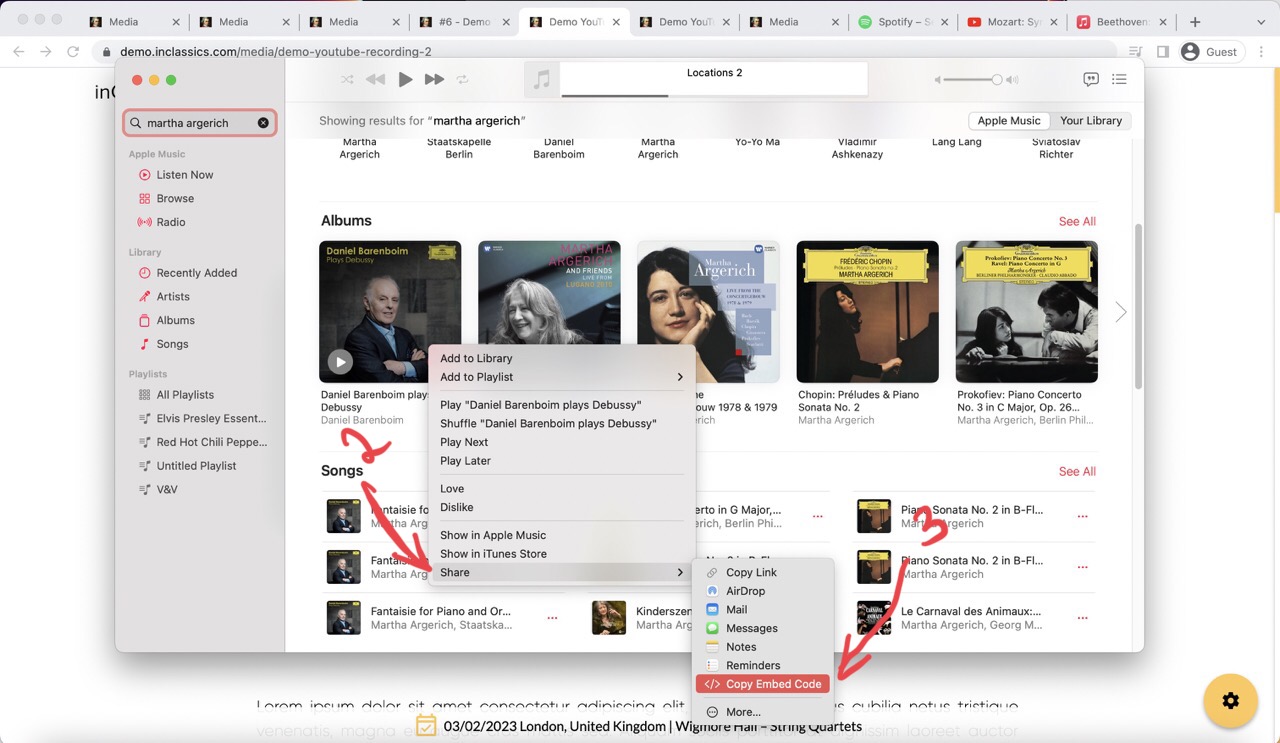
- Press share (2)
- Choose "Copy Embed Code" option (3)
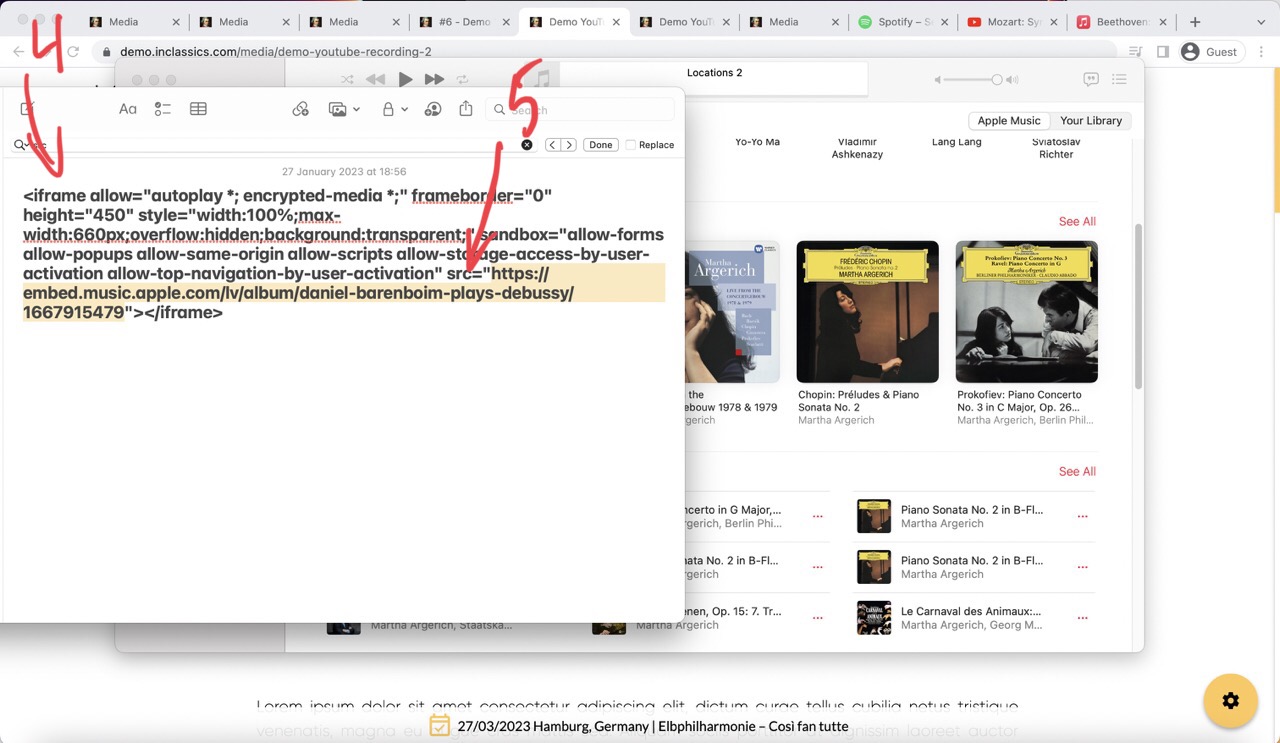
- Paste the code into any text editor (4)
- Copy everything that is in between the quotes ("...") that come after the src= sign (5)
- Paste as your media source link
Soundcloud
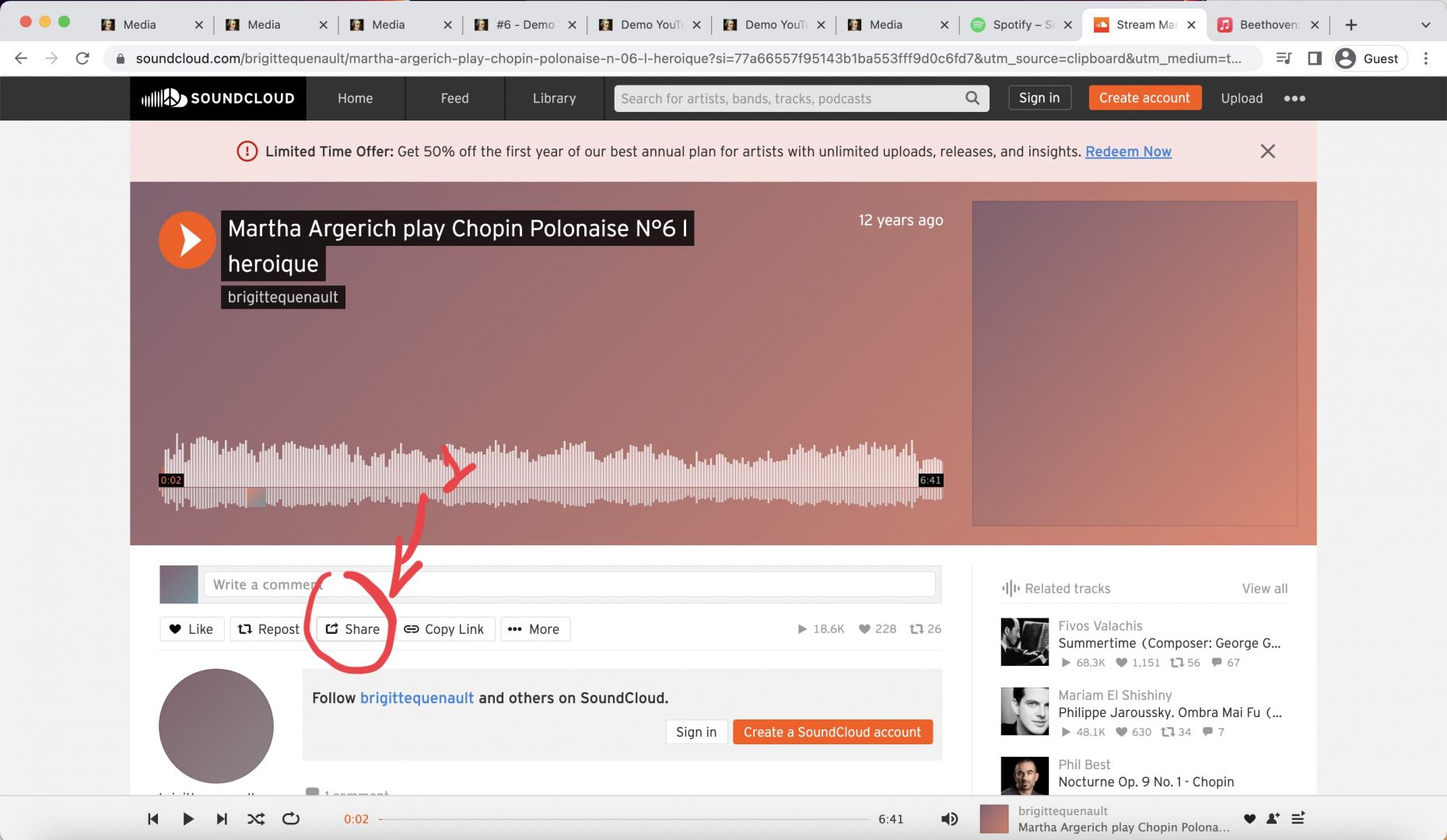
- Go to Soundcloud and find the track, album or playlist you want to share
- Click on share icon (1)
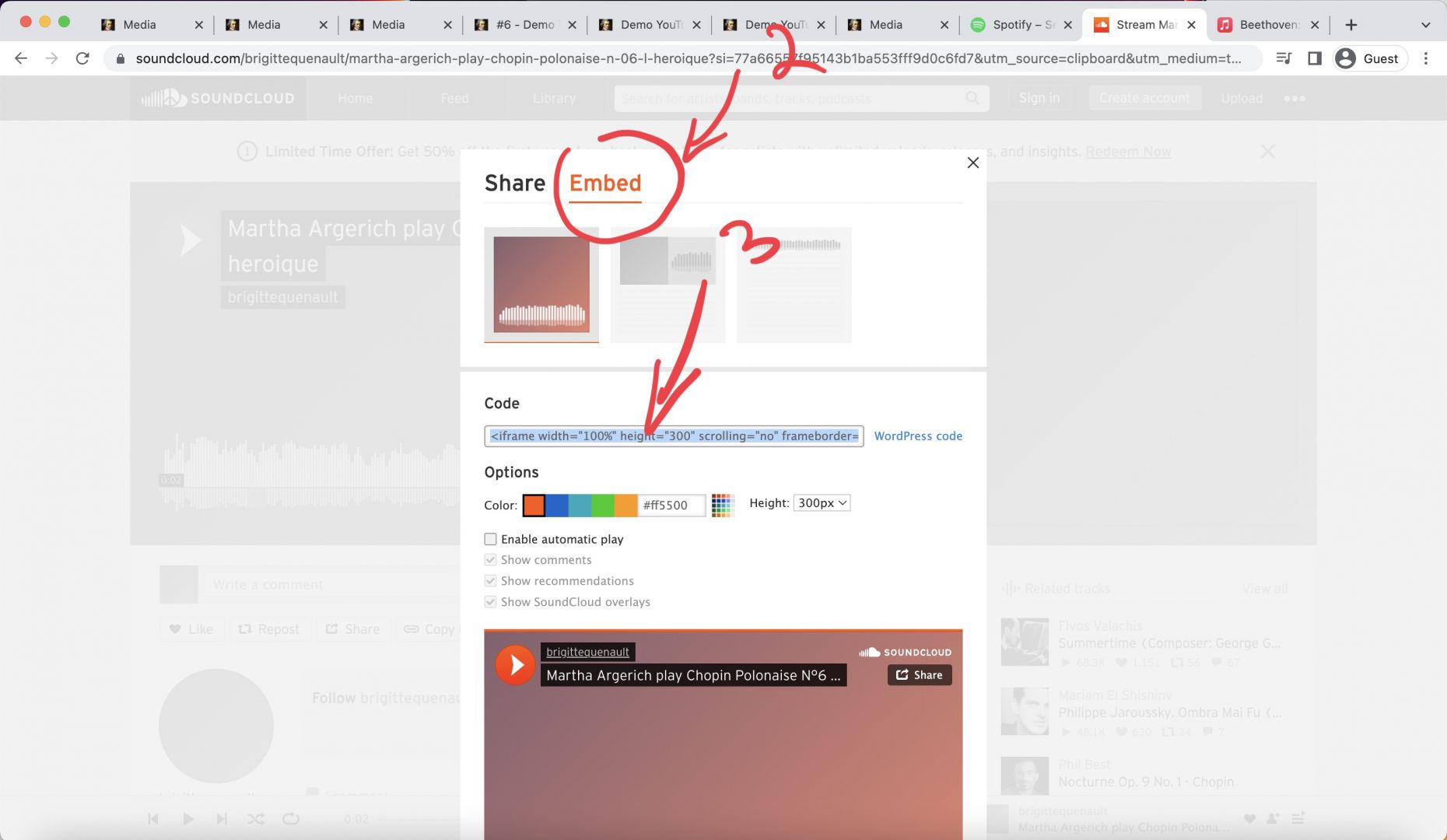
- Choose embed option (2)
- Copy Embed Code (3)
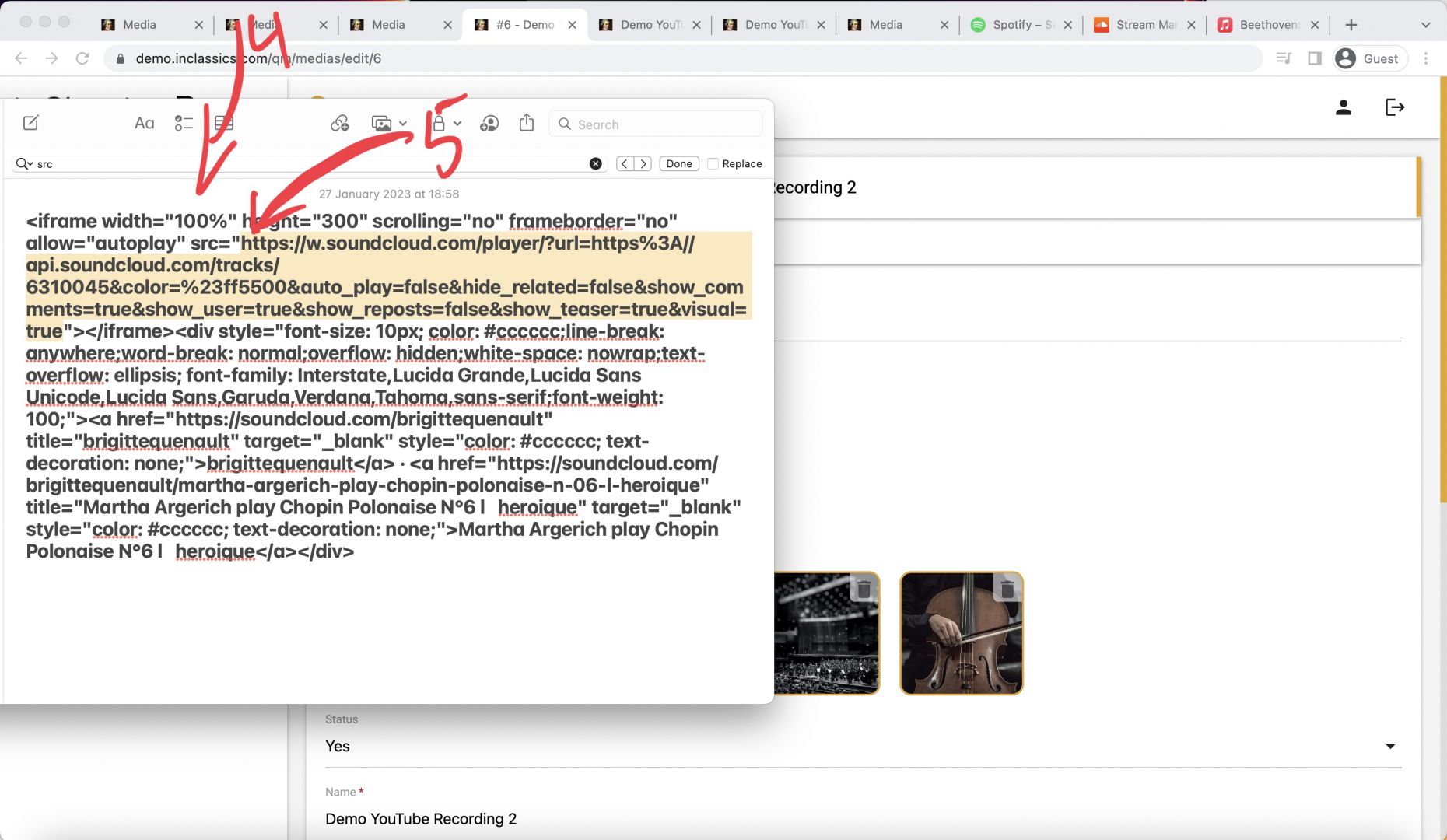
- Paste the code into any text editor (4)
- Copy everything that is in between the quotes ("...") that come after the src= sign (5)
- Paste as your media source link
Vimeo
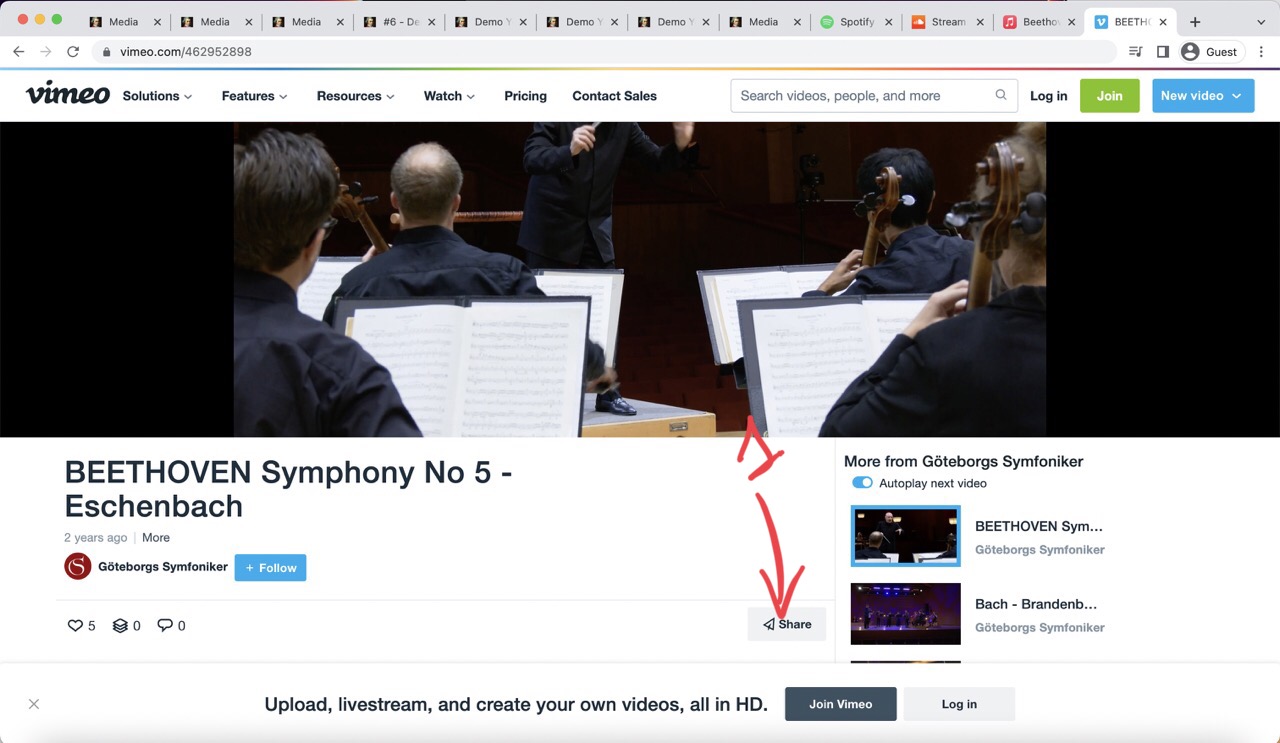
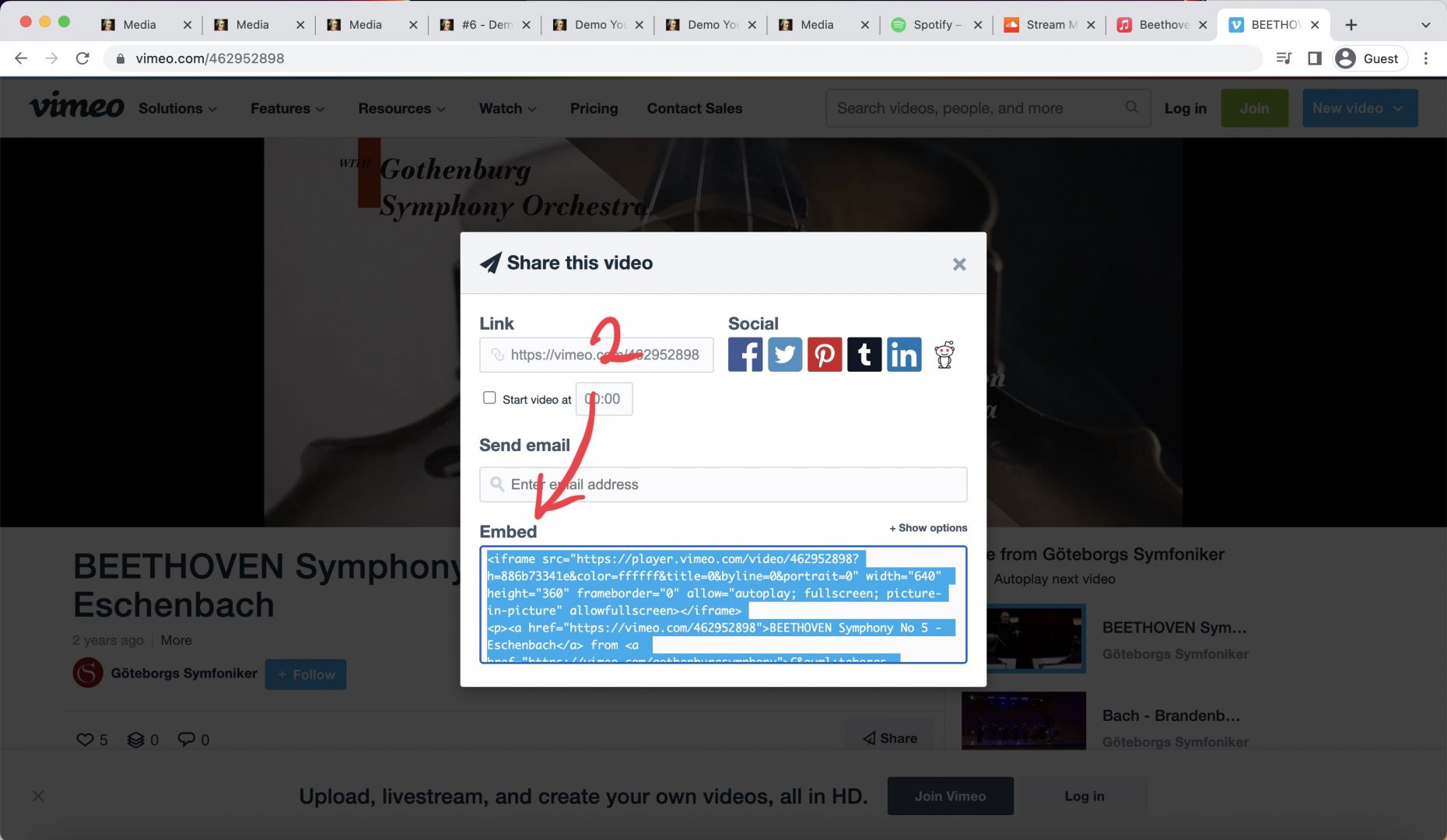
- Go to Vimeo and find the video you want to share
- Click on share icon (1)
- Choose embed option (2)
- Copy Embed Code (3)
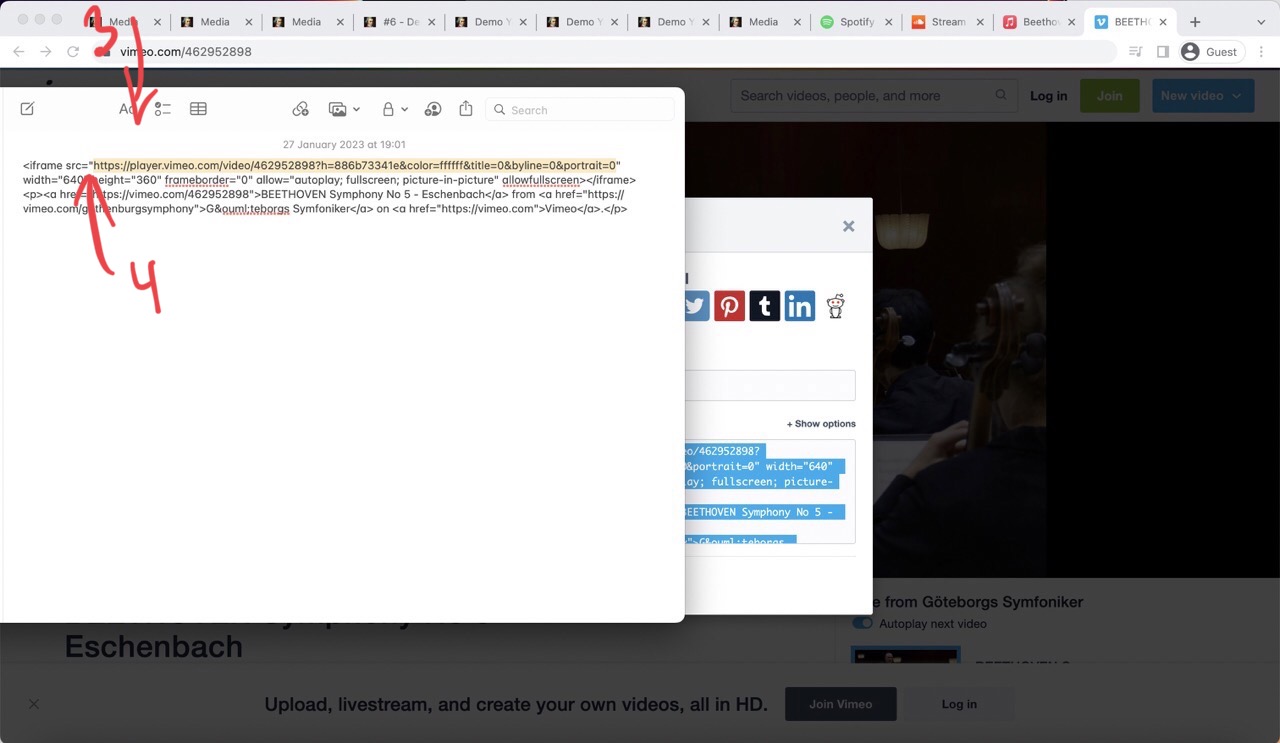
- Paste the code into any text editor (4)
- Copy everything that is in between the quotes ("...") that come after the src= sign (5)
- Paste as your media source link
Other platforms
You can do the same with every other platform that offers embed code. Most of them do. Just copy everything that is between the quotes ("...") that come after the src= sign and paste this into your media source field.