Gallery Collection Management
Galleries Collection Page
Check out the gallery collection page demo and gallery item demo
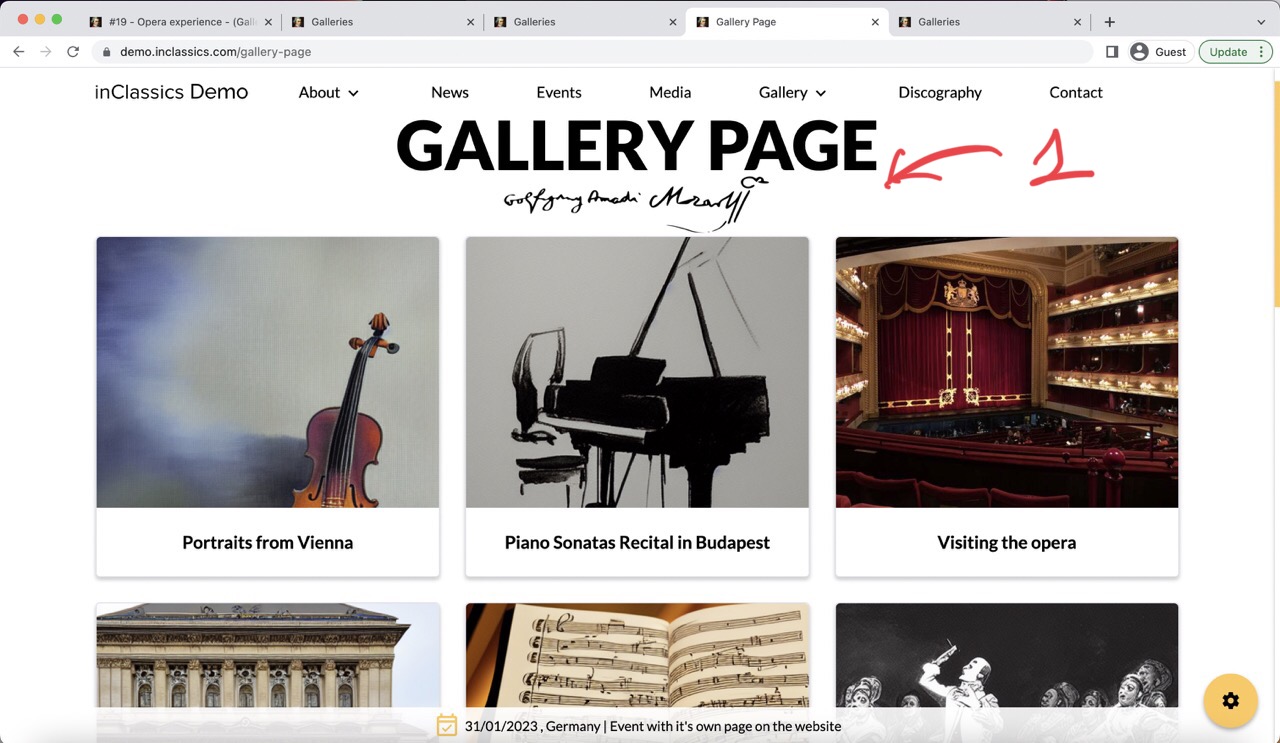
You can display a collection of galleries in your gallery page (1).
This is especially useful if you want to share photos from your tours, events etc.
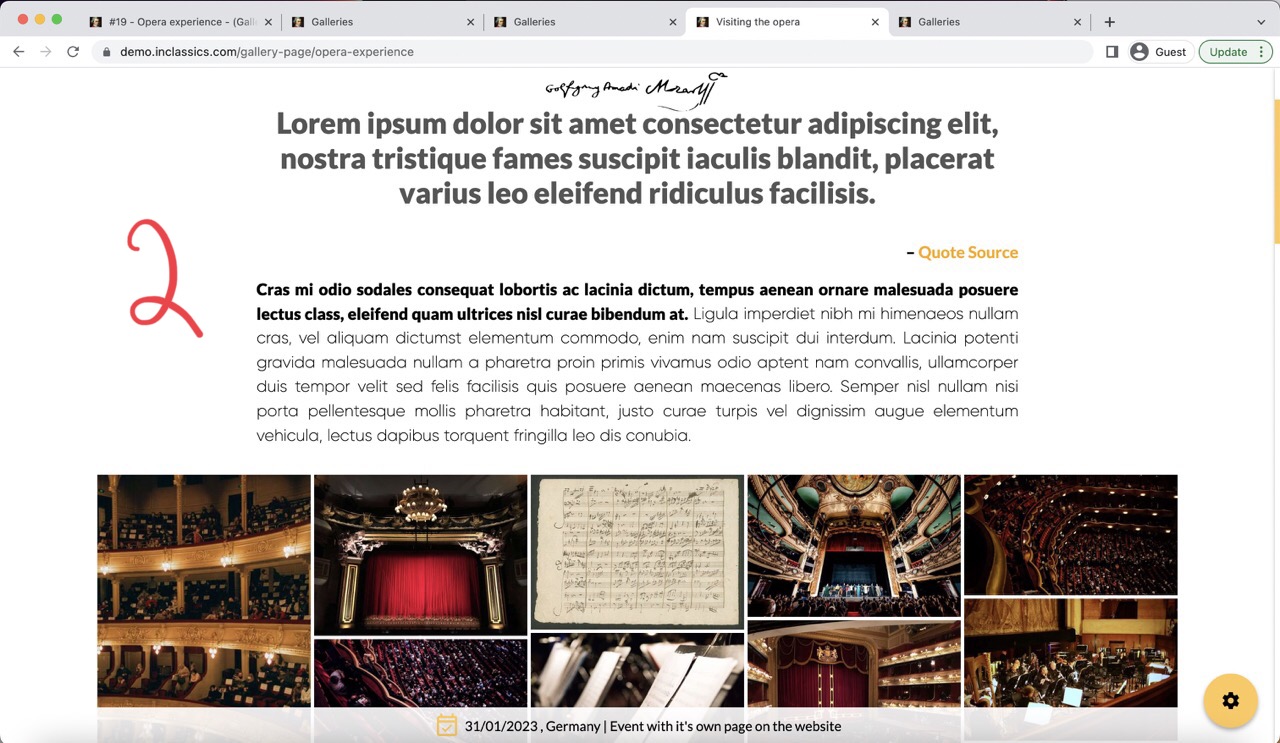
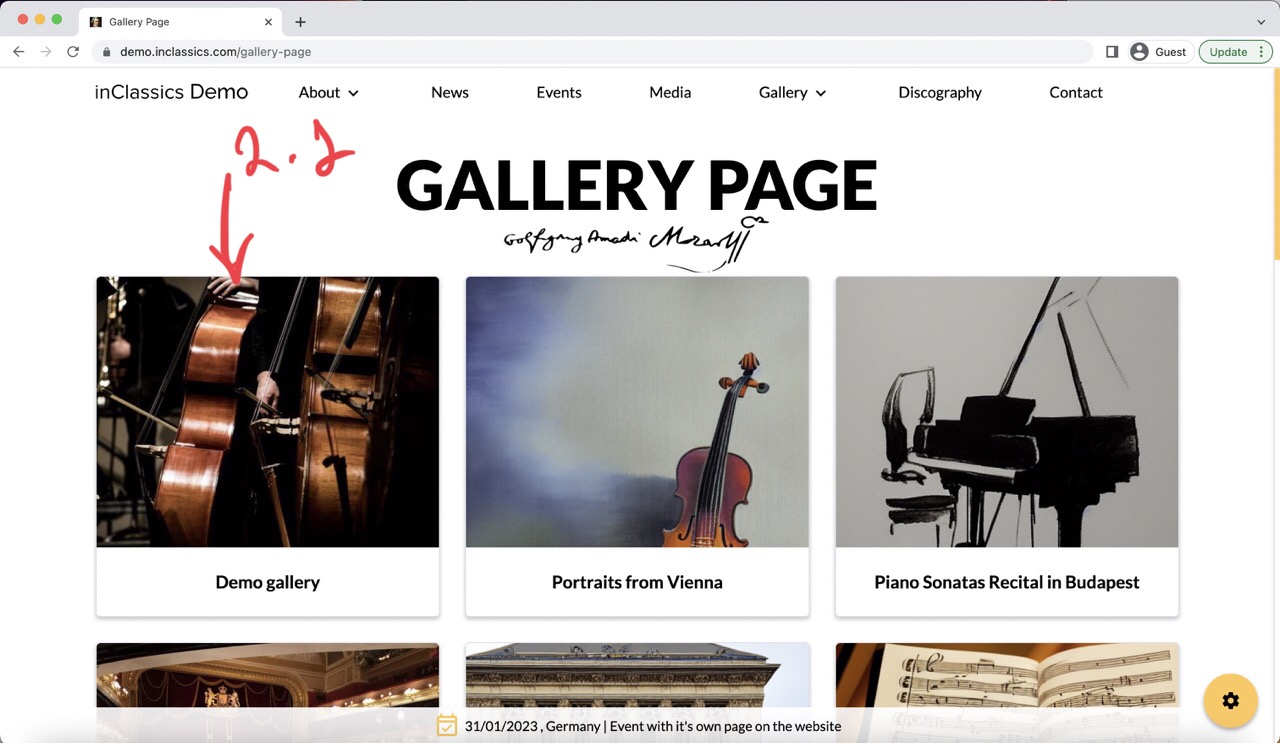
You can create a dedicated gallery for each event or tour (2), add images and text. This is a great way to create engaging content on your website and share your experience with visitors.
Add a Gallery
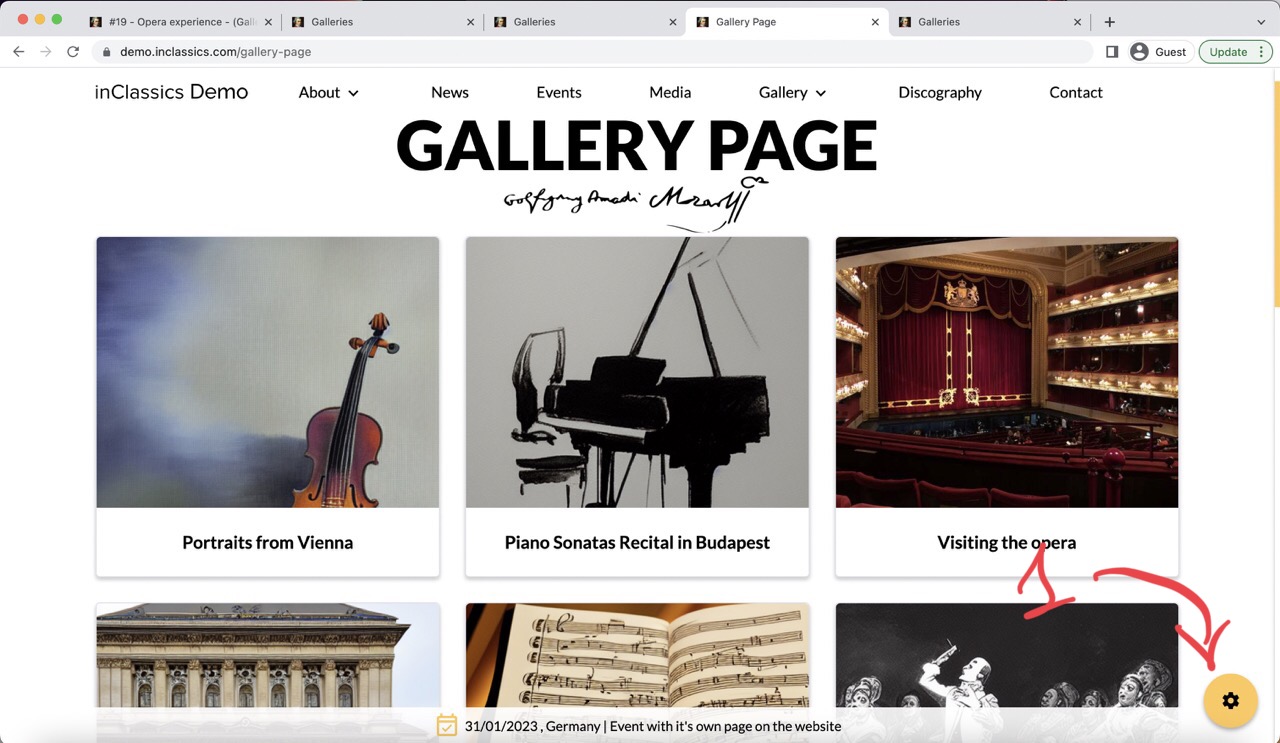
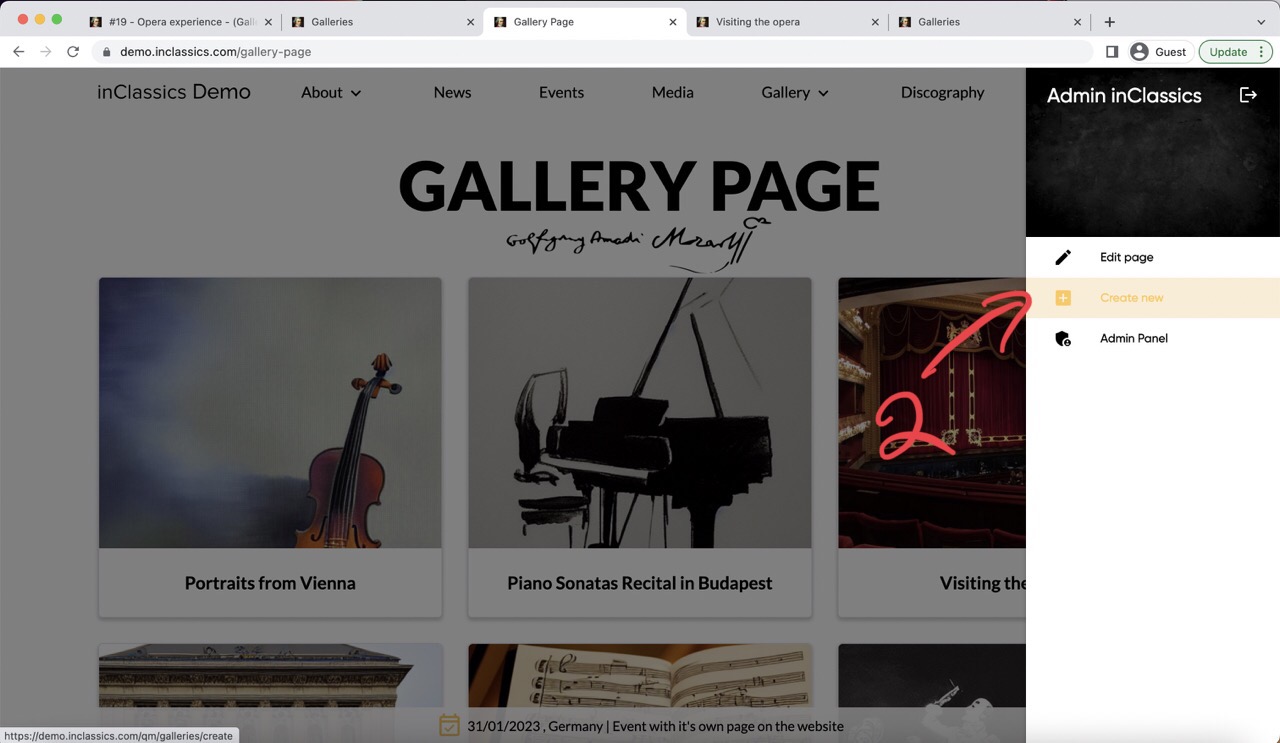
To add a new gallery to your gallery page:
- go to your gallery page
- click on the settings button (1)
- click create new (2)
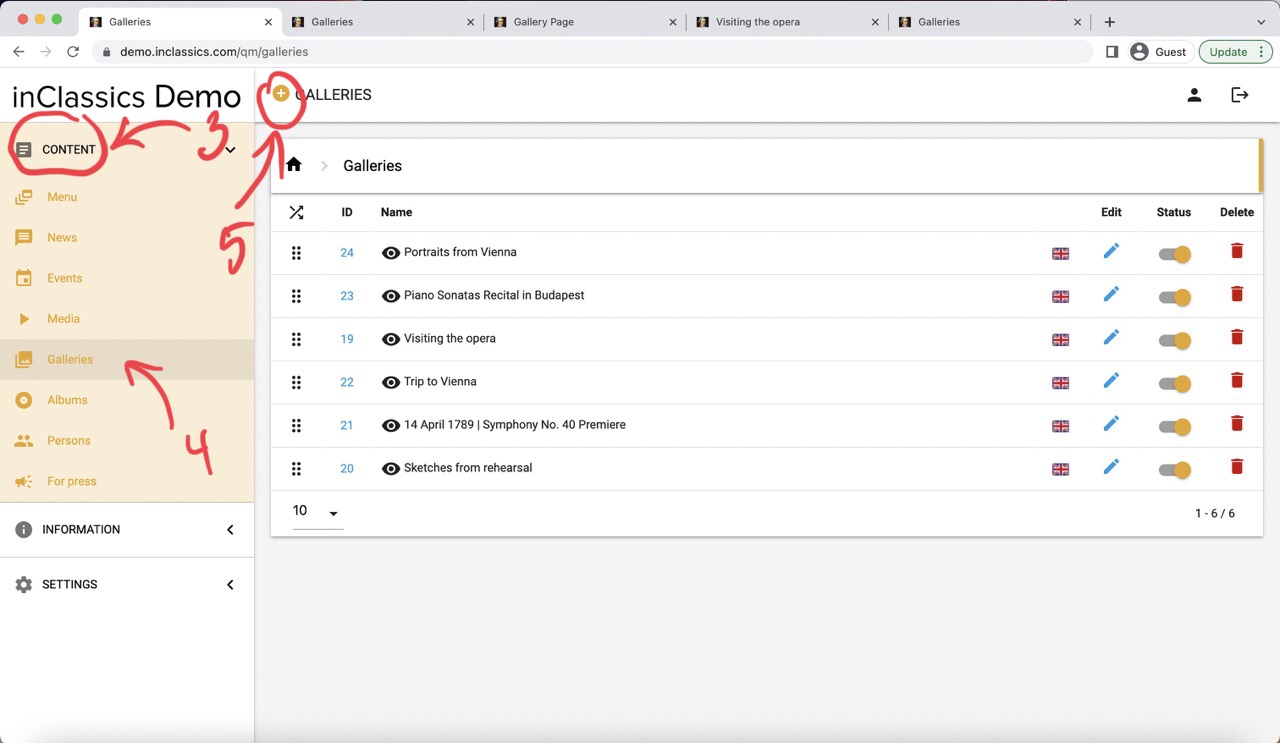
To add a gallery from within your admin panel:
- go to the admin panel
- content tab (3)
- galleries (4)
- click on the plus icon (5)
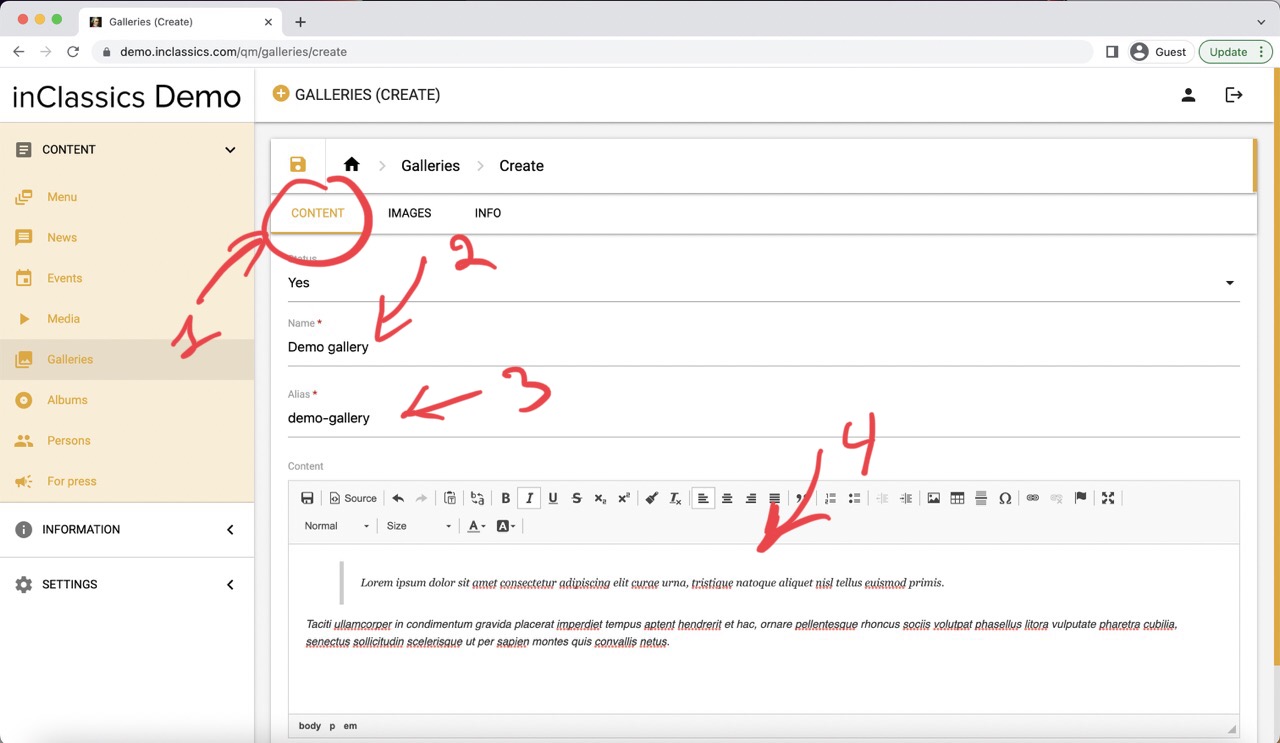
In the content tab (1) you can:
- add the name of your gallery (2)
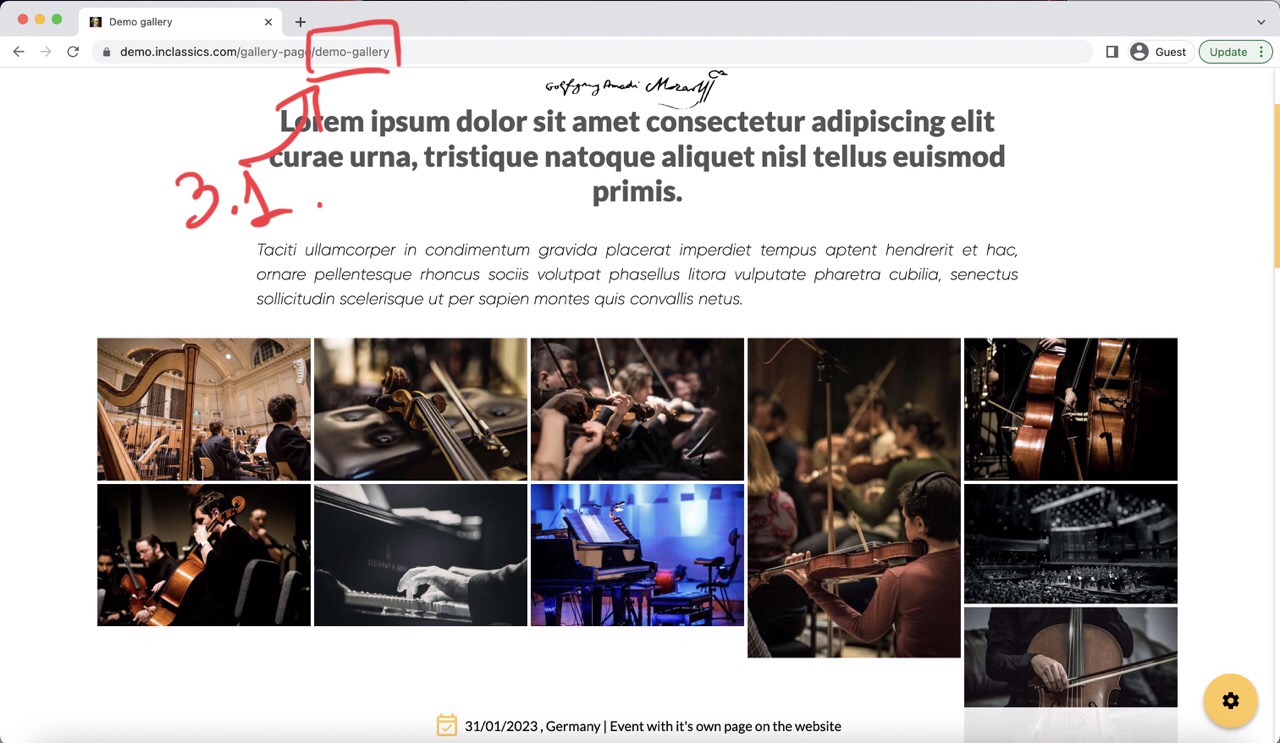
- alias is generated automatically (3), this is a link that will be displayed in the address bar (3.1) when visitors open your gallery
- text (4) that you can format with the text editor
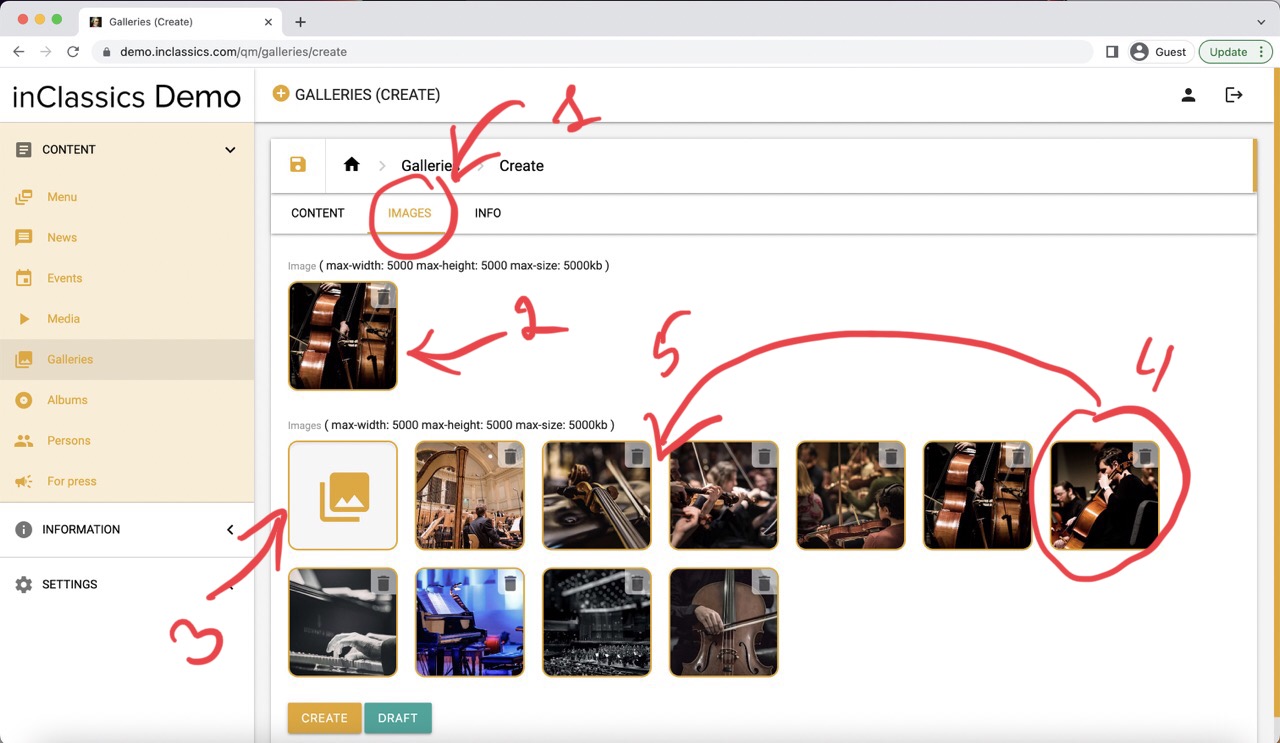
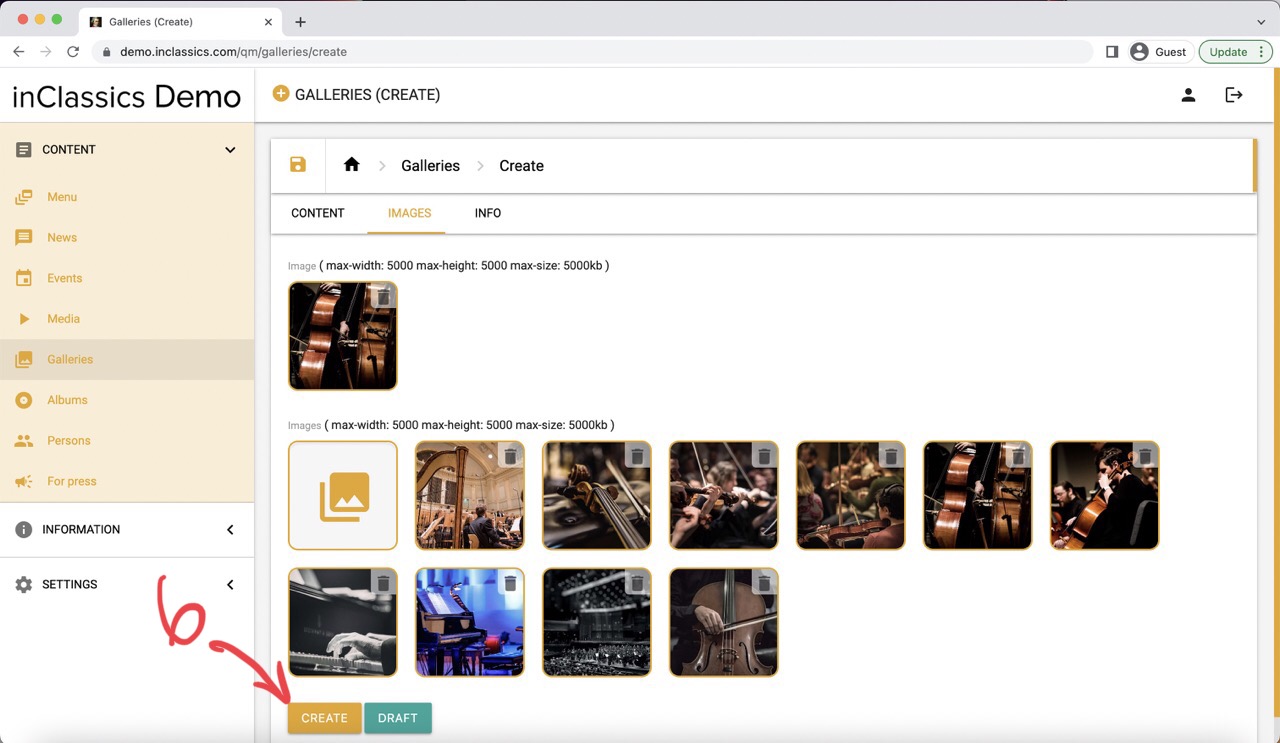
In the images tab (1)
- add a cover image (2) that will be displayed in the galleries page (2.1)
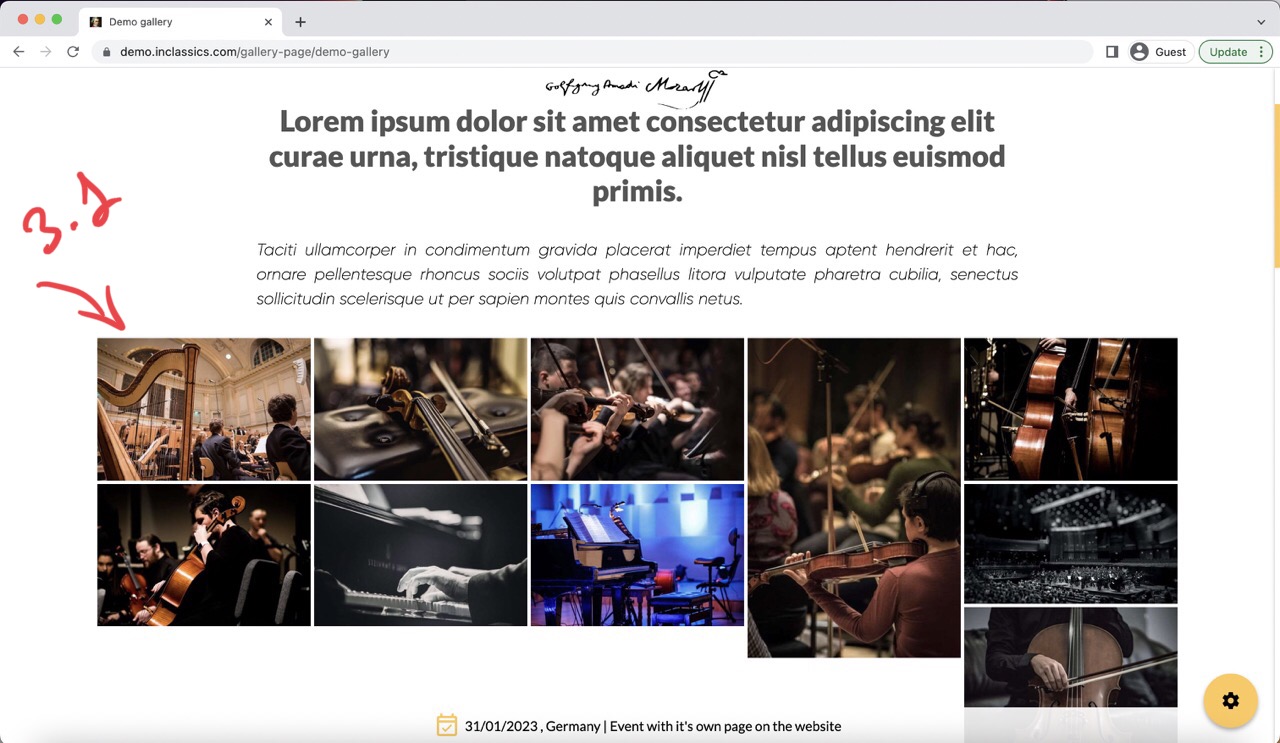
- add images to your gallery (3, 3.1)
- change the order of your images by clicking on the image and holding it (4) and dragging it to another position (5)
- click create (6) and your gallery is now published
Manage Galleries

To manage your galleries:
- go to the admin panel
- content tab (1)
- galleries (2)
Here you can:
- edit your gallery (3)
- publish or unpublish it (4)
- delete (5)
- change the order of your galleries by clicking and holding on dots icon (6) and moving the gallery into your chosen place