For Press Page Management
For Press Page
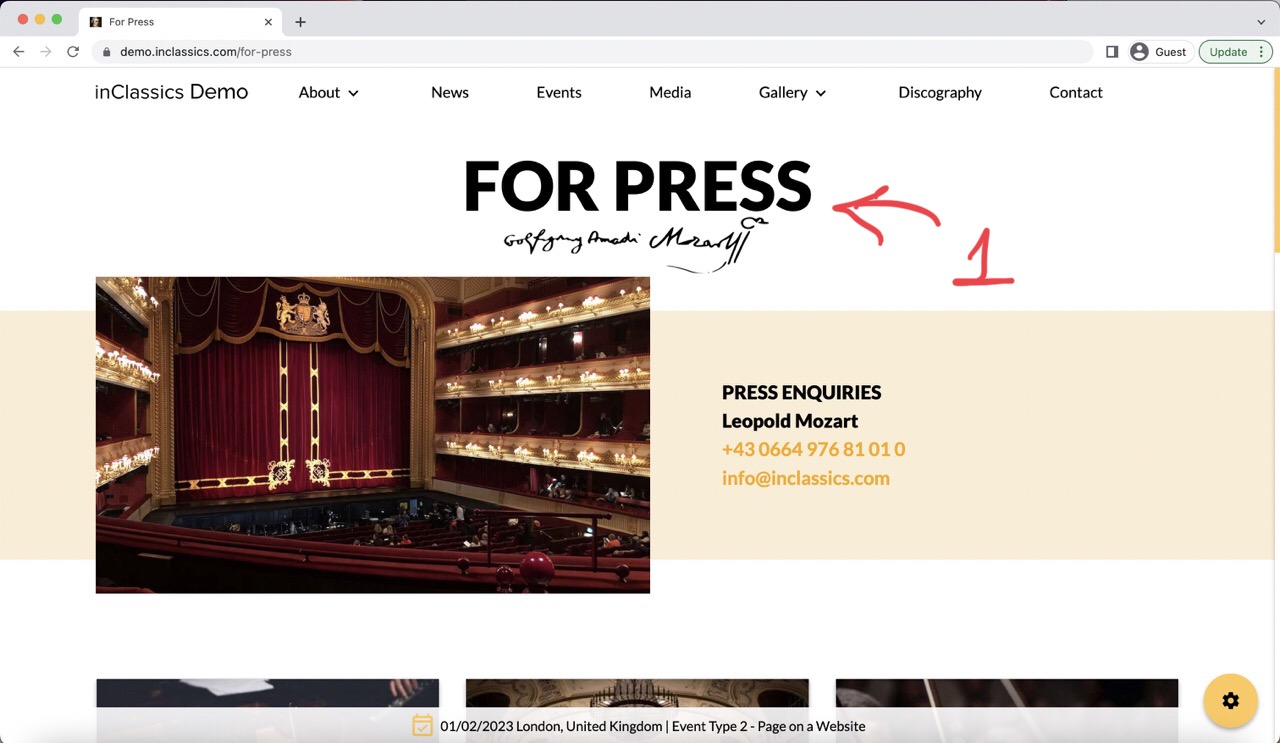
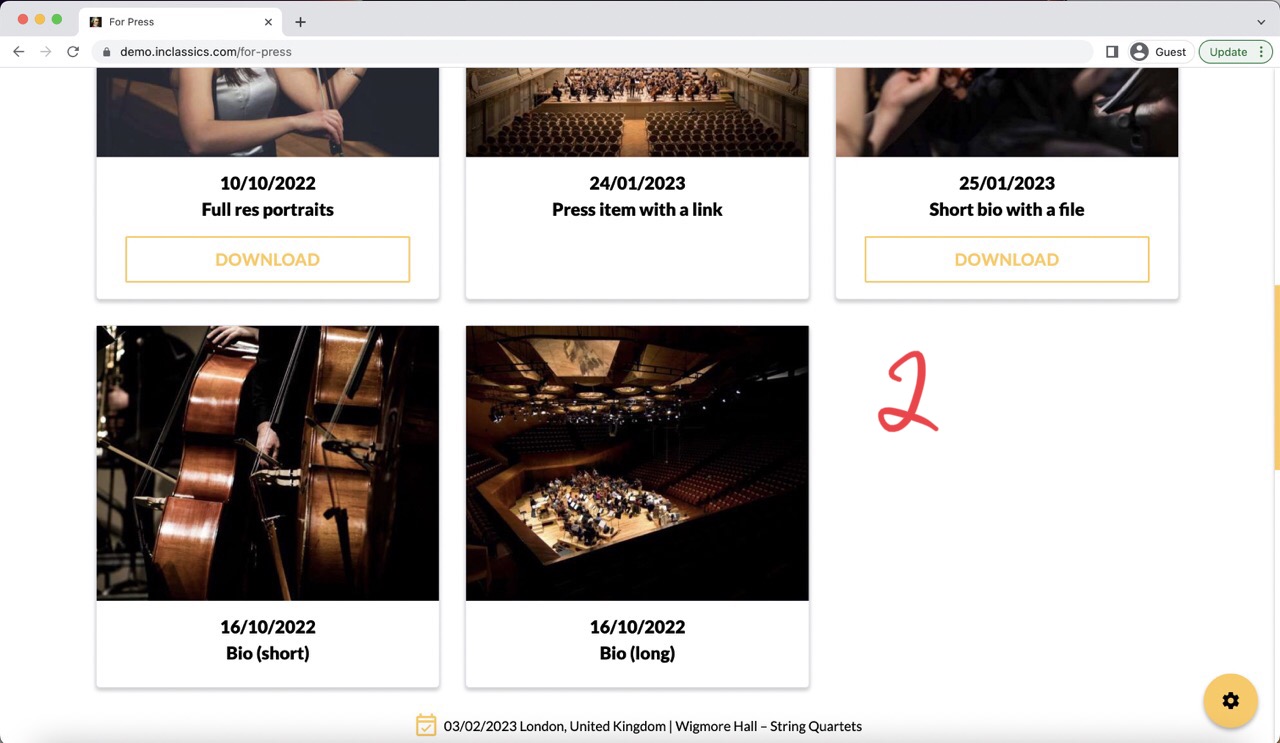
For Press page is the page (1) where you can collect all the information about yourself under one link - your photos, bios, repertoire, press releases etc (2).
Edit Info Section
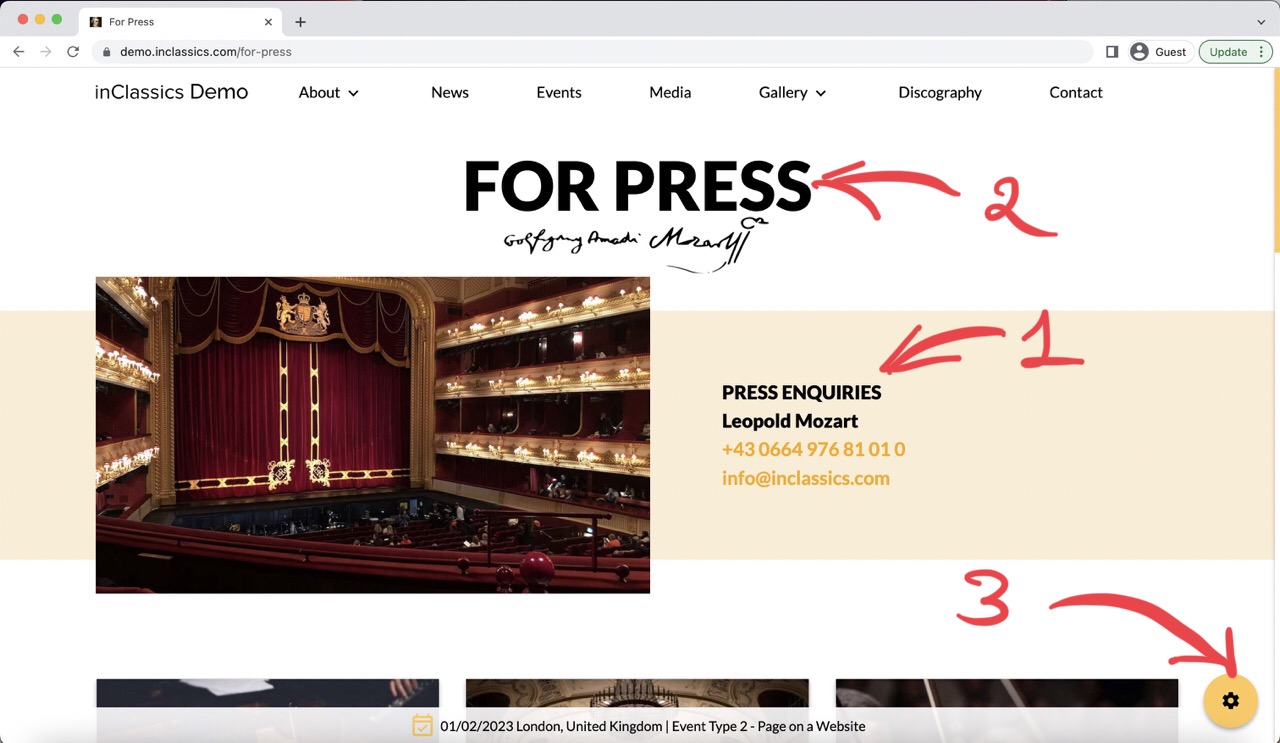
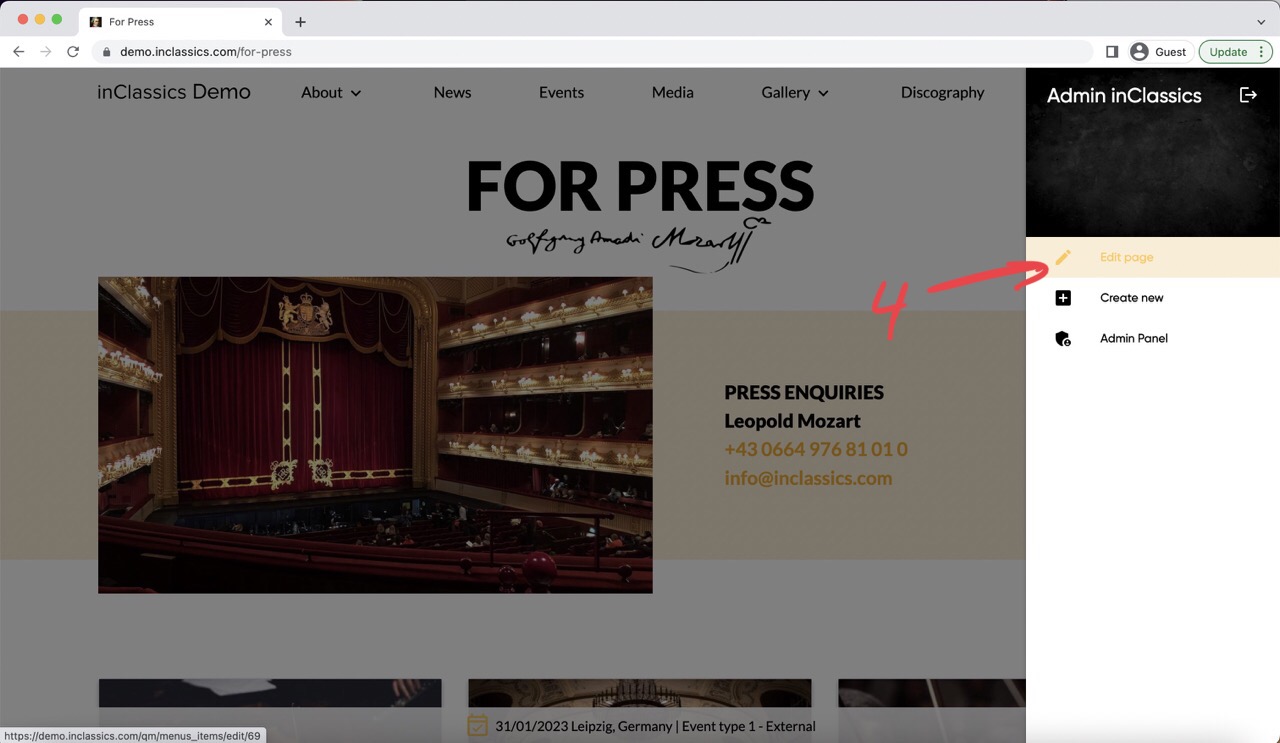
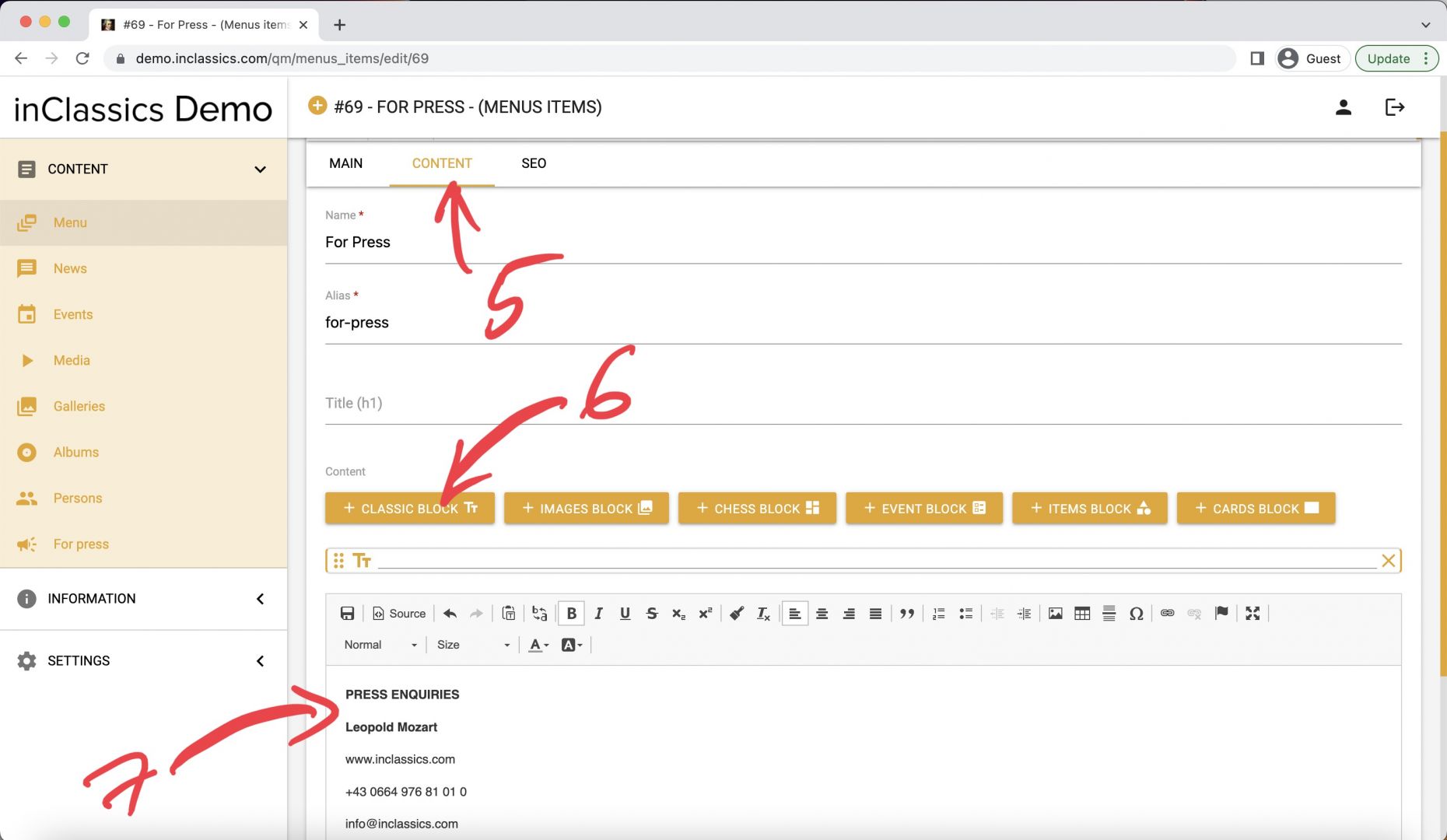
To edit info section (1):
- go to your for press page (2)
- click on settings button (3)
- click edit page (4)
- in the content tab (5) add classic block (6)
- enter your short info details (7) like email, website, phone etc.
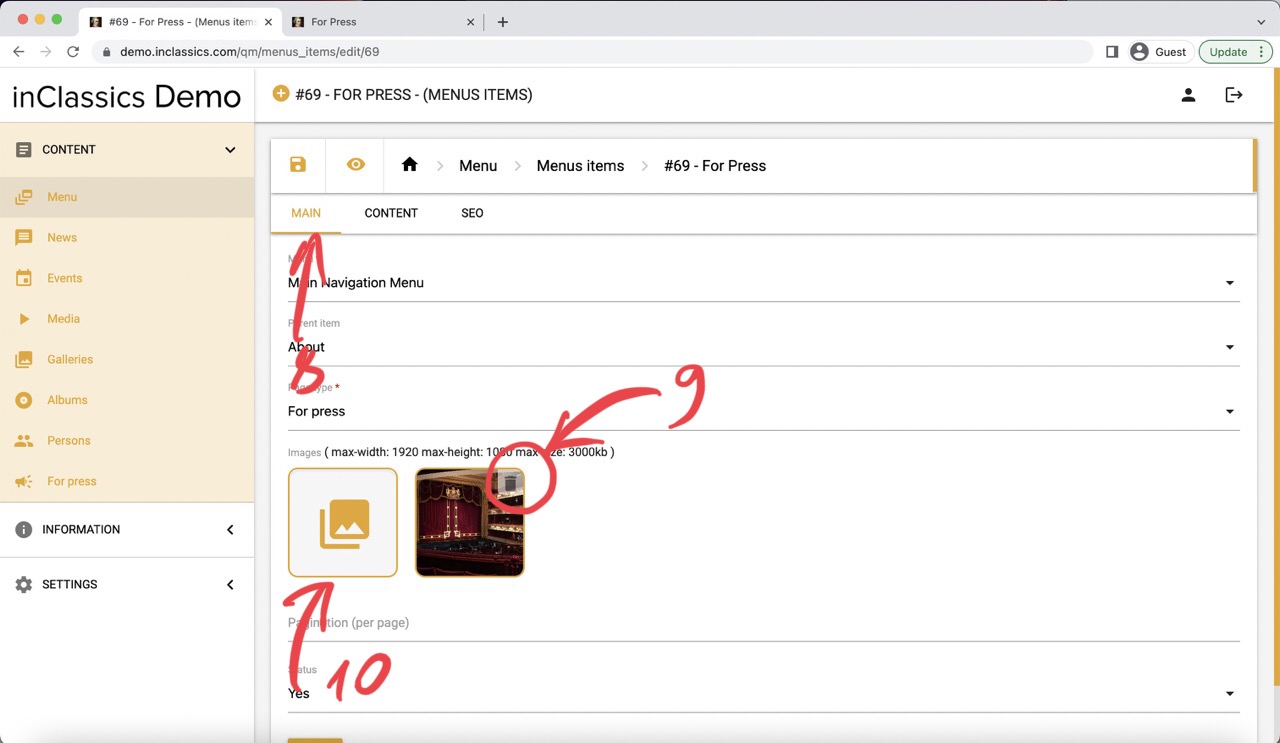
- to change the image go to the main tab (8)
- remove the current image (9)
- upload a new image (10)
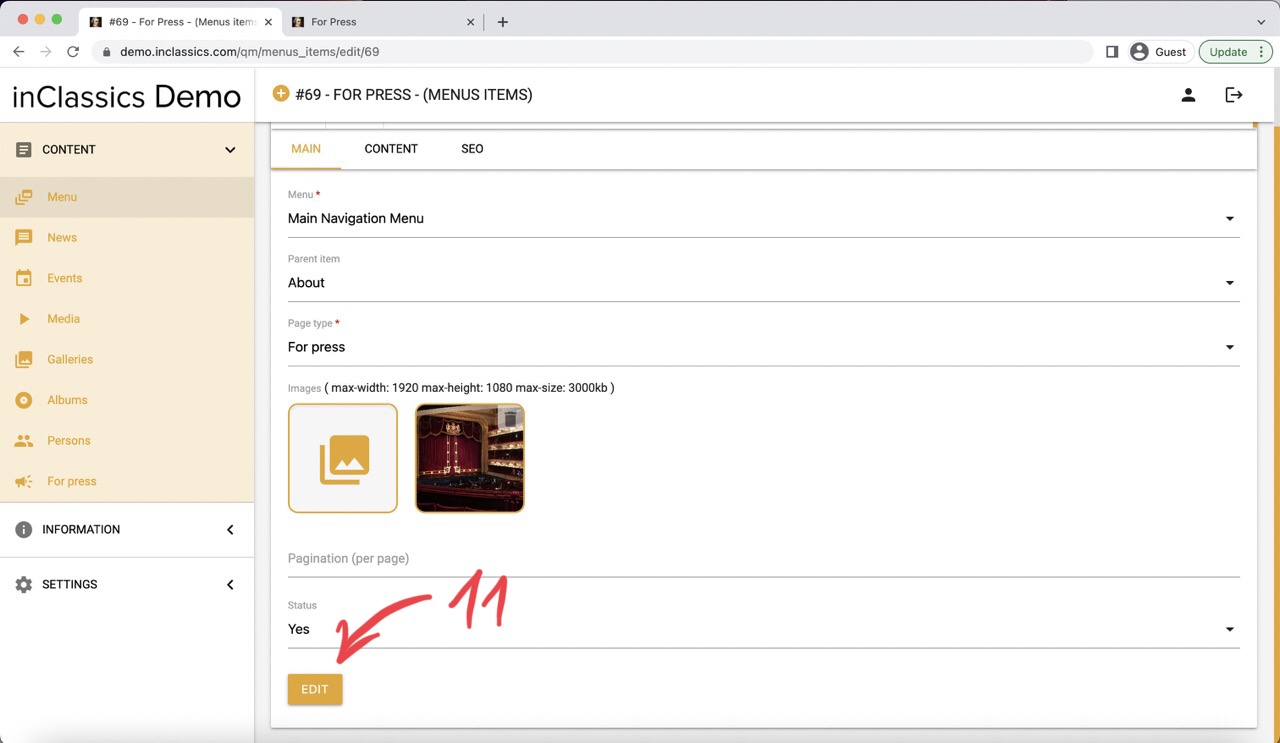
- click edit (11) to save changes
Turn Text to Links
You can make website, phone number and email links in your info section. Check the demo (click on the links on the phone, website and phone links in the demo page)
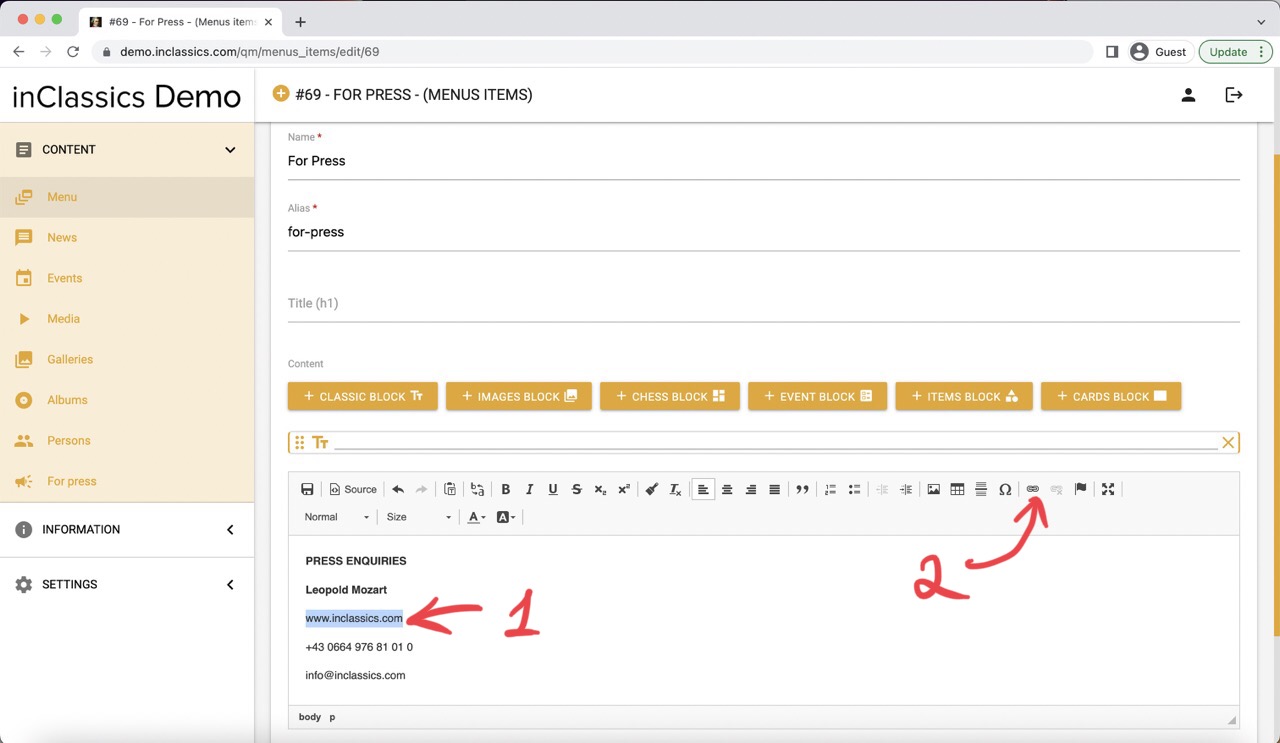
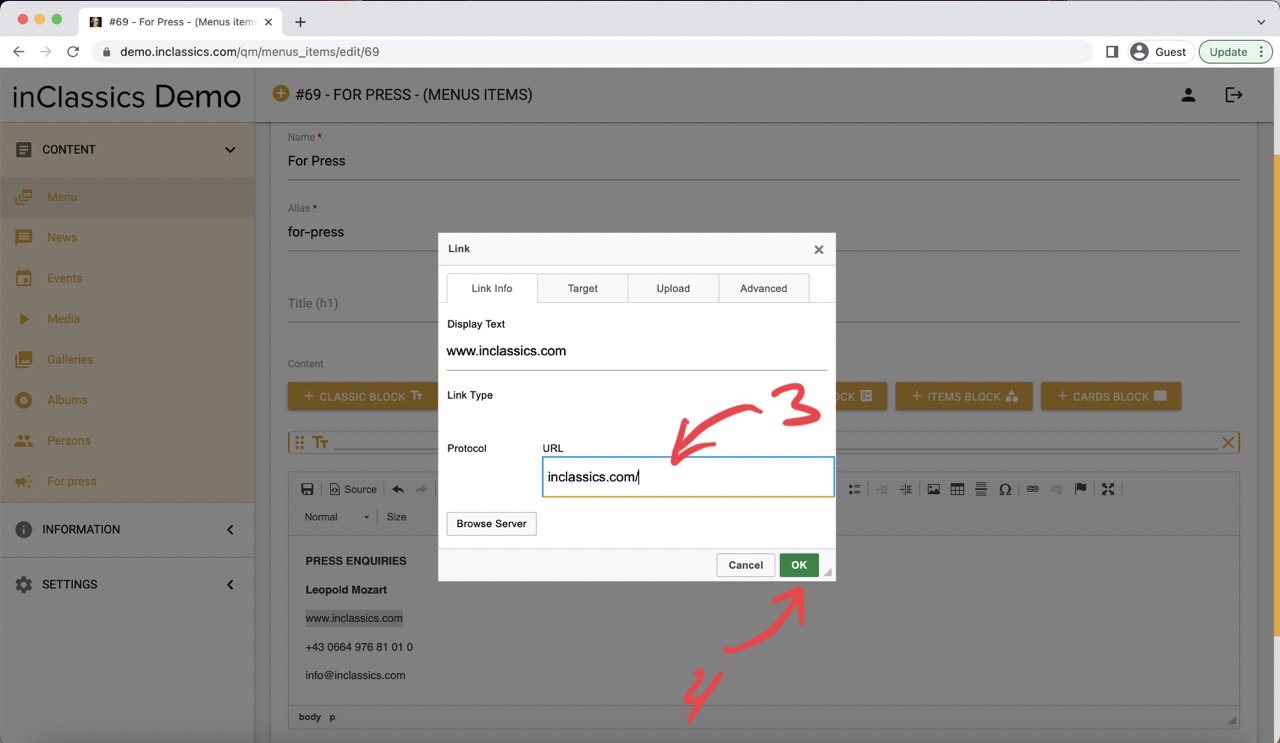
Website Link
- add text into your text editor (1)
- highlight (select) the text (1)
- click on the link icon (2)
- add link to the website into the URL field (3)
- click OK (4)
- click edit to save the changes
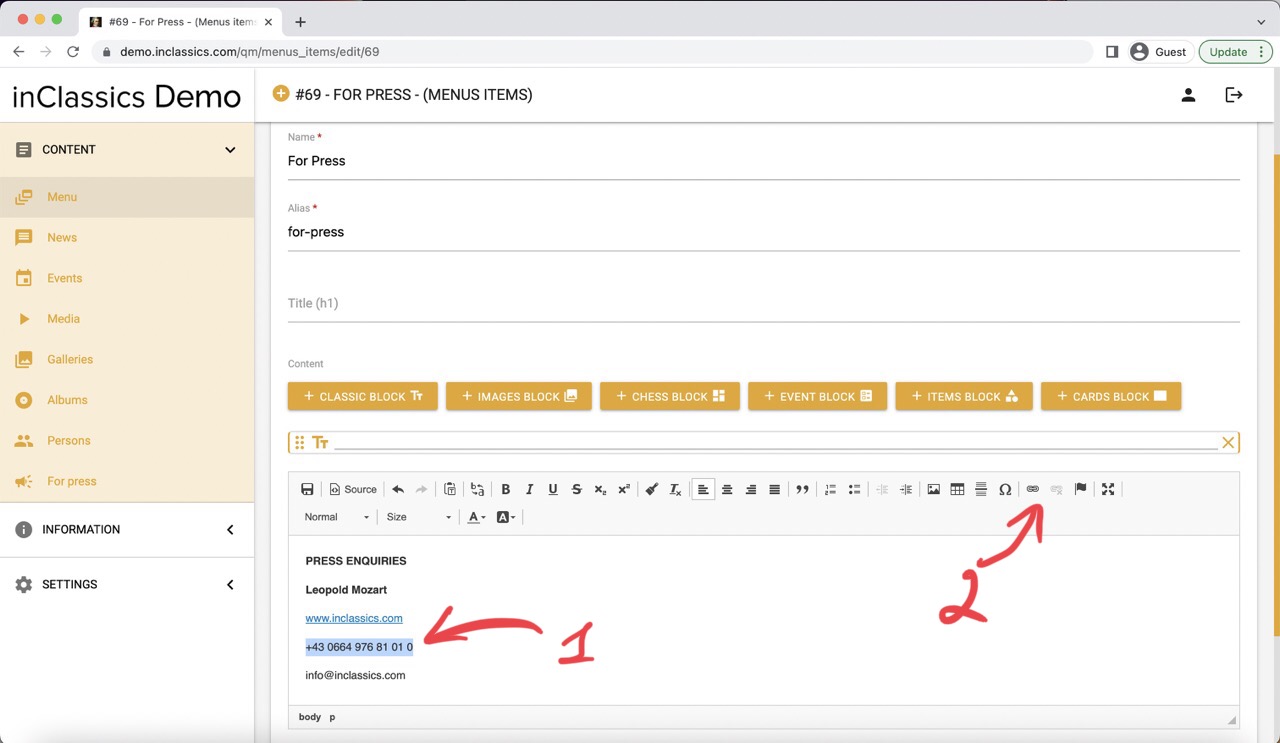
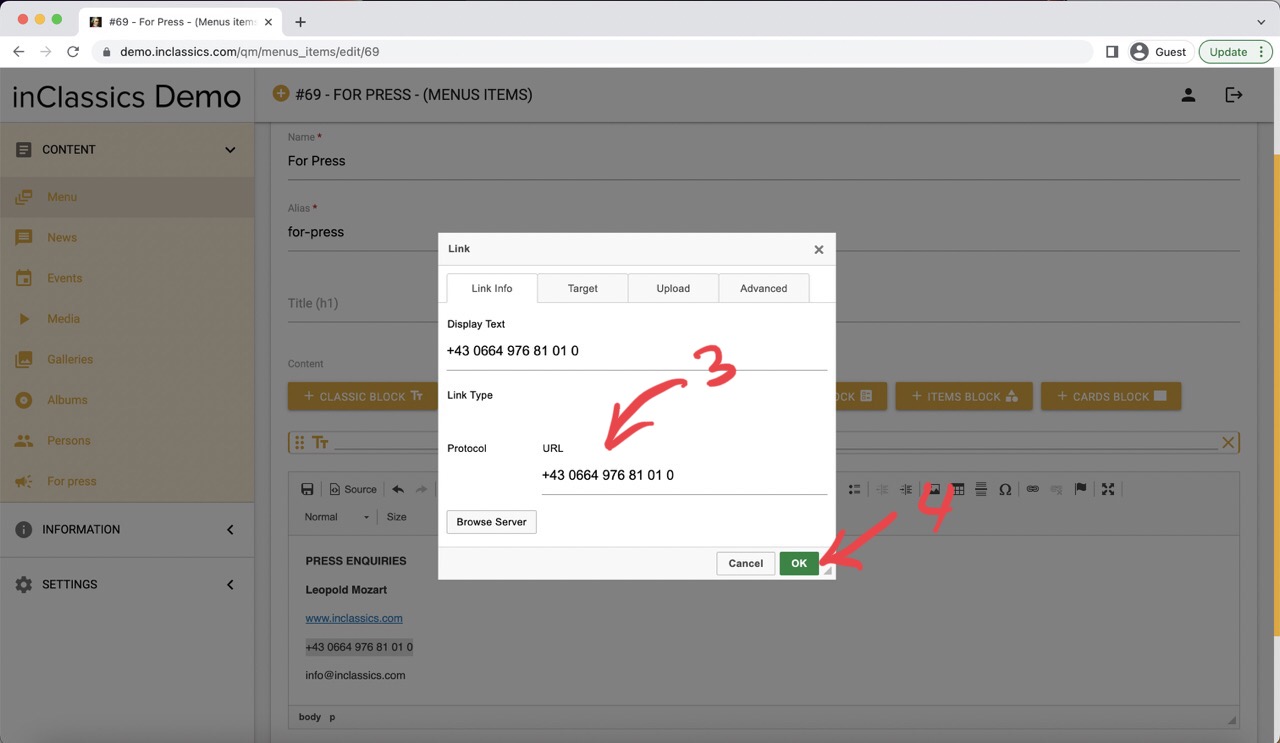
Phone Number Link
- add your phone number (1)
- highlight (select) your phone number (1)
- click on the link icon (2)
- enter the phone number into the URL field (3)
- click OK (4)
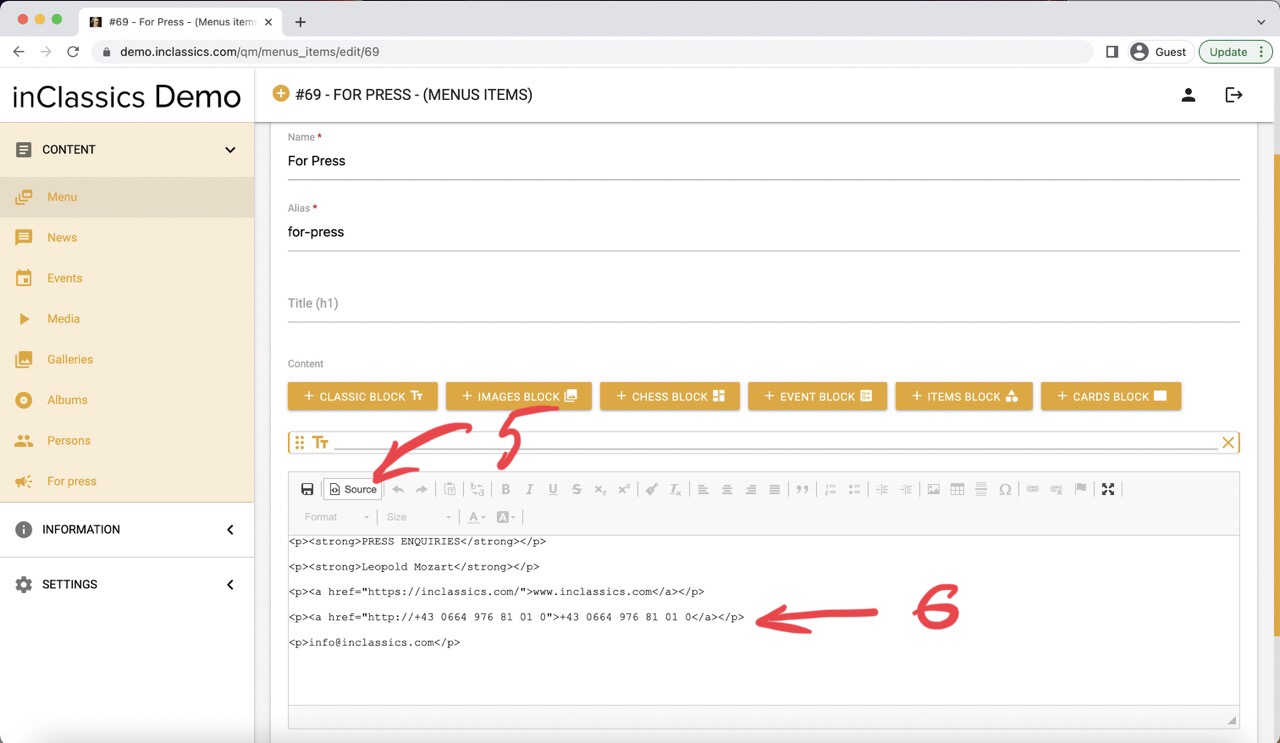
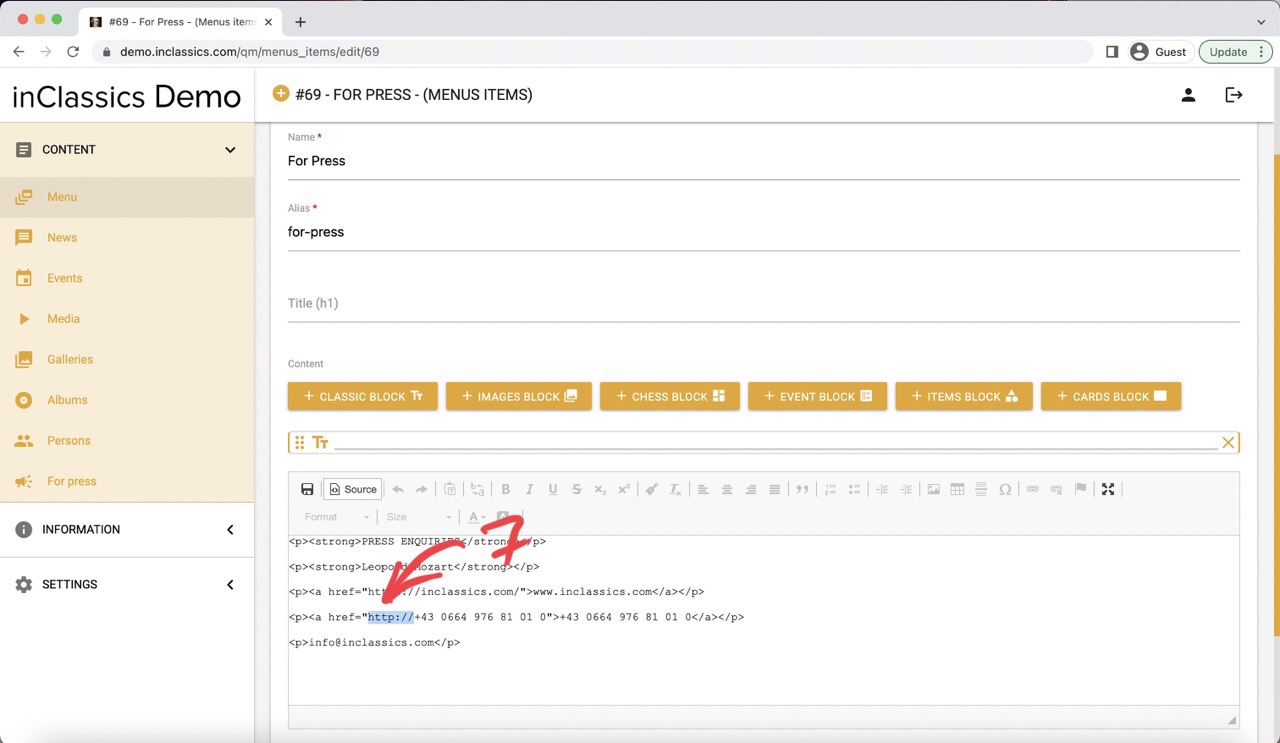
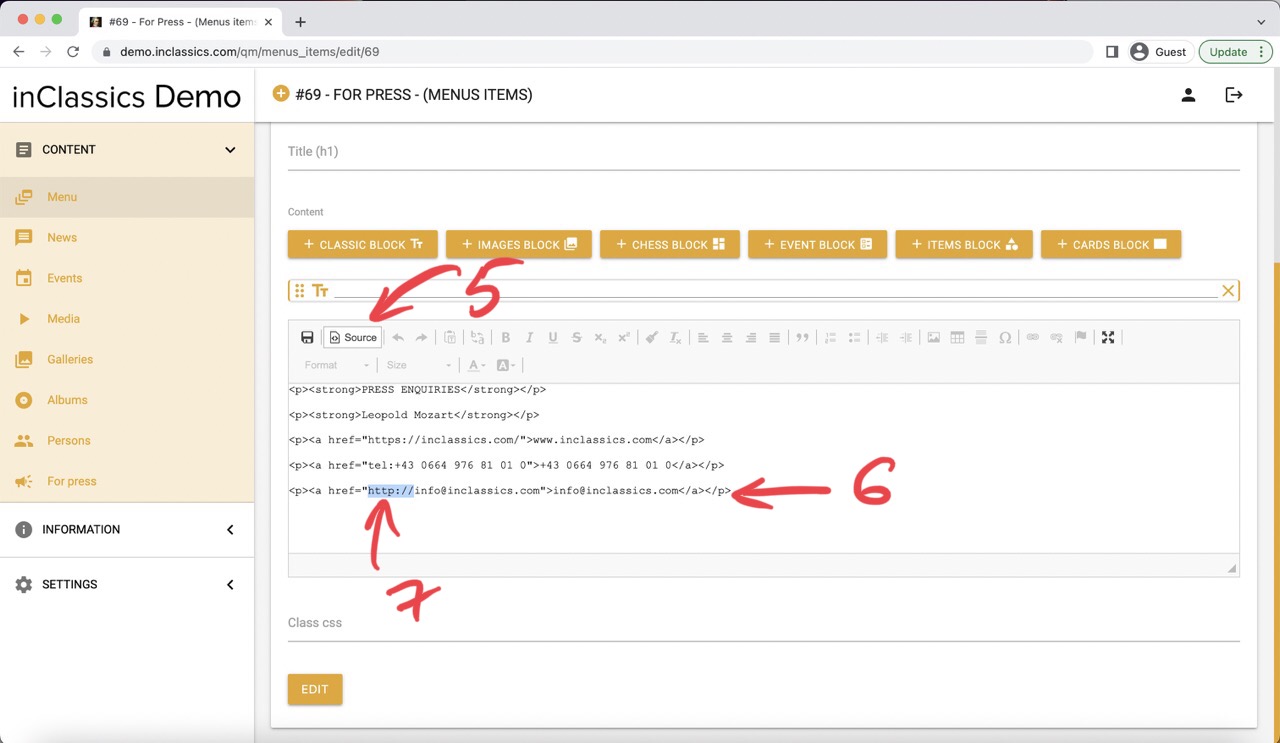
- click on the source button (5)
- find a line with your phone number (6)
- inside the quotes ("...") of href= highlight http:// or https:// (7)
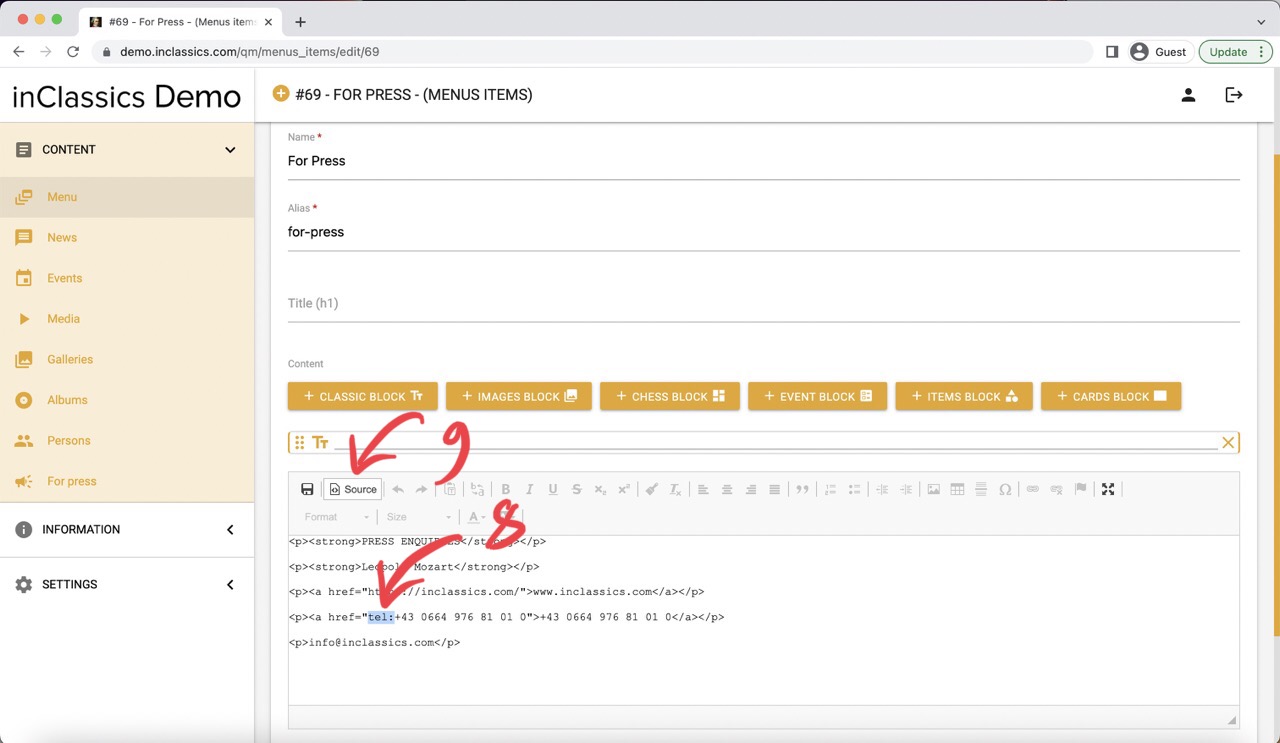
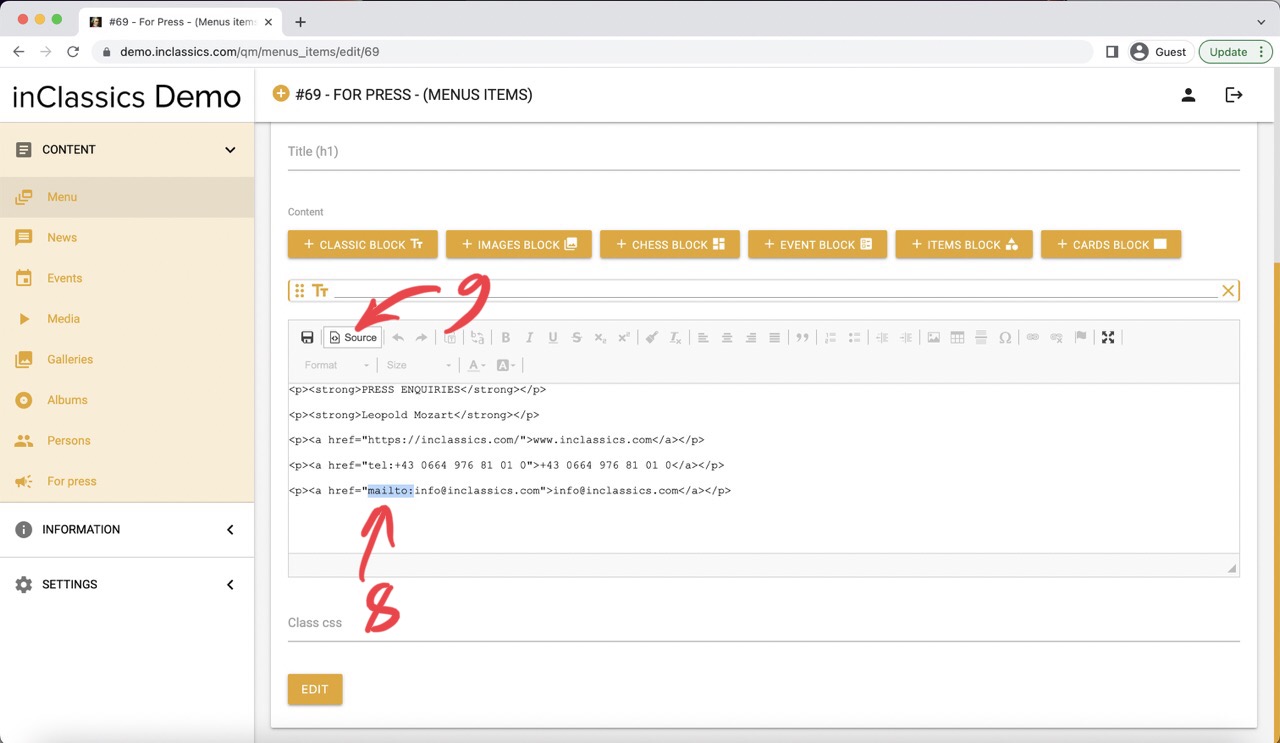
- remove highlighted text and replace it with tel: (8)
- click on the source button to go back to text editor (9)
- click edit to save the changes
Email Link
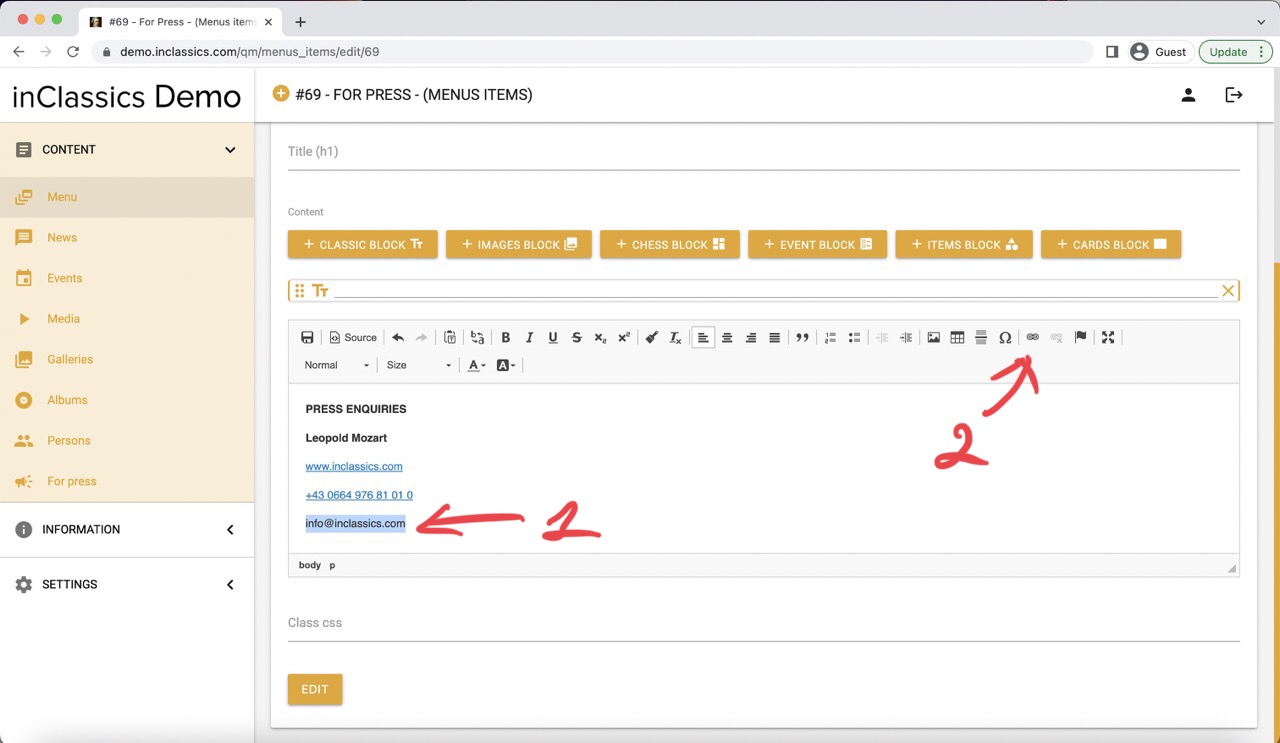
- add your email address (1)
- highlight (select) your email address (1)
- click on the link icon (2)
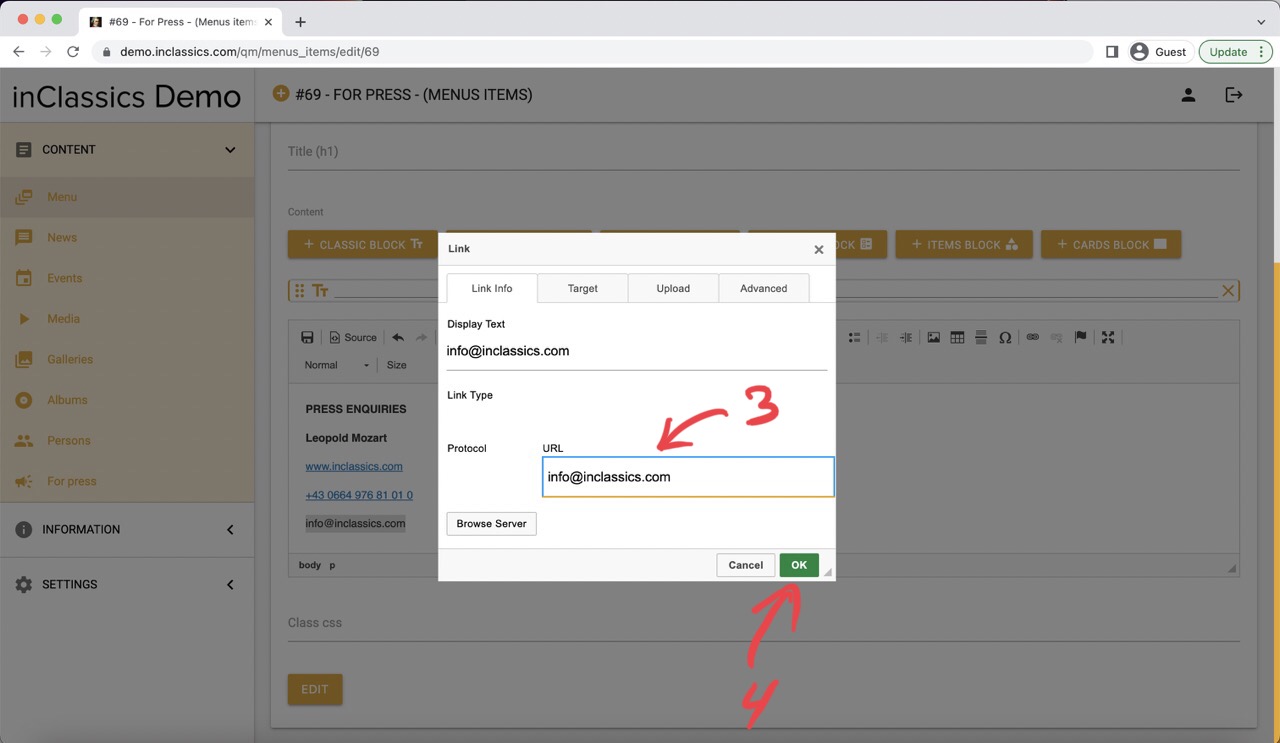
- enter the email address into the URL field (3)
- click OK (4)
- click on the source button (5)
- find a line with your email address (6)
- inside the quotes ("...") of href= highlight http:// or https:// (7)
- remove highlighted text and replace it with mailto: (8)
- click on the source button to go back to text editor (9)
- click edit to save the changes
Add Content Cards
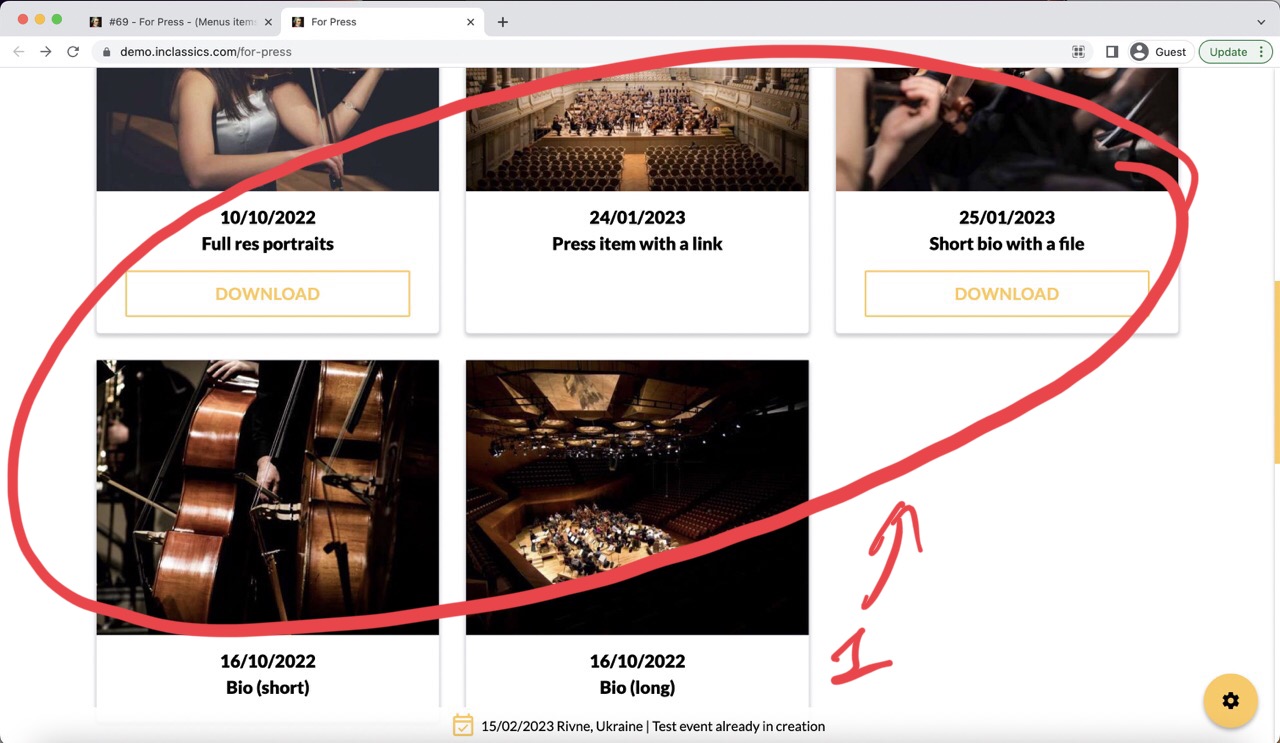
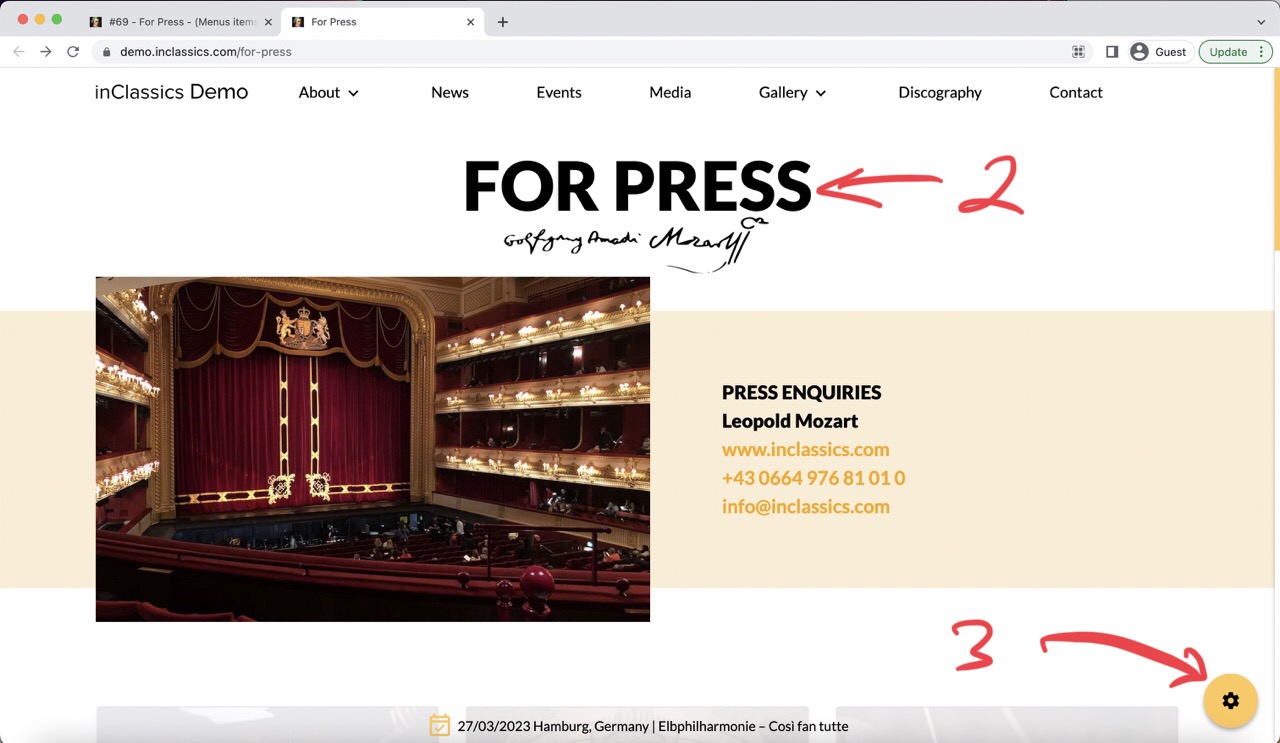
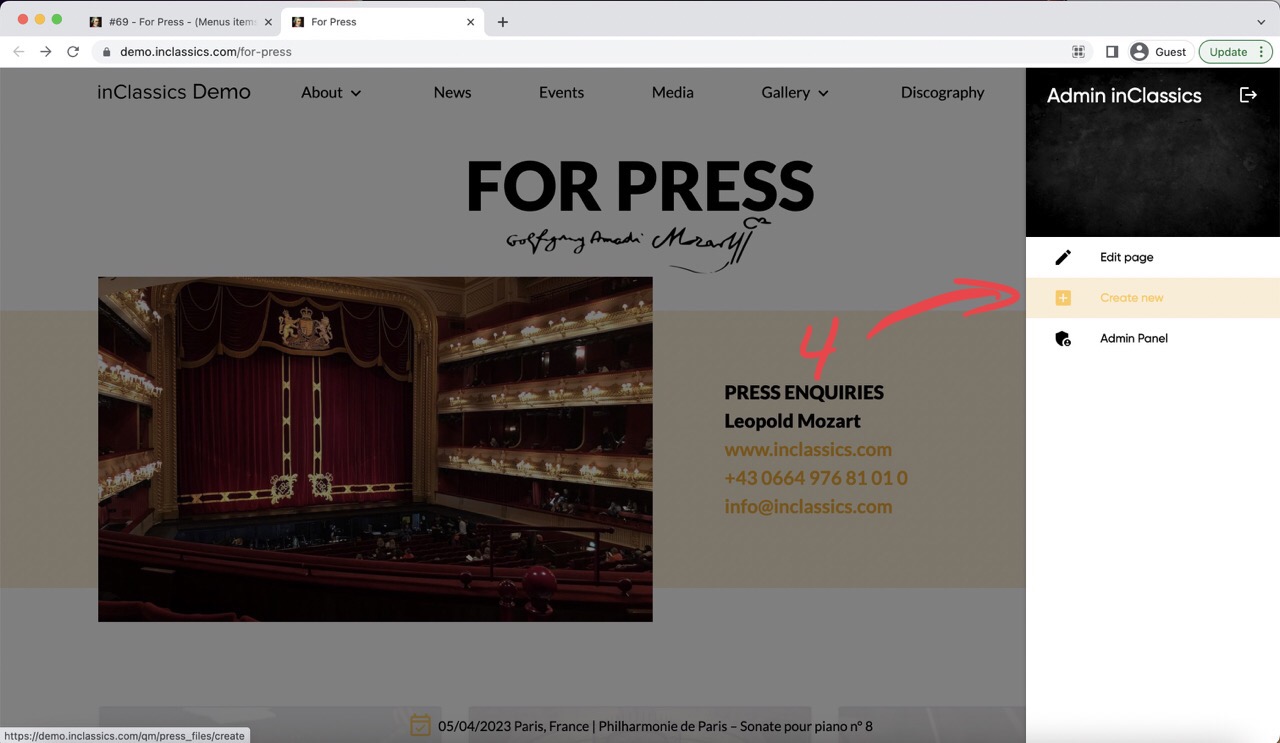
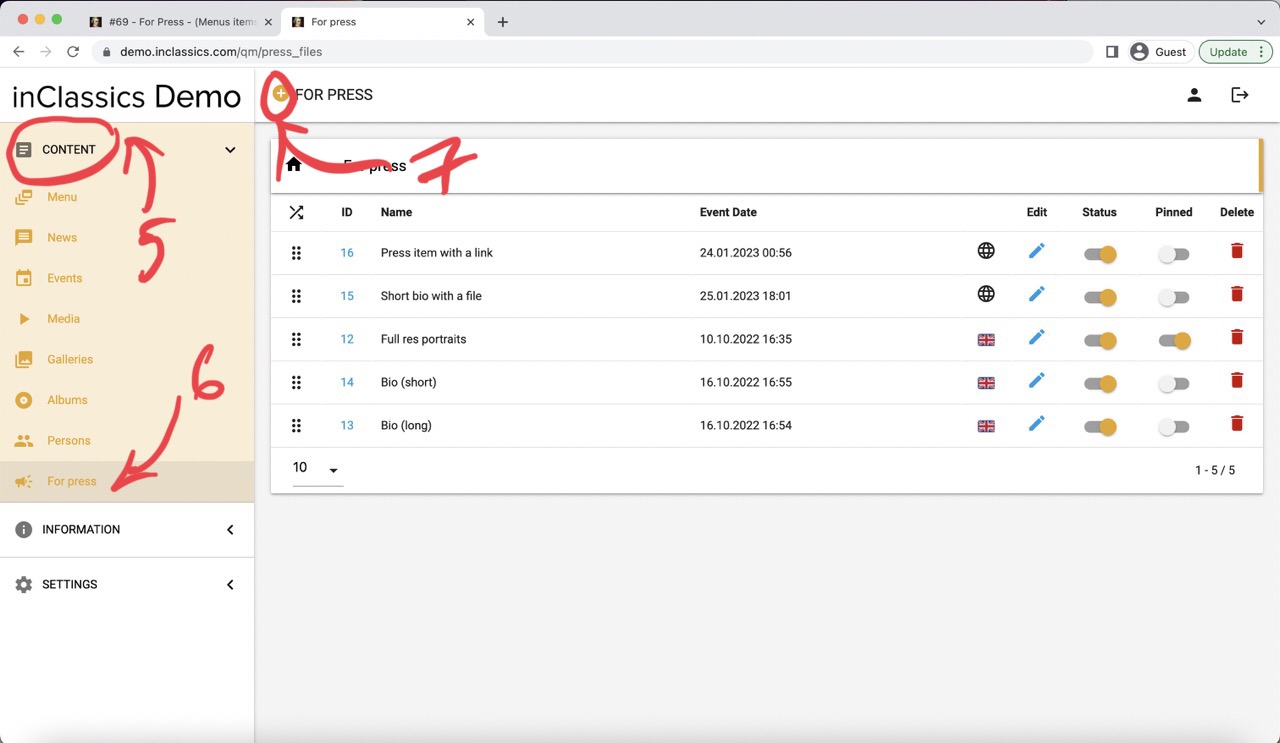
To add content cards (1) to your for-press page:
- go to your for press page (2)
- click on the settings button (3)
- click create new (4)
You can also do it from your admin panel:
- go to the content tab (5)
- for press (6)
- click on the plus icon next to your for press title (7)
Add content to cards
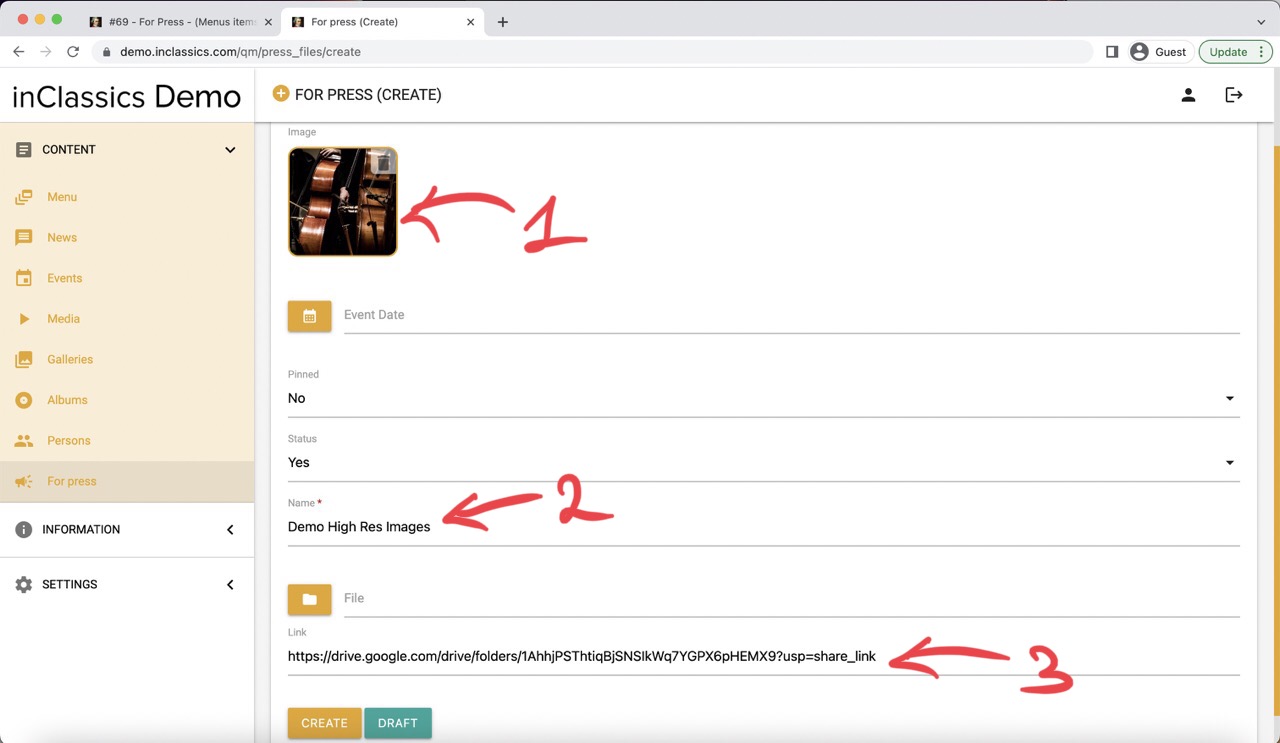
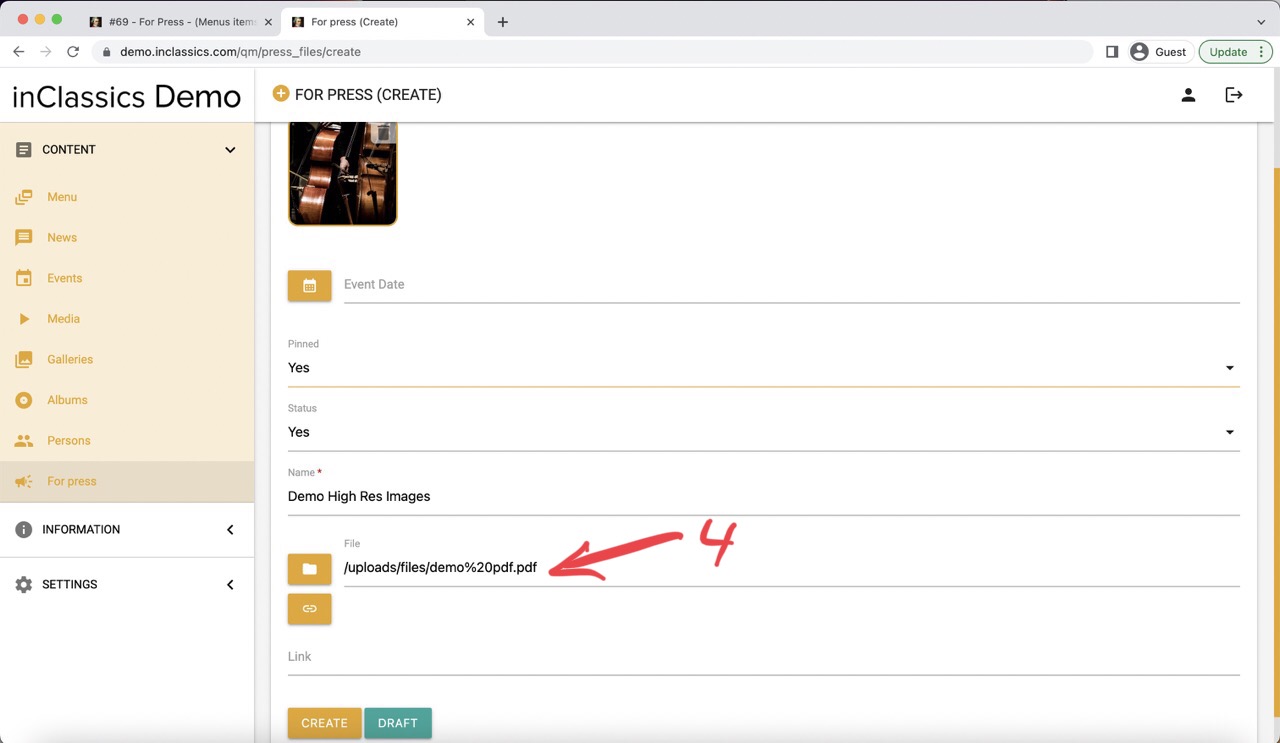
Here you can add:
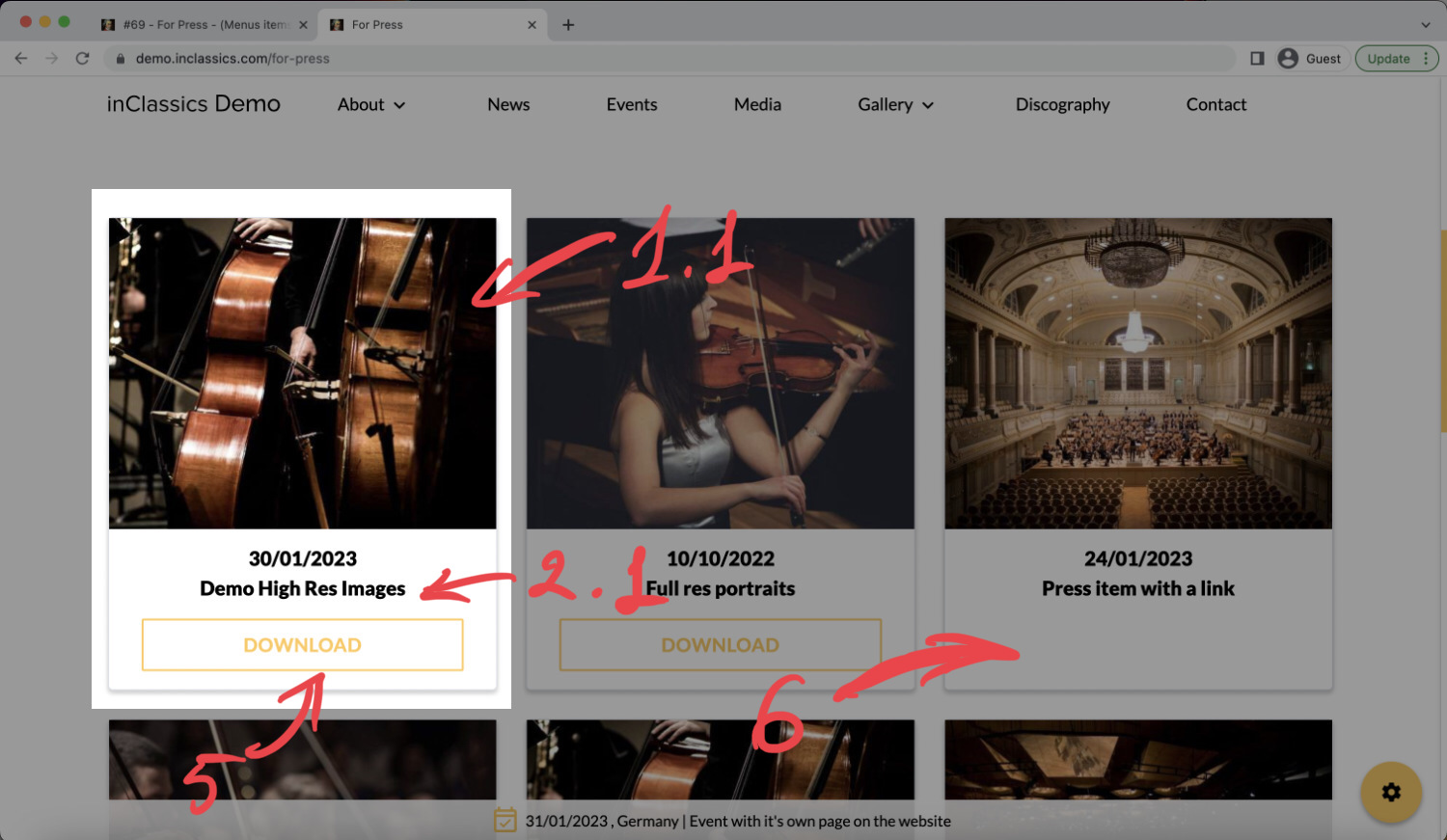
- image (1, 1.1)
- name (2, 2.1)
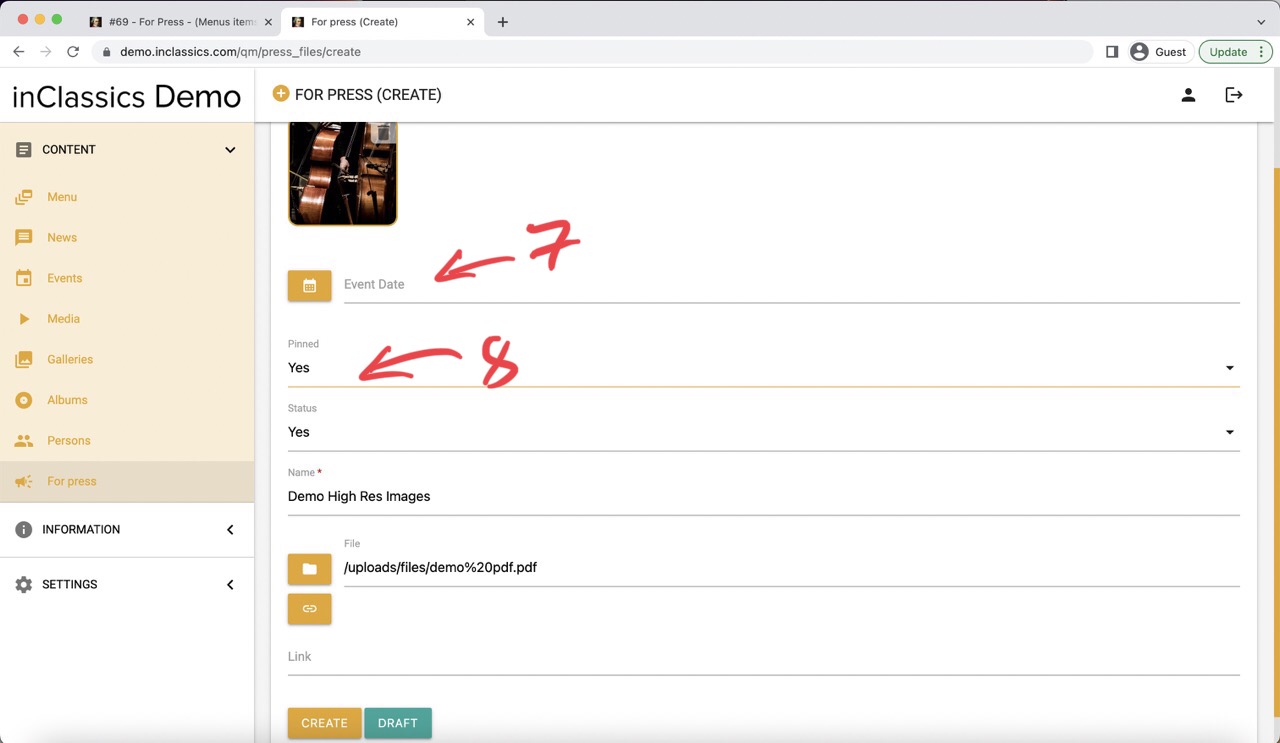
- link to another resource (like dropbox, google drive etc.) (3) OR a file (4)
Make sure that for one item you add either file OR link, not both at the same time.
If you choose a file, the download button will be added, pressing on the item will initiate file download (5)
If you insert the link, clicking on the card will open the external page (6)
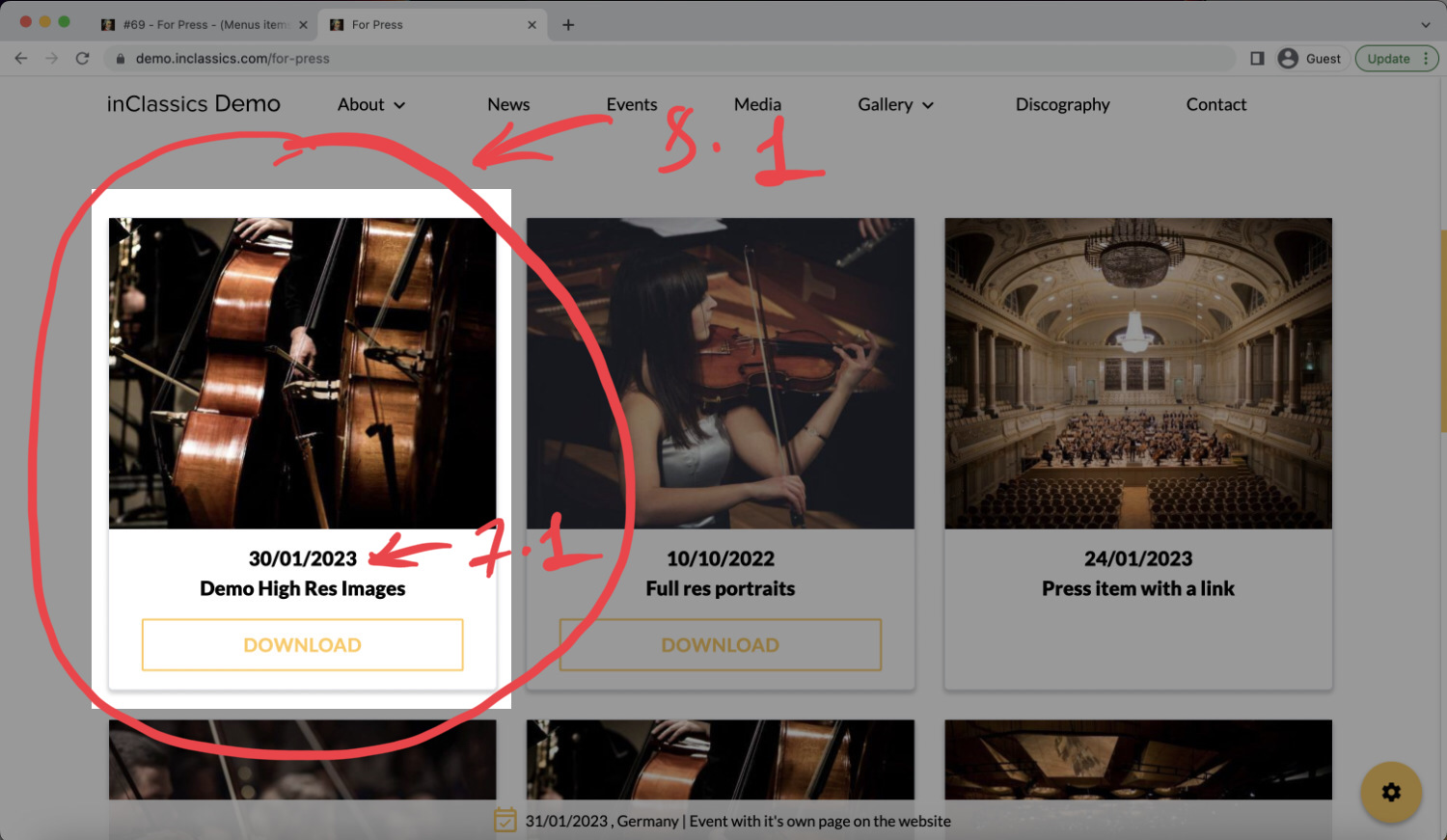
- date (7) (if left empty, will be set to the date of creation)
- choose pinned status (8) (the cards are sorted chronologically by date, if pinned status selected as "yes", the card will be always shown on the top of the page (8.1))
Manage Content Cards Items
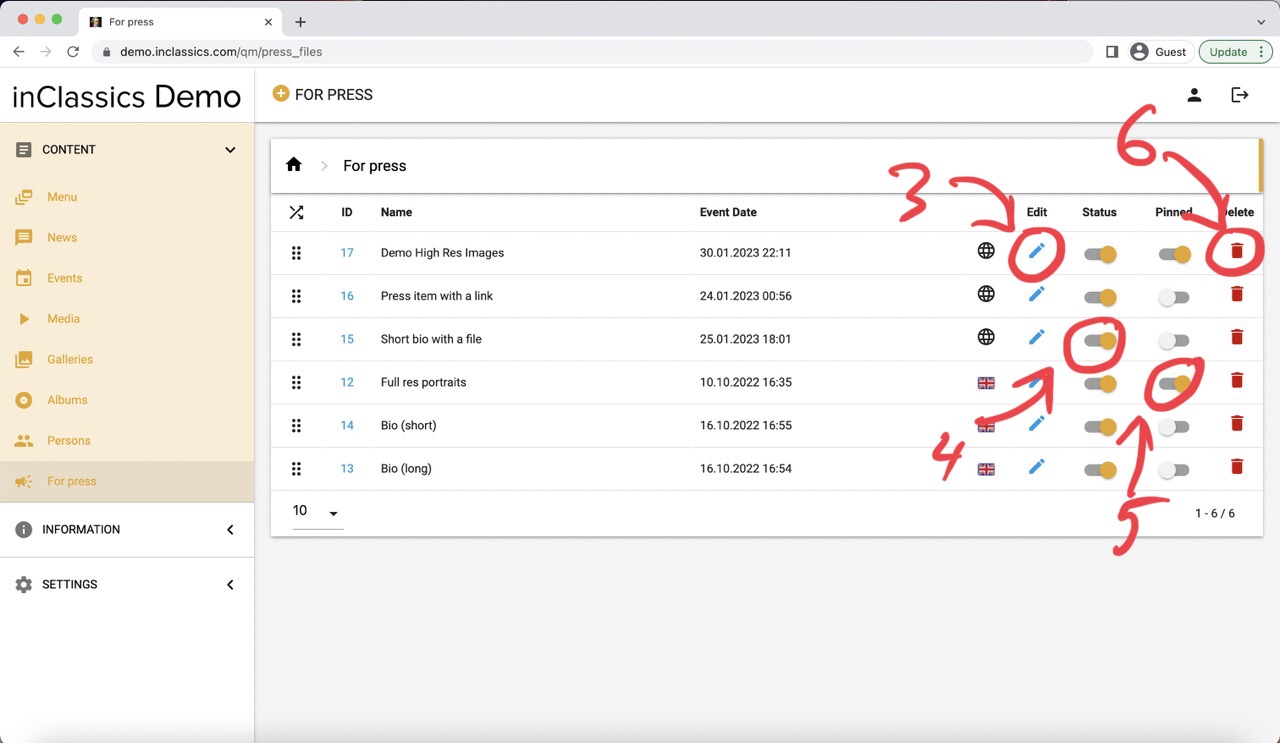
To manage your for-press items:
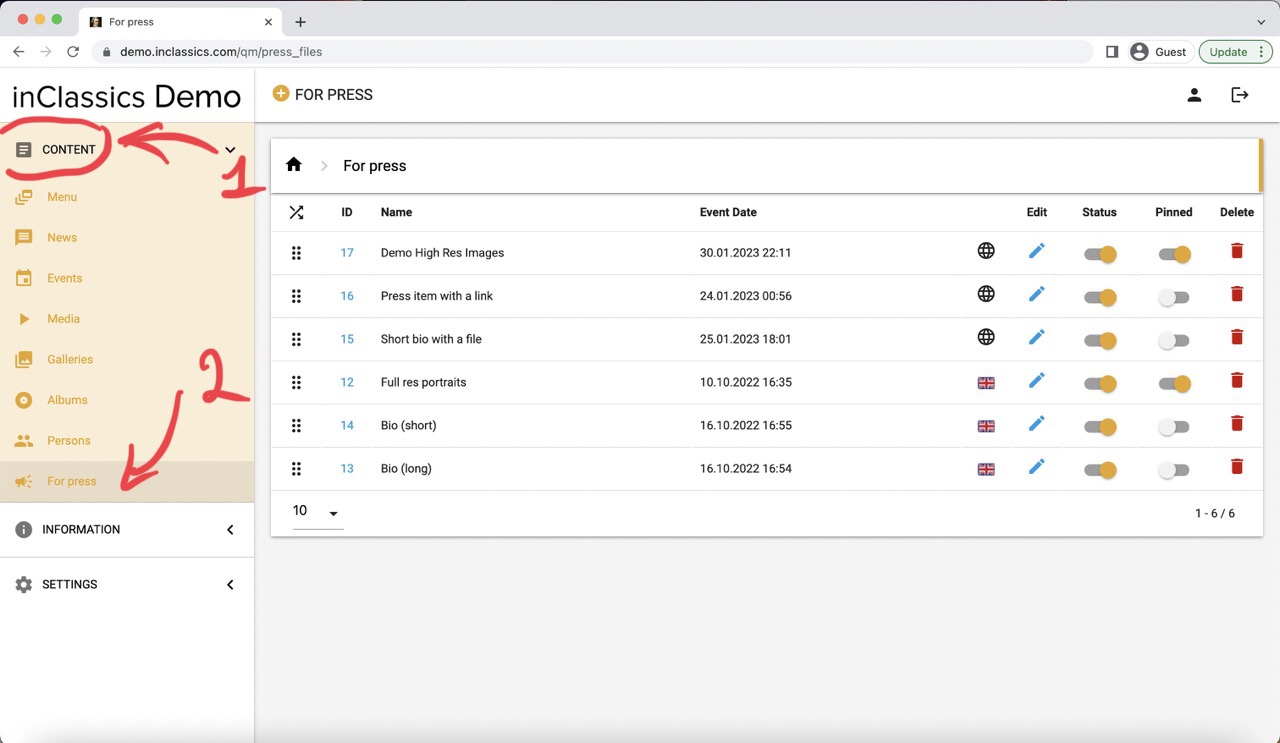
- go to the admin panel
- content tab (1)
- for press (2)
Here you can:
- edit the item (3)
- publish and unpublish it (4)
- choose where you want it to always stay on top (5)
- delete it (6)